
1. Bubuka
Welcome to Microsoft Flight Simulator 2004: A Century of Flight. This manual provides essential information for installing, operating, and maintaining your flight simulation software. This edition celebrates 100 years of powered flight, offering a diverse collection of aircraft and historical scenarios.

Image 1.1: The game box and accompanying manual for Microsoft Flight Simulator 2004: A Century of Flight.
2. Sarat Sistim
To ensure optimal performance, your computer system should meet or exceed the following minimum specifications:
- Sistem operasi: Windows 98/ME/2000/XP
- Prosesor: 450 MHz or higher
- RAM: 128 MB RAM (256 MB disarankeun)
- Hard drive: 1.8 GB spasi hard disk sadia
- Kartu vidéo: 16 MB DirectX 8.1 compatible video card (32 MB recommended)
- Kartu sora: DirectX 8.1 compatible sound card
- Gim Optik: 8x CD-ROM drive or faster
- Input: Keyboard and mouse (joystick or yoke recommended for enhanced experience)
3. Setup jeung Instalasi
Follow these steps to install Microsoft Flight Simulator 2004 on your PC:
- Selapkeun Disc 1: Place the first installation disc into your computer's CD-ROM or DVD-ROM drive. The setup program should start automatically. If it does not, navigate to 'My Computer', open your CD/DVD drive, and double-click 'Setup.exe'.
- Turutan ajakan dina layar: The installation wizard will guide you through the process. Read each screen carefully and click 'Next' to proceed.
- Accept License Agreement: You must accept the End User License Agreement (EULA) to continue the installation.
- Pilih Jenis Instalasi: Select 'Typical' for a standard installation or 'Custom' to choose specific components and installation directory.
- Lebetkeun konci produk: When prompted, enter the unique product key found on the back of your game manual or disc sleeve.
- Disc Swaps: The installer will prompt you to insert subsequent discs (Disc 2, Disc 3, Disc 4) as needed to complete the installation.
- Pamasangan lengkep: Sakali sadayana files are copied, click 'Finish' to exit the installer.
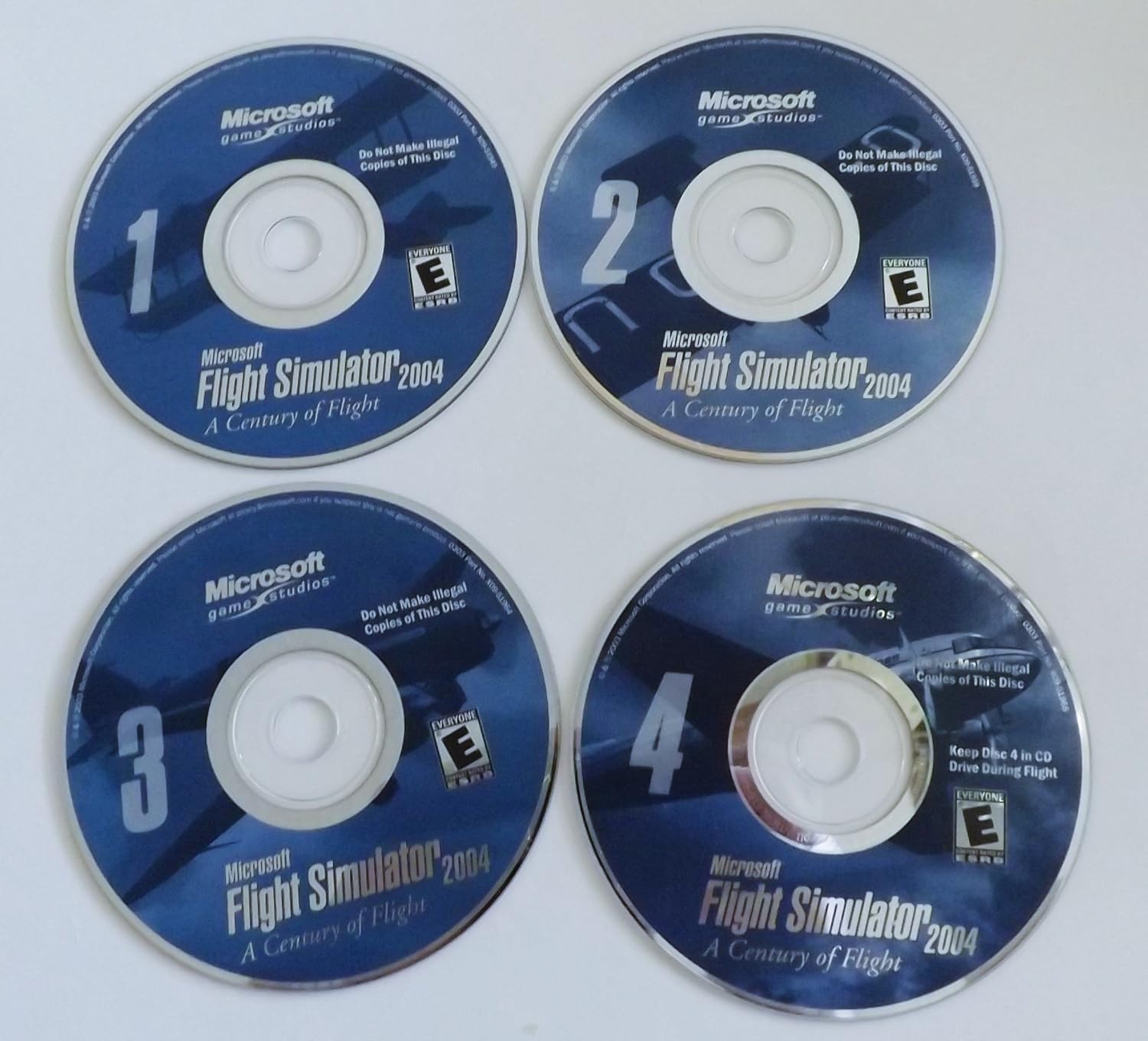
Image 3.1: The four installation discs for Microsoft Flight Simulator 2004. Disc 4 is typically required to be in the drive during gameplay.
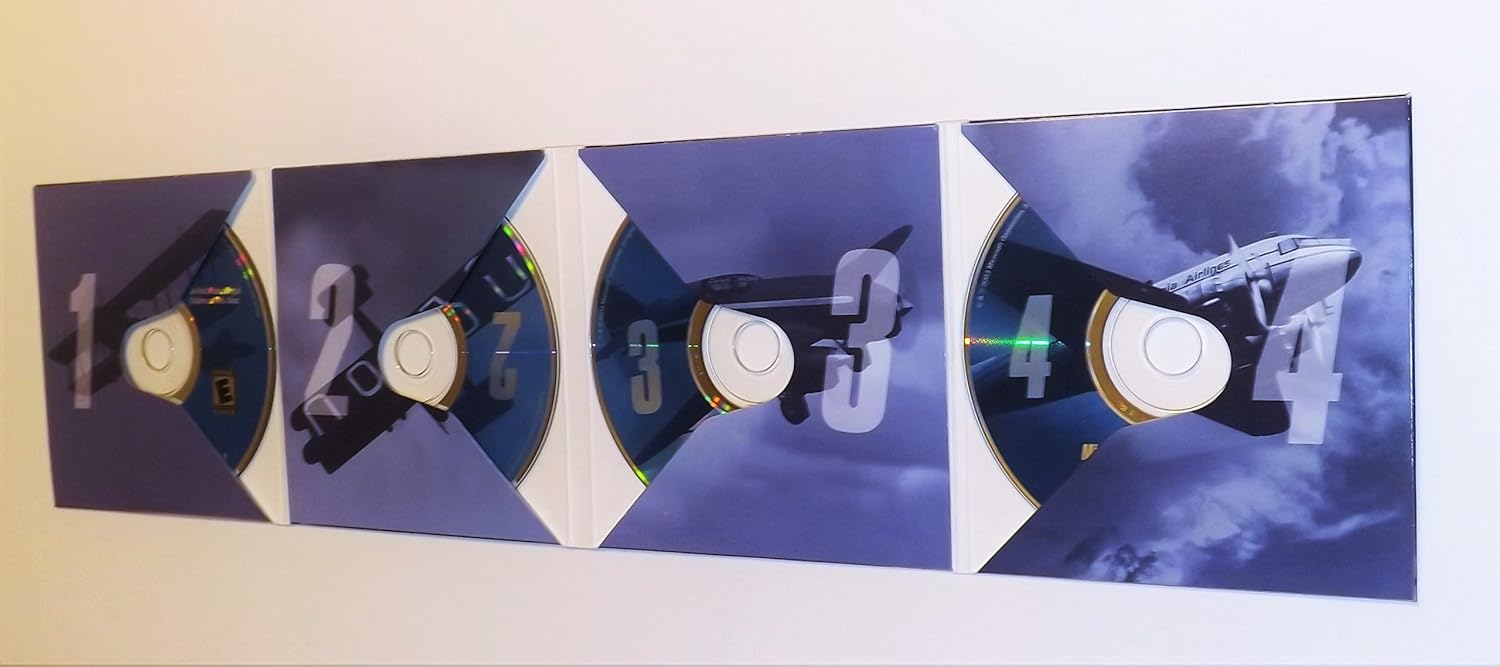
Image 3.2: The game's disc holder, opened to reveal the four installation discs.
4. Operating the Software
4.1 Mimitian Kaulinan
After successful installation, ensure Disc 4 is in your CD/DVD drive. You can launch the game from the desktop shortcut or the 'Start Menu' > 'Programs' > 'Microsoft Games' > 'Microsoft Flight Simulator 2004'.
4.2 Fitur konci
- Dynamic Weather System: Experience realistic atmospheric physics with true three-dimensional clouds that form and dissipate, influencing flight conditions.
- Worldwide Scenery: Explore accurate 3D terrain and auto-generated objects that populate the world with appropriate buildings and vegetation.
- Enhanced Interactive Air Traffic Control (ATC): Engage with realistic ATC, including traffic at all airports globally, for an immersive flight experience.
- Improved Graphics Hardware Acceleration: Benefit from enhanced support for 3D graphics hardware acceleration across multiple windows and monitors.
- Multiplayer: Connect with 1 or more players over a Local Area Network (LAN) or the Internet for shared flight experiences.
4.3 Kadali Dasar
The game supports keyboard, mouse, and joystick/yoke inputs. Familiarize yourself with the default key assignments, which can be customized within the game's 'Controls' menu.
- Elevator (Pitch): Joystick Y-axis / Keyboard Up/Down Arrows
- Ailerons (Roll): Joystick X-axis / Keyboard Left/Right Arrows
- Rudder (Yaw): Joystick Z-axis / Keyboard Numpad 0/Enter
- Throttle: Joystick slider / Keyboard F1 (idle) to F4 (full)
- Flaps: Keyboard F5 (retract) to F8 (extend)
- Pendaratan Gear: Keyboard G
- Rem: Keyboard Period (.)
4.4 Modeu Kaulinan
- Free Flight: Choose any aircraft, location, and weather conditions to explore the world.
- Flight Lessons: Learn fundamental and advanced flying techniques with interactive tutorials.
- Historical Flights: Recreate famous flights from aviation history, celebrating a century of flight.
- Multiplayer: Fly with or against other players online or on a local network.
5. Pangropéa
Proper care of your game discs and system can help ensure continued enjoyment of Microsoft Flight Simulator 2004.
- Perawatan Cakram: Keep game discs clean and free of scratches. Store them in their original case when not in use. Use a soft, lint-free cloth to wipe discs from the center outwards if cleaning is necessary.
- Apdet Sistim: Ensure your operating system and graphics drivers are up to date for optimal performance and compatibility.
- Ruang Hard Drive: Periodically check for sufficient free hard drive space, as this can impact game performance.
6. Cara ngungkulan
Upami anjeun mendakan masalah, pertimbangkeun solusi umum ieu:
- Kasalahan Pamasangan: Ensure your system meets the minimum requirements. Clean the installation discs and try again. Temporarily disable antivirus software during installation if it interferes.
- Kaulinan teu dimimitian: Verify that Disc 4 is in the drive. Check that your graphics drivers are current. Reinstall DirectX if necessary.
- Poor Performance/Low Frame Rate: Reduce in-game graphics settings (e.g., scenery density, cloud detail). Ensure your graphics card drivers are updated. Close unnecessary background applications.
- Masalah Controller: Calibrate your joystick or yoke through Windows control panel settings. Ensure the controller is properly connected before launching the game.
- Masalah sora: Check your sound card drivers and in-game audio settings. Ensure speakers or headphones are correctly connected.
7. Spésifikasi
| Fitur | Rincian |
|---|---|
| Judul produk | Microsoft Flight Simulator 2004: A Century of Flight |
| Platform | PC |
| Nomer modél | G13-00079 |
| Produsén | Microsoft |
| Tanggal paleupasan | 13 Januari 2004 |
| Basa | Inggris |
| Item Beurat | 6.4 ons |
| Dimensi produk | 5.35 x 0.55 x 7.5 inci |
| Peunteun ESRB | dulur |
8. Émbaran jaminan
Microsoft Flight Simulator 2004 is covered by a limited warranty against defects in materials and workmanship. For specific details regarding the warranty period and terms, please refer to the End User License Agreement (EULA) included with your software or visit the official Microsoft support website. This warranty typically covers the physical media (discs) for a limited time from the date of purchase.
9. Rojongan Palanggan
For technical assistance, frequently asked questions, or additional resources, please visit the official Microsoft support website. You may also find community forums and fan-created resources helpful for gameplay tips and advanced configurations.
- Rojongan Microsoft resmi: support.microsoft.com
- Flight Simulator Community Forums: Search online for 'Flight Simulator 2004 forums' for community-driven support.