
1. Bubuka
This manual provides instructions for the installation, operation, and maintenance of your StarTech.com SLIMDVDRW8U2 External Slim USB 2.0 DVD+/-RW Dual Layer Drive. This device allows you to read and write data to DVD and CD media using a standard USB 2.0 connection, offering portability and convenience for laptops and desktop PCs without an internal optical drive.
2. Eusi Paket
Pariksa yén pakét anjeun ngandung barang-barang ieu:
- 1x StarTech.com SLIMDVDRW8U2 External Slim USB 2.0 DVD+/-RW Drive
- 1x USB 2.0 A to B Cable
- 1 x Manual Instruksi
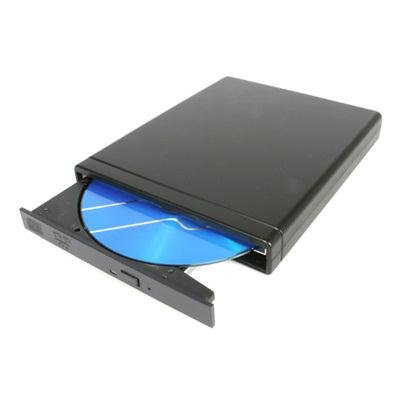
Image: The StarTech.com SLIMDVDRW8U2 external slim DVD+/-RW drive, shown with its sleek black casing and USB port.
3. Sarat Sistim
Before installing the drive, ensure your system meets the following requirements:
- Available USB 2.0 port (or higher, compatible with USB 2.0)
- Operating System: Windows XP/Vista/7/8/10/11, macOS, or Linux (with USB mass storage device support)
- For DVD/CD burning, compatible burning software may be required (not included).
4. Setélan
Follow these steps to connect and prepare your external DVD drive for use:
- Sambungkeun kabel USB: Plug the USB Type-B connector of the provided USB cable into the corresponding port on the external DVD drive.
- Nyambung ka Komputer: Plug the USB Type-A connector of the cable into an available USB 2.0 port on your computer (laptop or desktop PC).
- Pamasangan supir: The drive is plug-and-play. Your operating system should automatically detect and install the necessary drivers. This process may take a few moments.
- Verifikasi: Once drivers are installed, the drive will appear as an optical drive in "My Computer" (Windows) or "Finder" (macOS).
5. Parentah Operasi
This section details how to use your external DVD drive for reading and writing optical media.
5.1. Nyelapkeun Disk
- Ensure the drive is connected to your computer and powered on (indicated by an LED, if present).
- Press the eject button on the front of the drive. The disc tray will open.
- Carefully place a CD or DVD onto the tray, ensuring it is centered with the label side facing up.
- Gently push the tray back into the drive until it clicks shut. The drive will begin to read the disc.
5.2. Ngaluarkeun Disk
- Software Eject (Recommended): Right-click on the optical drive icon in "My Computer" (Windows) or drag the disc icon to the Trash (macOS) and select "Eject".
- Hardware Eject: Press the eject button on the front of the drive. If the disc is in use, the tray may not open. Ensure no applications are accessing the disc before using the hardware eject button.
5.3. Reading Data from a Disc
Once a disc is inserted and recognized by your operating system, you can access its contents. Double-click the drive icon to browse files, or use media player software to play audio CDs or video DVDs.
5.4. Writing Data to a Disc (Burning)
To write data to a blank CD-R/RW or DVD-R/RW disc, you will need compatible burning software. Many operating systems include basic burning capabilities, or you can use third-party software. Follow the instructions provided with your chosen burning software.
- Insert a blank, recordable disc (CD-R/RW, DVD-R/RW, DVD+R/RW, DVD+R DL).
- Open your burning software and select the type of project (data disc, audio CD, video DVD, etc.).
- Tambahkeun ka files or media you wish to burn to the disc.
- Initiate the burning process. Do not disconnect the drive or interrupt the process until completion.
6. Pangropéa
Proper care ensures the longevity and optimal performance of your drive.
- Ngabersihan Luar: Use a soft, dry, lint-free cloth to wipe the exterior of the drive. Avoid abrasive cleaners or solvents.
- Ngabersihan lensa: Do not attempt to clean the internal optical lens manually. Use a specialized CD/DVD lens cleaning disc if necessary.
- Penanganan Cakram: Always handle discs by their edges. Avoid touching the data surface. Store discs in protective cases when not in use.
- Panyimpenan: Store the drive in a cool, dry place away from direct sunlight and extreme temperatures.
- Ngahindarkeun Debu: Keep the drive in a clean environment to prevent dust accumulation, which can affect performance.
7. Cara ngungkulan
If you encounter issues with your external DVD drive, refer to the following common problems and solutions:
7.1. Drive Not Recognized by Computer
- Pariksa sambungan: Pastikeun kabel USB disambungkeun pageuh kana drive sareng port USB komputer anjeun.
- Coba Port USB séjén: Connect the drive to a different USB port on your computer.
- Balikan deui Komputer: Sometimes a simple restart can resolve detection issues.
- Check Device Manager (Windows): Open Device Manager and look for "DVD/CD-ROM drives." If there's an exclamation mark, try updating or reinstalling the driver.
- Check System Information (macOS): Go to Apple Menu > About This Mac > System Report > USB. Check if the drive is listed.
7.2. Disc Read Errors or Slow Performance
- Cakram Bersih: Inspect the disc for scratches, smudges, or dirt. Gently clean it with a soft, lint-free cloth from the center outwards.
- Try Another Disc: Test with a different, known-good disc to determine if the issue is with the drive or the disc itself.
- Ngabersihan lensa: Use a specialized CD/DVD lens cleaning disc.
- Resource Usage: Tutup aplikasi nu nungtut lianna nu bisa jadi ngonsumsi sumber daya sistem.
7.3. Disc Tray Does Not Open/Close
- Pariksa kakuatan: Ensure the drive is properly connected and receiving power.
- Ngaluarkeun Parangkat Lunak: Attempt to eject the disc through your operating system's software interface first.
- Ngaluarkeun sacara manual: If the tray is stuck, locate the small emergency eject hole (often near the eject button). Insert a straightened paperclip into the hole and push gently to manually open the tray.
8. Spésifikasi
| Fitur | Spésifikasi |
|---|---|
| Nomer modél | SLIMDVDRW8U2 |
| Panganteur Hardware | USB 2.0 |
| Panyimpenan optik Speed Tulis | 8x (DVD), 24x (CD) |
| Panyimpenan optik Speed Baca | 8x (DVD), 24x (CD) |
| Platform hardware | Laptop, PC |
| Alat nu cocog | Most personal computers and laptops with a USB 2.0 port |
| Téhnologi konektipitas | USB |
| Faktor Bentuk | Slim External |
| Item Beurat | 1.92 Pon (kira-kira 0.87 kg) |
| Sumber Daya | USB Powered |
9. Garansi sareng Rojongan Téknis
StarTech.com provides a comprehensive warranty for its products. For specific warranty details, please refer to the warranty information included with your product or visit the official StarTech.com websitus.
For technical support, troubleshooting assistance, or to download the latest drivers and manuals, please visit the StarTech.com support websitus atanapi ngahubungan departemén layanan palanggan maranéhna. Inpormasi kontak biasana tiasa dipendakan dina bungkusan produk atanapi resmi websitus.
Websitus: www.startech.com/support