
1. Bubuka
This manual provides instructions for the D-Link Wireless-N USB Network Starter Kit (DKT-408). This kit includes a Wireless-N Router (DIR-615) and a Wireless-N USB Adapter (DWA-130), designed to facilitate the establishment of a wireless network in home or office environments.
Fitur konci
- Share Internet Access with PCs, Game Consoles & Media Players
- Firewall Protection for your Network
- Parental Controls to Supervise Internet Activity
- Powerful Wireless N 300 technology for superior wireless performance, clarity, and coverage
- Single-band Wireless N connectivity
- Intelligent QoS technology prioritizes both wired and wireless Internet traffic
- Wi-Fi Protected Setup (WPS) for secure, simple 1-button setup
- 4 High Speed Ethernet ports for fast wired connectivity
2. Eusi Paket
Verify that your DKT-408 kit contains the following items:
- D-Link Wireless N 300 Router (DIR-615)
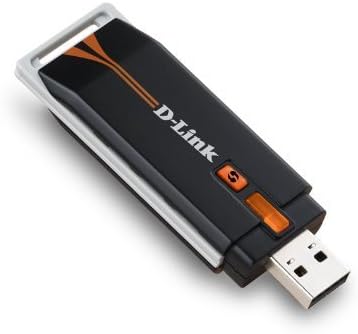
- D-Link Wireless N USB Adapter (DWA-130)
- Power Adapter for Router
- Kabel Ethernet
- Setup CD-ROM
- Guide Instalasi Gancang
Lamun aya item nu leungit atawa ruksak, mangga ngahubungan pangecér Anjeun.
3. Parentah Setup
3.1. D-Link Wireless N 300 Router (DIR-615) Setup
The D-Link Quick Router Setup Wizard simplifies the configuration process. Follow these steps to set up your router:
- Unpack the router and place it in a central location for optimal wireless coverage.
- Sambungkeun modem anjeun ka INTERNET port (yellow) on the back of the DIR-615 router using an Ethernet cable.
- Sambungkeun adaptor daya kana input daya router teras colokkeun kana stop kontak listrik.
- Wait for the power LED on the router to become solid.
- Insert the Setup CD-ROM into your computer's CD/DVD drive and follow the on-screen instructions provided by the D-Link Quick Router Setup Wizard. This wizard will guide you through configuring your Internet connection, wireless network settings, and security.
- Alternatively, you can connect a computer directly to one of the LAN ports (blue) on the router using an Ethernet cable and access the router's web-based interface by typing
http://dlinkrouterorhttp://192.168.0.1kana Anjeun web browser.


3.2. D-Link Wireless N USB Adapter (DWA-130) Setup
The D-Link Quick Adapter Setup Wizard will guide you through the installation of the DWA-130 USB Adapter. This adapter provides Wireless N connectivity for your computer.
- Insert the Setup CD-ROM into your computer's CD/DVD drive.
- Follow the on-screen instructions to install the necessary drivers and the Wireless Connection Manager software.
- Once prompted, plug the DWA-130 USB Adapter into an available USB 2.0 port on your desktop or notebook computer.
- For desktop users, a desktop cradle is included to position the adapter for optimal signal reception.
- Use the Wireless Connection Manager to scan for available wireless networks and connect to your newly configured D-Link network.
4. Operating Your Network
4.1. Alat Sambungkeun
Once your router is set up, you can connect devices wirelessly or via Ethernet cables. For wireless connections, use the network name (SSID) and password configured during setup. For wired connections, plug an Ethernet cable from your device into any of the blue LAN ports on the router.
4.2. Network Security (WPS)
The DIR-615 router supports Wi-Fi Protected Setup (WPS) for easy and secure wireless connections. Press the WPS button on the router and then activate WPS on your wireless device (e.g., the DWA-130 adapter) within two minutes to establish a secure connection without manually entering a password.
4.3. Kualitas Palayanan (QoS)
The router features QoS prioritization technology. This function analyzes and separates multiple data streams based on their sensitivity to delay, ensuring smoother performance for applications like online gaming and Voice over IP (VoIP) calls across your network.
4.4. Kadali kolot
The DIR-615 router includes parental control features, allowing you to supervise and manage Internet activity on your network. Refer to the router's web-based interface for configuration options to restrict access to certain websites or set time limits for Internet usage.
5. Pangropéa
To ensure optimal performance and longevity of your D-Link Wireless-N USB Network Starter Kit, consider the following maintenance tips:
- Pembaruan firmware: Periodically check the D-Link support website for firmware updates for your DIR-615 router. Firmware updates can improve performance, add new features, and address security vulnerabilities.
- Penempatan fisik: Place the router in an open area, away from obstructions, large metal objects, and devices that emit radio frequency interference (e.g., microwaves, cordless phones).
- beberesih: Keep the devices clean and free from dust. Use a soft, dry cloth to wipe the exterior. Do not use liquid cleaners.
- Ngahurungkeun deui: If you experience network issues, try restarting the router by unplugging its power adapter for 10 seconds and then plugging it back in.
6. Cara ngungkulan
This section addresses common issues you might encounter with your D-Link Wireless-N USB Network Starter Kit.
- Henteu aya sambungan internét:
- Pastikeun sadaya kabel disambungkeun aman ka router sareng modem.
- Pariksa heula naha modem anjeun jalan kalawan bener.
- Balikan deui modem sareng router anjeun.
- Check the Internet LED on the router; it should be solid or blinking.
- Weak Wireless Signal or Disconnections:
- Mindahkeun router ka posisi anu langkung sentral.
- Ensure the router's antennas are positioned vertically.
- Ngaleutikan gangguan ti alat éléktronik lianna.
- Update the drivers for your DWA-130 USB adapter.
- Teu Bisa Ngaksés Kaca Setelan Router:
- Pastikeun komputer Anjeun disambungkeun ka router via Ethernet atawa Wi-Fi.
- Coba aksés
http://dlinkrouterorhttp://192.168.0.1. - Pupus cache sareng cookies browser anjeun.
- Forgotten Wireless Password:
- Aksés ka router web-based interface to retrieve or change the password.
- If you cannot access the interface, you may need to perform a factory reset (this will erase all custom settings).
7. Spésifikasi Téknis
| Fitur | Spésifikasi |
|---|---|
| Ngaran modél | DKT-408 (Kit), DIR-615 (Router), DWA-130 (USB Adapter) |
| merek | D-Tumbu |
| Téhnologi konektipitas | Nirkabel, USB |
| Standar Komunikasi Nirkabel | 802.11g/n |
| Frékuénsi Band Kelas | Single-Band |
| Fitur husus | QoS, WPS |
| Dimensi produk | 10.25 x 2.75 x 8.25 inci (bungkusan kit) |
| Item Beurat | 1.62 pon (Paket) |
| Alat nu cocog | Desktop, Notebooks |
| Dianjurkeun Mangpaat | Bisnis, Imah |
| Sistem operasi | D-Link OS (for router management) |
8. Garansi sareng Rojongan Téknis
D-Link products are backed by a limited warranty. For specific warranty terms and conditions applicable to your region, please refer to the warranty card included with your product or visit the official D-Link websitus.
For technical assistance, product registration, or to download the latest drivers and firmware, please visit the D-Link support portal. Support resources typically include FAQs, troubleshooting guides, and contact information for technical support representatives.
D-Link Official Websitus: www.dlink.com