
1. Produk Langkungview
The D-Link DIR-655 Xtreme N Gigabit Router is an IEEE 802.11n (draft) compliant device designed to deliver faster speeds and extended range compared to IEEE 802.11g, while maintaining backward compatibility with IEEE 802.11g and IEEE 802.11b devices. This router enables high-speed internet access for multiple computers, game consoles, and media players when connected to a cable or DSL modem. It facilitates the creation of a secure wireless network for sharing photos, files, music, videos, printers, and network storage.
2. Setup Guide
Follow these steps to set up your D-Link DIR-655 Xtreme N Wireless Router:
2.1. Unpacking na panempatan
- Sacara saksama miceun sadaya barang tina bungkusan.
- Place the router in a central location in your home or office for optimal wireless coverage. Avoid placing it near large metal objects, concrete walls, or devices that emit radio frequency interference (e.g., microwave ovens, cordless phones).
- Ensure proper ventilation around the router.
2.2. Konéksi Hardware
- Sambungkeun Antenna: Attach the three external antennas to the connectors on the back of the router. Ensure they are securely tightened.
- Nyambung ka Modem:
- Power off your cable or DSL modem.
- Connect one end of an Ethernet cable to the Internet (WAN) port on the back of the DIR-655 router.
- Connect the other end of this Ethernet cable to the Ethernet port on your cable or DSL modem.
- Power on your modem and wait for its indicator lights to stabilize (usually indicating an active internet connection).
- Sambungkeun Kakuatan: Plug the power adapter into the power port (12V===2A) on the back of the router, then plug the other end into a wall outlet or power strip. The power LED on the front of the router should illuminate.
- Connect Devices (Optional Wired): For wired connections, connect Ethernet cables from your computers or other network devices to any of the four LAN ports (1-4) on the back of the router.
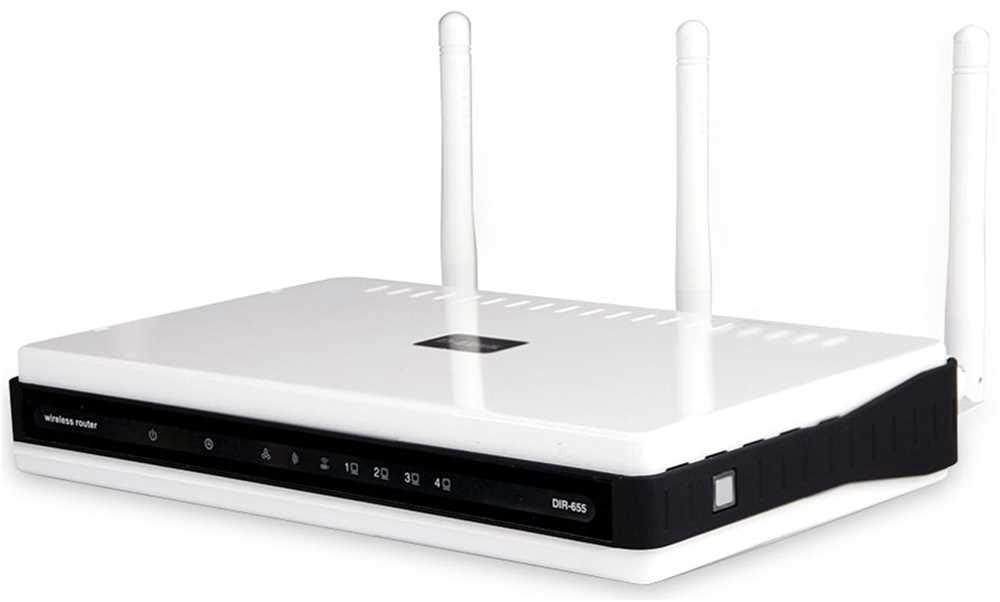
Gambar 1: Tukangeun view of the D-Link DIR-655 router, highlighting the LAN, Internet, USB, Reset, and Power ports, along with the three external antennas.

Gambar 2: Hareupeun view of the D-Link DIR-655 router, displaying the D-Link logo and various status indicator lights.
2.3. Initial Configuration (Wireless)
To connect wirelessly and configure your router:
- Pilari Ngaran Jaringan (SSID): Look for the Wi-Fi network name (SSID) printed on a label on the bottom or back of your router.
- Nyambung ka Wi-Fi: On your computer or mobile device, search for available Wi-Fi networks and select the SSID of your D-Link DIR-655.
- Lebetkeun kecap akses: Enter the Wi-Fi password (also known as the network key or passphrase) found on the same label as the SSID.
- Panganteur Router Aksés: Buka a web browser jeung tipe
http://dlinkrouter.localor192.168.0.1(default IP address) into the address bar. - Lebet: Lebetkeun nami pangguna standar (biasana
admin) and password (often blank oradmin). Refer to your router's label for default login credentials. - Jalankeun Wizard Pamasangan: Follow the on-screen instructions of the D-Link setup wizard to configure your internet connection and personalize your Wi-Fi network name and password.
3. Parentah Operasi
The D-Link DIR-655 is designed for high-performance wireless networking:
- Wireless N Technology: Utilizes IEEE 802.11n (draft) for enhanced speed and range, ideal for streaming HD video, online gaming, and large file mindahkeun.
- Port Ethernet Gigabit: Four LAN ports provide 10x faster wired connections than standard Ethernet, ensuring high-speed data transfer for connected devices.
- Rojongan Dual-Band: The router supports dual-band operation, allowing for flexible network configurations and reduced interference.
- Multiple Antennas: Three external antennas help to optimize wireless signal strength and coverage throughout your home or office.
- USB SharePort: The USB port allows you to connect a USB storage device or printer and share it across your network.
4. Pangropéa
Pikeun mastikeun kinerja optimal sareng umur panjang router anjeun:
- Pembaruan firmware: Regularly check the D-Link support websitus pikeun apdet firmware. Ngamutahirkeun firmware tiasa ningkatkeun kinerja, nambihan fitur anyar, sareng ngalereskeun kerentanan kaamanan.
- Bersihan fisik: Tetep router beresih jeung bébas tina lebu. Anggo kaén anu lembut sareng garing pikeun ngusap bagian luar. Pastikeun liang ventilasi teu diblokir.
- Balikan deui périodik: Restarting your router every few weeks can help clear its memory and resolve minor network issues, improving overall performance.
- Panempatan Aman: Ensure the router is placed in a secure location where it won't be easily knocked over or exposed to extreme temperatures or moisture.
5. Cara ngungkulan
If you encounter issues with your D-Link DIR-655 router, try these common troubleshooting steps:
- Henteu aya sambungan internét:
- Check all cable connections (power, Ethernet to modem, Ethernet to devices).
- Balikan deui modem anjeun, teras router anjeun, teras alat anu disambungkeun.
- Pastikeun sambungan panyadia ladénan internét (ISP) anjeun aktip.
- Lambat Wireless Speed:
- Pastikeun alat anjeun aya dina jangkauan optimal router.
- Ngaleutikan gangguan ti alat éléktronik lianna.
- Consider changing your Wi-Fi channel in the router settings to avoid congestion.
- Apdet driver nirkabel alat anjeun.
- Teu Bisa Ngaksés Setélan Router:
- Pastikeun alat Anjeun disambungkeun ka jaringan router urang (kabel atawa nirkabel).
- Coba nganggo alamat IP standar
192.168.0.1orhttp://dlinkrouter.local. - Hapus cache sareng cookies browser anjeun, atanapi cobian browser anu sanés.
- If you forgot your password, perform a factory reset (see below).
- Pabrik Reset: To restore the router to its factory default settings, locate the "Reset" button on the back of the router. With the router powered on, use a paperclip or similar pointed object to press and hold the reset button for about 10 seconds. Release the button and wait for the router to restart. Catetan: This will erase all custom settings, including your Wi-Fi name and password.
6. Spésifikasi
| Fitur | Rincian |
|---|---|
| Ngaran modél | DIR-655 |
| Tipe Wireless | 802.11n |
| merek | D-Tumbu |
| Nomer Modél Item | DIR-655/E |
| Sistem operasi | ZyNOS |
| Item Beurat | 2.65 ons (75 gram) |
| Dimensi produk | 47.44 x 77.95 x 12.6 inci |
| Voltage | 110 volt |
| Fitur husus | WPS |
| Frékuénsi Band Kelas | Dual-Band |
| Standar Komunikasi Nirkabel | 802.11n |
| Alat nu cocog | Gaming Console, Printer |
| Dianjurkeun Mangpaat | Bisnis, Kaulinan, Imah |
| Téhnologi konektipitas | Ethernet |
| Jenis anteneu | Dibereskeun |
7. Garansi jeung Rojongan
For detailed warranty information and technical support, please refer to the official D-Link website or the documentation included with your product. You can also visit the D-Link support portal for FAQs, firmware downloads, and contact options.
Dukungan Online: www.dlink.com/support