
Bubuka
This manual provides detailed instructions for the installation, configuration, and operation of your D-Link DSR-150 VPN Router. The DSR-150 is designed to offer secure, high-performance networking solutions for small and medium businesses, integrating VPN capabilities and dynamic web nyaring eusi.
Produk Leuwihview
The D-Link DSR-150 is a robust VPN router featuring multiple ports and indicator lights for easy status monitoring. Understanding the physical components is essential for proper setup and operation.
Panel hareup
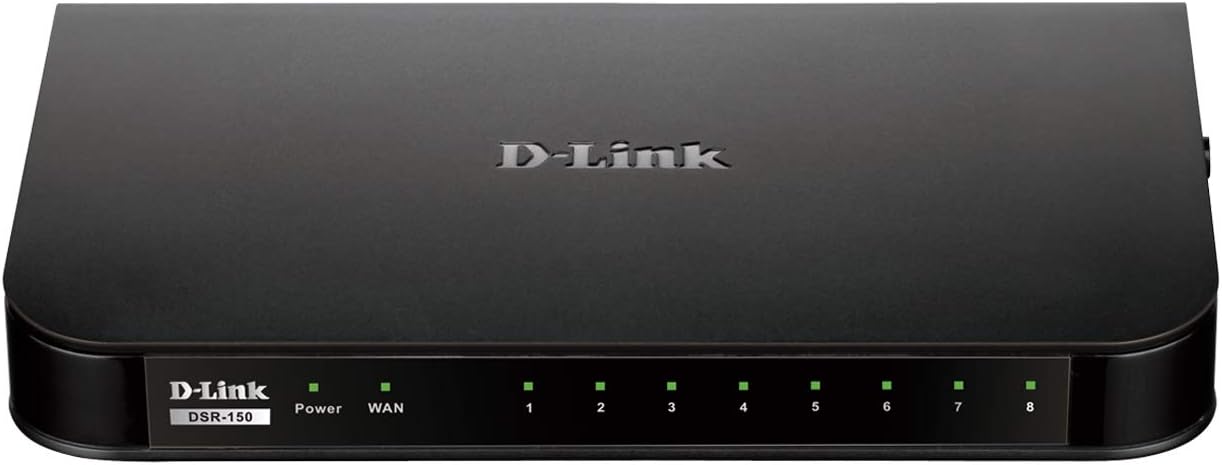
Gambar: Hareupeun view of the D-Link DSR-150 VPN Router. This image displays the device's front panel, including the D-Link branding, model number (DSR-150), and a series of LED indicators. These indicators typically show the status of power, WAN connection, and activity for each of the eight LAN ports.
Panel tukang
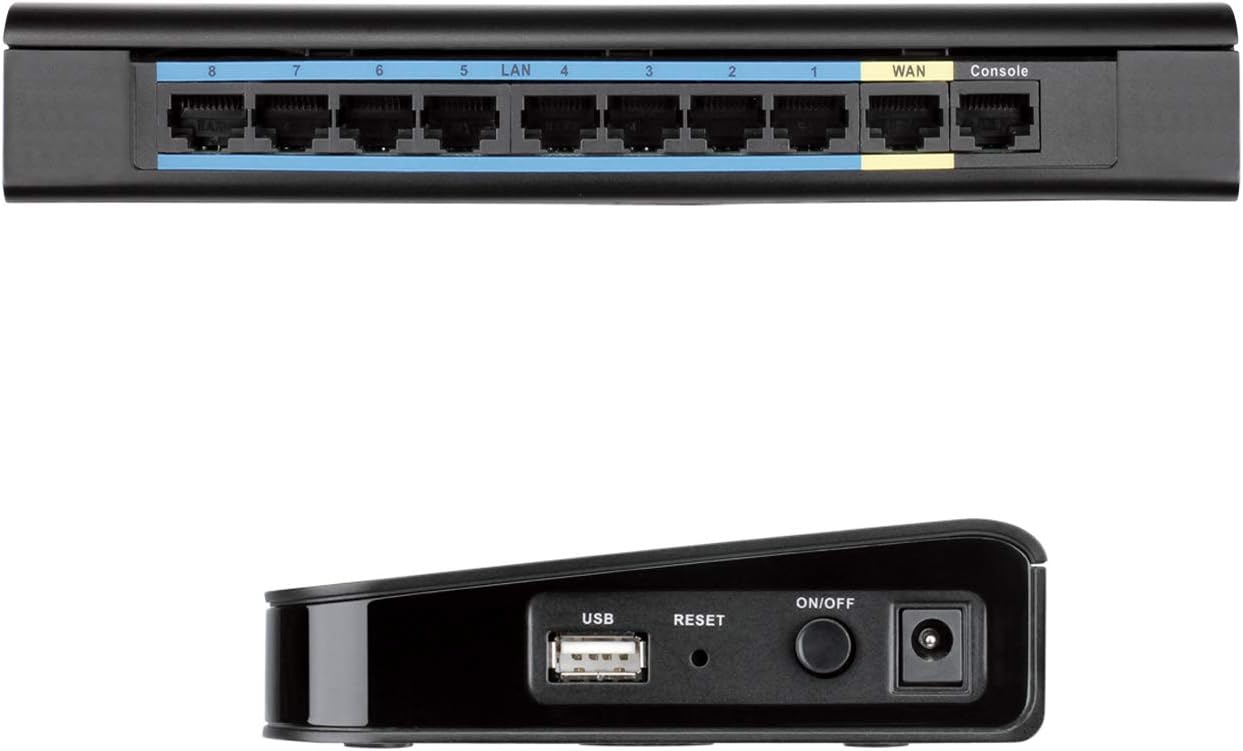
Gambar: Tukangeun view of the D-Link DSR-150 VPN Router. This image highlights the connectivity options on the back of the router, including eight LAN ports (typically for connecting local network devices), one WAN port (for connecting to the internet modem), and a Console port (for direct management access).
Panel samping

Gambar: Samping view of the D-Link DSR-150 VPN Router. This image shows the side of the device, featuring a USB port (for potential external storage or other peripherals), a recessed Reset button (for factory defaults), and the Power On/Off button alongside the power input jack.
Fitur konci
The DSR-150 VPN Router offers a range of features designed for secure and efficient network management:
- High-Speed VPN Support: Integrated VPN tunnel support for secure remote network access.
- Multiple LAN/WAN Ports: Features eight (8) 10/100 LAN Ports and one (1) 10/100 WAN Port.
- Policy-Based Firewall: Policy-based service management allows for easy configuration of firewall rules.
- SSL VPN Tunnels: Supports one (1) SSL VPN tunnel for clientless remote access.
- GRE Tunnels: Supports five (5) Generic Routing Encapsulation (GRE) tunnels.
- IPsec/PPTP/L2TP Tunnels: Simultaneously supports up to ten (10) IPsec VPN tunnels plus ten (10) additional PPTP/L2TP tunnels for site-to-site connectivity.
- D-Link Green Ethernet: Incorporates D-Link Green Ethernet features to save power and reduce energy costs.
- Dinamis Web Nyaring eusi: Enables administrators to allow or block access to websites based on categories.
Disetél
1. Unpacking jeung Inspection
Carefully unpack the router and verify that all components are present. This typically includes the DSR-150 router, a power adapter, and an Ethernet cable.
2. Sambungan fisik
- Connect the provided power adapter to the router's power input port and then to a power outlet.
- Connect your internet modem or main network line to the WAN port on the rear of the DSR-150 using an Ethernet cable.
- Connect your computers or other network devices to any of the LAN ports (1-8) on the rear of the DSR-150 using Ethernet cables.
- Pencét éta Hurung/Pareuman button on the side panel to power on the router. Wait for the Power LED on the front panel to become solid.
3. Aksés Konfigurasi Awal
Pikeun ngakses ka webantarmuka manajemen berbasis pikeun konfigurasi awal:
- Pastikeun komputer anjeun nyambung ka salah sahiji port LAN router.
- Buka a web browser (contona, Chrome, Firefox, Edge).
- Enter the default IP address of the router (commonly
192.168.10.1or similar, refer to the device label or quick installation guide) into the browser's address bar and press Enter. - Lebetkeun nami pangguna sareng kecap konci standar (biasana
adminfor both, or as specified in the quick installation guide) when prompted.
Parentah Operasi
VPN Konfigurasi
The DSR-150 supports various VPN types to establish secure connections for remote users and branch offices.

Gambar: VPN capabilities for remote access. This image illustrates the concept of secure remote access, showing a user with a laptop and icons representing different VPN protocols like SSL VPN, PPTP, and L2TP, which facilitate secure connections to a central network.

Gambar: Site-to-Site VPN Tunnels. This diagram visually explains how a main office and a branch office can establish a secure connection over the internet using various VPN protocols such as IPsec, PPTP, and L2TP, creating encrypted virtual links between locations.
- SSL VPN: For clientless remote access, navigate to the VPN > SSL VPN bagian dina web interface. Configure user accounts and access policies.
- IPsec/PPTP/L2TP: For site-to-site connections, go to VPN > IPsec or VPN > PPTP/L2TP. Define tunnel parameters, authentication methods, and network ranges for secure communication between offices.
- GRE Tunnels: Configure Generic Routing Encapsulation tunnels under the VPN > GRE section for specific routing needs.
Dinamis Web Nyaring eusi
This feature allows administrators to control internet usage by blocking or allowing access to websites based on their categories.

Gambar: Web Content Filtering. This image depicts a laptop screen showing lines of code, symbolizing the router's capability to filter web content. This feature helps administrators manage and control internet usage by blocking access to specific websites or categories.
- Arahkeun ka Security > Content Filtering.
- Enable Dynamic Content Filtering.
- Configure policies to block or allow specific website categories or define custom URL/keyword filters.
Aturan firewall
The DSR-150's policy-based service management allows for granular control over network traffic.
- Aksés Firewall > Rules to create, modify, or delete firewall policies.
- Define rules based on source/destination IP, port numbers, and protocols to secure your network.
Pangropéa
Pembaruan firmware
Regularly updating the router's firmware is crucial for security, performance, and access to new features.
- Visit the official D-Link support website for the DSR-150 model to download the latest firmware.
- Dina router urang web panganteur, arahkeun ka System > Firmware Upgrade.
- Follow the on-screen instructions to upload and install the new firmware. Do not power off the device during this process.
Nyadangkeun tur Mulangkeun Konfigurasi
It is recommended to back up your router's configuration settings before making significant changes or firmware updates.
- Pindah ka System > Configuration Management.
- Use the options to save the current configuration to your computer or restore a previously saved configuration.
Rebooting Alat
A reboot can resolve minor network issues or apply certain configuration changes.
- Ti web panganteur, arahkeun ka Sistem > Reboot sareng mastikeun tindakan.
- Alternatively, power off the device using the On/Off button, wait 10 seconds, and then power it back on.
D-Link Green Ethernet
The DSR-150 incorporates D-Link Green Ethernet technology to optimize power consumption.

Gambar: Efficient Green Technology. This image features a D-Link router alongside a large power symbol composed of green leaves, symbolizing the device's adherence to WEEE directives and its environmentally responsible design through D-Link Green Ethernet features.
Pamérésan masalah
This section addresses common issues you might encounter with your DSR-150 router.
- Henteu aya aksés Internét:
- Verify the WAN cable connection to your modem.
- Check the WAN status in the router's web panganteur.
- Pastikeun modem anjeun tiasa dianggo kalayan leres.
- Teu Bisa Aksés Web panganteur:
- Confirm your computer is connected to a LAN port.
- Pariksa heula alamat IP komputer anjeun aya dina subnet anu sami sareng router (contona, 192.168.10.x).
- Coba mupus cache browser anjeun atanapi nganggo browser anu sanés.
- Masalah Sambungan VPN:
- Double-check VPN tunnel settings, including IP addresses, authentication methods, and encryption.
- Ensure firewall rules are not blocking VPN traffic.
- Kinerja Jaringan Lambat:
- Pariksa lalulintas jaringan anu luhur atanapi aplikasi anu intensif bandwidth.
- Inspect Ethernet cables for damage.
- Pastikeun firmware router parantos mutahir.
spésifikasi
- Jumlah modél: DSR-150
- merek: D-Tumbu
- Téknologi konektipitas: Dikabel
- Palabuhan: 8 x 10/100 Fast Ethernet LAN, 1 x 10/100 Fast Ethernet WAN
- Rojongan VPN: IPsec, PPTP, L2TP, SSL, GRE
- Ukuran (L x W x H): Kira-kira 11.34 x 9.76 x 2.6 inci (28.8 x 24.8 x 6.6 cm)
- beurat: Kira-kira 1 pon (0.45 kg)
- Fitur husus: WPS (Wired Protected Setup)
- Jenis anteneu: Internal
Garansi sareng Rojongan
D-Link offers a Kawates Jaminan Hirupna on the DSR Series VPN Routers, demonstrating their commitment to product quality and long-term customer confidence. For detailed warranty terms and conditions, please refer to the documentation included with your product or visit the official D-Link websitus.
If you encounter issues that cannot be resolved using this manual, please contact D-Link Technical Support for assistance. Support contact information can typically be found on the D-Link websitus atanapi dina bungkusan produk anjeun.