
1. Produk Langkungview
The D-Link AC1200 Wi-Fi Router (DIR-850L) delivers next-generation wireless speed and coverage to all your Wi-Fi devices. With wireless dual-band speeds of 300 Mbps (2.4 GHz) and 867 Mbps (5 GHz), the DIR-850L avoids interference to deliver fast wireless speeds, improved coverage, and reliable connections. This router is ideal for streaming HD video, gaming, connecting multiple devices, and watching shows on your TV simultaneously. The DIR-850L is also backward compatible with existing wireless 802.11a/g/n devices for seamless connectivity. D-Link’s free mobile apps provide easy setup, remote monitoring, and access to content from anywhere on your smartphone or tablet.
Fitur konci:
- Next Generation Wireless Technology: Wireless AC1200 for optimized performance and reliable coverage, delivering high-quality HD video streaming, gaming, and file mindahkeun.
- Kasaluyuan mundur: Compatible with wireless 802.11a/g/n devices.
- Sababaraha Konéktipitas Alat: Connect more devices with four Gigabit Ethernet ports.
- Bagikeun Media: Stream and share files using the USB Share Port and free mobile app.
- Setélan Gampang: Intelligent browser wizard and Quick Router Setup Mobile app for simplified installation.
- Kaamanan Canggih: Preset security with advanced WPA2 encryption.
2. Eusi Paket
Ensure all items are present in your D-Link DIR-850L package:
- D-Link Wireless AC 1200 Dual-Band Gigabit Router (DIR-850L)
- Adaptor kakuatan
- Kabel Ethernet
- Guide Instalasi Gancang
If any items are missing or damaged, please contact your retailer or D-Link support.
3. Pakakas Ngalangkunganview
Familiarize yourself with the physical components and indicators of your DIR-850L router.

Gambar 3.1: Hareupeun View. Shows the cylindrical design of the router with the D-Link logo and LED indicators for Power and Internet status.

Gambar 3.2: Sisi View. Illustrates the side of the router, highlighting the USB port for storage sharing and the Wi-Fi Protected Setup (WPS) button.
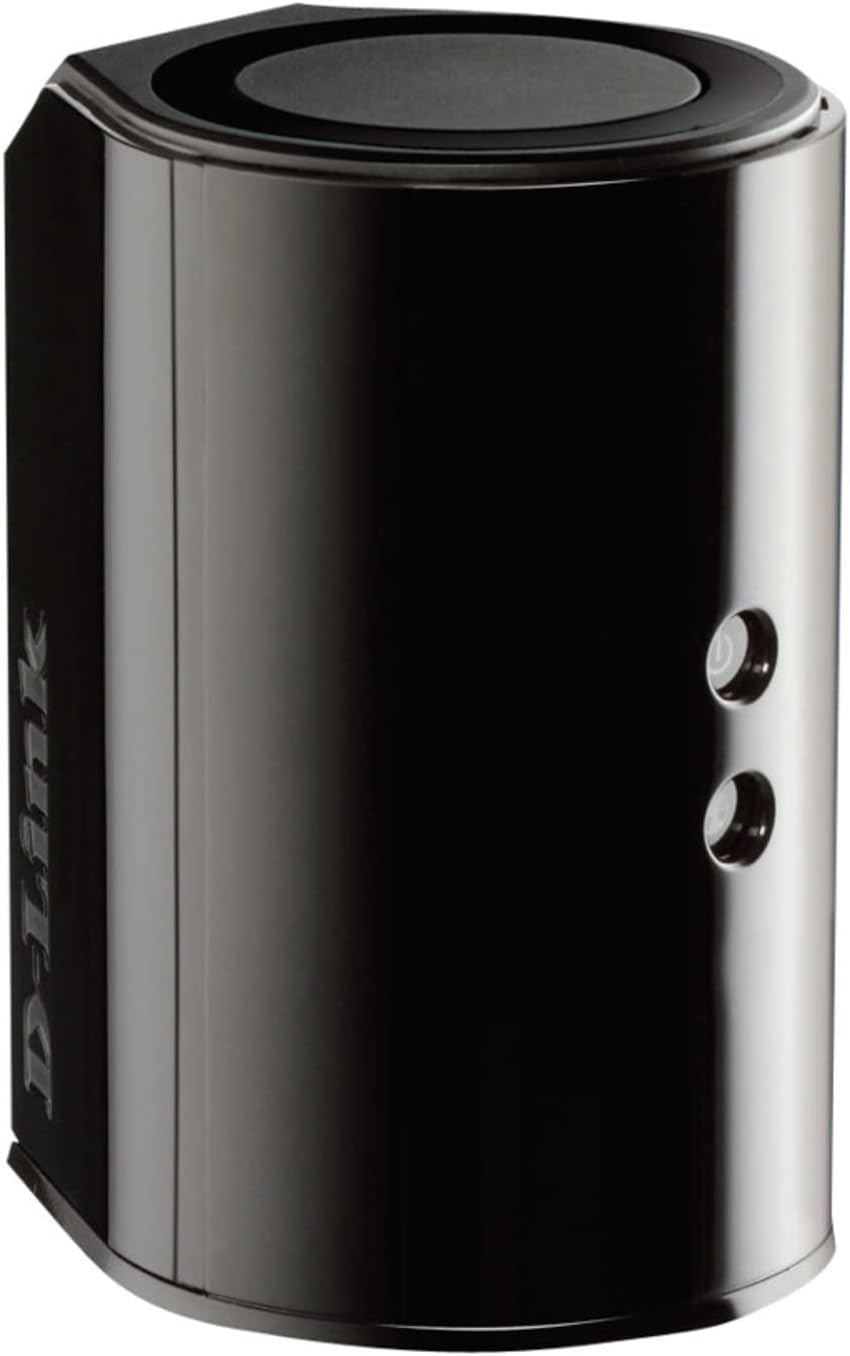
Gambar 3.3: Tukangeun View. Displays the back panel of the router, featuring the WAN (Internet) port, four LAN (Ethernet) ports, and the power input connector.
Indikator LED:
- LED kakuatan: Solid green indicates the router is powered on. Blinking green indicates a firmware upgrade or reset.
- Internét LED: Solid green indicates a successful connection to the internet. Blinking green indicates data activity. Amber indicates no internet connection.
Palabuhan sareng Tombol:
- Palabuhan WAN (Internét): Nyambung ka modem Anjeun pikeun aksés internét.
- Port LAN (1-4): Connect wired devices such as computers, gaming consoles, or network storage.
- Port USB: Connect a USB storage device for network sharing.
- Panyambung Daya: Nyambungkeun kana adaptor kakuatan anu kalebet.
- Tombol Reset: Pencét jeung tahan 10 detik pikeun mulangkeun setélan standar pabrik.
- Tombol WPS: Initiates Wi-Fi Protected Setup for easy wireless connection of compatible devices.
4. Setélan
Follow these steps to set up your D-Link DIR-850L router:
- Posisi router: Place your router in a central location in your home, away from obstructions and devices that may cause interference (e.g., cordless phones, microwaves).
- Nyambung ka Modem:
- Pareuman modem anjeun.
- Connect one end of the provided Ethernet cable to the WAN (Internet) port on your DIR-850L router.
- Sambungkeun tungtung kabel Ethernet anu sanésna kana port Ethernet dina modem anjeun.
- Daya Hurung:
- Power on your modem and wait for its indicator lights to stabilize (usually indicating an active internet connection).
- Connect the power adapter to the power connector on your DIR-850L router and plug it into a power outlet.
- Wait for the Power LED on the router to turn solid green. The Internet LED should also turn green, indicating a successful connection.
- Sambungkeun Alat:
- Sambungan kabel: Connect an Ethernet cable from one of the LAN ports (1-4) on the router to your computer's Ethernet port.
- Sambungan nirkabel: On your Wi-Fi enabled device (laptop, smartphone, tablet), search for available Wi-Fi networks. Select the network name (SSID) found on the Wi-Fi Configuration Card (usually a sticker on the bottom of the router) and enter the Wi-Fi password.
- Jalankeun Wizard Pamasangan:
- Buka a web browser (e.g., Chrome, Firefox) on the connected device.
- Tipe
http://dlinkrouter.localor192.168.0.1kana bar alamat terus pencét Enter. - Follow the on-screen instructions of the D-Link Setup Wizard to configure your internet connection and personalize your Wi-Fi network name (SSID) and password.
Setup Video (General D-Link Router Overview):
Video 4.1: D-Link Wireless AC 1200 Mbps Home Cloud App-Enabled Dual-Band Gigabit Router Overview. video ieu nyadiakeun leuwih umumview of D-Link routers, including the DIR-850L, and highlights their features and target users. While not a step-by-step setup guide, it offers insights into the router's capabilities.
5. Parentah Operasi
Once your D-Link DIR-850L router is set up, you can manage and optimize your network.
Alat Nyambungkeun:
- Nirkabel: Use the Wi-Fi network name (SSID) and password you configured during setup to connect your wireless devices. The router supports both 2.4 GHz and 5 GHz bands.
- Maké kabel: Connect devices directly to the LAN ports using Ethernet cables for a stable, high-speed connection.
Ngaksés Setélan Router:
To access advanced settings, open a web browser tur arahkeun ka http://dlinkrouter.local or 192.168.0.1. Log in with the administrator password you set during the initial setup. From here, you can:
- Robah setélan Wi-Fi (SSID, kecap akses, jinis kaamanan).
- Configure guest Wi-Fi networks.
- Nyetél kadali parental.
- Atur alat nu disambungkeun.
- Apdet firmware.
Using the USB Share Port:
Plug a USB storage device (e.g., flash drive, external hard drive) into the USB port on the router. You can then access and share files on this storage device across your network using the D-Link SharePort Mobile app or through network shares on your computer.
6. Pangropéa
Pangropéa rutin ngabantosan mastikeun kinerja optimal sareng umur panjang router anjeun.
- Rebooting: Reboot périodik router anjeun (cabut colokan tina kakuatan pikeun 10 detik, teras colokkeun deui) pikeun mupus memori na refresh sambungan jaringan. Ieu tiasa ngabéréskeun masalah kinerja minor.
- Pembaruan firmware: Check the D-Link support website for firmware updates. Firmware updates can improve performance, add new features, and fix security vulnerabilities. Follow the instructions provided by D-Link carefully when performing updates.
- beberesih: Keep the router clean and free from dust. Use a soft, dry cloth to wipe the exterior. Do not use liquid cleaners or aerosols. Ensure ventilation openings are not blocked.
- Kaamanan: Regularly change your Wi-Fi password and router administrator password to enhance network security.
7. Cara ngungkulan
If you encounter issues with your D-Link DIR-850L router, refer to the following common problems and solutions:
Henteu aya sambungan internét:
- Pariksa Kabel: Pastikeun sadaya kabel Ethernet disambungkeun aman ka router sareng modem.
- Status Modem: Pastikeun modem anjeun berpungsi leres sareng gaduh sambungan internét aktip.
- Reboot Sequence: Power off your modem, then your router. Wait 30 seconds, then power on the modem first. Once the modem is fully online, power on the router.
- ISP Contact: If the issue persists, contact your Internet Service Provider (ISP) to confirm service status.
Lambat Wi-Fi:
- Nempatkeun router: Move the router to a more central location, away from obstacles and interference sources.
- Gangguan Saluran: Asup kana router urang web interface and try changing the Wi-Fi channel for both 2.4 GHz and 5 GHz bands to a less congested one.
- Alat nu disambungkeun: Disconnect unused devices from your network.
- Firmware: Pastikeun firmware router anjeun geus up to date.
Teu Bisa Nyambung ka Wi-Fi:
- Kecap aksés anu leres: Double-check that you are entering the correct Wi-Fi password (case-sensitive).
- Panyiaran SSID: Ensure the router is broadcasting its Wi-Fi network name (SSID).
- WPS: If your device supports WPS, try using the WPS button on the router to connect.
- Reset Router: As a last resort, perform a factory reset (see Hardware Overview) and reconfigure the router.
8. Spésifikasi
| Fitur | Katerangan |
|---|---|
| Ngaran modél | DIR-850L |
| Tipe Wireless | 802.11ac (backward compatible with 802.11a/b/g/n) |
| Frékuénsi Band Kelas | Dual-Band (2.4 GHz sareng 5 GHz) |
| Laju nirkabel | Nepi ka 300 Mbps (2.4 GHz), Nepi ka 867 Mbps (5 GHz) |
| palabuhan Ethernet | 4 x Gigabit LAN, 1 x Gigabit WAN |
| Port USB | 1 x USB 2.0 (for SharePort) |
| Jenis anteneu | Internal |
| Kasaluyuan System Operasi | Windows® 8, 7, Vista®, XP SP2, or Mac OS® X (v10.4 or higher) |
| Ukuran (L x W x H) | 4.45 x 3.43 x 5.72 inci |
| Item Beurat | 9.9 ons (0.62 pon) |
| Warna | Hideung |
9. Garansi jeung Rojongan
D-Link products are backed by a limited warranty. For specific warranty terms and conditions, please refer to the warranty information included with your product or visit the official D-Link websitus.
For technical support, product registration, and access to the latest drivers, firmware, and user manuals, please visit the D-Link support portal:
D-Link Rojongan Websitus: www.dlink.com/support
You may also find helpful resources and community forums on the D-Link websitus.