
1. Produk Langkungview
The TP-Link TL-WA750RE is a 150Mbps Universal Wireless Range Extender designed to expand the coverage of an existing wireless network. It eliminates Wi-Fi dead zones by boosting the wireless signal to previously unreachable or hard-to-wire areas. Its compact, wall-mounted design allows for flexible deployment and easy relocation within your home or office.
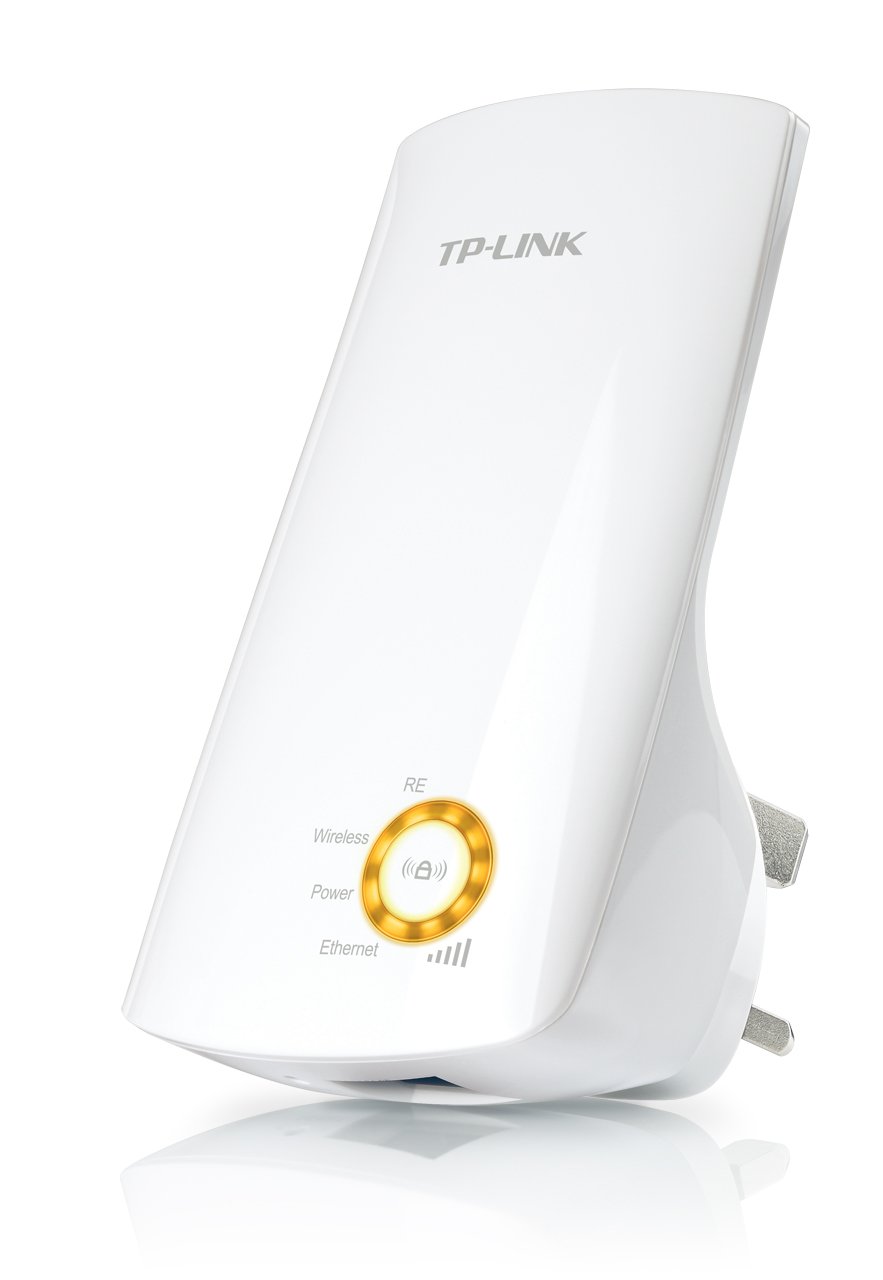
Gambar 1: TP-Link TL-WA750RE Universal Wireless Range Extender. This image shows the device in its retail packaging, highlighting its compact design and wall-plug form factor.
2. Fitur konci
- Mode Extender Range: Boosts wireless signal to eliminate Wi-Fi dead zones and extend network coverage.
- Desain kompak: Small size and wall-mounted design for easy deployment and flexible movement.
- Tombol WPS: Allows for instant setup and secure connection with compatible routers.
- Indikator Sinyal Smart: Helps users find the optimal location for placing the range extender for best performance.
- Kasaluyuan Universal: Works seamlessly with all 802.11n/g/b wireless devices.
3. Eusi Paket
Bungkusan produk biasana ngawengku barang-barang ieu:
- TP-Link TL-WA750RE 150Mbps Universal Wireless Range Extender
- Instruksi Manual
4. Setup Guide
4.1. Quick Setup using WPS Button
- Colokkeun: Plug the TL-WA750RE into an electrical outlet near your wireless router.
- Aktipkeun WPS dina Router: Press the WPS button on your main wireless router. Refer to your router's manual for the exact location and procedure.
- Activate WPS on Extender: Within two minutes, press the WPS button on the TL-WA750RE. The Signal LED on the extender should begin to flash.
- Antosan Sambungan: The Signal LED will turn solid blue or green when a successful connection is established.
- Pindahkeun Extender: Unplug the extender and move it to a location between your router and the Wi-Fi dead zone. Ensure the Signal LED indicates a strong connection (e.g., solid blue or green) in the new location.
4.2. Manual Setup via Web Pangotektak
- Colokkeun: Plug the TL-WA750RE into an electrical outlet near your computer.
- Sambungkeun ka Extender: Connect your computer to the extender's Wi-Fi network (e.g., "TP-LINK_Extender_XXXXXX"). No password is required initially.
- Aksés Web panganteur: Buka a web browser jeung tipe http://tplinkrepeater.net or the extender's default IP address (usually 192.168.0.254) into the address bar.
- Lebet: Enter "admin" for both the username and password when prompted.
- Turutan parentah dina layar: Use the Quick Setup wizard to select your main Wi-Fi network and enter its password.
- Pindahkeun Extender: Once configured, unplug the extender and move it to an optimal location between your router and the desired coverage area.
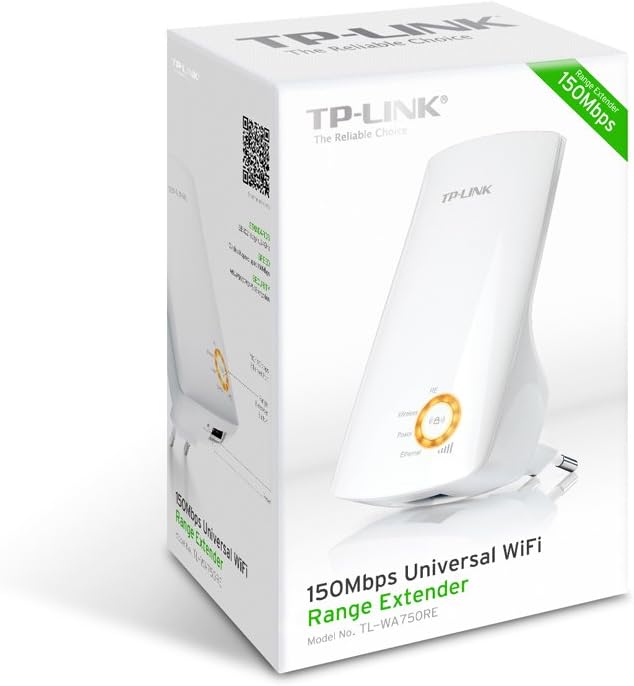
Gambar 2: Samping view of the TL-WA750RE. This image illustrates the physical layout of the device, including the WPS button and Ethernet port, which are crucial for setup and operation.
5. Ngoperasikeun Range Extender
Once the TL-WA750RE is successfully set up, it will automatically extend your existing Wi-Fi network. Devices within the extended range can connect to the network name created by the extender (e.g., "YourNetworkName_EXT").
5.1. Smart Signal Indicator
The Smart Signal Indicator LEDs on the front of the device provide real-time feedback on the signal strength received from your main router. This helps you determine the best placement for the extender:
- Solid Biru/Héjo: Kakuatan sinyal anu saé pisan.
- Beureum padet: Weak signal strength. Consider relocating the extender closer to your router.
- Pareum: No connection to the main router.
5.2. Ethernet Port Usage
The TL-WA750RE includes an Ethernet port. This port can be used to connect a wired device, such as a desktop computer, gaming console, or smart TV, to your wireless network, providing a stable wired connection in the extended Wi-Fi area.
6. Pangropéa
- beberesih: Anggo lawon anu lemes sareng garing pikeun ngabersihkeun alat. Entong nganggo pembersih cair atanapi aerosol.
- panempatan: Avoid placing the extender in direct sunlight, near heat sources, or in areas with high humidity.
- Pembaruan firmware: Pariksa sacara berkala ka TP-Link resmi websitus pikeun apdet firmware pikeun mastikeun kinerja optimal sarta kaamanan.
- Siklus kakuatan: If the device experiences issues, try unplugging it from the power outlet for 10 seconds and then plugging it back in.
7. Cara ngungkulan
- Q1: Naon anu kedah kuring lakukeun upami kuring teu tiasa ngaksés extender web kaca manajemén?
- A1: Ensure your computer is connected to the extender's network. Verify that http://tplinkrepeater.net is correctly typed in the browser. If issues persist, try using the extender's IP address (e.g., 192.168.0.254) or reset the extender to factory defaults.
- Q2: My extended network has poor signal or frequent disconnections.
- A2: Check the Smart Signal Indicator on the extender. If it's red or off, the extender is too far from your main router. Relocate the extender to a position where the indicator shows a strong signal (solid blue/green). Ensure there are no major obstructions between the router and the extender.
- Q3: Kumaha cara ngareset extender ka setélan standar pabrik?
- A3: With the extender powered on, use a pin to press and hold the Reset button (usually a small hole) for approximately 5-10 seconds until all LEDs flash briefly. The extender will then restart with factory default settings.
8. Spésifikasi
| merek | TP-Link |
| Nomer modél | TL-WA750RE |
| Tanpa kabel | 802.11b/g/n |
| Laju Mindahkeun Data | 150 Mbps |
| Frékuénsi | 2.4 GHz |
| Fitur husus | Smart Signal Indicator, WPS Button |
| Tipe Panyambung | RJ45 (Port Ethernet) |
| Item Beurat | 0.4 pon |
| Warna | Bodas |
9. Garansi jeung Rojongan
9.1. Émbaran jaminan
This TP-Link TL-WA750RE device comes with a garansi 2 taun ti tanggal beuli. Punten tahan bukti pameseran anjeun pikeun klaim garansi. Garansi nyertakeun defects dina bahan jeung workmanship dina pamakéan normal.
9.2. Rojongan Téknis
For technical assistance, troubleshooting, or further inquiries, please visit the official TP-Link support websitus atanapi ngahubungan layanan palanggan maranéhna. Anjeun tiasa mendakan sumber dukungan lengkep, FAQ, sareng inpormasi kontak di www.tp-link.com/support.