
D-Link G403/E
D-Link EAGLE PRO AI N300 4G Smart Router (Model G403/E) User Manual
Pituduh Komprehensif pikeun Setup, Operasi, sareng Pangropéa
1. Bubuka
This manual provides detailed instructions for the installation, configuration, and operation of your D-Link EAGLE PRO AI N300 4G Smart Router, Model G403/E. Please read this manual thoroughly before using the device to ensure proper setup and optimal performance.
The D-Link G403/E is a versatile 4G LTE Router designed to provide high-speed internet access via a SIM card, offering Cat 4 150 Mbps LTE speeds and WiFi N 300 Mbps for your local network. It includes multiple LAN ports and a WAN port for flexible connectivity.
2. Eusi Paket
Sateuacan neraskeun pamasangan, mangga pariksa heula naha pakét anjeun ngandung barang-barang ieu:
- D-Link EAGLE PRO AI N300 4G Smart Router (Model G403/E)
- Adaptor kakuatan
- Kabel Ethernet
- Pituduh Pamasangan Gancang (Manual ieu janten pituduh anu lengkep)
- SIM Card Adapter (if applicable)
If any items are missing or damaged, please contact your retailer or D-Link support immediately.
3. Pakakas Ngalangkunganview
3.1 Panel payun

Gambar 3.1: Hareupeun view of the D-Link G403/E router, showing the D-Link logo and LED indicators for Power, Internet, Wi-Fi, and Signal Strength.
The front panel of the router features several LED indicators that provide real-time status information:
- LED kakuatan: Nunjukkeun status kakuatan alat.
- Internét LED: Shows the status of the internet connection (4G LTE or WAN).
- LED Wi-Fi: Nunjukkeun status jaringan nirkabel.
- Kakuatan sinyal LEDs: Displays the strength of the 4G LTE signal.
3.2 Panel tukang

Gambar 3.2: Tukangeun view of the D-Link G403/E router, displaying the SIM card slot, LAN ports, WAN port, power input, and power button.
The rear panel provides all the necessary connection ports and buttons:
- Slot Kartu SIM: Lebetkeun kartu SIM 4G LTE anjeun di dieu.
- Palabuhan LAN (LAN1-LAN4): Four Fast Ethernet ports for connecting wired devices.
- Palabuhan Wan: One Fast Ethernet port for connecting to a traditional broadband modem (e.g., DSL/Cable) if not using 4G LTE.
- Input Daya (12V 1A): Sambungkeun adaptor kakuatan anu disayogikeun di dieu.
- Tombol Daya / Pareuman: Used to turn the router on or off.
- Tombol Reset: A small pinhole button to restore factory default settings.
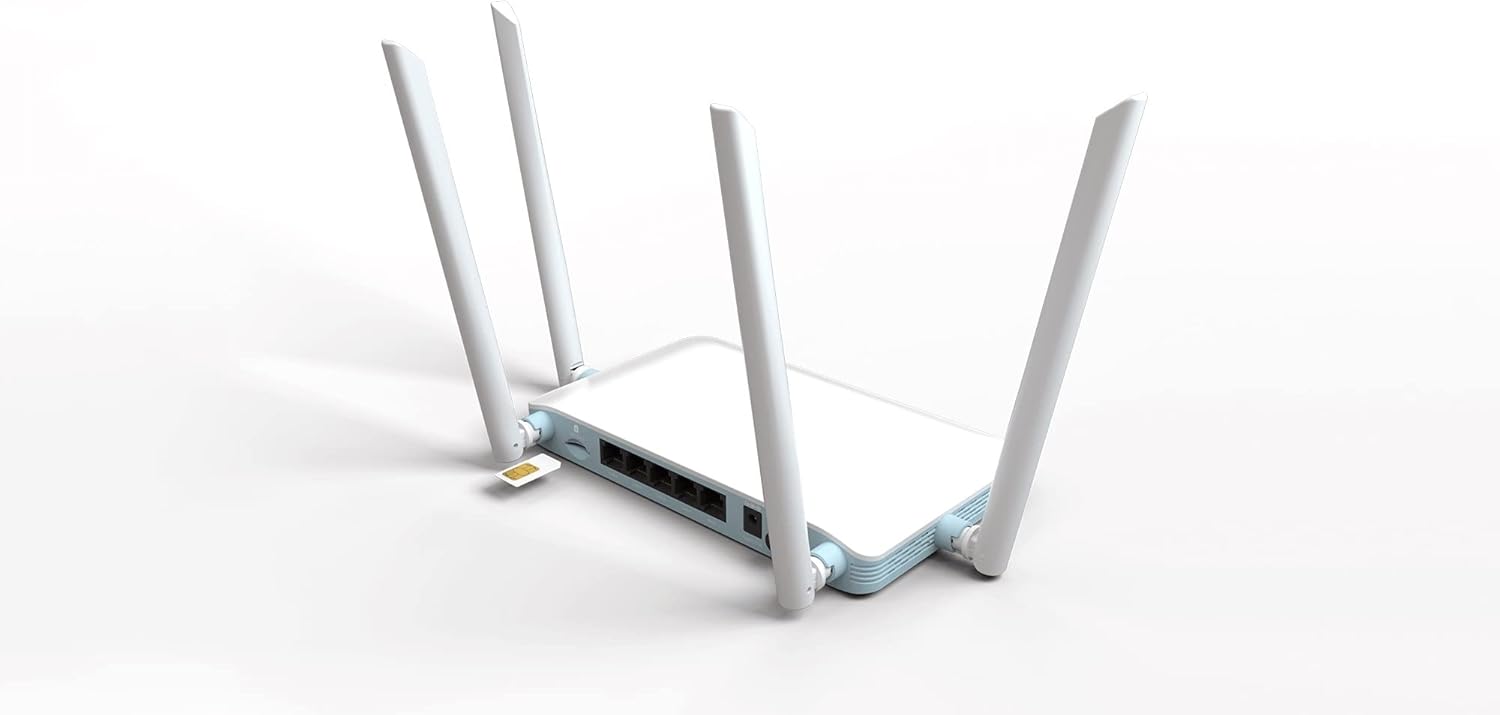
Gambar 3.3: Detil view of the SIM card slot on the D-Link G403/E router, showing how a SIM card is inserted.
4. Setup jeung Instalasi
4.1 Pamasangan Kartu SIM
- Pastikeun router dipareuman.
- Panggihan slot kartu SIM dina panel tukang.
- Insert your standard-sized 4G LTE SIM card into the slot with the gold contacts facing down and the notched corner oriented correctly. Push until it clicks into place. If using a Nano or Micro SIM, ensure it is placed in a suitable adapter before insertion.
- To remove the SIM card, gently push it in until it clicks, then release, and it will eject.
4.2 Ngahurungkeun Router
- Connect the provided power adapter to the Power Input port on the rear of the router.
- Plug the other end of the power adapter into a wall outlet or power strip.
- Press the Power On/Off button. The Power LED on the front panel should illuminate.
4.3 Konfigurasi Awal (Web Panganteur)
After powering on, you can access the router's web-based management interface for detailed configuration.
- Nyambung ka router:
- Sambungan kabel: Connect an Ethernet cable from one of the LAN ports (LAN1-LAN4) on the router to your computer's Ethernet port.
- Sambungan nirkabel: On your computer or mobile device, connect to the default Wi-Fi network name (SSID) printed on the label on the bottom of the router. The default Wi-Fi password (WPA/WPA2 Key) is also on this label.
- Aksés ka Web panganteur: Buka a web browser (e.g., Chrome, Firefox, Edge) and type the default IP address of the router into the address bar. This is typically
192.168.0.1or192.168.1.1. Refer to the label on the bottom of your router for the exact IP address and default login credentials. - Lebet: Enter the default username and password. The default username is usually
admin, and the password might beadmin,password, or blank. It is highly recommended to change the default password immediately after your first login for security purposes. - Turutan Wizard Setup: The first time you log in, a setup wizard may guide you through basic configurations such as changing the administrator password, setting up the time zone, and configuring your internet connection (4G LTE or WAN).
- Configure 4G LTE Connection: If using a SIM card, the router should automatically detect your mobile network and configure the APN settings. If not, you may need to manually enter the APN, username, and password provided by your mobile network operator.
- Konpigurasikeun Setélan Wi-Fi: Change the default Wi-Fi network name (SSID) and password to something unique and secure.
5. Ngoperasikeun Router
5.1 Konéktipitas Internét
Once configured, the router will establish an internet connection via the inserted 4G LTE SIM card or the WAN port. The Internet LED on the front panel will indicate the connection status.
- Héjo / Padet: Nyambung ka internét.
- Beureum/Kedip-kedip: No internet connection or connection error.
5.2 Wireless Network (Wi-Fi)
The router broadcasts a Wi-Fi signal for wireless devices. You can connect smartphones, tablets, laptops, and other Wi-Fi enabled devices to this network using the configured SSID and password.
- The router supports Wi-Fi N 300 Mbps, compatible with 802.11n, 802.11b, and 802.11g standards.
- For optimal performance, ensure your devices are within the router's Wi-Fi range.
5.3 Wired Network (LAN)
Use the four Fast Ethernet LAN ports to connect wired devices such as desktop computers, smart TVs, gaming consoles, or network printers for stable and high-speed local network access.
5.4 Aksés Point Mode
The D-Link G403/E router supports Access Point (AP) mode. In AP mode, the device extends an existing wired network wirelessly. This is useful if you already have a router and want to add Wi-Fi capabilities or extend your current Wi-Fi coverage.
To configure AP mode, access the web interface and navigate to the operating mode settings. Connect the router's WAN port to a LAN port on your existing router.
6. Pangropéa
6.1 Apdet firmware
Regularly check for and install firmware updates from the official D-Link website. Firmware updates can improve performance, add new features, and address security vulnerabilities.
- Visit the D-Link support websitus pikeun wewengkon Anjeun.
- Milarian pikeun your model (G403/E) and download the latest firmware.
- Aksés ka router web interface and navigate to the firmware upgrade section (usually under System or Administration).
- Unggah firmware nu diundeur file and follow the on-screen instructions. Do not power off the router during the update process.
6.2 Penempatan Router
For optimal Wi-Fi coverage and signal strength, place the router in a central location, away from obstructions, metal objects, and devices that emit radio frequency interference (e.g., microwaves, cordless phones).
6.3 beberesih
Jaga router tetep bersih sareng bébas tina lebu. Anggo lawon anu lemes sareng garing pikeun ngusap bagian luarna. Entong nganggo pembersih cair atanapi aerosol.
6.4 Ngareset ka Setelan Standar Pabrik
If you encounter persistent issues or forget your login password, you can reset the router to its factory default settings. This will erase all custom configurations.
- With the router powered on, locate the small pinhole Reset button on the rear panel.
- Anggo klip kertas atanapi barang runcing anu sami pikeun mencét sareng nahan tombol Reset salami kirang langkung 10 detik.
- Release the button when the Power LED blinks or the router reboots.
- Router bakal balikan deui sareng setélan standar pabrik. Anjeun bakal kedah reconfigure eta.
7. Cara ngungkulan
7.1 Taya Sambungan Internét
- Pariksa Kartu SIM: Ensure the SIM card is correctly inserted and active with your mobile network provider.
- Kakuatan sinyal: Check the Signal Strength LEDs on the front panel. If the signal is weak, try repositioning the router.
- Setélan APN: Verify that the APN settings in the router's web interface match those provided by your mobile network operator.
- Sambungan WAN: If using the WAN port, ensure the Ethernet cable is securely connected to your modem and the modem is working correctly.
- Reboot: Power cycle the router (turn off, wait 10 seconds, turn on).
7.2 Masalah Sambungan Wi-Fi
- Pariksa LED Wi-Fi: Ensure the Wi-Fi LED on the front panel is illuminated.
- Kecap aksés anu leres: Pastikeun anjeun ngasupkeun kecap akses Wi-Fi anu leres.
- Jangkauan Sinyal: Move closer to the router to check if it's a range issue.
- gangguan: Ngurangan gangguan ti alat éléktronik lianna.
- Router Reboot: Reboot router.
7.3 Teu Bisa Aksés Web Panganteur
- Alamat IP: Ensure you are using the correct IP address (e.g.,
192.168.0.1). - Sambungan: Verify your device is connected to the router via Wi-Fi or Ethernet.
- Cache browser: Hapus anjeun web cache sareng cookies browser, atanapi cobian browser anu sanés.
- Firewall/Antivirus: Pareuman samentawis firewall atanapi parangkat lunak antipirus dina komputer anjeun anu tiasa ngahalangan aksés.
- Reset Router: If all else fails, perform a factory reset (see Section 6.4).
8. Spésifikasi
| Fitur | Katerangan |
|---|---|
| Ngaran modél | EAGLE PRO AI N300 4G Smart Router |
| Nomer modél | G403/E |
| merek | D-Tumbu |
| 4G LTE Kategori | Cat 4 (Up to 150 Mbps Download) |
| Wi-Fi Standar | 802.11n/b/g (Wi-Fi N 300 Mbps) |
| Frékuénsi Band Kelas | Dual-Band |
| palabuhan Ethernet | 4 x LAN Fast Ethernet, 1 x WAN Fast Ethernet |
| Fitur husus | Mode Titik Akses |
| Ukuran (L x W x H) | 26 x 25 x 6 cm (kira-kira) |
| Beurat | 290 g (sakitar) |
| Input kakuatan | 12V 1A |
9. Garansi jeung Rojongan
For warranty information and technical support, please refer to the warranty card included with your product or visit the official D-Link support website for your region. The D-Link website provides up-to-date drivers, firmware, and troubleshooting resources.
D-Link Official Websitus: www.dlink.com
Please have your product model number (G403/E) and serial number ready when contacting support.
Ask a question about this manual
Ask about setup, troubleshooting, compatibility, parts, safety, or missing instructions. Manuals+ will review the question and use this page’s manual context to help answer it.