
1. Bubuka
This manual provides detailed instructions for the installation, operation, and maintenance of your D-Link DCS-8350LH 2K QHD Indoor Wi-Fi Camera. Please read this manual thoroughly before using the product to ensure proper setup and functionality.
The D-Link DCS-8350LH is designed to provide precise and detailed surveillance for your home or small office. It features 2K QHD resolution, color night vision, AI-based detection, and two-way audio for comprehensive monitoring.
2. Émbaran Kasalametan
- Ensure the camera is installed in a stable location to prevent it from falling.
- Anggo ngan ukur adaptor daya anu disayogikeun sareng kaméra.
- Do not expose the camera to water or moisture. This product is for indoor use only.
- Hindarkeun nempatkeun kaméra caket sumber panas atanapi dina sinar panonpoé langsung.
- Ulah nyobian muka atawa ngalereskeun kaméra sorangan. Rujuk sadayana jasa ka tanaga anu mumpuni.
- Jauhkeun kaméra sareng asesorisna tina jangkauan barudak.
3. Produk Langkungview
Familiarize yourself with the components of your D-Link DCS-8350LH camera.
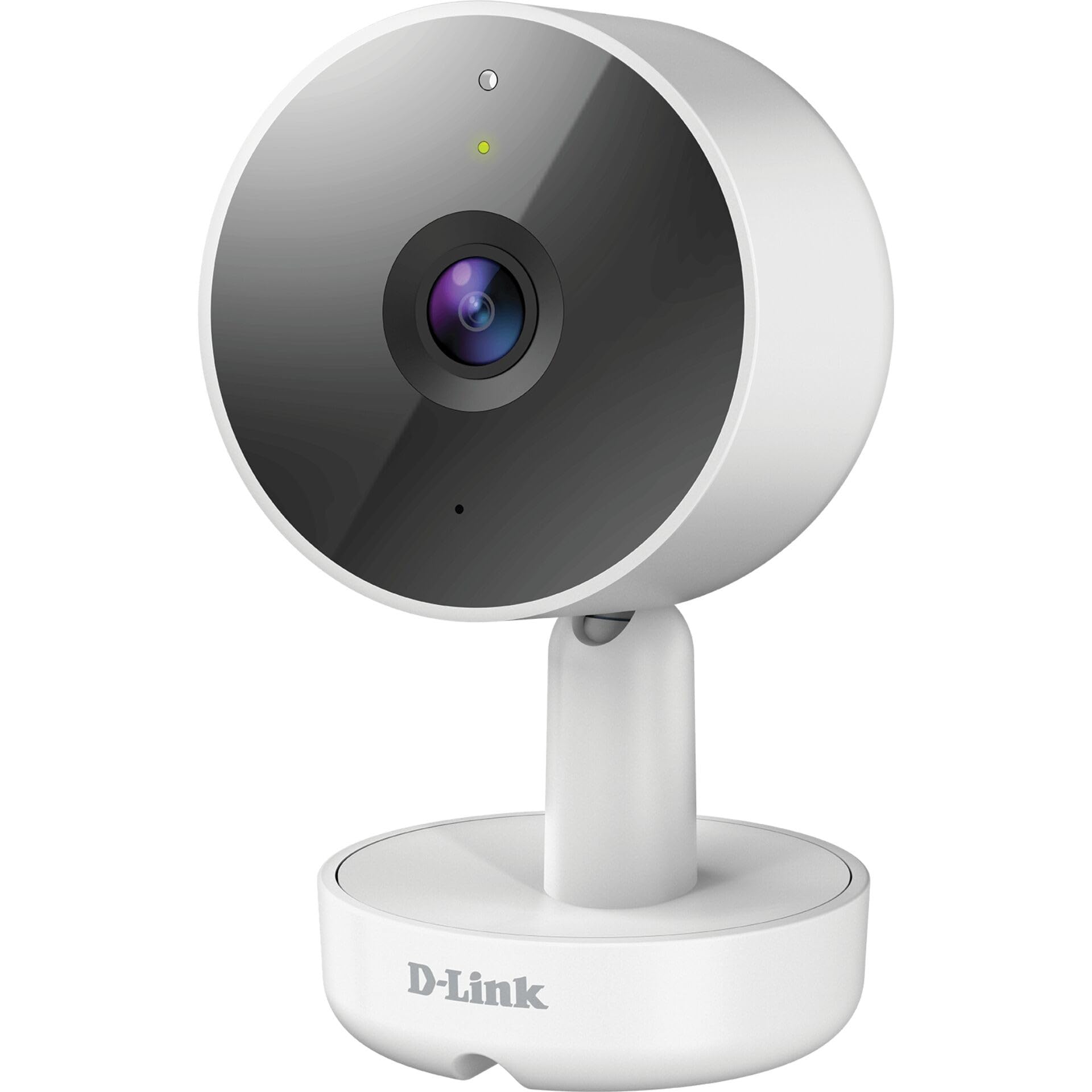
Gambar 3.1: Hareupeun View tina Kaméra
- 1. Lensa: Nangkep pidéo.
- 2. Status LED: Indicates camera status (e.g., power, connection).
- 3. Mikropon: Ngarekam audio pikeun komunikasi dua arah.
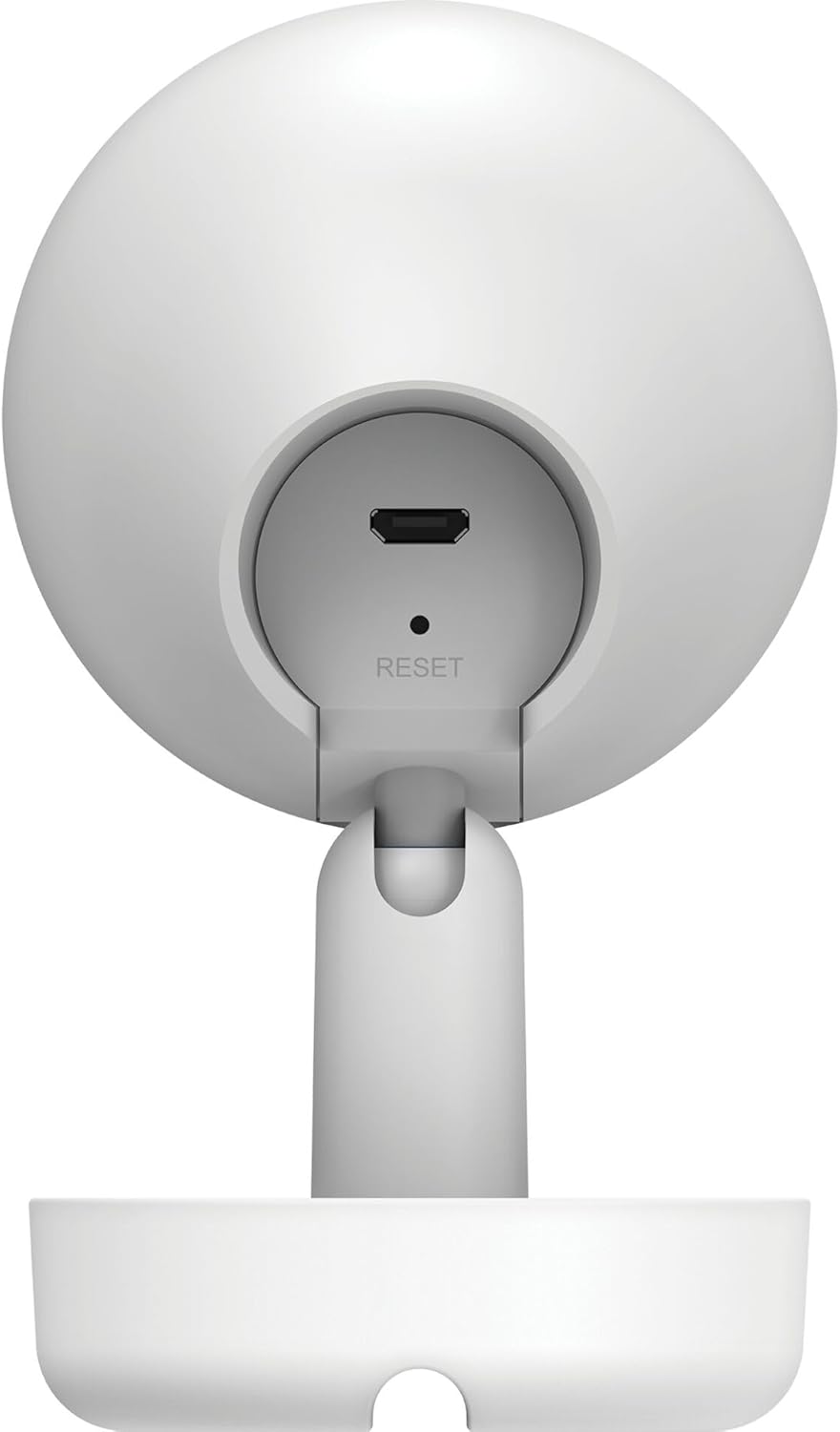
Gambar 3.2: Tukangeun View tina Kaméra
- 1. Micro USB Power Port: Nyambung ka adaptor kakuatan.
- 2. Tombol Reset: Dipaké pikeun mulangkeun setélan standar pabrik.
- 3. Panyatur: Ngaluarkeun audio pikeun komunikasi dua arah.
- 4. Slot Kartu MicroSD: For local video storage (located on the side or bottom, not visible in this specific image, but mentioned in features).
4. Setélan
Follow these steps to set up your D-Link DCS-8350LH camera:
- Unduh aplikasi mydlink: Milarian pikeun "mydlink" on the App Store (iOS) or Google Play (Android) and download the official mydlink app.
- Create a mydlink Account: Open the app and follow the on-screen instructions to create a new mydlink account or log in if you already have one.
- Daya dina kaméra: Connect the provided power adapter to the camera's Micro USB port and plug it into a power outlet. The status LED will begin to blink.
- Tambahkeun Alat: In the mydlink app, tap the menu icon (usually three lines) and select "Add a Device". Scan the QR code located on the camera or its packaging.
- Nyambung ka Wi-Fi: Follow the app's instructions to connect your camera to your home Wi-Fi network. Ensure your mobile device is connected to the same Wi-Fi network during setup.
- panempatan: Position your camera in the desired indoor location.

Gambar 4.1: Camera and mydlink App Integration
5. Pamasangan
The D-Link DCS-8350LH camera supports wall mounting for optimal placement.
- Pilih Lokasi: Pilih lokasi di jero rohangan anu bersih view daérah anu anjeun hoyong pantau sareng aya dina jangkauan jaringan Wi-Fi anjeun.
- Permukaan dipasang: Ensure the wall or surface is strong enough to support the camera.
- Ngamankeun Base: Use appropriate screws and anchors (not included) to secure the camera's base to the chosen surface.
- Saluyukeun Sudut: Once mounted, adjust the camera's angle to cover the desired viewing area. The camera has a 108-degree viewsudut ing.
6. Parentah Operasi
Once set up, you can access and control your camera using the mydlink app.
6.1. Hirup View
Open the mydlink app and select your DCS-8350LH camera from the device list to view the live feed. The camera provides 2K QHD (1440p) resolution for clear images.
6.2. Warna Peuting Visi
The camera automatically switches to color night vision in low-light conditions, allowing you to see detailed color video even when it's dark.
6.3. AI-based Event Detection
The camera features intelligent detection capabilities:
- Deteksi Jalma: Identifies human presence, reducing false alarms from pets or moving objects.
- Deteksi Sora: Alerts you to specific sounds, including carbon monoxide and smoke alarm sounds.
Configure detection zones and sensitivity settings within the mydlink app to customize alerts.
6.4. Audio Dua Arah
Use the built-in microphone and speaker to communicate with people or pets near the camera. Tap the microphone icon in the live view within the mydlink app to speak.
6.5. Ngarékam sareng Nyimpen Video
The DCS-8350LH offers multiple recording options:
- Kartu MicroSD: Insert a microSD card (not included) into the camera's slot for local storage of recorded video clips.
- mydlink Cloud Recording: Utilize the mydlink Cloud service for secure off-site storage. Free and paid subscription plans are available.
- Rekaman Smartphone: Capture snapshots and video clips directly to your smartphone via the mydlink app.
7. Pangropéa
7.1. beberesih
To clean the camera, gently wipe the lens and exterior surfaces with a soft, dry cloth. Do not use liquid cleaners or abrasive materials.
7.2. Apdet firmware
Regularly check for firmware updates through the mydlink app. Keeping your camera's firmware up-to-date ensures optimal performance, security, and access to new features.
8. Cara ngungkulan
If you encounter issues with your D-Link DCS-8350LH camera, refer to the following common solutions:
- Camera Offline / Wi-Fi Disconnection:
- Pastikeun kaméra aya dina jangkauan router Wi-Fi anjeun.
- Check your Wi-Fi network status.
- Pareuman terus hurungkeun deui kaméra ku cara cabut panyambungna sareng pasang deui adaptor daya.
- If the issue persists, try resetting the camera to factory defaults (see below) and re-adding it to the mydlink app.
- Kualitas pidéo goréng:
- Pastikeun lénsa kaméra beresih.
- Check your internet connection speed. A stable and fast connection is required for 2K QHD streaming.
- Adjust the camera's position to avoid glare or obstructions.
- Ngareset kaméra:
To restore the camera to its factory default settings, use a paperclip or a thin object to press and hold the recessed Reset button (refer to Figure 3.2) for approximately 10 seconds while the camera is powered on. The status LED will change, indicating a reset. You will then need to reconfigure the camera through the mydlink app.
9. Spésifikasi
| Fitur | Rincian |
|---|---|
| Ngaran modél | DCS-8350LH |
| Resolusi Rekaman Video | 1440p (2K QHD) |
| Viewdina Angle | 108 darajat |
| Protokol konektipitas | Wifi |
| Téknologi Komunikasi Nirkabel | Bluetooth (for initial setup) |
| Pamakéan jero rohangan / outdoor | jero rohangan |
| Sumber Daya | Kabel Listrik |
| Konsumsi Daya | 8 Watt |
| Faktor Bentuk | Kubah |
| Tipe Pamasangan | Tembok Gunung |
| Bahan | palastik |
| Ukuran barang (L x W x H) | 6.67 x 6.57 x 11.14 cm |
| Beurat | 320 gram |
| Komponén Kaasup | Kaméra jero rohangan |
| Tipe Controller | Amazon Alexa |
10. Garansi jeung Rojongan
For warranty information, technical support, and further assistance, please visit the official D-Link website or contact D-Link customer service. Keep your purchase receipt as proof of purchase.
You can find the latest support resources, FAQs, and contact details at www.dlink.com.