
1. Bubuka
This manual provides detailed instructions for the installation, operation, and maintenance of your Avision FL-1501B document scanner. Please read this manual thoroughly before using the scanner to ensure proper and safe operation. Keep this manual for future reference.

Figure 1: Avision FL-1501B Document Scanner with its automatic document feeder (ADF) and output tray extended.
2. Émbaran Kasalametan
Observe the following safety precautions to prevent damage to the scanner and ensure user safety:
- Anggo ngan ukur adaptor daya anu disayogikeun sareng pamindai.
- Ulah ngalaan scanner ka cai atawa kalembaban anu kaleuleuwihan.
- Tempatkeun scanner dina permukaan anu stabil sareng rata.
- Hindarkeun ngahalangan bukaan ventilasi.
- Ulah nyobian ngabongkar atawa ngalereskeun scanner sorangan. Rujuk ka tanaga jasa anu mumpuni.
- Jauhkeun scanner tina sinar panonpoé langsung sareng sumber panas.
3. Eusi Paket
Pastikeun yén sadaya item aya dina bungkusan:
- Avision FL-1501B Scanner Unit
- Adaptor kakuatan
- Kabel USB
- Gancang Mimitian Guide
- CD software (atanapi petunjuk unduh)
4. Setélan
4.1 Ngabongkar sareng Nempatkeun
- Taliti piceun scanner tina bungkusan na.
- Remove all protective tapes and packing materials.
- Place the scanner on a flat, stable surface with adequate space for document feeding and output.

Figure 2: The Avision FL-1501B scanner in its closed position, suitable for storage or before extending trays.
4.2 Nyambungkeun scanner
- Connect the power adapter to the scanner's power input port and then to an electrical outlet.
- Connect the USB cable to the scanner's USB port and then to an available USB port on your computer.
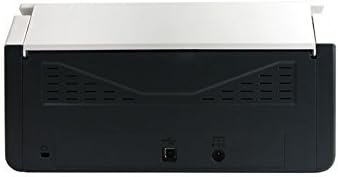
Figure 3: Rear panel of the scanner, illustrating the power input and USB connection ports.
4.3 Pamasangan Supir sareng Parangkat Lunak
Before using the scanner, you must install the necessary drivers and scanning software on your computer.
- Insert the provided Software CD into your computer's optical drive, or download the latest drivers and software from the official Avision websitus.
- Follow the on-screen instructions to complete the installation process. It is recommended to install all bundled software for full functionality.
- Balikan deui komputer upami dipenta.
5. Operasi
5.1 Ngamuat Dokumén
- Extend the input tray and output tray of the scanner.
- Saluyukeun pituduh kertas pikeun cocog sareng lebar dokumén anjeun.
- Place the documents face down, top edge first, into the automatic document feeder (ADF). Ensure the stack is neatly aligned. The scanner supports a maximum input sheet capacity of 100 sheets.

Gambar 4: Sisi profile of the scanner, showing the fully extended input and output trays ready for document feeding.
5.2 Ngagunakeun Control Panel
The scanner features a control panel for quick access to common scanning functions.

Gambar 5: Detil view of the scanner's control panel, featuring a digital display, function selection buttons, Cancel, Scan, and Power buttons.
- Tombol Daya: Press to turn the scanner on or off.
- Function Buttons (Up/Down Arrows): Use these to select different scanning profiles or functions displayed on the digital screen.
- Tombol Scan: Initiates the scanning process based on the currently selected function.
- Tombol Batal: Stops the current scanning operation.
5.3 Ngalaksanakeun Scan
- Pastikeun alat panyeken dihurungkeun tur disambungkeun ka komputer Anjeun.
- Load your documents into the ADF as described in section 5.1.
- Open the Avision scanning software on your computer (e.g., Button Manager, Capture Tool).
- Select your desired scanning settings (e.g., color mode, resolution, destination folder, single-sided/duplex).
- Click the "Scan" button in the software or press the Nyeken button on the scanner's control panel to begin scanning.
- The scanned images will be processed and saved according to your software settings.
6. Pangropéa
6.1 Ngabersihan Scanner
Regular cleaning helps maintain optimal scanning performance.
- Turn off the scanner and disconnect the power cable before cleaning.
- Anggo kaén anu lemes sareng teu aya serat anu hampang dampened with water or a mild, non-abrasive cleaner to wipe the exterior of the scanner.
- To clean the glass platen (if applicable) and rollers, open the scanner cover. Use a specialized scanner cleaning kit or a soft cloth with isopropyl alcohol.
- Allow all components to dry completely before reconnecting power.
6.2 Apdet firmware
Periodically check the Avision website for firmware updates. Firmware updates can improve performance, add features, or resolve issues. Follow the instructions provided with the firmware update package carefully.
7. Cara ngungkulan
Upami anjeun mendakan masalah sareng panyeken anjeun, tingal masalah sareng solusi umum ieu:
| Masalah | Mungkin Cukang lantaranana | Solusi |
|---|---|---|
| Scanner teu hurung. | kabel kakuatan teu disambungkeun; stop kontak listrik lepat. | Pastikeun kabel kakuatan disambungkeun aman. Coba colokan listrik anu béda. |
| Computer does not detect scanner. | kabel USB leupas; drivers teu dipasang atawa ruksak. | Check USB cable connection. Reinstall scanner drivers. Try a different USB port. |
| Gambar anu diseken kabur atanapi streaky. | Scanner glass or rollers are dirty; document misfeed. | Clean the scanner's internal components (refer to Section 6.1). Ensure documents are loaded correctly. |
| Documents jam in the ADF. | Documents are wrinkled or stapled; paper guides not adjusted. | Straighten documents. Remove staples/clips. Adjust paper guides to fit document width. |
8. Spésifikasi
| Fitur | Rincian |
|---|---|
| merek | Bewara |
| Modél | FL-1501B |
| Jenis scanner | Scanner Dokumén |
| Resolusi scanner | 600 dpi |
| Max Input Lambaran Kamampuh | 100 lembar |
| Jenis Média | Kertas |
| Wattage | 24 watt |
| Dimensi produk | 33 x 32.32 x 80.94 cm |
| Item Beurat | 5.67 kg |
| Tanggal Kahiji Sadia | 6 Juni 2016 |
9. Garansi jeung Rojongan
9.1 Émbaran jaminan
Avision products are manufactured to high-quality standards. This product is covered by a limited warranty against defects in materials and workmanship. The specific terms and duration of the warranty may vary by region. Please refer to the warranty card included with your product or visit the official Avision websitus kanggo inpormasi garansi lengkep.
9.2 Rojongan Téknis
For technical assistance, driver downloads, or further information, please visit the official Avision support website or contact your local Avision service center. Contact details can typically be found on the Avision websitus atanapi dina dokuméntasi produk anjeun.