
1. Bubuka
This manual provides detailed instructions for the setup, operation, and maintenance of your ELECROW 7 Inch 1024x600 IPS Capacitive Touchscreen Monitor. This display is designed for broad compatibility with devices such as Raspberry Pi (5/4/3B+/3B/2B+), BB Black, Banana Pi, Jetson Nano, and Windows 11/10/8/7 systems.
Fitur konci:
- Visual HD: 7-inch IPS screen with 1024x600 resolution and 170° wide viewing angle for consistent colors and clear viewing.
- Capacitive Touch: Supports up to 5-point touch functionality without requiring driver installation for most compatible systems.
- Nyolok sareng Puter: Simple connectivity via HD (HDMI) and Micro USB ports for immediate use.
- Aplikasi serbaguna: Suitable for use as a Raspberry Pi display, mini PC monitor, gaming console screen, or a computer temperature monitor.
2. Naon dina Box
Punten parios yén sadaya komponén aya sateuacan neraskeun pamasangan.
- 7 Inch Capacitive Display x 1
- HD Cable x 1
- Kabel USB x 1
- Micro HD Adapter x 1
- Copper Screws Pack (4pcs) x 1
- DVD x 1 (Contains drivers and documentation)
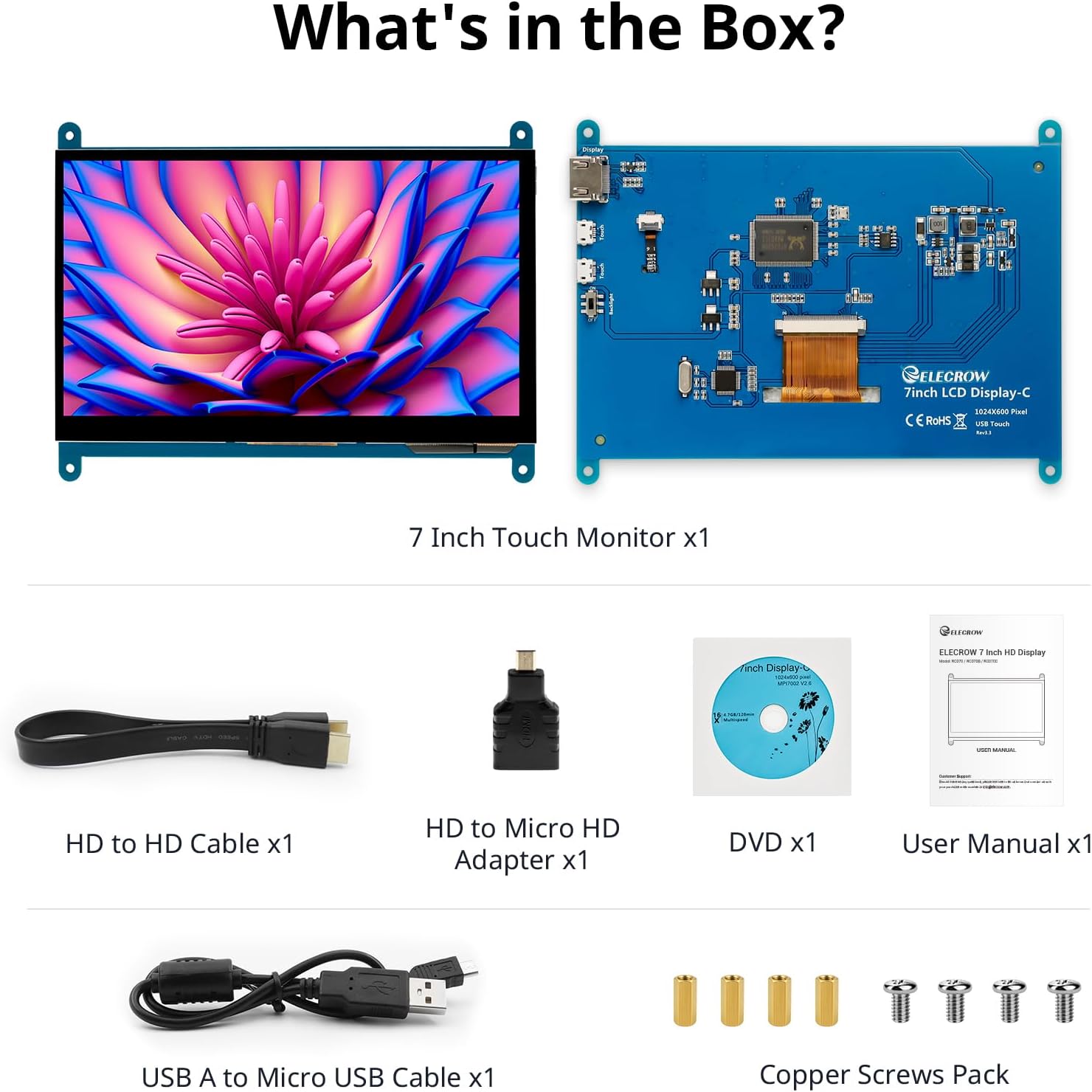
Gambar: Sadaya komponén kalebet dina kemasan produk.
3. Setup jeung Sambungan
Follow these steps to connect your ELECROW 7 Inch Touchscreen Monitor to your device.
3.1 Hardware Leuwihview

Gambar: Tukangeun view of the monitor highlighting the Standard HD Port, Micro USB Port for touch and power, and Backlight switch.
- Standard HD Port: For video data transfer.
- Port USB Mikro: For touch functionality and power supply.
- Saklar lampu tukang: To turn the display backlight on or off.
3.2 Nyambungkeun ka Raspberry Pi
To connect the monitor to a Raspberry Pi, you will need both the HD cable for video and the USB cable for touch and power.
- Connect one end of the HD cable to the Standard HD Port on the monitor and the other end to the HDMI port on your Raspberry Pi. Use the Micro HD adapter if necessary for your Raspberry Pi model.
- Connect the Micro USB cable to the Micro USB Port on the monitor. Connect the other end of the USB cable to a USB port on your Raspberry Pi for power and touch data.
- Ensure the backlight switch on the monitor is in the 'On' position.
- Power on your Raspberry Pi. The display should automatically detect and show the output.
For touch functionality with Raspberry Pi, power can be supplied via the Raspberry Pi's USB port. If using an external power source for the Raspberry Pi, ensure it is sufficient. For optimal performance, especially with older Raspberry Pi models, an external power supply for the monitor might be beneficial if the Pi cannot provide enough current.
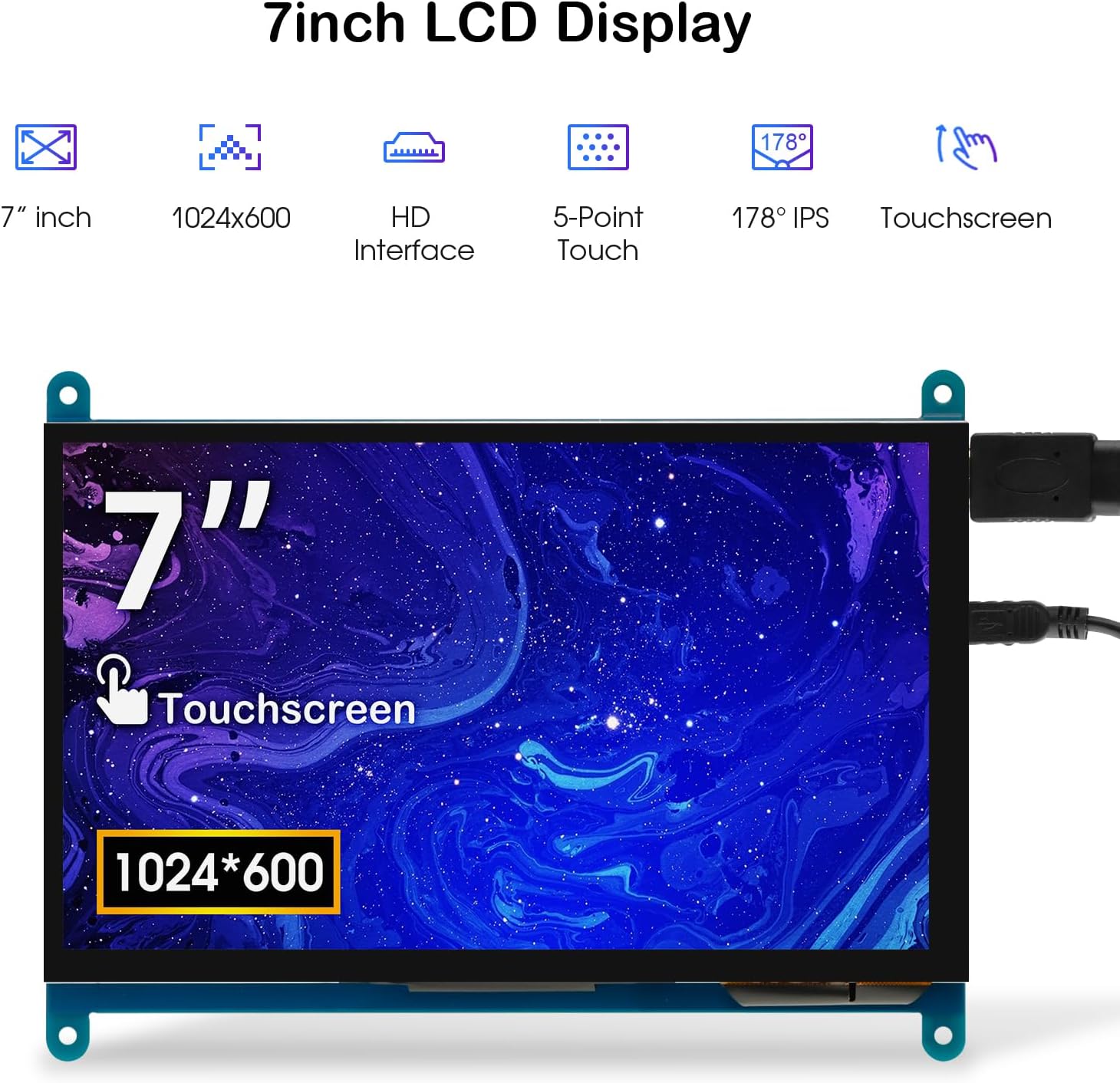
Image: The 7-inch touchscreen connected to a Raspberry Pi board, displaying a graphical user interface.
3.3 Connecting to Windows PC/Laptop
For Windows systems, the monitor functions as a plug-and-play display and touchscreen.
- Connect the HD cable from the monitor's Standard HD Port to an HDMI port on your PC or laptop.
- Connect the Micro USB cable from the monitor's Micro USB Port to a USB-A port on your PC or laptop. This provides power and enables touch functionality.
- Ensure the backlight switch is 'On'.
- Your Windows system should automatically detect the display and touchscreen. No additional drivers are typically required for Windows 7/8/10/11 for basic display and 5-point touch.

Image: The 7-inch touchscreen connected to a laptop, demonstrating seamless connectivity with various operating systems including Windows.
4. Parentah Operasi
4.1 Fungsi Toél
The monitor supports 5-point capacitive touch, allowing for various gestures.
- Ketok: Hiji sentuhan kanggo pilihan atanapi aktivasi.
- Pencét: Sustained touch for context menus or drag operations.
- Zum In/Out: Gerakan nyubit ku dua ramo.
- Klik Beurit: A single tap typically registers as a left-click.
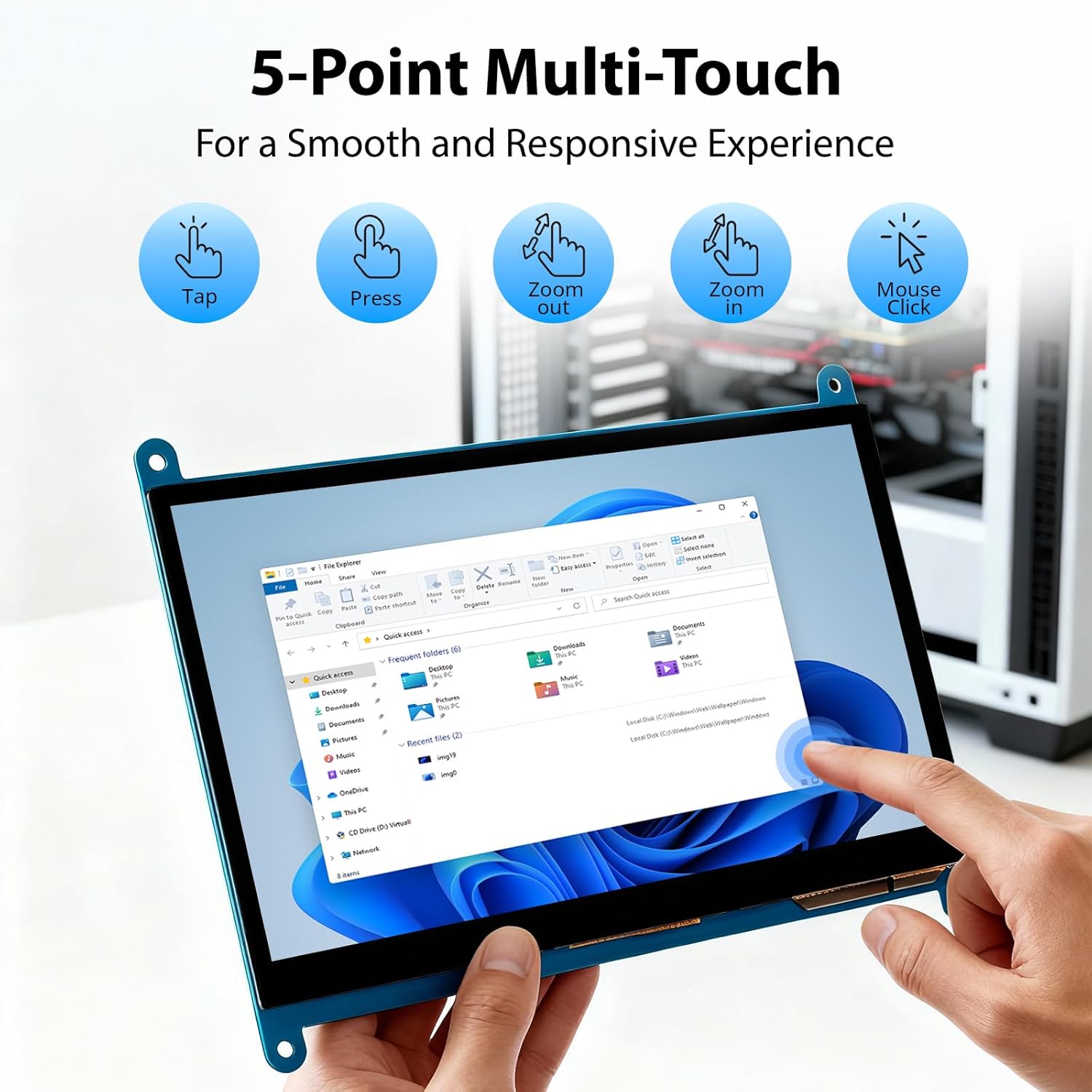
Image: Visual guide to the 5-point multi-touch capabilities of the screen, showing common gestures.
4.2 Modeu Paparan
When connected to a computer, the monitor can operate in several display modes:
- Mode duplikat: The monitor mirrors the content of your primary display.
- Manjangkeun Mode: The monitor acts as an extension of your primary display, providing additional screen space.
- Modeu Layar Kadua: The monitor functions as the sole display, with the primary display turned off.
These modes can typically be configured through your operating system's display settings.

Image: Illustrations demonstrating the three display modes: Duplicate, Extend, and Second Screen, showing how the monitor can be used with a laptop.
4.3 Kadali lampu tukang
The monitor features a physical switch to control the backlight. This allows you to turn the display illumination on or off without disconnecting power. Note that there is no granular brightness control; it is an on/off function only.
Video: This video demonstrates the backlight control switch on the ELECROW 7 Inch Touchscreen, showing how to turn the display illumination on and off.
5. Pangropéa
Pangropéa anu leres mastikeun umur panjang sareng kinerja optimal monitor anjeun.
- Ngabersihan layar: Make kaen nu lemes, teu aya lint rada dampened with water or a screen-cleaning solution. Avoid harsh chemicals or abrasive materials that could damage the screen surface.
- Perawatan Umum: Keep the monitor in a clean, dry environment. Avoid exposing it to extreme temperatures, direct sunlight, or high humidity.
- Penanganan: Handle the monitor by its edges. Avoid applying excessive pressure to the screen.
6. Cara ngungkulan
Upami anjeun ngalaman masalah sareng monitor anjeun, tingali masalah sareng solusi umum ieu.
| Masalah | Mungkin Cukang lantaranana | Solusi |
|---|---|---|
| Teu aya tampilan/Layar hideung |
|
|
| Layar rampa teu ngabales |
|
|
| Display resolution incorrect |
|
|
| Taya kadali kacaangan | The monitor only has an on/off switch for the backlight, not adjustable brightness. | This is expected behavior. The monitor does not support adjustable brightness. |
7. Spésifikasi
Detailed technical specifications for the ELECROW 7 Inch Touchscreen Monitor.
| Fitur | Rincian |
|---|---|
| merek | ELEKTRIK |
| Ngaran modél | RC070 |
| Ukuran layar | 7 inci |
| Resolusi tampilan Maximum | 1024 x 600 |
| Resolusi pribumi | 1024x600 |
| Tipe tampilan | LCD |
| Téknologi tampilan | IPS |
| Rasio Aspék | 1.71:1 |
| Refresh Laju | 60 Hz |
| Waktu Tanggapan | 8 Milidetik |
| Babandingan Kontras | 800:1 |
| Caang | 300 lm |
| Viewdina Angle | 170 darajat |
| Pedaran Permukaan layar | Herang |
| Téhnologi konektipitas | HDMI |
| Konéktipitas Hardware | HDMI, USB |
| Total Number of HDMI Ports | 1 |
| Total palabuhan USB | 2 (Micro USB for power/touch, USB-A for power/touch) |
| Konsumsi Daya | 12.5 Watt |
| Voltage | 5 volt |
| Ukuran barang (D x W x H) | 0.3 "D x 6.1" W x 4.8" H |
| Item Beurat | 7.36 ons |
| Alat nu cocog | Raspberry Pi, BB Black, Banana Pi, Jetson Nano, Computers, Laptops, Gaming Consoles |
8. Garansi jeung Rojongan
Your ELECROW 7 Inch Touchscreen Monitor comes with a manufacturer's warranty.
- Jenis Garansi: 1 Taun Produsén Garansi
- Katerangan jaminan: 1 Taun Produsén
For technical support or warranty claims, please contact ELECROW customer service through their official websitus atanapi platform dimana produk ieu dibeuli.