
Bubuka
The ZOTAC VR GO Backpack PC System (Model ZBOX-VR7N70-U-W2B) is designed to provide an untethered virtual reality experience. This powerful and portable system combines high-performance computing with ergonomic design, allowing users to move freely within VR environments. It can also function as a standard desktop PC when not in use for VR. This manual provides essential information for setting up, operating, maintaining, and troubleshooting your VR GO system.
Naon dina Box
Bungkus sadaya komponén kalayan ati-ati sareng pastikeun barang-barang ieu kalebet:
- 1 x ZOTAC VR GO System
- 1 x Backpack Strap
- 2 x Li-ion Batteries (rated at 95Wh, 6600mAh)
- 1 x Ngecas Dock
- 1 x adaptor AC
- 1 x Kabel Listrik
- 1 x USB Drive with O/S Driver
- 1 x Dukungan DVD
- 1 x Kartu Garansi
- 1 x Manual Pamaké
- 1 x Pitunjuk Gancang
- 1 x OS Recovery DVD
Gambar 1: ZOTAC VR GO Backpack PC System and accessories laid out, including the VR GO unit, backpack harness, two batteries, charging dock, power adapter, cables, USB drive, and manuals.
Produk Leuwihview
The ZOTAC VR GO is a compact and powerful PC designed for virtual reality. It features a robust Intel Core i7 processor and NVIDIA GeForce GTX 1070 graphics, ensuring smooth and immersive VR experiences. The system is housed in a wearable backpack form factor, eliminating cable clutter and providing freedom of movement.

Gambar 2: Hareupeun view of the ZOTAC VR GO Backpack PC System, showcasing its sleek black design with ZOTAC branding and ventilation grilles.
Palabuhan sarta Panyambungna
The VR GO system offers a comprehensive set of ports for connectivity and expansion:

Gambar 3: Diwincik view of the ZOTAC VR GO Backpack PC's rear ports, including power input, microphone, headphone, SD/SDHC/SDXC card reader, USB 3.0 ports, HDMI 2.0 ports, DisplayPort 1.4 ports, Gigabit LAN, and 12V power output.

Gambar 4: Diwincik view of the ZOTAC VR GO Backpack PC's bottom ports, showing 12V power output, HDMI, and USB 3.0 ports.
Setup jeung Operasi
Battery Installation and Hot-Swapping
The VR GO system uses two hot-swappable Li-ion batteries, providing up to 2 hours of playtime. To install or replace a battery:
- Locate the battery release latch on the side of the VR GO unit.
- Press the release latch and slide out the depleted battery.
- Insert a fully charged battery until it clicks securely into place.
penting: To maintain continuous power to the system, always replace one battery at a time. Ensure at least one battery remains in the system while swapping the other.
This video demonstrates key features of the ZOTAC VR GO Backpack PC, including hot-swappable batteries, comfortable wearability, integrated storage for VR accessories, and its ability to function as a standard desktop PC. The segment from 0:11 to 0:18 specifically shows the hot-swapping of batteries.
Wearing the VR GO Backpack
The VR GO is designed for comfortable wear during extended VR sessions:
- Place the VR GO unit into the backpack harness.
- Adjust the shoulder, chest, and waist straps for a snug and secure fit. The harness is padded for comfort and weight distribution.
- Connect your VR headset and controllers to the appropriate ports on the VR GO unit.
This video demonstrates key features of the ZOTAC VR GO Backpack PC, including hot-swappable batteries, comfortable wearability, integrated storage for VR accessories, and its ability to function as a standard desktop PC. The segment from 0:03 to 0:10 and 0:59 to 1:09 shows the user wearing the backpack and moving freely.
Storing VR Headset and Controllers
When not actively using your VR headset and controllers, the backpack harness provides convenient storage options:
- The headset can be clipped onto a dedicated portion of the backpack harness.
- Controllers can be placed in handy pockets located on the sides of the harness, keeping them secure and out of the way.
This video demonstrates key features of the ZOTAC VR GO Backpack PC, including hot-swappable batteries, comfortable wearability, integrated storage for VR accessories, and its ability to function as a standard desktop PC. The segment from 0:45 to 0:59 illustrates how to store the VR headset and controllers on the backpack harness.
Using as a Desktop PC
The VR GO system can be detached from the backpack harness and used as a powerful mini desktop PC:
- Remove the VR GO unit from the backpack harness.
- Tempatkeun unit dina permukaan anu rata sareng stabil.
- Connect a monitor via HDMI or DisplayPort.
- Connect a keyboard, mouse, and other peripherals to the available USB ports.
- For extended use, connect the dedicated power cable to bypass battery usage. Alternatively, the system can run on battery power alone.
This video demonstrates key features of the ZOTAC VR GO Backpack PC, including hot-swappable batteries, comfortable wearability, integrated storage for VR accessories, and its ability to function as a standard desktop PC. The segment from 2:07 to 2:25 shows the VR GO unit being set up and used as a desktop PC.
Comfort and Cooling
The VR GO backpack is engineered for user comfort and efficient thermal management during intense VR sessions. The harness features breathable channels and thick mesh foam padding on the back and shoulder straps to ensure a comfortable fit and proper ventilation. Exhaust air is directed away from the user's body to prevent discomfort from heat buildup.

Gambar 5: Samping view of the ZOTAC VR GO Backpack PC with its ergonomic harness, highlighting breathable channels, thick mesh foam padding on back and shoulder straps, waist and chest straps, dedicated holsters for controllers, and cable management strap.
This video demonstrates key features of the ZOTAC VR GO Backpack PC, including hot-swappable batteries, comfortable wearability, integrated storage for VR accessories, and its ability to function as a standard desktop PC. The segment from 1:28 to 1:36 visually explains the cooling system, showing how heat is exhausted away from the user.
Connectivity and Display
The ZOTAC VR GO supports multiple display outputs, allowing for flexible setup options. It features 3 x HDMI 2.0 and 2 x DisplayPort 1.4, capable of supporting up to 4 displays simultaneously. This allows for sharing your VR experience with others in the room by streaming your VR gameplay to a TV or monitor using a third-party wireless HDMI video streaming device.
This video demonstrates key features of the ZOTAC VR GO Backpack PC, including hot-swappable batteries, comfortable wearability, integrated storage for VR accessories, and its ability to function as a standard desktop PC. The segment from 1:39 to 1:47 shows how a wireless HDMI video streaming device can be connected to beam VR gameplay to an external display.
Spésifikasi teknis
| Fitur | Spésifikasi |
|---|---|
| merek | ZOTAC |
| Nomer modél | ZBOX-VR7N70-W2B-U |
| Sistem operasi | Windows 10 Home (64-bit) pre-installed |
| Modél CPU | Intel Core i7-6700T (quad-core 2.8 GHz, up to 3.6 GHz) |
| Kartu Grafis | NVIDIA GeForce GTX 1070 (8GB GDDR5 memory, 256-bit) |
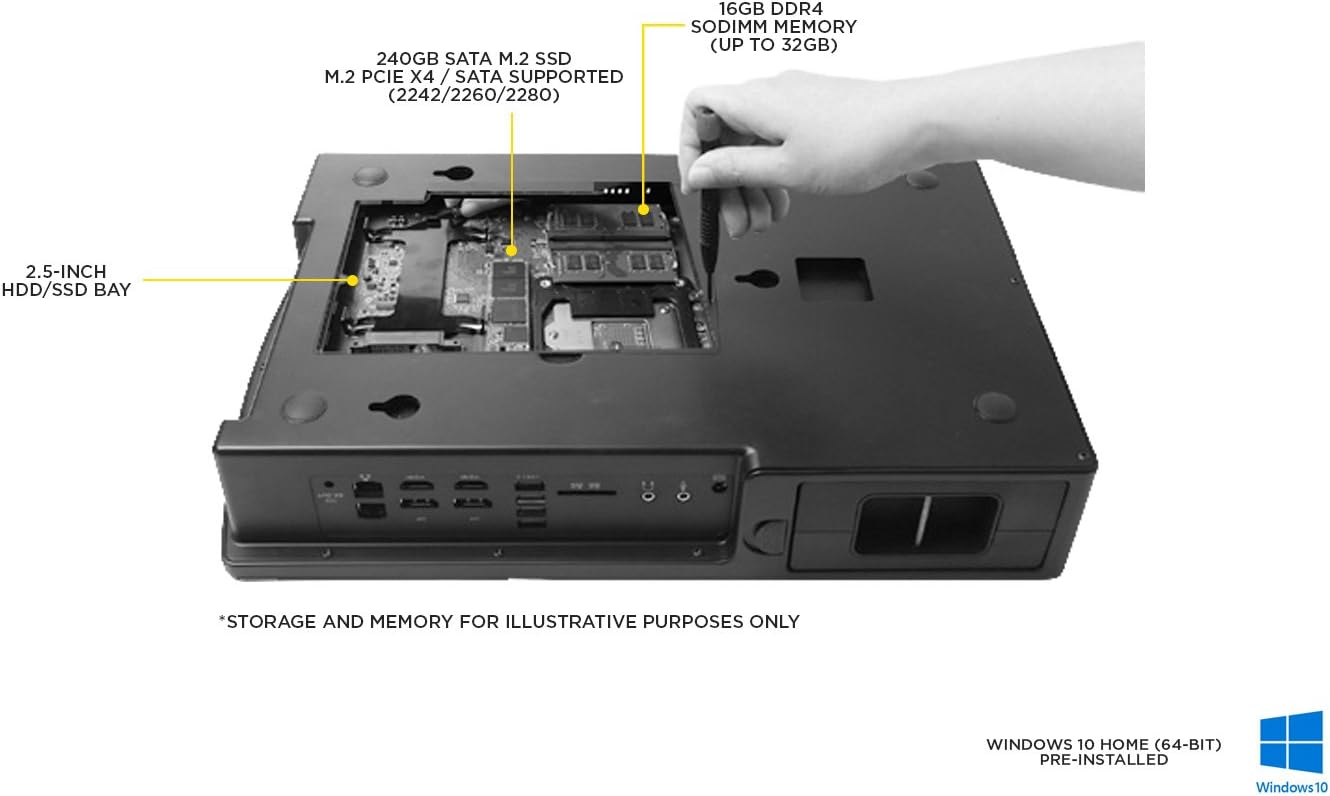
| Mémori RAM | 16GB DDR4-2133 SO-DIMM (Max 32GB) |
| Panyimpenan | 240GB M.2 SATA SSD, 1 x 2.5-inch SATA 6.0 Gbps HDD/SSD bay |
| Kaluaran tampilan | 3 x HDMI 2.0, 2 x DisplayPort 1.4 (Max 4 displays) |
| palabuhan USB | 6 x USB 3.0 (4 rear, 2 top) |
| Jaringan | 2 x 10/100/1000 Ethernet (RJ45), 802.11ac WiFi, Bluetooth 4.2 |
| Audio | Analog input / output (Mic/Headphone) |
| Pamaca Kartu | 3-in-1 card reader (SD/SDHC/SDXC) |
| Batré | 2 x Li-ion battery (rated at 95Wh, 6600mAh), Hot-swappable |
| Batré Run Time | Up to 2 hours per set of batteries |
| Ukuran (L x W x H) | 410mm (16.14in) x 270mm (10.63in) x 76mm (2.99in) |
| Beurat | Approximately 4.5 kg (10 lbs) with batteries |

Gambar 6: Internal view of the ZOTAC VR GO Backpack PC, showing the 2.5-inch HDD/SSD bay, 240GB M.2 SATA SSD, and 16GB DDR4 SODIMM memory slots (up to 32GB).
Pangropéa
Proper maintenance ensures the longevity and optimal performance of your ZOTAC VR GO Backpack PC:
- beberesih: Regularly clean the exterior of the unit and the backpack harness with a soft, dry cloth. Ensure ventilation grilles are free from dust and debris. Do not use liquid cleaners directly on the PC unit.
- Perawatan batré: Store batteries in a cool, dry place. Avoid extreme temperatures. Fully charge batteries before long-term storage and recharge every few months to prevent deep discharge.
- Apdet parangkat lunak: Keep your operating system, graphics drivers, and other software up to date to ensure compatibility and performance.
- Panyimpenan: When not in use, store the VR GO system and its components in a safe, dry environment, away from direct sunlight and extreme temperatures.
Pamérésan masalah
If you encounter issues with your ZOTAC VR GO, refer to the following common troubleshooting steps:
- Sistem Henteu Diaktipkeun: Ensure both batteries are correctly inserted and charged, or that the AC adapter is securely connected if using it as a desktop. Check the power button.
- Henteu aya kaluaran tampilan: Verify that the display cables (HDMI/DisplayPort) are securely connected to both the VR GO unit and the monitor/VR headset. Ensure the monitor is set to the correct input source.
- VR Headset/Controllers Not Detected: Check all cable connections between the VR GO and your VR peripherals. Ensure all necessary VR software and drivers are installed and up to date.
- Overheating: Ensure the ventilation grilles are not obstructed. Operate the system in a well-ventilated area. If using the backpack, ensure the exhaust air is not blocked.
- Masalah Kinerja: Close unnecessary background applications. Ensure graphics drivers are updated. Check system resource usage (CPU, GPU, RAM) to identify bottlenecks.
For more detailed troubleshooting or persistent issues, please contact ZOTAC customer support.
Garansi sareng Rojongan
The ZOTAC VR GO Backpack PC System comes with a manufacturer's warranty. Please refer to the included Warranty Card for specific terms, conditions, and duration of your product's warranty. Keep your proof of purchase for warranty claims.
For technical support, driver downloads, or further assistance, please visit the official ZOTAC website or contact their customer service department. Contact information can typically be found on the ZOTAC websitus atawa dina Gancang Mimitian Guide.