
1. Bubuka
This manual provides comprehensive instructions for the installation, operation, and maintenance of your StarTech.com 4-Port Dual DisplayPort KVM Switch (SV431DPDDUA2). This device allows you to control up to four computers, each with dual DisplayPort outputs, from a single console consisting of two DisplayPort monitors, a USB keyboard, a USB mouse, and audio peripherals. It supports resolutions up to 4K at 60Hz, making it suitable for demanding multimedia and professional applications.
2. Naon dina Box
- 1x SV431DPDDUA2 KVM Switch
- 1x Universal Power Adapter (NA/JP, EU, UK, ANZ)
- 1x Pitunjuk Mimiti Gancang
- 4x Suku Karét

3. Fitur Produk
- Dukungan Dual Monitor: Connects two DisplayPort monitors to a single console.
- High Resolutions: Supports dual 4K (3840x2160) resolution at 60Hz.
- 4-Port KVM: Control up to four computers from one workstation.
- Babagi Periferal: Features separate 3.5 mm microphone and speaker ports, and two USB ports for sharing peripherals independently of the keyboard and mouse.
- Fungsi serbaguna: Ideal for graphic design, video editing, CAD drawing, and other high-bandwidth applications.
- Patuh TAA: Meets Trade Agreements Act requirements.
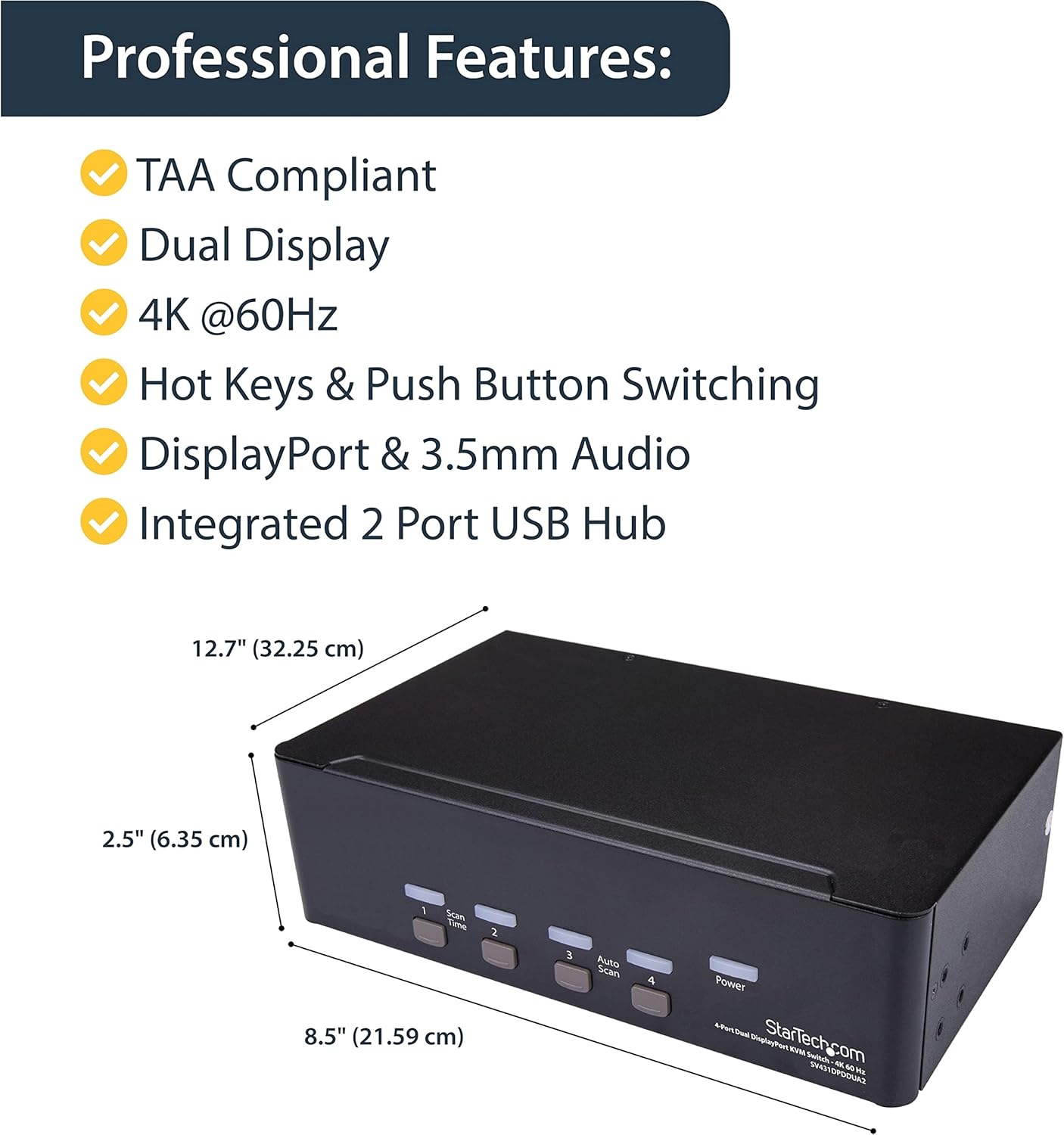
4. Produk Langkungview
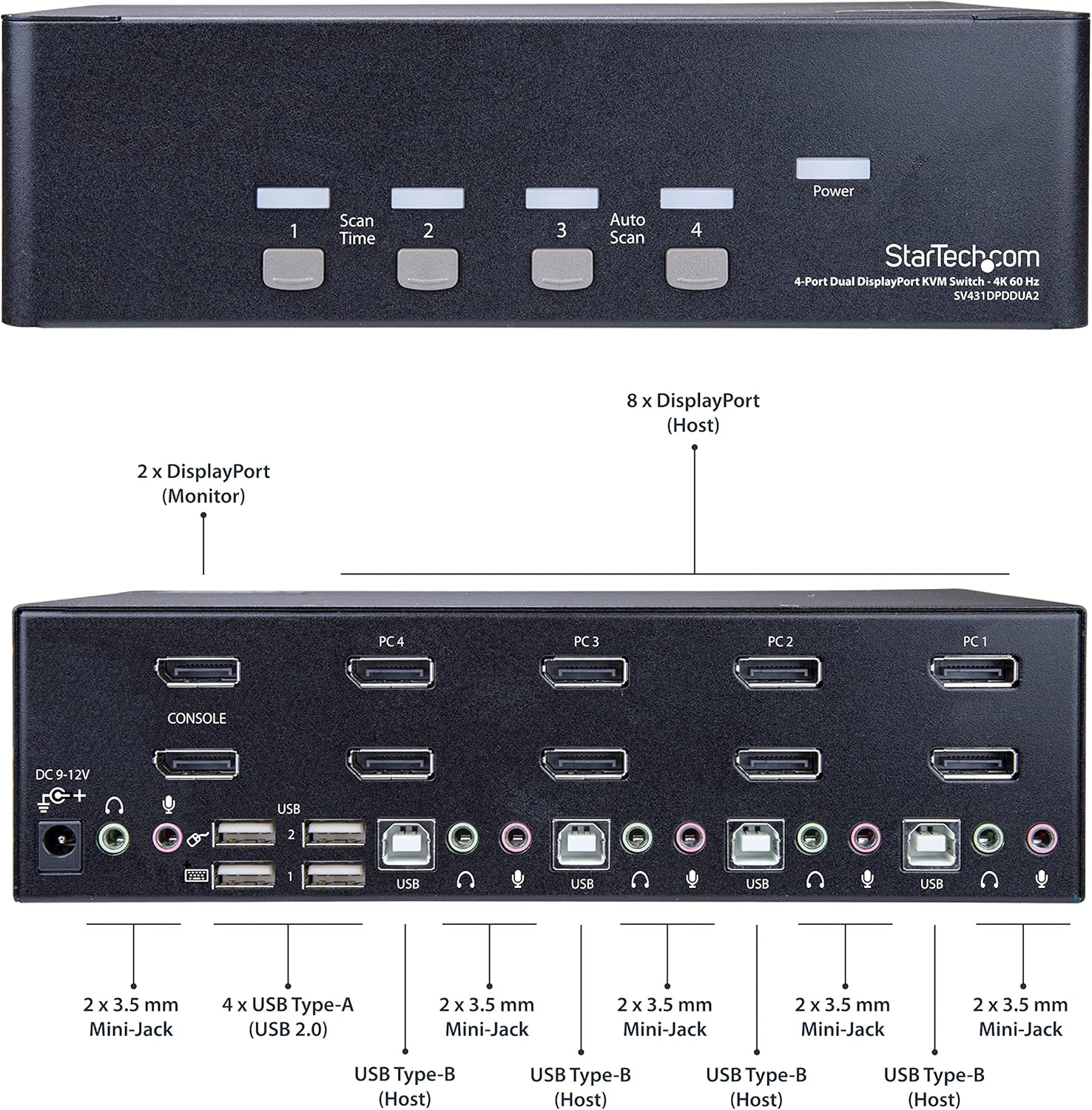
4.1 Panel payun

The front panel features four push buttons (1, 2, 3, 4) for direct port selection. Each button has an associated LED indicator. Additional buttons for 'Scan Time' and 'Auto Scan' are present, along with a 'Power' indicator LED.
4.2 Panel tukang

Panel tukang nyayogikeun sadaya port sambungan anu diperyogikeun:
- Input Daya DC 9-12V: For connecting the universal power adapter.
- Palabuhan Konsol: Two DisplayPort outputs for connecting your primary and secondary monitors.
- USB Ports (Console): Two dedicated USB-A ports for keyboard and mouse, and two additional USB-A ports for other peripherals.
- Audio Jacks (Console): 3.5mm jacks for microphone and speakers.
- PC Input Ports (1-4): Each PC input includes two DisplayPort inputs, one USB-B input, and 3.5mm audio jacks for microphone and speakers.
5. Setélan
Turutan léngkah-léngkah ieu pikeun nyetél saklar KVM anjeun:
- Pareuman Sadaya Alat: Ensure all computers, monitors, and the KVM switch are powered off before making any connections.
- Sambungkeun Monitor: Connect your two DisplayPort monitors to the 'CONSOLE' DisplayPort output ports on the rear of the KVM switch.
- Sambungkeun Periferal Konsol: Connect your USB keyboard and mouse to the dedicated USB-A ports on the rear panel. Connect your microphone and speakers to the respective 3.5mm audio jacks in the 'CONSOLE' section.
- Sambungkeun Komputer: For each computer (up to four), connect:
- Two DisplayPort cables from the computer's video outputs to the corresponding 'PC' DisplayPort inputs on the KVM switch.
- One USB-B cable from a USB-A port on the computer to the corresponding USB-B input for that PC on the KVM switch.
- 3.5mm audio cables from the computer's audio output/input to the corresponding audio jacks for that PC on the KVM switch (optional).
- Sambungkeun Kakuatan: Connect the universal power adapter to the 'DC 9-12V' input on the KVM switch, then plug it into a power outlet.
- Daya Hurung: Power on the KVM switch, then power on your monitors, and finally power on your connected computers.


6. Parentah Operasi
6.1 Ngalih Antar Komputer
You can switch between connected computers using two methods:
- Tombol Panel Hareup: Press the corresponding numbered button (1, 2, 3, or 4) on the front panel of the KVM switch to select the desired computer.
- Hotkeys: Use keyboard hotkey commands. The default hotkey sequence is to press the Gulung konci key twice, followed by the port number (1, 2, 3, or 4). For example, to switch to PC 2, press Gulung konci, Gulung konci, 2.
6.2 Auto Scan Function
The 'Auto Scan' feature allows the KVM switch to automatically cycle through all connected computers, displaying each for a set duration. To activate or adjust this feature, refer to the detailed instructions in the included Quick Start Guide or the full product manual available on the StarTech.com websitus.
7. Pangropéa
To ensure optimal performance and longevity of your KVM switch:
- beberesih: Anggo lawon anu lemes sareng garing pikeun ngabersihkeun bagian luar alat. Hindarkeun pembersih cair atanapi pangleyur.
- Ventilasi: Pastikeun saklar KVM disimpen di tempat anu ventilasina saé pikeun nyegah panas teuing. Ulah ngahalangan liang ventilasi naon waé.
- Kaayaan Lingkungan: Operate the device within the specified temperature range (0°C to 45°C) and humidity levels.
- Manajemén Kabel: Keep cables organized and avoid excessive bending or tension to prevent damage to connectors and ports.
8. Cara ngungkulan
If you encounter issues with your KVM switch, refer to the following common solutions:
- No Display on Monitor(s):
- Verify all DisplayPort cables are securely connected between the computers, KVM, and monitors.
- Ensure the KVM switch is powered on and the correct input port is selected.
- Test monitors by connecting them directly to a computer to rule out monitor or cable issues.
- If a monitor does not wake from sleep, try switching to another port and then back, or power cycling the monitor.
- Kibor/Beurit Teu Ngabales:
- Ensure the USB keyboard and mouse are connected to the dedicated console USB ports.
- Verify the USB-B cables are securely connected from each computer to the KVM switch.
- Try connecting the keyboard/mouse directly to the computer to confirm functionality.
- Some specialized keyboards/mice with integrated hubs or unique drivers may require connection to the shared USB ports or direct connection to the computer.
- Teu Aya Audio atanapi Kualitas Audio Goréng:
- Pariksa sadaya kabel audio 3.5mm kanggo sambungan anu aman.
- Ensure audio settings on the connected computers are correctly configured for the KVM's audio output/input.
- Test audio devices by connecting them directly to a computer.
- Switching Delays or Inconsistencies:
- Ensure high-quality DisplayPort and USB cables are used. Cable quality can impact performance, especially with 4K resolutions.
- If experiencing occasional failures to switch, try pressing input buttons 1 and 3 simultaneously to reset the KVM, then select the desired port.
9. Spésifikasi
| Fitur | Spésifikasi |
|---|---|
| Modél | SV431DPDDUA2 |
| Jumlah Palabuhan | 4 |
| Video Panganteur | DisplayPort 1.2 |
| Resolusi maksimum | 4K (3840x2160) @ 60Hz |
| Panganteur USB | USB 2.0 (Dedicated for HID), USB 2.0 (Shared) |
| Panganteur Audio | 3.5mm Mini-Jack (Microphone, Speaker) |
| Métode kontrol | Tombol Pencét, Tombol Pintas |
| Bahan | Baja |
| Ukuran barang (L x W x H) | 8.5 x 5 x 2.5 inci (21.59 x 12.7 x 6.35 cm) |
| Item Beurat | 2.64 Pon (1.2 kg) |
| Konsumsi Daya | 18 Watt |
| Suhu Operasi | 0°C nepi ka 45°C (32°F nepi ka 113°F) |
| Sertifikasi | RoHS, WEEE |
10. Garansi jeung Rojongan
Produk StarTech.com ieu dirojong ku 2-Taun Garansi. For the most current warranty information and technical support, please visit the official StarTech.com website or contact their customer service department. Support resources typically include online FAQs, driver downloads, and direct contact options via phone or live chat.