
Bubuka
This manual provides essential information for the proper setup, operation, and maintenance of your Philips 346B1C Curved Monitor. This 34-inch WQHD (3440 x 1440) display features a 100 Hz refresh rate, 5ms response time, and a curved VA panel for an immersive viewing experience. Key features include USB-C docking, MultiView functionality, FreeSync technology, LowBlue Mode, and FlickerFree technology for enhanced user comfort and productivity.

Gambar: Hareupeun view of the Philips 346B1C curved monitor, showcasing its ultrawide display and key features like WQHD, USB-C Docking, and MultiView.
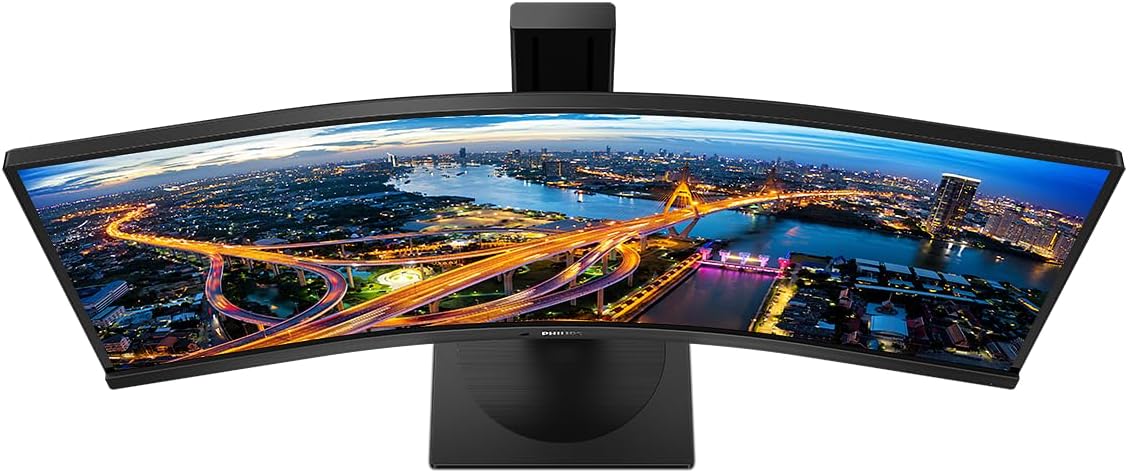
Gambar: luhur-handap view of the Philips 346B1C curved monitor, emphasizing the curvature of the screen.
Naon dina Box
Pastikeun yén sadaya komponén aya sateuacan neraskeun setelan.
- Philips 346B1C Curved Monitor
- Stand Monitor (Dasar sareng Beuheung)
- Kabel Daya
- Kabel HDMI
- Kabel DisplayPort
- USB-C ka USB-C Cable
- USB-A to USB-B Cable (Upstream)
- Documentation (Quick Start Guide, User Manual CD)
Parentah Setup
1. Ngarakit Stand
- Teundeun monitor nyanghareupan handap dina permukaan lemes, beresih pikeun nyegah goresan.
- Pasang beuheung nangtung ka panel monitor. Pastikeun éta ngaklik aman kana tempatna atanapi dipasang ku sekrup upami disayogikeun.
- Attach the stand base to the stand neck. Tighten the thumb screw or screws from the bottom of the base.

Gambar: Tukangeun view of the Philips 346B1C monitor, showing the stand attachment point and VESA mounting holes.
2. Nyambungkeun ka Komputer Anjeun
Sambungkeun monitor ka komputer anjeun nganggo salah sahiji metode ieu:
- Sambungan HDMI: Sambungkeun hiji tungtung kabel HDMI kana port HDMI monitor sareng tungtung anu sanésna kana output HDMI komputer anjeun.
- Sambungan DisplayPort: Connect one end of the DisplayPort cable to the monitor's DisplayPort and the other end to your computer's DisplayPort output.
- Sambungan USB-C: Connect one end of the USB-C cable to the monitor's USB-C port and the other end to your computer's USB-C port. This connection supports video, data, and power delivery (up to 90W) to your laptop.
For USB hub functionality, connect the USB-A to USB-B upstream cable from your computer to the monitor's USB-B upstream port.
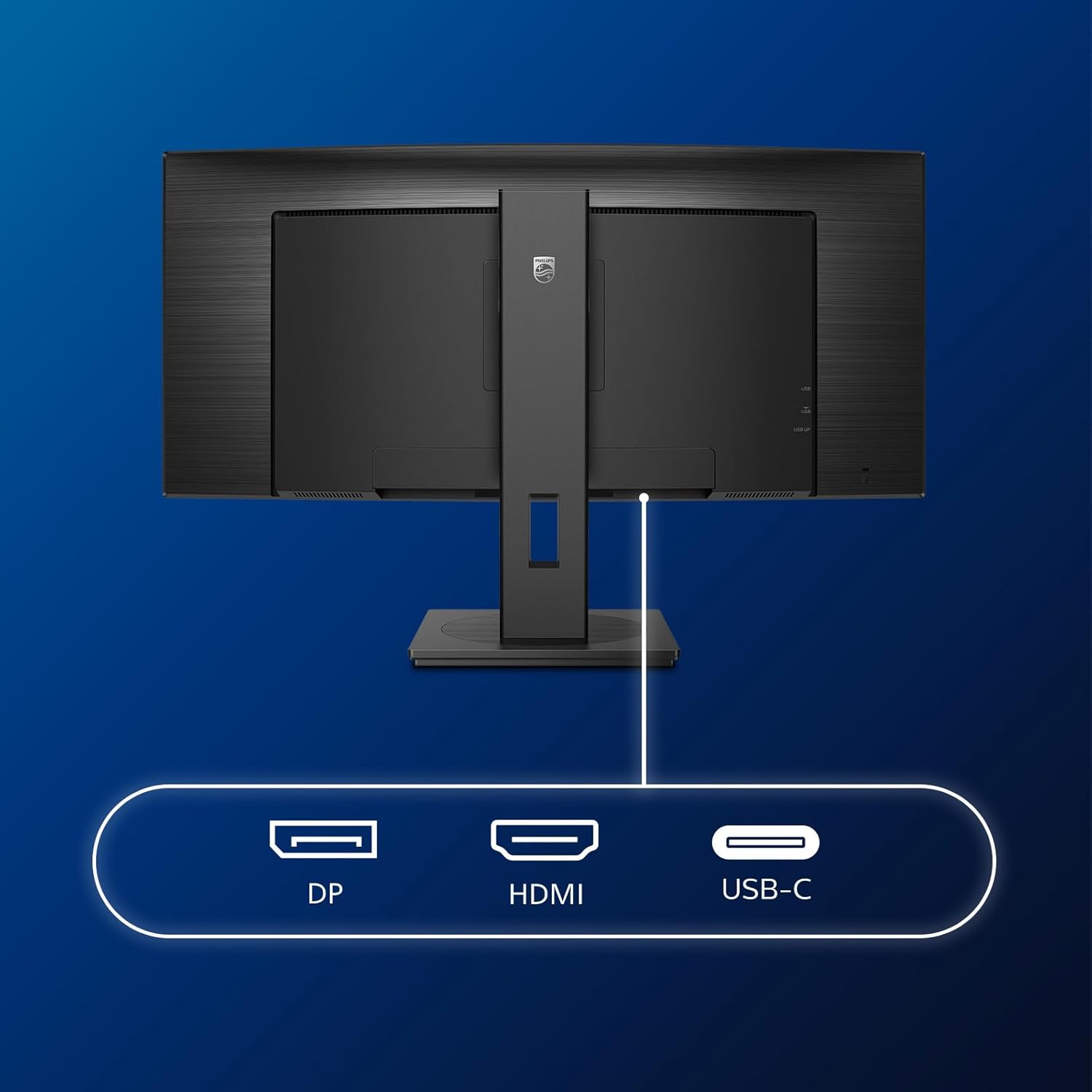
Gambar: Detil view of the monitor's input ports, including DisplayPort (DP), HDMI, and USB-C, for connecting to various devices.
3. Sambungan Daya
Sambungkeun kabel kakuatan ka input kakuatan monitor lajeng kana stop kontak listrik grounded.
4. Daya Awal Hurung
Press the power button located on the monitor to turn it on. The monitor should automatically detect the input signal. If not, use the On-Screen Display (OSD) menu to select the correct input source.
Parentah Operasi
Menu dina layar (OSD).
The OSD menu allows you to adjust various monitor settings. Use the joystick control located on the back or bottom of the monitor to navigate the menu.
- Caang/Kontras: Saluyukeun luminance sareng kontras sakabéh tampilan.
- Setélan warna: Fine-tune color temperature, gamma, and color space.
- Pilih Input: Pindah sacara manual antara input HDMI, DisplayPort, sareng USB-C.
- Audio: Atur volume atanapi mareuman sora speaker internal.
- Modeu Gambar: Select from preset picture modes (e.g., Standard, Gaming, Text).
MultiView Fungsionalitas
The MultiView feature allows you to connect and view content from two different sources simultaneously on the screen. Access this feature through the OSD menu to select Picture-by-Picture (PbP) or Picture-in-Picture (PiP) modes and configure input sources.
USB-C Docking
When connected via USB-C, the monitor acts as a docking station, providing video, data transfer through its integrated USB hub, and power delivery to charge your connected laptop (up to 90W).
SmartErgoBase and Adjustability
The monitor's SmartErgoBase allows for ergonomic adjustments including height, swivel, and tilt to optimize your viewing kanyamanan.

Image: Illustrations demonstrating the monitor's adjustable features, including height adjustment, tilt, and swivel capabilities for ergonomic positioning.
Fitur kanyamanan Panon
- Modeu LowBlue: Reduces harmful shortwave blue light emissions to prevent eye strain. Activate this mode via the OSD menu.
- FlickerFree Technology: Ngatur kacaangan sareng ngirangan kedip-kedip supados langkung nyaman viewing. This feature is always active.
- PowerSensor & LightSensor: These sensors automatically adjust monitor brightness based on ambient light conditions and user presence, saving energy and reducing eye strain.
Pangropéa
Ngabersihan Monitor
- Salawasna cabut monitor saméméh beberesih.
- Anggo kaén anu lemes sareng teu aya serat anu hampang dampDieusian ku cai atanapi pembersih layar anu hampang sareng henteu abrasive.
- Ulah nganggo alkohol, pangleyur, atanapi pembersih anu dumasar kana amonia, sabab ieu tiasa ngaruksak permukaan layar.
- Ngusap layar gently pikeun miceun lebu jeung smudges.
- Bersihkeun monitor casing ku lawon anu lemes sareng garing.
Perawatan Umum
- Hindarkeun nempatkeun barang beurat dina monitor atanapi kabelna.
- Ulah ngalaan monitor ka sinar panonpoé langsung, panas kaleuleuwihan, atawa tiis ekstrim.
- Pastikeun ventilasi ditangtoskeun sabudeureun monitor.
Pamérésan masalah
Upami anjeun mendakan masalah sareng monitor anjeun, tingali léngkah-léngkah ngungkulan umum ieu:
| Masalah | Mungkin Cukang lantaranana | Solusi |
|---|---|---|
| Henteu aya gambar dina layar | kabel listrik dipegatkeun; kabel video dipegatkeun; Sumber input salah dipilih. | Ensure power cable is securely connected; Check video cable connections (HDMI, DP, USB-C); Select correct input source via OSD menu. |
| Gambar buram atanapi menyimpang | Résolusi salah; Masalah supir grafis. | Set display resolution to 3440 x 1440; Update graphics card drivers. |
| Teu aya sora ti panyatur | Volume muted or too low; Incorrect audio output selected on computer. | Adjust monitor volume via OSD; Check computer's audio output settings. |
| palabuhan USB teu jalan | Kabel USB upstream teu nyambung. | Ensure the USB-A to USB-B upstream cable is connected from the monitor to your computer. |
For further assistance, please refer to the support section or contact Philips customer service.
spésifikasi
| Fitur | Rincian |
|---|---|
| merek | Philips |
| Nomer modél | 346B1C |
| Ukuran layar | 34 Inci (86 cm) |
| Resolusi | 3440 x 1440 (WQHD) |
| Rasio Aspék | 21:9 |
| Beungeut layar | Curved VA Panel |
| Refresh Laju | 100 Hz |
| Waktu Tanggapan | 5 Milliseconds (GtG) |
| Babandingan Kontras | 3000: 1 (Istiméwa) |
| Caang | 300 cd/m² |
| Viewdina Angle | 178° (H) / 178° (V) |
| Konektipitas | 1x HDMI 2.0, 1x DisplayPort 1.2, 1x USB-C 3.2 Gen 1 (upstream, power up to 90W), 1x USB-B (upstream), 4x USB 3.2 (downstream), RJ45 (Ethernet) |
| Sync adaptif | FreeSync |
| Diwangun-di Speaker | 2x 5w |
| Konsumsi Daya | 5 Watts (Eco mode) |
| Beurat | 7.8 Kilogram (kalayan stand) |
Garansi sareng Rojongan
Émbaran jaminan
This Philips monitor comes with a 2-taun jaminan produsén urang. The specific terms and conditions of the warranty can be found in the detailed documentation provided with your product or on the official Philips support website. Your statutory rights as a consumer are not affected by this warranty.
Rojongan Palanggan
For technical assistance, product inquiries, or warranty claims, please visit the official Philips support website or contact their customer service department. You may need your monitor's model number (346B1C) and serial number (found on the back of the monitor) when contacting support.
Rojongan Philips Websitus: www.philips.com/support