
Bubuka
This manual provides detailed instructions for the proper setup, operation, and maintenance of your Supvan TP76E Black & White Label Printer. Please read this manual thoroughly before using the device to ensure optimal performance and longevity. The Supvan TP76E is designed for efficient label printing, offering monochrome output at speeds up to 25 labels per minute.
Eusi pakét
Before beginning, verify that all items are present in the package:
- Supvan TP76E Label Printer
- Adaptor kakuatan
- Kabel USB
- Sample Label Roll
- Manual pangguna (dokumén ieu)
Disetél
1. Unpacking na panempatan
Carefully remove the printer from its packaging. Place the printer on a stable, flat surface with adequate ventilation. Ensure there is enough space around the printer for easy access to ports and for label output.

Figure 1: Supvan TP76E Label Printer (Side View)
This image displays the Supvan TP76E label printer from a side angle, highlighting its integrated keyboard, the transparent cover over the label compartment, and the overall compact design. The handle on the right side is also visible.
2. Sambungan Daya
- Connect the power adapter to the power input port on the printer.
- Colokkeun tungtung adaptor daya anu sanésna kana stop kontak listrik standar.
- Press the power button to turn on the printer. The display should illuminate.
3. Loading Label Roll
The TP76E uses thermal label rolls. Follow these steps to load a new roll:
- Open the transparent cover of the label compartment located at the top of the printer.
- Place the label roll onto the spindle, ensuring the labels feed from the bottom of the roll towards the print head.
- Feed the leading edge of the label through the guide until it is positioned under the print head.
- Tutup panutup transparan aman.
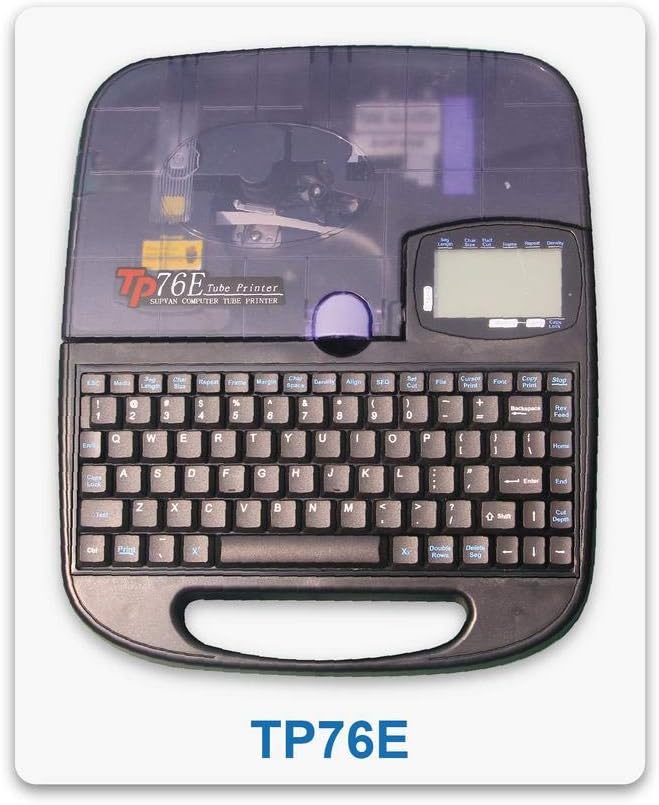
Figure 2: Supvan TP76E Label Printer (Top View)
Gambar ieu nyadiakeun luhur-handap view of the Supvan TP76E, clearly showing the full QWERTY keyboard layout, the LCD display, and the transparent cover of the label roll compartment. This perspective is useful for understanding the user interface.
4. Connecting to a Computer (Optional)
The TP76E supports USB connectivity for printing from a computer.
- Connect one end of the provided USB cable to the USB port on the printer.
- Sambungkeun ujung kabel USB nu sejen ka port USB nu sadia dina komputer Anjeun.
- Install the necessary drivers and software from the official Supvan website or the included installation media (if applicable).
Parentah Operasi
1. Nyieun Labél Dasar
- Hurungkeun printer.
- Use the integrated QWERTY keyboard to type your desired text. The text will appear on the LCD display.
- Utilize the navigation keys to move the cursor and edit text.
- Pencét éta Nyitak button to print the label.
2. Formatting Options
The TP76E offers various formatting options accessible via dedicated keys or menu functions:
- Ukuran font: Adjust the size of the text to fit your label requirements.
- Bold/Italic: Apply bold or italic styling to your text for emphasis.
- Garis handap: Add an underline to text.
- Pigura: Add decorative frames around your text.
- Alignment: Choose left, center, or right alignment for your text.
3. Saving and Recalling Labels
The printer allows you to save frequently used label designs for quick recall:
- After creating a label, navigate to the Simpen function (refer to the display menu).
- Select an empty memory slot to store the label.
- To recall a saved label, navigate to the Ngingetan or Buka function and select the desired label from the list.
Pangropéa
1. Ngabersihan Print Head
Regular cleaning of the print head ensures clear and consistent print quality. Clean the print head if you notice faded or incomplete prints.
- Pareuman printer tur pegatkeun sambungan adaptor kakuatan.
- Buka panutup kompartemen labél.
- Gently wipe the print head surface with a cotton swab lightly dampened with isopropyl alcohol. Do not use water or abrasive cleaners.
- Keun sirah cetak nepi ka garing sagemblengna sateuacan nutup panutup sareng nyambungkeun deui daya.
2. Replacing Label Rolls
When the label roll is depleted, replace it as follows:
- Buka panutup kompartemen labél.
- Cabut inti gulungan labél anu kosong.
- Insert a new label roll as described in the Disetél bagian.
- Tutup panutup.
Pamérésan masalah
This section addresses common issues you might encounter with your Supvan TP76E printer.
| Masalah | Mungkin Cukang lantaranana | Solusi |
|---|---|---|
| Printer teu hurung | No power supply; Power adapter faulty | Ensure power adapter is securely connected to printer and outlet. Try a different outlet. |
| No labels are printing | Label roll empty; Labels incorrectly loaded; Print head dirty | Replace label roll. Re-load labels correctly. Clean the print head as per maintenance instructions. |
| Print quality is poor/faded | Print head dirty; Low quality labels | Clean the print head. Ensure you are using high-quality thermal labels. |
| Printer teu dipikawanoh ku komputer | USB cable faulty; Drivers not installed or outdated | Try a different USB cable or port. Install or update printer drivers from the Supvan websitus. |
spésifikasi
Key technical specifications for the Supvan TP76E Label Printer:
- Jumlah modél: Supvan TP76E
- Kaluaran printer: Monokrom (Hideung & Bodas)
- Téknologi Percetakan: Termal
- Konektipitas: USB
- Média citak: Labels
- Kapasitas Lembar Input Max: 25 (labels per minute)
- Pencetakan dua sisi: No
- Batré diperlukeun: No
Garansi sareng Rojongan
For warranty information, technical support, or to purchase accessories and replacement parts, please contact Supvan customer service or visit their official websitus.
Anjeun tiasa mendakan langkung seueur inpormasi sareng sumber dukungan dina resmi SUPVAN Store on Amazon.
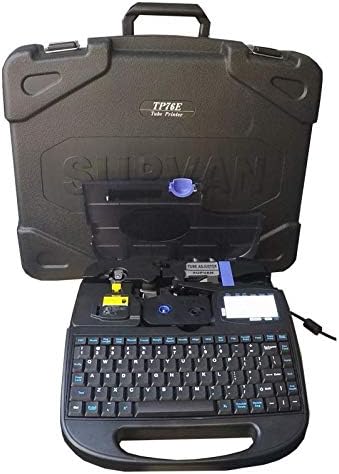
Figure 3: Supvan TP76E Label Printer in Carrying Case
This image shows the Supvan TP76E label printer neatly stored within its custom-fitted protective carrying case, emphasizing its portability and secure storage solution.