
Bubuka
Thank you for choosing the DEPSTECH D04 1080P HD Webcam. This manual provides essential information for setting up, operating, and maintaining your webcam to ensure optimal performance. The D04 webcam is designed to deliver sharp, crystal-clear video and natural audio for various applications, including video conferencing, online teaching, streaming, and gaming.
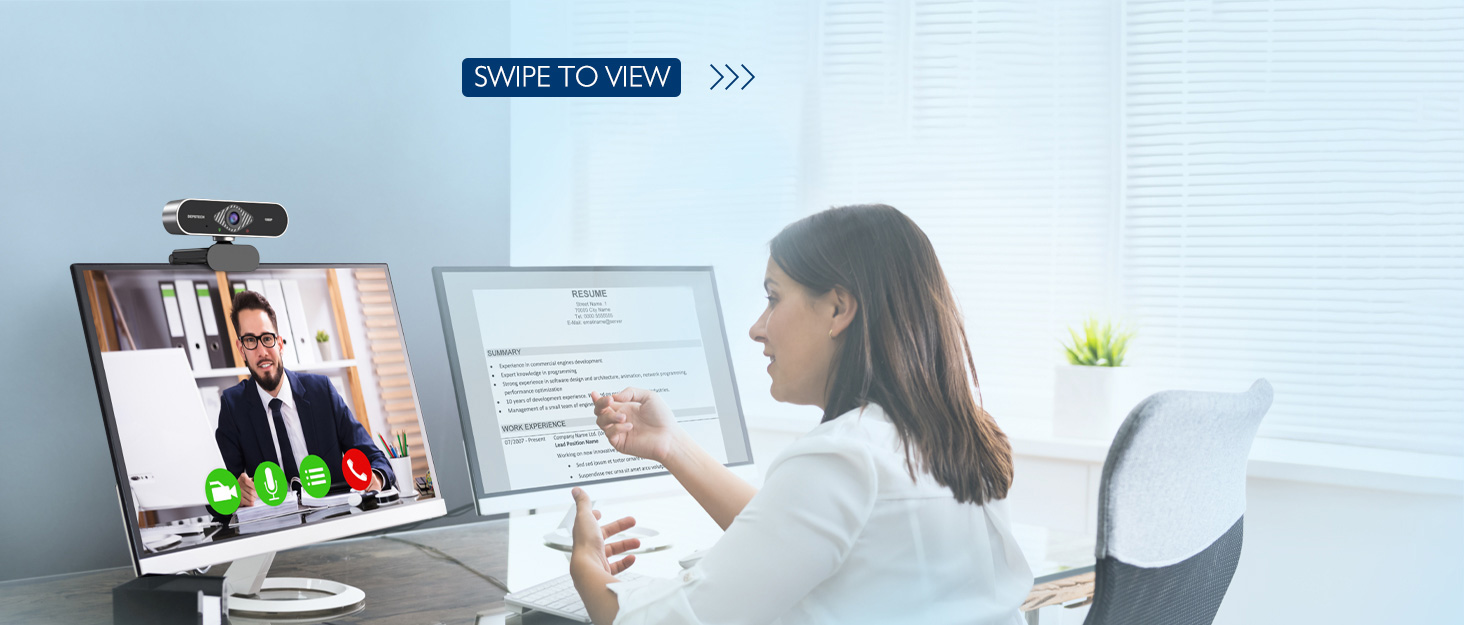
Image: DEPSTECH D04 Webcam in use for a video conference.
Fitur konci:
- Full HD 1080P Video: Delivers sharp and crystal-clear video at 30 frames per second with a 6-layer glass HD lens and 1/2.9” CMOS image sensor.
- Stereo Microphone with Noise Reduction: Features an automatic noise reduction function for clearer and more natural sound, even in noisy environments.
- Automatic Light Correction & HDR: Ensures excellent video quality even in dimly lit conditions.
- Plug-and-Play: No additional drivers or software required for most operating systems.
- Kasaluyuan lega: Works with MAC OS, Windows XP/7/8/10, and popular applications like Skype, YouTube, Yahoo!, and Zoom.
Eusi pakét
- DEPSTECH D04 Webkaméra
- Mini Tripod
- Cover Privasi
- Manual pamaké
Parentah Setup
1. Placement of the Webkaméra
DEPSTECH D04 webcam features a flexible mounting clip that allows it to be placed on various devices or surfaces.
- Dina layar Monitor/Laptop: Buka klipna teras pasangkeun webcam on top of your monitor or laptop screen. Adjust the angle so the camera is stable and facing you.
- Dina tripod: Gantelkeun ka webcam to the included mini tripod using the universal screw mount at the bottom of the clip. Place the tripod on a flat surface.
- Dina permukaan datar: The clip can also be folded to create a stand, allowing the webcam to sit directly on your desk or shelf.

Gambar: Webcam mounted on a laptop screen.

Gambar: Webcam mounted on a tripod.
2. Nyambungkeun Webkaméra
DEPSTECH D04 webcam mangrupikeun alat plug-and-play, henteu meryogikeun pamasangan supir tambahan pikeun kalolobaan sistem operasi.
- Sambungkeun kabel USB ti webcam to an available USB port on your computer (desktop or laptop).
- Wait for your operating system to automatically detect and install the device. This usually takes a few seconds.
- Once detected, the webcam is ready for use with your preferred video communication or recording software.

Image: USB connection for the webkaméra.
Parentah Operasi
1. Ngagunakeun Webcam with Software
After connecting, your DEPSTECH D04 webcam will be recognized as a standard video and audio input device by most applications.
- Open your desired video conferencing, streaming, or recording application (e.g., Zoom, Skype, OBS, YouTube, Facetime).
- Navigate to the application's settings or preferences, usually under 'Audio' and 'Video' sections.
- Select "DEPSTECH D04 Webcam" or "USB 2.0 Camera" as your video input device.
- Select "USB 2.0 Camera Audio" as your microphone input device.
- Adjust video and audio settings as needed within the application.

Image: User engaged in a video call with the webkaméra.
2. Panutup Privasi
The webcam includes a privacy cover for enhanced security and peace of mind. Slide the cover over the lens when the webcam is not in use to prevent accidental recordings or unauthorized access.

Gambar: Webcam with the privacy cover closed.
3. Lampu Indikator
The webcam features indicator lights to show its status:
- Lampu héjo: Indicates the camera is active and in use by an application.
- Lampu Beureum: Nunjukkeun ka webcam is powered on and connected.
Pangropéa
To ensure the longevity and optimal performance of your DEPSTECH D04 webcam, turutan tungtunan pangropéa ieu:
- Ngabersihan lensa: Gently wipe the lens with a soft, lint-free cloth. Avoid using harsh chemicals or abrasive materials that could scratch the lens.
- Ngabersihan awak: Paké lemes, lawon garing pikeun ngabersihan exterior nu webkaméra.
- Panyimpenan: Upami teu dianggo, khususna kanggo waktos anu lami, simpen webcam in a clean, dry place. Use the privacy cover to protect the lens.
- Hindarkeun Kaayaan Ekstrim: Ulah ngalaan webka suhu ekstrim, kalembaban, atanapi sinar panonpoé langsung.
Pamérésan masalah
If you encounter issues with your DEPSTECH D04 webcam, tingal solusi umum di handap ieu:
- Webcam Teu Dideteksi:
- Coba sambungkeun webcam ka port USB béda dina komputer Anjeun.
- Balikan deui komputer anjeun.
- Pastikeun kabel USB disambungkeun aman.
- Check your operating system's device manager (Windows) or System Information (Mac) to see if the webcam didaptarkeun.
- Teu Aya Video/Layar Hideung:
- Make sure the privacy cover is open.
- Pariksa yén webcam dipilih salaku alat input vidéo dina setélan aplikasi anjeun.
- Tutup sareng buka deui aplikasi éta.
- Taya Audio/Kualitas Audio Kurang:
- Ensure "USB 2.0 Camera Audio" is selected as the microphone input in your application's settings.
- Pariksa setélan sora komputer anjeun pikeun mastikeun mikropon diaktipkeun sareng henteu di-mute.
- Adjust the microphone input volume in your application or system settings.
- Kualitas pidéo goréng:
- Ensure you have adequate lighting in your environment. The webcam has auto light correction, but good ambient light helps.
- Ngabersihan weblénsa cam.
- Check your internet connection speed if streaming or video conferencing.
spésifikasi
| merek | DEPSTECH |
| Nomer modél | D04 |
| Resolusi Capture Video | 1080 p |
| Laju Capture Gambar | 30 fps |
| Téhnologi Sénsor Poto | CMOS (1/2.9” CMOS image sensor) |
| Tipe Fokus | Fokus Maneuh |
| Tipe Lénsa | Sudut lega |
| Téhnologi konektipitas | USB |
| Format Audio Dirojong | Stereo |
| Fitur husus | Auto Light Correction, Noise Canceling Microphone, Tripod and Privacy Cover Included |
| Kasaluyuan System Operasi | Mac OS, Windows XP/7/8/10 |
| Warna | Hideung |
Émbaran jaminan
DEPSTECH D04 Webcam comes with a Garansi 1 Taun from the date of purchase. This warranty covers manufacturing defects and ensures the product is free from defects in material and workmanship under normal use. Please retain your proof of purchase for warranty claims. The warranty does not cover damage caused by misuse, accident, unauthorized modification, or external causes.
Ngarojong
For further assistance, technical support, or warranty inquiries, please contact DEPSTECH customer service. You can typically find contact information on the official DEPSTECH websitus atawa ngaliwatan pangecér dimana anjeun dibeuli produk.
Please have your model number (D04) and proof of purchase ready when contacting support.