
1. Bubuka
This user manual provides detailed instructions for the installation, setup, operation, and maintenance of your Ctronics Outdoor Security Camera Model 285C. Please read this manual thoroughly before using the product to ensure proper functionality and safety. Keep this manual for future reference.
2. Eusi Paket
Verify that all items listed below are included in your package. If any items are missing or damaged, please contact Ctronics customer support.
- Ctronics Outdoor Security Camera (Model 285C)
- Adaptor Daya (DC 12V)
- Pamasangan Sekrup
- Pakakas Tahan Cai pikeun Kabel Jaringan (upami aya)
- Gancang Mimitian Guide
3. Produk Langkungview
Familiarize yourself with the components of your Ctronics security camera.
Gambar 3.1: Hareupeun view of the Ctronics Outdoor Security Camera Model 285C, showing the lens, IR LEDs, and housing.
- Lensa: Nangkep video footage.
- LED Infrabeureum (IR): Nyayogikeun katerangan pikeun panénjo peuting.
- Mikropon: Ngarekam audio pikeun komunikasi sareng ngarékam dua arah.
- Speaker: Ngaluarkeun audio pikeun komunikasi dua arah.
- Anteneu: Pikeun konektivitas Wi-Fi.
- Slot Kartu SD: For local storage of recorded video (Micro SD card not included).
- Tombol Reset: Dipaké pikeun mulangkeun setélan pabrik.
- Palabuhan Daya: Connects to the DC 12V power adapter.
4. Pamasangan
Proper installation ensures optimal performance and durability of your camera.
4.1 Lokasi Pamasangan
- Choose a location with a strong Wi-Fi signal.
- Pastikeun kamérana jelas tur teu kahalangan view wewengkon nu Anjeun hoyong monitor.
- Position the camera within reach of a power outlet.
- The camera is IP66 waterproof, suitable for outdoor use in various weather conditions.
4.2 Léngkah-léngkah Pamasangan
- Use the provided mounting template (if available) to mark drill holes on the wall or ceiling.
- Bor liang jeung selapkeun jangkar témbok.
- Ngamankeun dasar kaméra ngagunakeun screws disadiakeun.
- Adjust the camera angle as needed after power-up and setup.
Gambar 4.1: The Ctronics camera mounted outdoors, illustrating its 355° pan and 90° tilt capabilities.
5. Setélan
Follow these steps to connect your camera to your network and mobile device.
5.1 Unduh Aplikasi sareng Pendaptaran Akun
- Download the official Ctronics app from the App Store (iOS) or Google Play Store (Android).
- Install the app and create a new user account, following the on-screen instructions.
5.2 Adding the Camera
- Power on the camera by connecting the power adapter. Wait for the camera to complete its self-test (usually indicated by a rotating motion and an audible prompt).
- Open the Ctronics app, tap the "+" icon to add a new device.
- Select your camera model or scan the QR code located on the camera or its packaging.
- Follow the app's instructions to connect the camera to your Wi-Fi network. Ensure your mobile device is connected to the same 2.4GHz Wi-Fi network during setup.
- Once connected, set a secure password for your camera.

Gambar 5.1: The Ctronics camera can be accessed via mobile app (iOS/Android) and PC client for remote monitoring.
6. Parentah Operasi
Learn how to use the various features of your Ctronics security camera.
6.1 Hirup View jeung Kontrol
- Open the Ctronics app and select your camera to view eupan hirup.
- Use the on-screen joystick or swipe gestures to control the camera's pan (355°) and tilt (90°) movements.
- Utilize the pinch-to-zoom gesture for 5X optical zoom to view rinci.
Klip 6.1: Demonstration of the Ctronics PTZ Camera's 5X Optical Zoom and movement capabilities. This video illustrates the camera's ability to pan, tilt, and zoom to cover a wide area.
6.2 Visi Peuting
The camera features both infrared (IR) night vision and color night vision. It automatically switches between modes based on ambient light conditions.
- IR Peuting Visi: Provides clear black-and-white images in complete darkness.
- Warna Night Vision: Activates when sufficient ambient light is available or when the camera's spotlights are triggered, providing full-color images at night.

Gambar 6.2: The Ctronics camera providing 30M color night vision, enhancing visibility in low-light conditions.
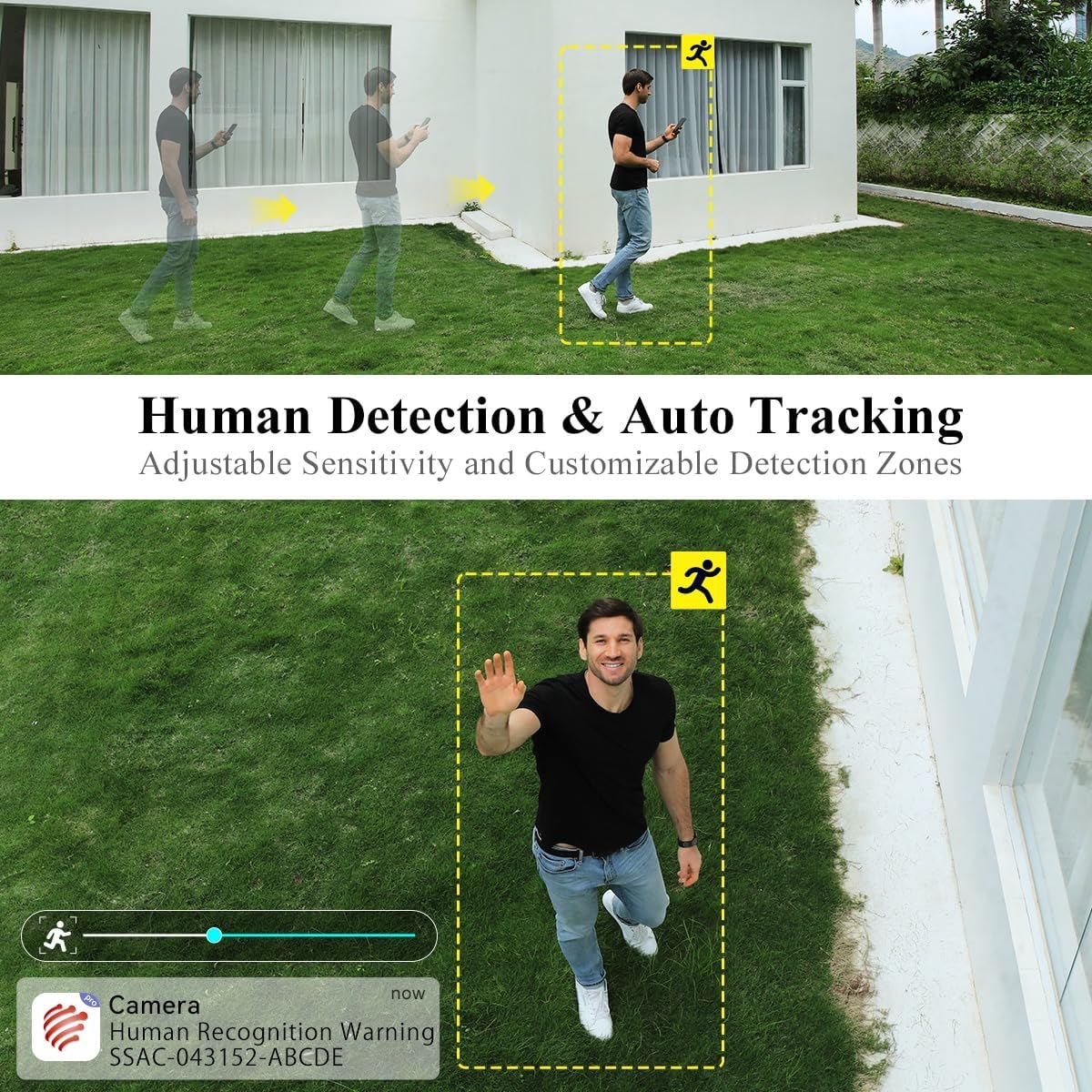
6.3 Deteksi Manusa sareng nyukcruk Otomatis
The camera can intelligently detect human shapes and track their movement within its field of view.
- Enable Human Detection in the app settings to receive alerts specifically for human presence.
- Activate Auto Tracking to have the camera automatically follow detected human movement.
- Adjust sensitivity and define custom detection zones to minimize false alarms.

Gambar 6.3: Illustration of the camera's human detection and auto-tracking features, highlighting adjustable sensitivity and customizable detection zones.
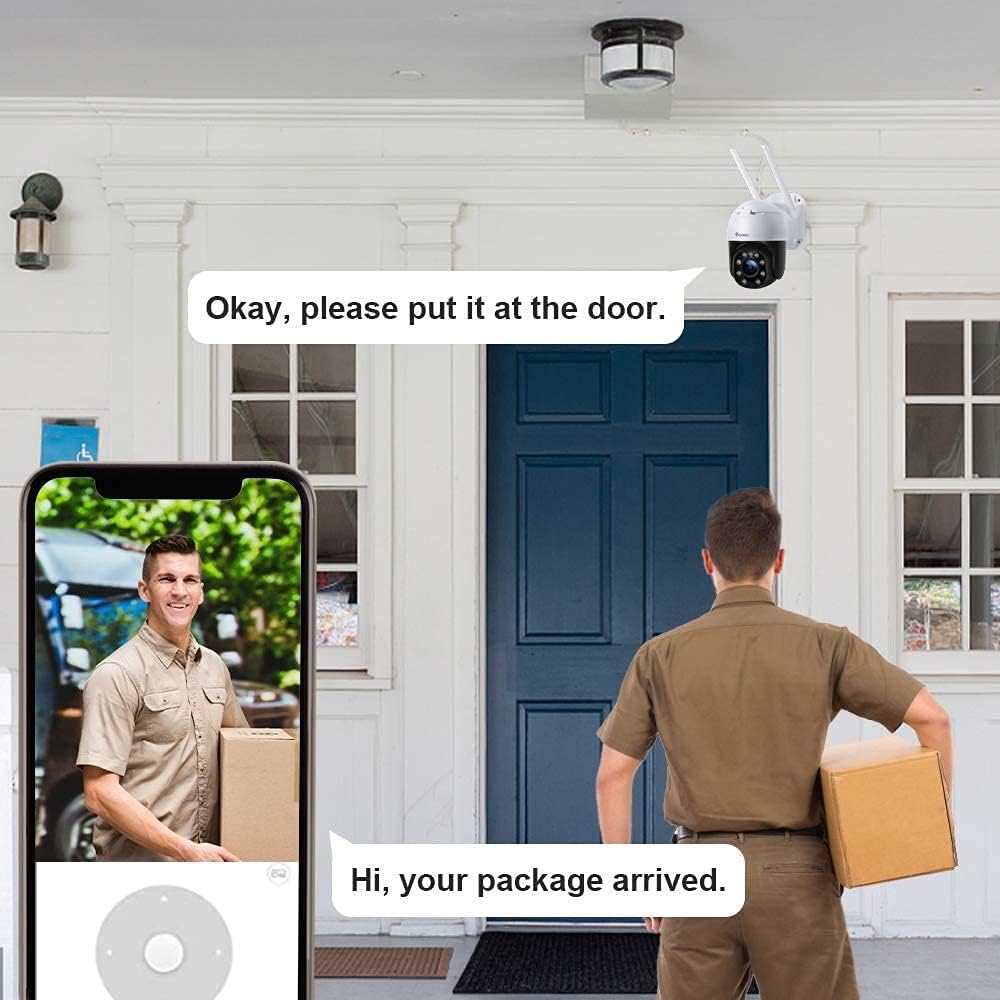
6.4 Audio Dua Arah
Use the two-way audio feature to communicate with individuals near the camera.
- Ketok ikon mikropon dina live view interface to speak through the camera's speaker.
- Mikropon internal kaméra ngarékam audio ti daérah anu diawaskeun.
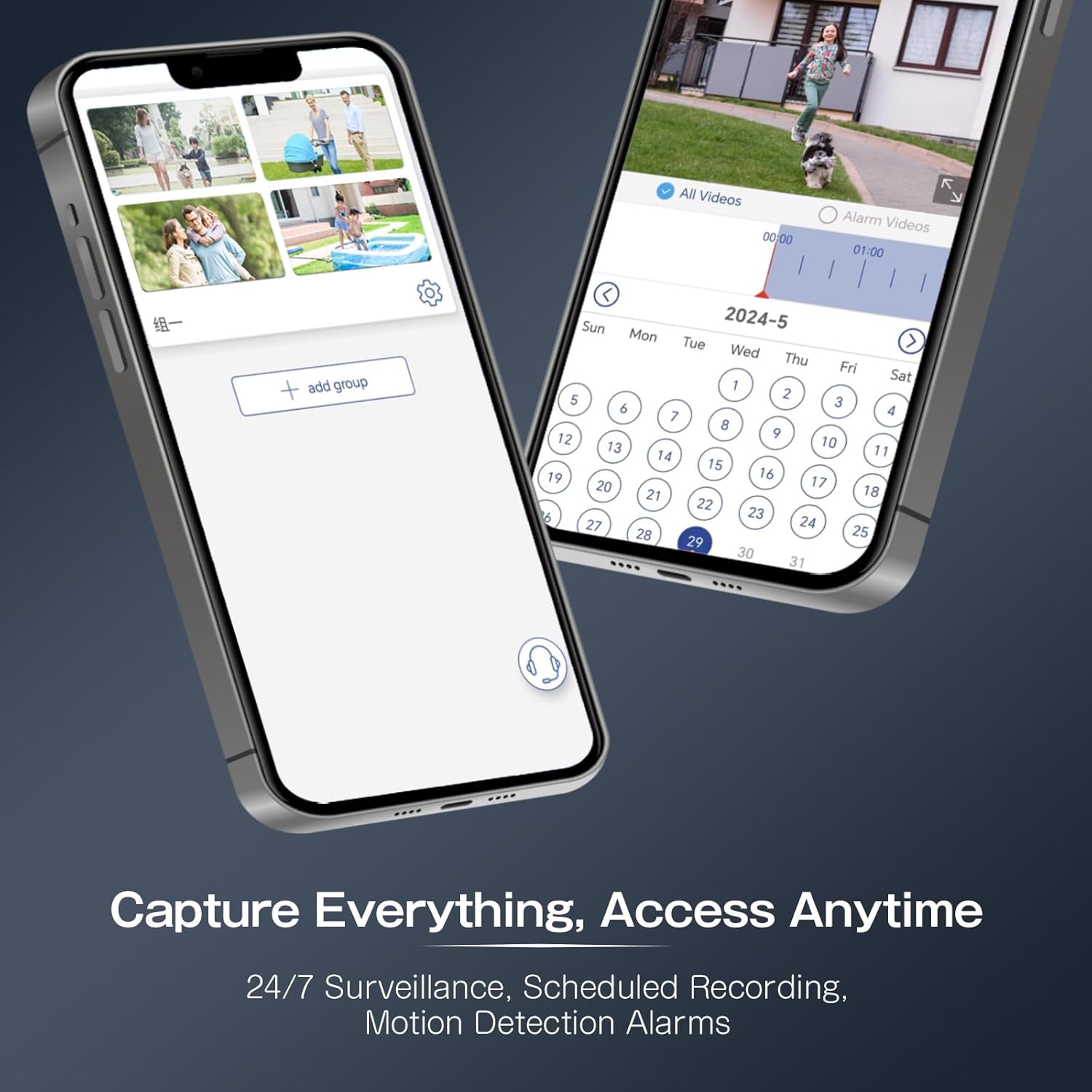
6.5 Ngarekam jeung Playback
The camera supports continuous recording, scheduled recording, and motion-triggered recording to a Micro SD card (not included).
- Insert a Micro SD card (up to 64GB recommended) into the designated slot.
- Configure recording settings (continuous, scheduled, event-triggered) within the app.
- Aksés dirékam footage via the app's playback function, using the timeline to navigate.
Gambar 6.4: The Ctronics app interface for managing recordings and accessing playback, including scheduled recording and motion detection alarms.
7. Pangropéa
Pangropéa rutin ngabantosan mastikeun umur panjang sareng kinerja optimal kaméra anjeun.
- beberesih: Usap lénsa jeung wadah kaméra sacara lalaunan ku kaén nu lemes,amp lawon. Ngahindarkeun cleaners abrasive.
- Pembaruan firmware: Periodically check the Ctronics app for available firmware updates to ensure your camera has the latest features and security enhancements.
- Pamariksaan Konéktivitas: Regularly verify the camera's Wi-Fi connection and power supply.
8. Cara ngungkulan
Upami anjeun mendakan masalah, tingal masalah sareng solusi umum di handap ieu.
| Masalah | Mungkin Cukang lantaranana | Solusi |
|---|---|---|
| Kaméra teu hurung | Teu aya catu daya; adaptorna rusak. | Check power connection; try a different outlet or adapter. |
| Teu bisa nyambung ka Wi-Fi | Sandi Wi-Fi salah; kaméra jauh teuing ti router; jaringan Wi-Fi 5GHz. | Verify password; move camera closer to router; ensure 2.4GHz Wi-Fi is used. |
| Kualitas gambar henteu saé | Dirty lens; low network bandwidth. | Clean the lens; ensure stable internet connection. |
| Deteksi gerak henteu micu | Incorrect sensitivity settings; detection zone not configured. | Adjust sensitivity in app; set up detection zones. |
| Camera unresponsive | glitch software samentara. | Perform a factory reset by pressing and holding the reset button for 5-10 seconds. |
9. Spésifikasi
Key technical specifications for the Ctronics Outdoor Security Camera Model 285C.
| Modél | 285C |
| Resolusi Video | 1080P HD lengkep |
| Pan / Dengdekkeun Range | Pan 355°, Dengdekkeun 90° |
| Zum | 5X Optical Zoom |
| Visi Peuting | Visi Peuting Warna, Visi Peuting Infrabeureum |
| Audio | Audio Dua Arah |
| Deteksi Manusa | Supported, with Auto Tracking |
| Panyimpenan | Kartu Micro SD (dugi ka 64GB, teu kalebet) |
| Konektipitas | Wi-Fi (2.4GHz) |
| Sasayogian tanaga | DC 12V / 12W |
| Peunteun waterproof | IP66 |
| Bahan | logam |
| OS cocog | ios, Android |
10. Garansi jeung Rojongan
Ctronics products come with a standard warranty. For detailed warranty information, product support, or technical assistance, please visit the official Ctronics website or contact their customer service directly. Contact information can typically be found on the product packaging or the Ctronics websitus.