
1. Bubuka
This manual provides detailed instructions for the safe and effective use of your Phomemo D30 Bluetooth Mini Label Maker. Please read this manual thoroughly before operating the device to ensure proper function and longevity.

Image 1.1: The Phomemo D30 Label Maker, a compact thermal printer designed for various labeling needs.
2. Eusi Paket
Pastikeun yén sadaya item aya dina pakét anjeun:
- 1 x Phomemo D30 Label Maker
- 1 x Manual Pamaké
- 1 x Kabel USB
- 80-PCS Label Tape 12x40mm (1 roll)

Image 2.1: Visual representation of the items included in the Phomemo D30 package.
3. Produk Langkungview
3.1 Fitur konci
- Kompak sareng Portabel: Half the weight and size of traditional label makers.
- Téknologi Percetakan Termal: Inkless printing, eliminating the need for ink, toner, or ribbons.
- High Print Clarity: Equipped with a German thermal print head, offering 25% increased DPI for clear and smooth printing.
- Konéktipitas nirkabel: Bluetooth connection for printing from mobile devices.
- Rojongan Label Serbaguna: Compatible with continuous and fixed-length label tapes, supporting sizes from 0.24 to 0.47 inches (6mm to 12mm).
- Dikadalikeun Aplikasi: Utilizes a dedicated mobile application for label design with various templates, symbols, frames, and fonts.
3.2 Komponén
The Phomemo D30 Label Maker consists of the following main components:
- Tombol Daya: Used to turn the device on/off and initiate certain functions.
- Lampu Indikator: Displays device status (e.g., charging, connected, printing).
- Label Output Slot: Dimana labél dicitak muncul.
- Label Compartment: Houses the label roll.
- Palabuhan Ngecas USB: For connecting the USB cable to charge the device.
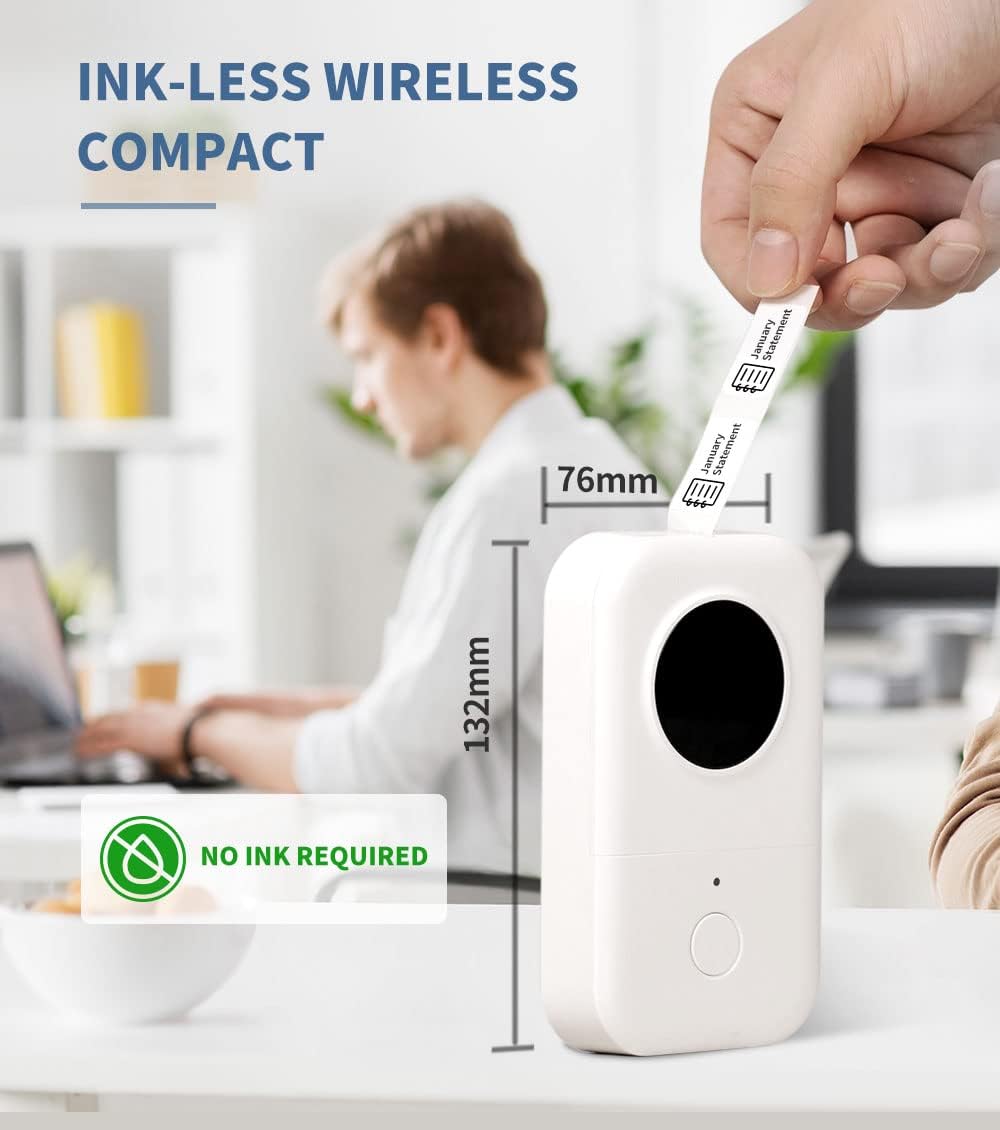
Image 3.1: The compact design of the Phomemo D30, highlighting its ink-less thermal printing technology.

Image 3.2: The Phomemo D30 supports multiple label widths, including 6mm, 12mm, 14mm, and 15mm.
4. Setélan
4.1 Ngecas Alat
- Connect the provided USB cable to the charging port on the label maker.
- Colokkeun tungtung kabel USB anu sanésna kana adaptor daya USB anu cocog (henteu kalebet) atanapi kana port USB komputer.
- The indicator light will show charging status. A full charge typically takes 2-3 hours.
4.2 Loading Label Paper
- Buka panutup kompartemen labél.
- Insert the label roll with the printing surface facing upwards, ensuring it aligns correctly within the compartment.
- Tarik sabagian leutik tina pita labél kaluar ngaliwatan slot kaluaran.
- Tutupkeun panutup kompartemen labél kalayan pageuh.
4.3 Pamasangan Aplikasi sareng Sambungan Bluetooth
- Download the "Print Master" app from your device's app store (iOS or Android).
- Turn on the Phomemo D30 Label Maker by pressing and holding the power button. The indicator light will illuminate.
- Aktipkeun Bluetooth dina alat sélulér Anjeun.
- Open the "Print Master" app and follow the on-screen instructions to connect to your D30 device. The app will typically detect nearby Phomemo devices automatically.

Image 4.1: The Phomemo D30 connects wirelessly via Bluetooth to a smartphone running the "Print Master" app.
5. Parentah Operasi
5.1 Creating Labels with the App
- Open the "Print Master" app on your connected mobile device.
- Select a template or start a new label design.
- Utilize the app's features to add text, icons, borders, and adjust fonts. The app offers a wide variety of customization options.
- Praview your label design to ensure accuracy before printing.

Image 5.1: The "Print Master" app provides extensive customization options for label creation, including fonts, icons, and borders.

Image 5.2: The app supports a variety of label styles and patterns for diverse applications.
5.2 Nyitak Label
- Once your label design is complete, tap the print button within the app.
- The label maker will feed and print the label.
- Carefully tear off the printed label from the output slot.

Image 5.3: The D30 supports high-quality batch printing for pre-cut paper, ensuring clear and consistent results.
5.3 Label Types and Applications
The D30 supports both pre-cut and continuous label tapes, suitable for various uses:
- Pre-cut Labels: Ideal for individual items, such as food date marking, price tags, or personal item identification.
- Continuous Labels: Suitable for longer labels like cable identification, file classification, or gift labels.

Image 5.4: The Phomemo D30 supports both pre-cut labels for individual items and continuous labels for longer applications.

Image 5.5: The Phomemo D30 is a versatile tool for organizing files, labeling food, marking items, and creating gift labels.

Image 5.6: The D30 label maker is suitable for a wide range of applications, from personal organization to small business use.
6. Pangropéa
6.1 Ngabersihan Print Head
To maintain print quality, regularly clean the print head:
- Turn off the label maker and disconnect it from any power source.
- Buka kompartemen labél.
- Usap sirah citak sacara lalaunan nganggo kapas sacara saksamaampDipasang dengan isopropil alkohol.
- Allow the print head to dry completely before closing the compartment and using the device.
6.2 Perawatan Batré
- Cas alat sacara rutin, sanajan teu sering dianggo, pikeun manjangkeun umur batréna.
- Hindarkeun ngalaan alat ka suhu anu ekstrim.
- Upami alat ieu moal dianggo dina waktos anu lami, eusian heula dugi ka sakitar 50% sateuacan disimpen.
6.3 Panyimpenan
Store the label maker in a cool, dry place away from direct sunlight and excessive dust. Ensure the label compartment is closed to protect the print head and internal mechanisms.

Image 6.1: Phomemo label tapes are designed for durability, offering resistance to water, abrasion, and oil, and can be removed without leaving residue.
7. Cara ngungkulan
7.1 Isu umum jeung Solusi
| Masalah | Mungkin Cukang lantaranana | Solusi |
|---|---|---|
| Alat teu hurung | Masalah batré atanapi kakuatan lemah. | Charge the device using the provided USB cable. Ensure the power button is pressed and held correctly. |
| Teu bisa nyambung via Bluetooth | Bluetooth pareum, alat di luar jangkauan, atanapi masalah aplikasi. | Ensure Bluetooth is enabled on your phone and the label maker is on. Move the devices closer. Restart the app and the label maker. |
| Kualitas cetak goréng | Dirty print head, incorrect label roll insertion, or low battery. | Clean the print head (refer to Section 6.1). Re-insert the label roll correctly. Charge the device. |
| Labél teu nyeuseup | Label roll jammed or incorrectly loaded. | Open the compartment and check for any jams. Re-load the label roll, ensuring it is properly aligned. |
| App ngadat atanapi freezes | Software glitch or outdated app version. | Restart the app. Check for app updates in your device's app store. Restart your mobile device. |
8. Spésifikasi
- merek: Phomemo
- model: D30
- Téknologi Percetakan: Termal
- Téknologi konektipitas: Bluetooth
- Ukuran Média Maksimum: 15 mm
- Resolusi Citak Hideung Bodas Maksimum: 203 dpi
- Max Print Speed Monokrom: 40 ppm
- Alat anu cocog: Smartphone (ios, Android)
- kakuatan: 1 batré Litium Polimér (kaasup)
- Beurat barang: 6.3 ons (180 gram)
- Ukuran produk: 4.72 x 3.15 x 1.97 inci (12 x 8 x 5 cm)
- UPC: 789371387780
9. Garansi jeung Rojongan
The Phomemo D30 Label Maker comes with a limited warranty. For specific details regarding warranty coverage and duration, please refer to the warranty card included in your product packaging or contact Phomemo customer support.
For technical support, troubleshooting assistance, or inquiries about replacement parts and accessories, please visit the official Phomemo website or contact their customer service department. Contact information can typically be found on the product packaging or the Phomemo brand store online.