
Bubuka
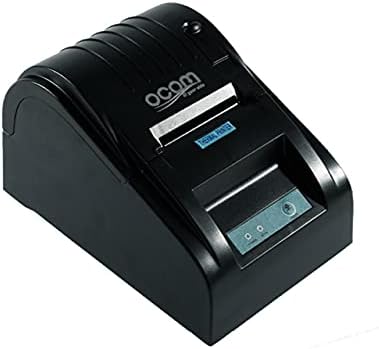
This image shows the OCOM OCPP-585A-U-B Thermal Receipt Printer from a slightly elevated front-right angle. The printer is black with a sleek, compact design. The paper output slot is visible at the top, and the control panel with 'POWER' and 'MODE' indicators is located on the front.
This manual provides detailed instructions for the OCOM OCPP-585A-U-B Thermal Receipt Printer. Please read this manual carefully before using the printer to ensure proper operation and longevity.
Guide Setup
1. Ngabongkar bungkusan
Carefully remove the printer and all accessories from the packaging. Verify that all components are present: printer unit, power adapter, USB cable, and a roll of thermal paper.
2. Ngamuat Thermal Paper
- Open the paper cover by pushing the cover open button (usually located on the side or front).
- Insert the thermal paper roll into the paper compartment, ensuring the printing side of the paper faces the print head. The paper should feed smoothly from the bottom of the roll.
- Pull out a small length of paper beyond the paper exit slot.
- Tutupkeun panutup kertas pageuh-pageuh nepi ka ngaklik dina tempatna.
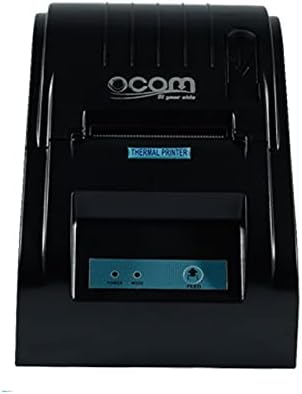
This image displays the OCOM OCPP-585A-U-B Thermal Receipt Printer from a direct top-down perspective. The paper compartment is visible, showing a thermal paper roll correctly inserted. The 'THERMAL PRINTER' label and the control panel with 'POWER' and 'MODE' indicators are clearly visible.
3. Nyambungkeun Printer
- Connect the power adapter to the printer's power input port and then plug it into a power outlet.
- Connect the USB cable to the printer's USB port and the other end to your computer or POS system.
- Press the power button to turn on the printer. The power indicator light should illuminate.
Parentah Operasi
Pencetakan Dasar
Once connected and powered on, the printer is ready to receive print commands from your connected device. Ensure the correct printer driver is installed on your computer/POS system.
- Buka dokumén atanapi aplikasi anu anjeun hoyong cetak.
- Select 'Print' from the file ménu.
- Choose 'OCOM OCPP-585A-U-B' as your printer.
- Adjust print settings if necessary (e.g., paper size, print quality).
- Klik 'Cetak'.
Self-Test Print
To perform a self-test print, ensure the printer is off. Hold down the 'FEED' button (if available, or a combination of buttons as per specific model) while turning on the printer. Release the button once printing begins. This will print a configuration page, confirming basic printer functionality.
Pangropéa
Ngabersihan Kepala Cetak
Regular cleaning of the print head ensures optimal print quality and extends printer life.
- Pareuman printer sareng cabut kabel listrik.
- Buka panutup kertas.
- Ngagunakeun kapas hampang dampened with isopropyl alcohol to gently wipe the thermal print head (the dark strip inside the printer).
- Ngidinan sirah print nepi ka garing sagemblengna saméméh nutup panutup sarta powering on printer.
Cleaning the Paper Path
Cabut lebu kertas atanapi lebu tina jalur kertas nganggo sikat lemes atanapi hawa anu dikomprés.
Pamérésan masalah
| Masalah | Mungkin Cukang lantaranana | Solusi |
|---|---|---|
| Printer teu hurung | Power cable loose; Power outlet faulty | Pariksa sambungan listrik; Cobi colokan anu béda |
| Taya kaluaran print | Paper loaded incorrectly; Out of paper; Driver not installed/selected | Reload paper correctly; Replace paper roll; Install/select correct printer driver |
| Sidik samar atawa kosong | Thermal paper loaded upside down; Print head dirty; Paper quality issue | Flip paper roll; Clean print head; Try new thermal paper |
| Printer offline | USB cable disconnected; Printer driver issue | Reconnect USB cable; Reinstall printer driver |
spésifikasi
| Fitur | Rincian |
|---|---|
| Tanggal Sadia munggaran | 2021 Juni 20 |
| Produsén | OCOM |
| ASIN | B097LSGP62 |
| Nomer Modél Item | OCPP-585-U-B |
| Ngaran Brand | OCOM |
| Téhnologi konektipitas | USB |
| Téhnologi printer | Termal |
| Warna | Hideung |
| Ngaran modél | OCPP 585 U B |
| Média citak | Labels |
| Jenis scanner | resi |
Garansi sareng Rojongan
This OCOM printer typically comes with a standard manufacturer's warranty. Please refer to the warranty card included with your product for specific terms and conditions, or visit the official OCOM websitus kanggo inpormasi garansi lengkep.
For technical support, driver downloads, or further assistance, please visit the OCOM official support website or contact their customer service. Keep your model number (OCPP-585A-U-B) and purchase details ready when seeking support.