
Bubuka
This manual provides detailed instructions for the SSK Aluminum Dual Bay USB 3.0 to SATA Hard Drive Docking Station. This device allows for easy connection of 2.5-inch and 3.5-inch SATA HDDs and SSDs to your computer via USB 3.0, and features an offline cloning function for disk duplication without a computer connection.
Eusi pakét
- SSK Dual Bay Hard Drive Docking Station
- Kabel USB 3.0 Tipe-B ka Tipe-A
- 12V / 3A adaptor kakuatan
- Manual pamaké
Fitur produk
- Dual Bay Design: Supports two 2.5-inch or 3.5-inch SATA I/II/III HDDs/SSDs simultaneously.
- Dukungan Kapasitas Tinggi: Each bay supports up to 20TB drives, for a total of 40TB.
- USB 3.0 with UASP: Provides fast data transfer speeds up to 5Gbps, enhanced by UASP for improved performance.
- Offline Cloning Function: Duplicate hard drives without connecting to a computer.
- Pamasangan Gratis Alat: Easy plug-and-play setup for hard drives.
- Kasaluyuan lega: Cocog sareng sistem operasi Windows, macOS, sareng Linux.
- Konstruksi awét: Features an aluminum alloy shell for heat dissipation and durability.
- Operating Status Indicators: LED lights indicate power, activity, and cloning progress.

Gambar: Leuwihview of the SSK Dual Bay Docking Station, highlighting its compatibility with various drive sizes and operating systems. A laptop screen shows a file transfer in progress, demonstrating its use as an external drive reader.

Gambar: Detil views of the SSK docking station's physical features, including its aluminum alloy casing, LED indicator, rear interface with USB 3.0 and power input, and the anti-skid footpad for stability.
Disetél
- Sambungkeun Kakuatan: Connect the provided 12V/3A power adapter to the DC-12V port on the back of the docking station and then plug it into a power outlet. The power LED will illuminate.
- Selapkeun Hard Drive: Gently insert your 2.5-inch or 3.5-inch SATA HDD/SSD into the drive slots (Slot A and Slot B) until they are securely seated. Ensure the SATA connectors align correctly.
- Nyambung ka Komputer (pikeun Transfer Data): If you intend to use the docking station for data transfer, connect the USB 3.0 cable from the Micro USB 3.0 port on the docking station to an available USB 3.0 port on your computer.
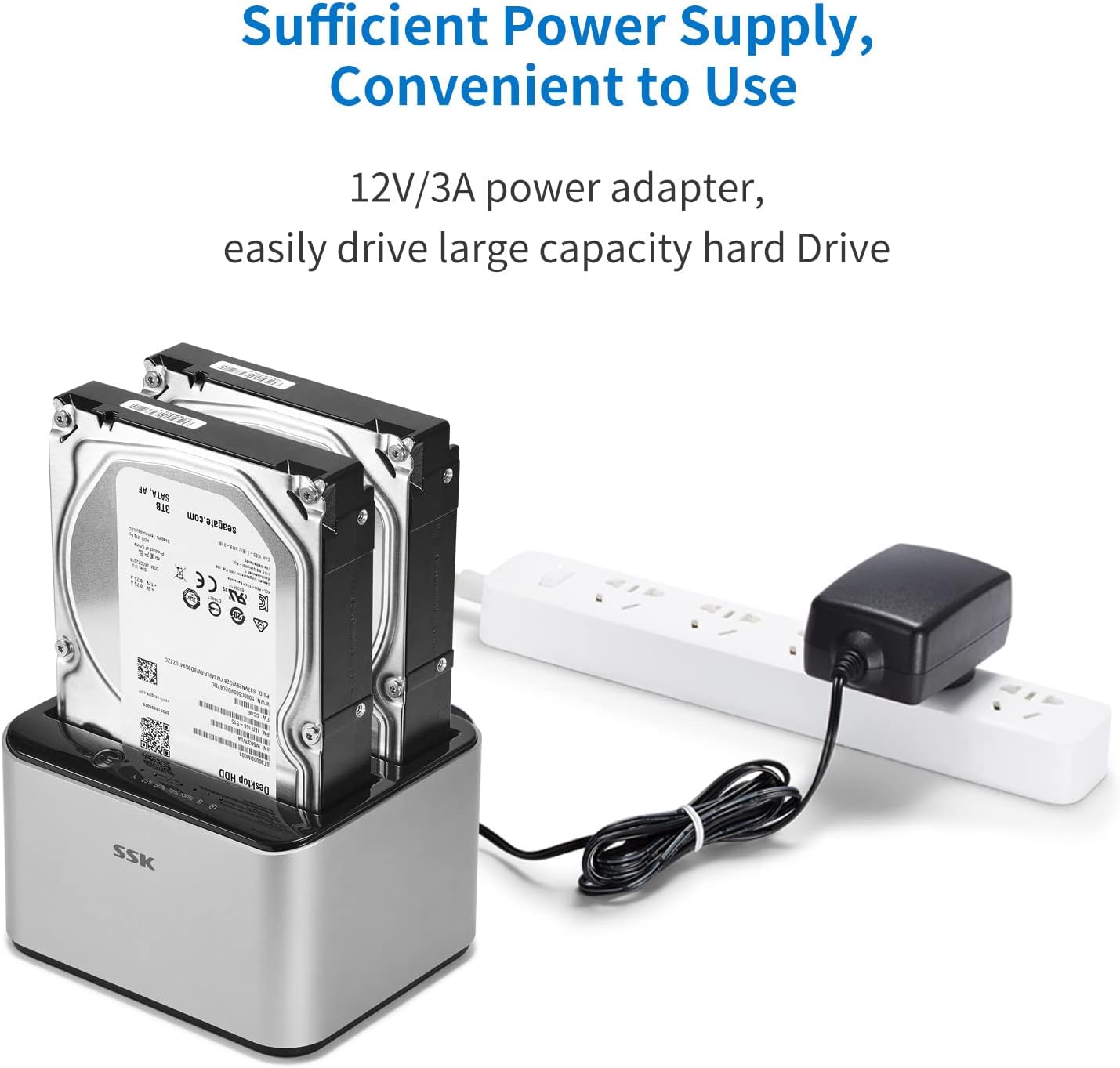
Image: The SSK docking station with two hard drives installed, demonstrating the connection of the 12V/3A power adapter to a power strip, ensuring sufficient power for large capacity drives.
Parentah Operasi
A. Data Transfer Mode
- Ensure the docking station is powered on and connected to your computer via the USB 3.0 cable.
- Insert the SATA HDD/SSD into the desired slot(s).
- Your computer's operating system should automatically detect the drives. You may need to initialize and format new drives via Disk Management (Windows) or Disk Utility (macOS) before use.
- Access the drives as external storage devices to transfer files.

Image: A visual representation of the speed advantage of USB 3.0 with UASP compared to traditional USB 3.0, illustrating faster data transfer rates for both reading and writing, with a hard drive docked in the station.
B. Offline Cloning Mode
The offline cloning function allows you to duplicate a source hard drive to a target hard drive without a computer connection. Warning: All data on the target disk will be erased during the cloning process. Ensure you have backed up any important data from the target disk before proceeding.
- Disconnect from Computer: Ensure the USB cable is disconnected from the docking station and your computer. The docking station should only be connected to its power adapter.
- Insert Source Disk: Insert the Source Disk (the disk you want to copy FROM) into Slot A (Source).
- Insert Target Disk: Insert the Target Disk (the disk you want to copy TO) into Slot B (Target). The Target Disk must have a capacity equal to or greater than the Source Disk.
- Initiate Cloning: Press and hold the 'Clone' button (usually located on the back or top panel) for approximately 3-5 seconds until the cloning progress LEDs begin to flash.
- Monitor kamajuan: The LED indicators (e.g., 25%, 50%, 75%, 100%) will illuminate sequentially to show the cloning progress. When all LEDs are solid, the cloning process is complete.
- Parantosan: Once cloning is complete, power off the docking station and safely remove the drives.

Image: The SSK docking station in offline cloning mode, illustrating the placement of the Source Disk in Slot A and the Target Disk in Slot B. The progress LEDs on the right indicate the cloning status, from 25% to 100% completion.
Pangropéa
- beberesih: Use a soft, dry cloth to clean the exterior of the docking station. Do not use liquid cleaners or solvents.
- Panyimpenan: Nyimpen stasiun docking dina tiis, tempat garing jauh ti sinar panonpoé langsung sarta suhu ekstrim.
- Drive Handling: Always handle hard drives with care. Avoid dropping or subjecting them to physical shock.
- Ngahapus Aman: When connected to a computer, always use the 'Safely Remove Hardware' option (Windows) or 'Eject' function (macOS) before disconnecting the USB cable or powering off the docking station to prevent data corruption.
Pamérésan masalah
- Drive Teu Dipikawanoh:
- Pastikeun adaptor daya disambungkeun pageuh sareng stasiun dok dihurungkeun.
- Pastikeun kabel USB 3.0 parantos nyambung pageuh kana stasiun dok sareng komputer anjeun.
- Check if the hard drive is properly seated in the slot.
- Pikeun drive anyar, pastikeun éta parantos diinisialisasi sareng diformat dina utilitas manajemen disk sistem operasi anjeun.
- Try connecting the docking station to a different USB port on your computer or a different computer.
- Cloning Fails or Does Not Start:
- Ensure the USB cable is disconnected from the computer during offline cloning.
- Verify the Source Disk is in Slot A and the Target Disk is in Slot B.
- Confirm the Target Disk's capacity is equal to or greater than the Source Disk's capacity.
- Ensure both drives are securely inserted.
- Try powering off and on the docking station before initiating cloning.
- Laju Transfer Data Leungit:
- Pastikeun anjeun nyambung ka port USB 3.0 dina komputer anjeun. Port USB 2.0 bakal beroperasi dina kecepatan anu langkung laun.
- Verify your operating system and drivers support UASP.
- The speed of the hard drive itself can be a limiting factor.
spésifikasi
| merek | SSK |
| Modél | B098CWGYSR |
| Panganteur Hardware | USB, USB 3.0 |
| Tipe Drive cocog | 2.5-inch & 3.5-inch SATA I/II/III HDD/SSD |
| Supported Drive Quantity | 2 |
| Max Capacity Per Bay | 20 TB |
| Laju Mindahkeun Data | Nepi ka 5 Gbps (USB 3.0) |
| Platform hardware | Windows, macOS, Linux |
| Bahan | alumunium |
| Item Beurat | 0.47 kg |
| Sasayogian tanaga | 12V / 3A adaptor kakuatan |
Émbaran Kasalametan
- Ulah ngalaan alat ka cai, beueus, atawa suhu ekstrim.
- Ulah nepi ka alat ieu murag atawa kakeunaan dampak anu parah.
- Ulah nyobian ngabongkar atawa ngaropéa alat. Ieu bakal ngabatalkeun jaminan.
- Use only the provided power adapter. Using an incorrect adapter may damage the device.
- Pastikeun ventilasi anu cekap di sakitar stasiun dok salami operasi.
Garansi sareng Rojongan
SSK products are designed for reliability and performance. For warranty information or technical support, please refer to the warranty card included with your product or visit the official SSK website. If you encounter any issues not covered in this manual, please contact SSK customer service for assistance.