
Bubuka
The J-Tech Digital 4K HDMI Capture Card (JTECH-4KCP) is designed to capture HDMI video signals up to 4K@60Hz and output them to your computer at 1080p 60Hz. This device features an HDMI loop output for real-time monitoring of the source signal, external microphone and headphone support for integrated audio, and a USB Type-C interface for high-speed data transfer to your computer. It is compatible with popular streaming and capture software such as OBS, YouTube Live, and Twitch, making it an ideal solution for capturing presentations, training seminars, and gaming content.
Eusi pakét
Pastikeun yén sadaya item aya dina bungkusan:
- 1 x J-Tech Digital 4K HDMI Capture Card (JTECH-4KCP)
- 1 x Manual Pamaké
- 1 x USB 3.0 Data Cable (USB Type-C to USB Type-A)

Produk Leuwihview
Diménsi
The JTECH-4KCP capture card has compact dimensions for portability and ease of integration into your setup.
- Panjangna: 4.25" (10.8cm)
- Jangkungna: 2 inci (5.1 cm)
- Jangkungna: 0.6 inci (1.5 cm)
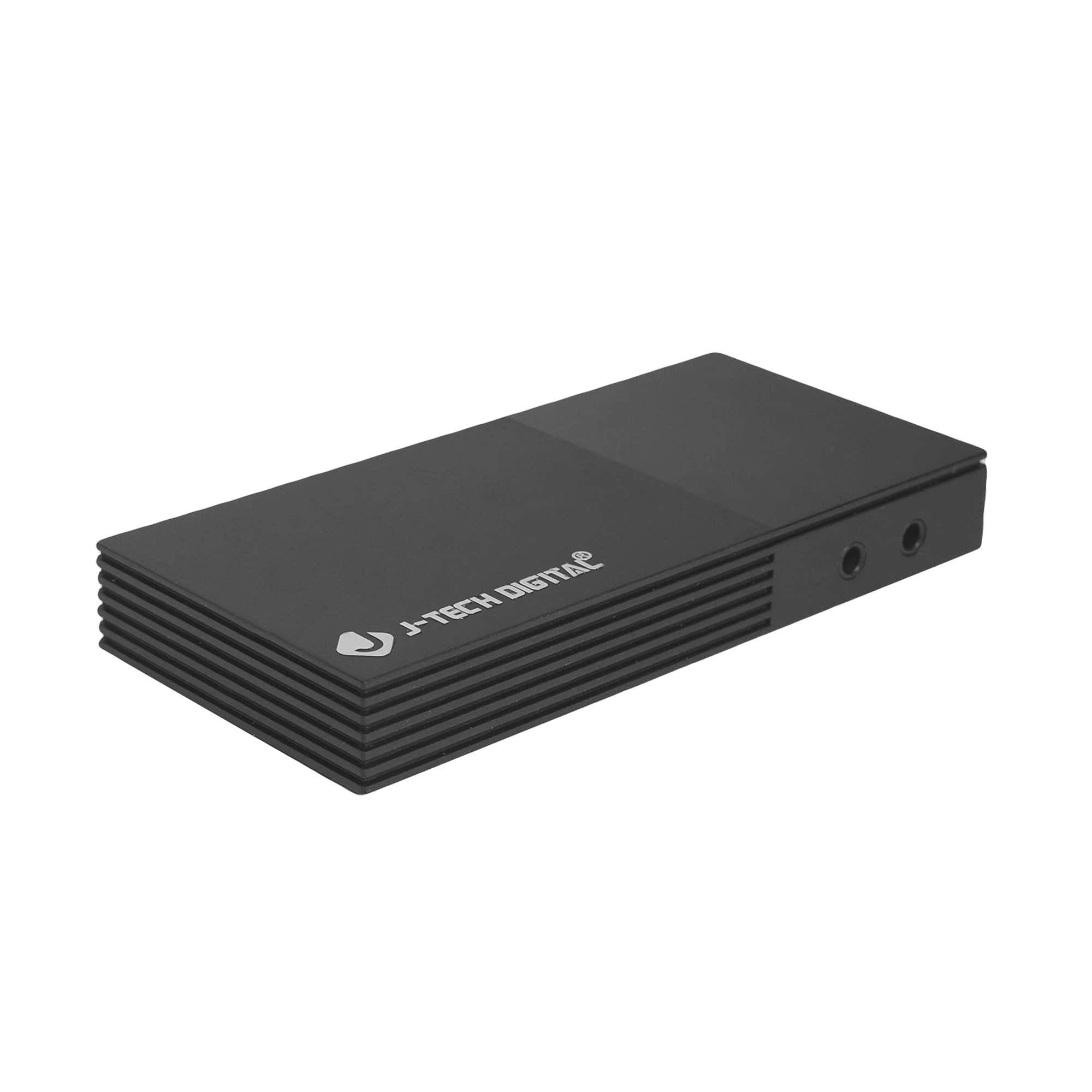
Palabuhan jeung Interfaces
The device features several ports for connectivity:
- Microphone In Port: Pikeun nyambungkeun mikropon éksternal.
- Headphones Out Port: For connecting headphones to monitor audio.
- USB-C (PC Port): For connecting the capture card to your computer. This port is USB 3.0 compliant.
- HDMI Dina: For connecting your HDMI source device (e.g., game console, camera).
- HDMI Kaluar: For connecting to a display monitor for real-time video passthrough.

Parentah Setup
- Sambungkeun Sumber HDMI: Connect an HDMI cable from your source device (e.g., game console, Blu-ray player, camera) to the HDMI Dina port on the JTECH-4KCP capture card.
- Sambungkeun Tampilan (Opsional): If you wish to monitor your source signal in real-time without latency, connect a second HDMI cable from the HDMI Kaluar port on the capture card to your display monitor.
- Nyambung ka Komputer: Use the provided USB 3.0 Type-C cable to connect the USB-C (PC Port) on the capture card to an available USB 3.0 port on your computer. The device is plug-and-play and typically does not require driver installation.
- Connect Audio Devices (Optional): For external audio input, connect a microphone to the Microphone In Port. For audio monitoring, connect headphones to the Headphones Out Port.
- Ngajalankeun Software: Open your preferred video capture or streaming software (e.g., OBS Studio, YouTube Live, Twitch Studio) on your computer.
- Konpigurasikeun parangkat lunak: In your software, add the capture card as a video source. It should appear as a 'USB Video Device' or 'HDMI Capture'. Configure video resolution (1080p 60Hz recommended for capture) and audio settings as needed.

Parentah Operasi
Once the capture card is set up and recognized by your computer and software, you can begin capturing or streaming.
- Potret pidéo: The JTECH-4KCP captures HDMI input signals up to 4K@60Hz and processes them for recording or streaming at 1080p 60Hz on your computer. Ensure your software settings match these capture capabilities for optimal performance.
- Kaluaran loop HDMI: The HDMI Out port provides a near-zero latency passthrough of your source signal to a connected display. This is particularly useful for gaming, allowing you to play on your main monitor without experiencing input lag while simultaneously capturing the footage on your computer.
- Integrasi Audio éksternal: Utilize the Microphone In and Headphones Out ports to integrate external audio. This allows you to add commentary or external audio sources directly into your captured or streamed content, and monitor all audio in real-time. Adjust audio levels within your capture software.
- Kasaluyuan Parangkat Lunak: The capture card is compatible with a wide range of software, including OBS Studio, YouTube Live, Twitch Studio, and Facebook Live. Refer to your software's documentation for specific configuration details.

Pangropéa
To ensure the longevity and optimal performance of your JTECH-4KCP capture card, follow these maintenance guidelines:
- beberesih: Anggo lawon anu lemes sareng garing pikeun ngabersihkeun bagian luar alat. Ulah nganggo pembersih cair atanapi pangleyur, sabab tiasa ngaruksak lapisan atanapi komponén internal.
- Panyimpenan: Store the capture card in a cool, dry place away from direct sunlight and extreme temperatures.
- Penanganan: Nanganan alat kalayan ati-ati. Hindarkeun lungsurna atanapi nahan kana dampak anu kuat.
- Ventilasi: Ensure the device has adequate ventilation to prevent overheating, especially during extended use. Do not block the ventilation slots.
Pamérésan masalah
If you encounter issues with your JTECH-4KCP capture card, refer to the following common troubleshooting steps:
| Masalah | Mungkin Cukang lantaranana | Solusi |
|---|---|---|
| No video signal on computer/software | Incorrect cable connection, incompatible resolution/refresh rate, software not configured. |
|
| No audio captured or monitored | Incorrect audio connections, software audio settings. |
|
| High latency or stuttering during capture/streaming | Computer performance issues, USB port issues, software settings. |
|
| Cannot capture certain content (e.g., movies) | HDCP (High-bandwidth Digital Content Protection) enabled. | The capture card respects HDCP. Content protected by HDCP cannot be captured or recorded. This is a standard digital rights management feature. |
spésifikasi
| Fitur | Rincian |
|---|---|
| merek | J-Tech Digital |
| Ngaran modél | JTECH-4KCP |
| Panganteur Hardware | USB Type-C (USB 3.0 compliant) |
| Resolusi Capture Video | 1080p @ 60Hz |
| Resolusi Input HDMI | Nepi ka 4K @ 60Hz |
| Kasaluyuan System Operasi | Windows 10 (64-bit), macOS 10.14+ (64-bit) |
| Dianjurkeun Mangpaat | Video Recording, Image Capture, Live Streaming |
| Fitur husus | 4K Near-Zero Latency HDMI Loop Output, External Audio Support (Mic In, Headphone Out), Popular Streaming Platform Compatibility |
| Alat nu cocog | Gaming Consoles (Xbox, PS4, PS5, Nintendo Switch), Cameras, Personal Computers, Blu-ray Players |
| Sarat Sistim minimum | Processor: Intel Core i5 or AMD equivalent (or better), RAM: 4GB, Disk Space: 2GB available |
| AV Output Format | MPEG-4 (software dependent) |
| Produsén | J-Tech Digital Inc. |
| UPC | 810058920409 |
Garansi sareng Rojongan
All J-Tech Digital products are backed by a commitment to quality and customer satisfaction.
- Garansi Pabrikan: The JTECH-4KCP includes a One-Year Manufacturer Replacement Warranty. This warranty covers defects in materials and workmanship under normal use.
- Bantosan Téknis: J-Tech Digital provides free lifetime technical support from our customer support team. Support is available from 9 AM – 6 PM CST, Monday through Friday.
- Inpormasi kontak: For warranty claims or technical assistance, please refer to the contact information available on the J-Tech Digital seller page on Amazon or visit the official J-Tech Digital websitus.