
Forty4 GC201JPF
Buku Panduan Pangguna Kontroler Kaulinan Nirkabel Forty4
Model: GC201JPF
1. Bubuka
Hatur nuhun pikeun meuliasing the Forty4 Wireless Game Controller. This versatile gamepad is designed to enhance your gaming experience across multiple platforms, offering both wired and 2.4G wireless connectivity. It features advanced functions such as programmable macro buttons, HD double vibration, continuous fire, and a JD-SWITCH function for optimized control. Please read this manual carefully to ensure proper use and maintenance of your controller.
2. Eusi Paket
- Forty4 Wireless Game Controller
- 2.4G USB panarima
- Kabel Ngecas USB-C
- Manual pamaké
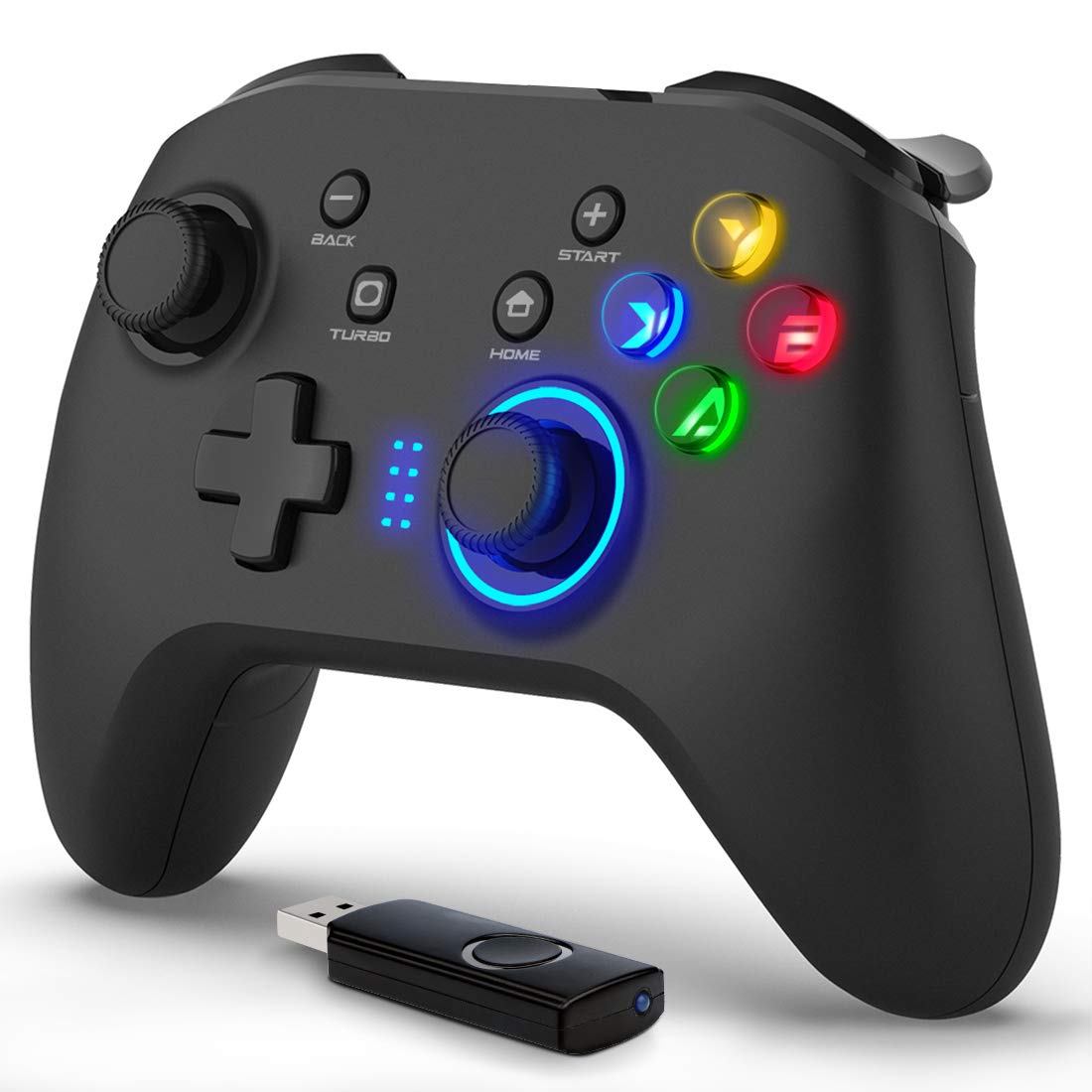
Image: The Forty4 Wireless Game Controller shown with its accompanying USB receiver.
3. Fitur konci
- Macro Button-Key Combination: Four programmable back buttons (M1-M4) allow for single-input assignments or complex key combinations.
- Konektipitas Ganda: Supports both 2.4GHz wireless connection via USB receiver and wired connection via USB-C cable.
- Enhanced Feedback: Features HD double vibration motors in the grips and triggers for immersive gameplay.
- Continuous Fire (Turbo) Function: Enables rapid, automatic input for specific buttons, reducing fatigue in action-intensive games.
- JD-SWITCH Function: Allows swapping functions between the cross key (D-pad) and the left analog stick for flexible control.
- Hirup batré anu panjang: Built-in 600 mAh battery provides approximately 8 hours of continuous wireless play on a full charge.
- Lampu tukang LED: Integrated LED lighting for enhanced aesthetics and visibility.
- Kasaluyuan lega: Supports Direct Input/X Input modes for broad compatibility with various gaming platforms.
4. Kasaluyuan
Platform anu Dirojong:
- PC (Windows 7/8/8.1/10/XP)
- Nintendo Pindah
- Android devices (phones, tablets, TV boxes)
- PS3
Teu cocog sareng:
- Xbox 360
- Xbox One
- Mac OS
- PlayStation 4 (PS4)
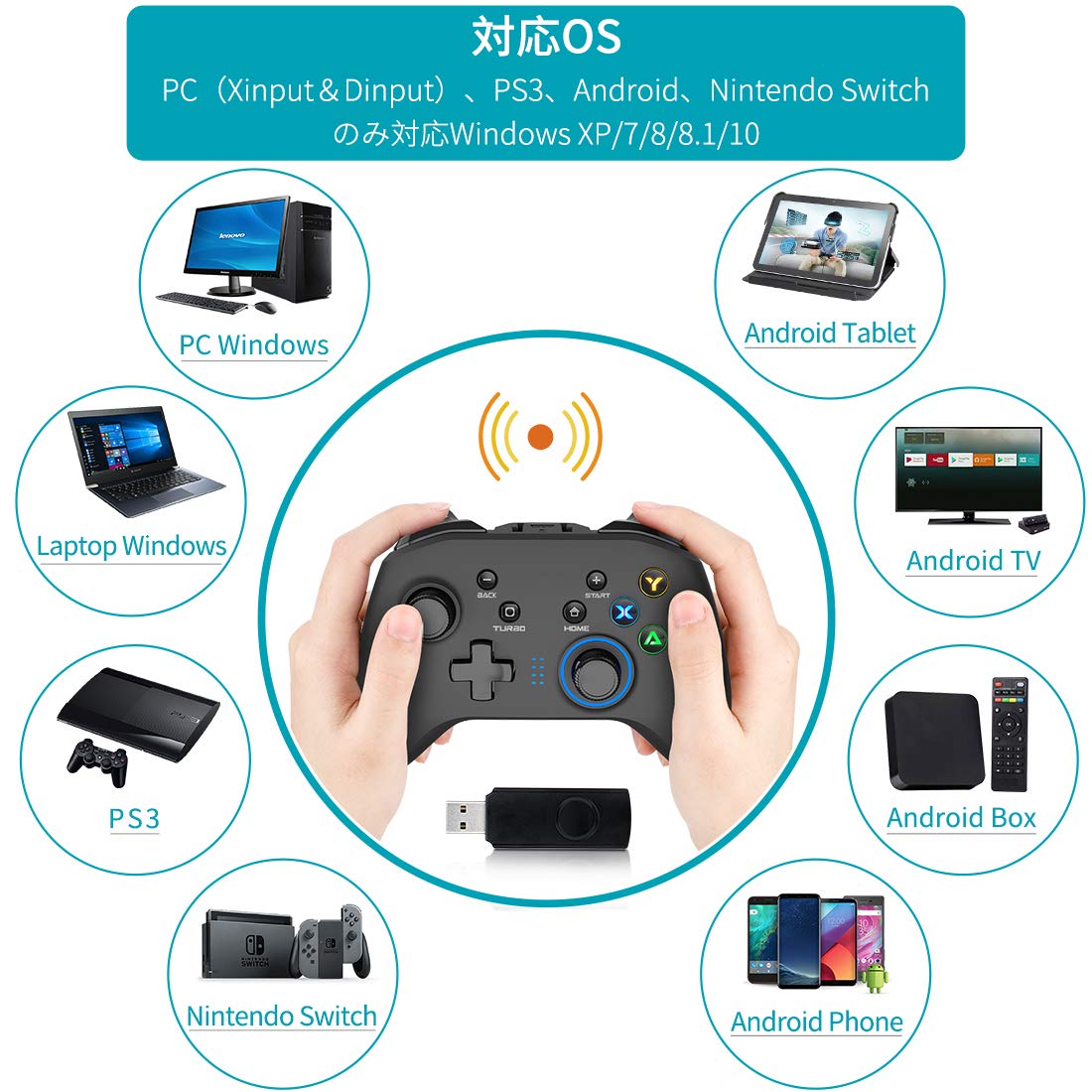
Image: Visual representation of compatible devices including PC, laptop, Android tablet, Android TV, Android Box, Android phone, PS3, and Nintendo Switch.
5. Setup jeung Connection
5.1 Wireless Connection (PC)
- Insert the 2.4G USB receiver into an available USB port on your PC.
- Power on the Forty4 Wireless Game Controller. The controller will automatically pair with the receiver.
- Once connected, the LED indicator on the controller will stabilize, indicating a successful connection.
5.2 Wired Connection (PC/PS3)
- Connect one end of the USB-C charging cable to the controller's USB-C port.
- Connect the other end of the USB-C cable to an available USB port on your PC or PS3.
- The controller will automatically switch to wired mode and be ready for use.
5.3 Wireless Connection (Nintendo Switch / Android)
For wireless connection to Nintendo Switch or Android devices, an OTG (On-The-Go) adapter (USB-A to USB-C or Micro-USB, depending on your device's connector) is required and not included with the controller.
- Connect the 2.4G USB receiver to the OTG adapter.
- Plug the OTG adapter into your Nintendo Switch or Android device's USB-C/Micro-USB port.
- Power on the Forty4 Wireless Game Controller. The controller will automatically pair.

Image: Depicts the flexibility of wired and wireless connection options for the controller, suitable for various devices like TVs, Windows PCs, and tablets.

Image: Illustrates the process of connecting the controller wirelessly to a Nintendo Switch and an Android phone using an OTG adapter.
6. Parentah Operasi
6.1 Macro Button-Key Combination (M1-M4)
The controller features four large programmable buttons on the back (M1, M2, M3, M4). These buttons can be assigned to a single input or a combination of multiple keys. Note: The Nintendo Switch platform does not support the macro function.
To Enable/Assign Back Buttons (M1-M4):
- M1: Hold M button + Press BACK button + Press M1
- M2: Hold M button + Press BACK button + Press M2
- M3: Hold M button + Press BACK button + Press M3
- M4: Hold M button + Press BACK button + Press M4
To Disable Back Buttons (M1-M4):
Hold the M button and press the "BACK" button again, then press the M button. (M-BACK-M)

Gambar: Deukeut view of the back of the controller, highlighting the M1, M2, M3, and M4 programmable buttons.
6.2 JD-SWITCH Function
In Xinput mode, the JD-SWITCH function allows you to swap the functionality of the cross key (D-pad) and the left analog stick. This can be useful for games that benefit from different control schemes.
To activate JD-SWITCH: Press and hold the TURBO and START buttons simultaneously.
6.3 Continuous Fire (TURBO) Function
The TURBO function enables continuous rapid input for a selected button, ideal for shooting games or actions requiring repeated presses. The Nintendo Switch also supports this function.
To activate TURBO: Press the button you wish to set for continuous fire, then press the TURBO button. The button will now continuously register input when held down.
To deactivate TURBO: Repeat the process (press the button, then press TURBO again).

Image: Illustrates the JD-SWITCH function (swapping D-pad and left stick) and the TURBO function (continuous fire) on the controller.
6.4 HD Double Vibration Function
The controller is equipped with vibration motors in both the left and right grips and trigger parts. These motors provide tactile feedback during gameplay, enhancing immersion. Vibration effects are automatically triggered by compatible games.
7. Ngecas jeung Batré
The Forty4 Wireless Game Controller features a built-in 600 mAh lithium-ion battery, providing approximately 8 hours of continuous wireless gameplay on a full charge.
Parentah ngecas:
- Connect the supplied USB-C charging cable to the controller's USB-C port.
- Connect the other end of the cable to a USB power source, such as a PC USB port, a mobile battery, or an AC adapter (5V/1A recommended).
- The LED indicator on the controller will show charging status. Charging typically takes 2-3 hours for a full charge.
- Once fully charged, the LED indicator will change or turn off, depending on the controller's design.
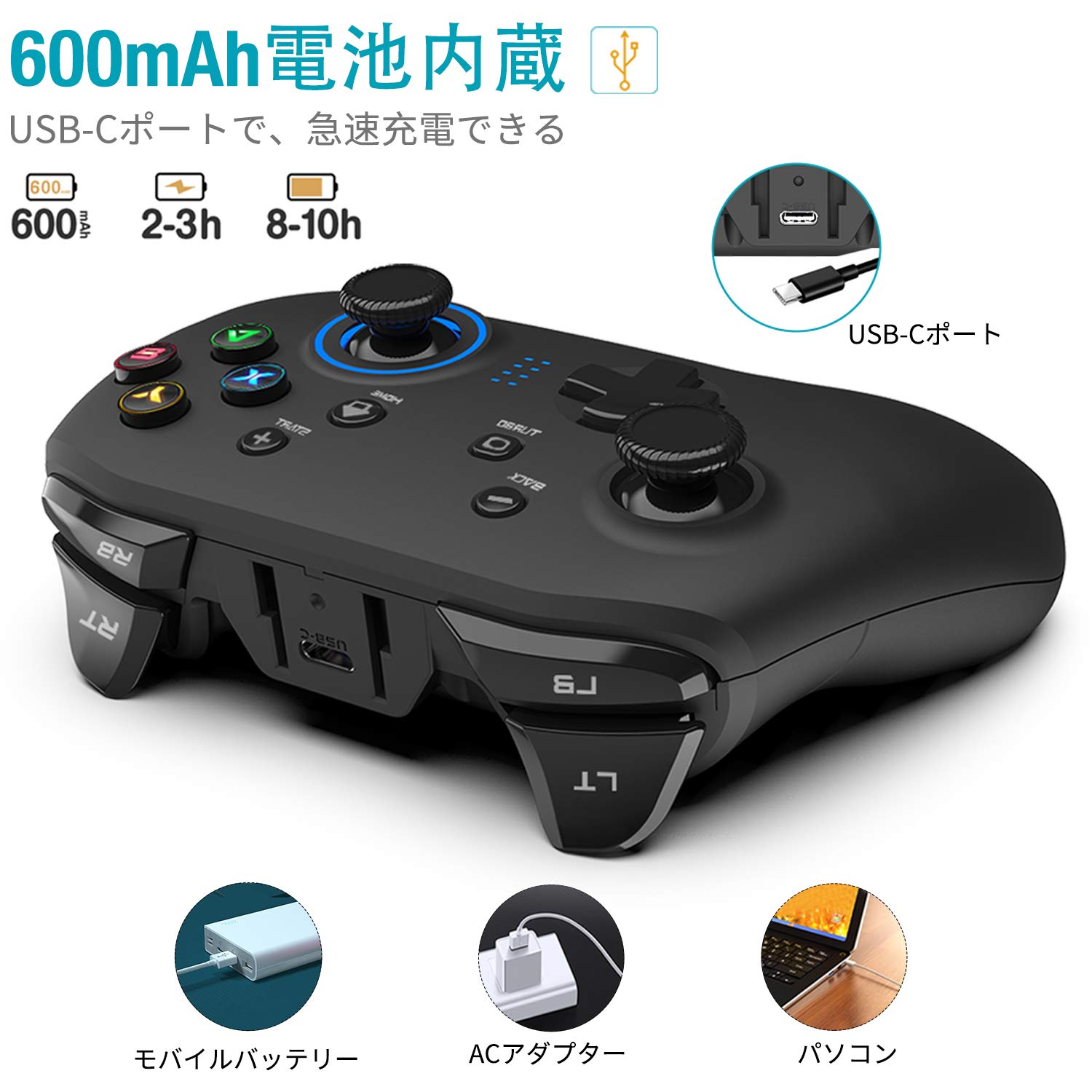
Image: Highlights the 600mAh built-in battery, USB-C charging port, and charging methods using a mobile battery, AC adapter, or PC.
8. Pangropéa
- Jaga controller tetep garing sareng jauh tina kalembaban.
- Ngabersihan controller jeung lemes, lawon garing. Ulah make bahan kimia kasar atawa bahan abrasive.
- Avoid exposing the controller to extreme temperatures (hot or cold).
- Nyimpen controller dina tempat anu aman lamun teu dipaké pikeun nyegah karuksakan.
9. Cara ngungkulan
9.1 Controller Not Connecting / Unresponsive
- Ensure the USB receiver is securely plugged into the device's USB port.
- Check if the controller's battery is charged. Connect it to a power source using the USB-C cable.
- Try restarting your PC or gaming device.
- If using wireless, try connecting the controller via the USB-C cable to confirm functionality.
- For Switch/Android, ensure the OTG adapter is functioning correctly and is compatible with your device.
9.2 Geter Teu Gawé
- Pariksa yén kaulinan nu keur diputerkeun ngarojong eupan balik geter.
- Check the in-game settings to ensure vibration is enabled.
- Ensure the controller's drivers are correctly installed on your PC (usually automatic).
9.3 Masalah Ngecas
- Ensure the USB-C cable is fully inserted into both the controller and the power source.
- Try using a different USB-C cable or a different USB power source.
- Check the controller's USB-C port for any debris or damage.
10. Spésifikasi
| Fitur | Rincian |
|---|---|
| Nomer modél | GC201JPF |
| Konektipitas | 2.4G Nirkabel, Kabel USB (Tipe-C) |
| Jenis Batré | 1 Litium Ion (kaasup) |
| Kapasitas batré | 600 mAh |
| Approx. Usage Time | 8 hours (wireless) |
| Waktu Ngecas | 2-3 jam |
| Ukuran Paket | 16.4 x 11.8 x 7.2 cm |
| Item Beurat | 340 g |
| Produsén | OPAT PULUH4 |
11. Garansi jeung Rojongan
For warranty information, technical support, or any inquiries regarding your Forty4 Wireless Game Controller, please refer to the contact information provided with your purchase or visit the official Forty4 websitus. Simpen bukti pameseran anjeun pikeun klaim garansi.