
Avision AD340G

Avision AD340G Compact High Speed Duplex Document Scanner User Manual
Model: AD340G
Bubuka
This manual provides comprehensive instructions for the setup, operation, maintenance, and troubleshooting of your Avision AD340G Compact High Speed Duplex Document Scanner. Please read this manual thoroughly before using the scanner to ensure proper and safe operation.
Émbaran Kasalametan
Perhatikeun tindakan pencegahan kaamanan ieu pikeun nyegah tatu sareng karusakan kana scanner:
- Anggo ngan ukur adaptor daya anu disayogikeun sareng pamindai.
- Ulah ngalaan scanner ka cai atawa kalembaban anu kaleuleuwihan.
- Tempatkeun scanner dina permukaan anu stabil sareng rata.
- Jauhkeun scanner tina sinar panonpoé langsung sareng sumber panas.
- Unplug the scanner before cleaning or if it will not be used for an extended period.
Eusi pakét
Pastikeun yén sadaya item aya dina bungkusan:
- Avision AD340G Document Scanner
- Adaptor kakuatan
- Kabel USB
- Gancang Mimitian Guide
- CD software (atanapi petunjuk unduh)
Produk Leuwihview
Familiarize yourself with the main components of the Avision AD340G scanner.
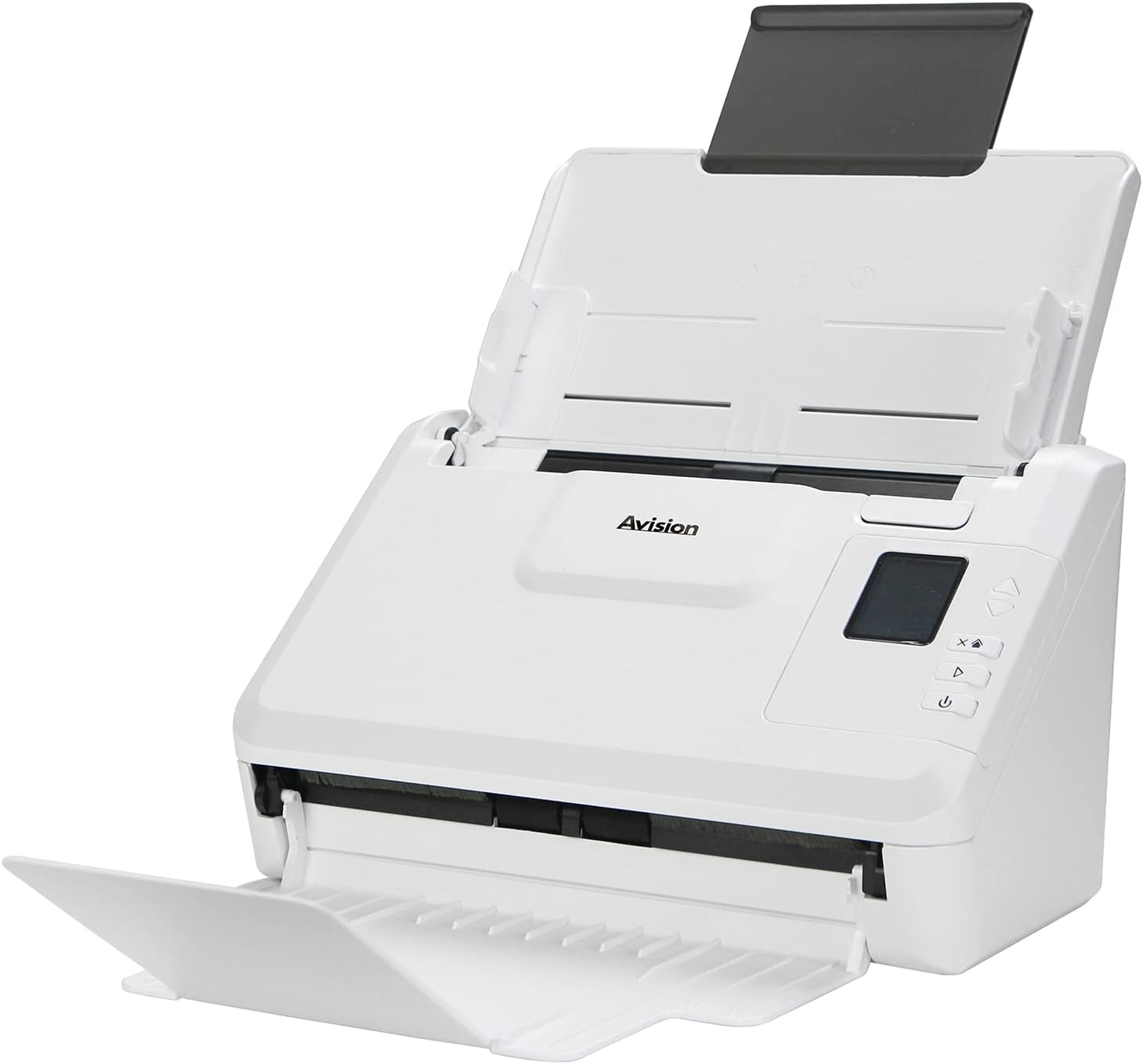
Gambar: The Avision AD340G scanner shown with its input and output trays extended, ready for document feeding. This view highlights the compact design and accessible paper path.
- Document Feeder Tray: Where documents are loaded for scanning.
- Baki kaluaran: Where scanned documents are ejected.
- Panél kontrol: Buttons and display for scanner operation.
- Port USB: Pikeun nyambungkeun ka komputer.
- Palabuhan Daya: Pikeun nyambungkeun adaptor kakuatan.
Disetél
1. Setélan fisik
- Buka bungkus scanner: Cabut scanner sareng sadaya asesoris sacara saksama tina bungkusan.
- Pasangkeun Scanner: Position the scanner on a flat, stable surface with adequate space for the input and output trays.
- Sambungkeun Kakuatan:
- Connect the power adapter to the scanner's power port.
- Colokkeun adaptor kakuatan kana stop kontak listrik.
- Nyambung ka Komputer:
- Connect one end of the USB cable to the scanner's USB port.
- Sambungkeun ujung kabel USB nu sejen ka port USB nu sadia dina komputer Anjeun.
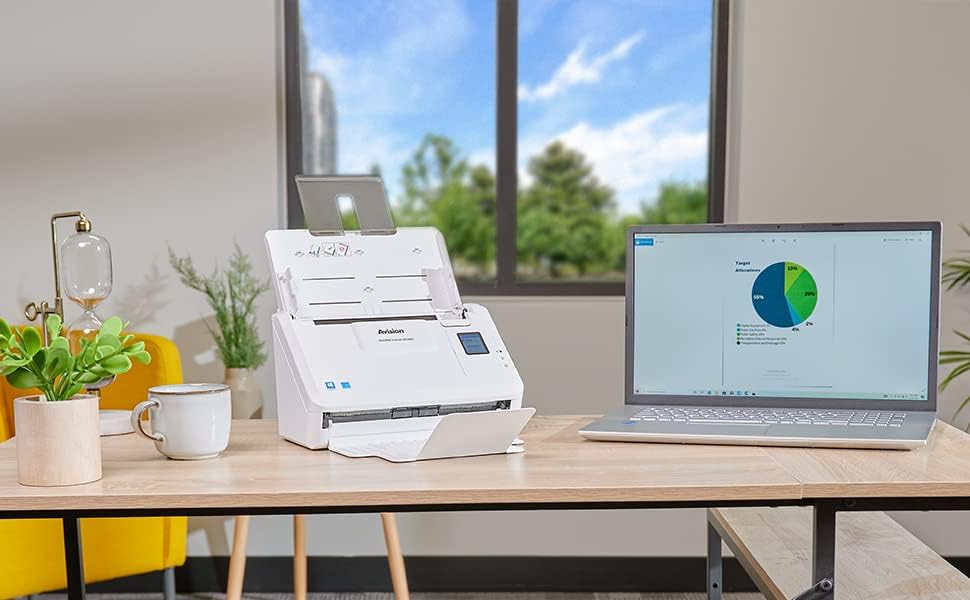
Gambar: The Avision AD340G scanner set up on a desk next to a laptop, illustrating a typical connected environment. This shows the scanner's compact footprint when in use.
2. Pamasangan parangkat lunak
Install the necessary drivers and scanning software from the provided CD or by downloading them from the official Avision websitus.
- Insert the software CD into your computer's CD/DVD drive, or navigate to the Avision support website to download the latest drivers and utilities for the AD340G model.
- Follow the on-screen instructions to complete the installation. This typically includes installing the TWAIN/ISIS drivers and the Avision scanning utility software.
- Balikan deui komputer upami dipenta.
Operasi Scanner
1. Loading Dokumén
- Open the document feeder tray and extend the output tray.
- Saluyukeun pituduh kertas pikeun cocog sareng lebar dokumén anjeun.
- Place the documents face-down in the input tray, ensuring they are neatly stacked and aligned. The scanner supports up to 50 sheets.

Gambar: A hand carefully placing a stack of documents into the input tray of the Avision AD340G scanner, demonstrating the correct loading procedure.
2. Prosedur Nyeken
- Hurungkeun scanner ku mencét tombol daya.
- Launch the Avision scanning software on your computer.
- Pilih pro scanning nu dipikahoyongfile (e.g., color, grayscale, black & white, resolution). The AD340G supports duplex scanning (both sides simultaneously).
- Click the "Scan" button in the software or press the scan button on the scanner's control panel.
- The scanner will feed and process the documents. Once scanning is complete, the images will appear in the software.
- Review the scanned images, make any necessary adjustments (e.g., rotate, crop), and save them to your desired location and format (e.g., PDF, JPEG, TIFF).
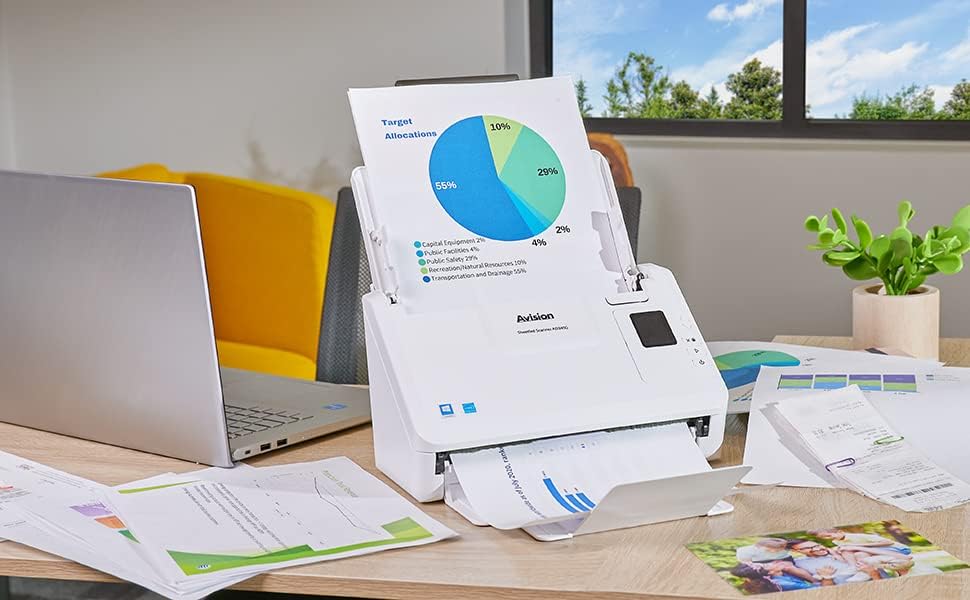
Gambar: The Avision AD340G scanner in operation, feeding a document with a pie chart. This illustrates the scanner's ability to handle various document types efficiently.
Pangropéa
Ngabersihan Scanner
Regular cleaning ensures optimal performance and extends the life of your scanner.
- Pareum sareng Cabut colokan: Always turn off the scanner and disconnect the power adapter and USB cable before cleaning.
- Luar bersih: Wipe the exterior of the scanner with a soft, lint-free cloth lightly dampdikumbah ku cai atawa cleaner hampang, non-abrasive.
- Clean Interior (Rollers and Glass):
- Open the scanner cover to access the rollers and glass scanning surfaces.
- Gently wipe the feed rollers with a clean, lint-free cloth. If necessary, use a small amount of isopropyl alcohol on the cloth for stubborn residue.
- Clean the glass scanning strips with a soft cloth and glass cleaner (non-ammonia based).
- Keun sadaya komponén nepi ka garing sagemblengna sateuacan nutup panutup sareng nyambungkeun deui daya.
Pamérésan masalah
| Masalah | Mungkin Cukang lantaranana | Solusi |
|---|---|---|
| Scanner teu hurung. | kabel kakuatan teu disambungkeun; masalah stop kontak listrik. | Pastikeun kabel kakuatan disambungkeun aman. Coba colokan listrik anu béda. |
| Documents jam frequently. | Misaligned paper guides; worn rollers; dirty rollers. | Adjust paper guides. Clean the feed rollers. If problem persists, rollers may need replacement. |
| Scanned images are blurry or have lines. | Dirty scanning glass; incorrect resolution settings. | Clean the scanning glass. Adjust scanning resolution in the software. |
| Scanner teu kadeteksi ku komputer. | USB cable disconnected; driver not installed or corrupted. | Check USB cable connection. Reinstall scanner drivers. Try a different USB port. |
spésifikasi
Key technical specifications for the Avision AD340G Document Scanner:
- model: AD340G
- Jenis scanner: ADF Duplex Document Scanner
- Konektipitas: USB
- Resolusi: 600 dpi (Optical)
- Kacepetan scanning: 40 ppm (pages per minute) / 80 ipm (images per minute)
- Jerona Warna: 48 bits input / 24 bits output
- Kapasitas Lambaran Standar: 50 lembar
- Téknologi sénsor optik: CIS (Kontak Sensor Gambar)
- Ukuran produk: 11 x 6.1 x 6.5 inci
- Beurat barang: 8 pon
- Syarat Sistem Minimum: Windows XP/7/8/10
Garansi sareng Rojongan
For warranty information, technical support, or service inquiries, please refer to the warranty card included with your product or visit the official Avision website. Contact information for customer support can typically be found on the manufacturer's websitus.
Avision Official Websitus: www.avision.com
Dokumén Patali - AD340G
 |
Avision AD7100N A3 Production Scanner: High-Speed, Networked Document Scanning Discover the Avision AD7100N, a high-performance A3 production scanner designed for businesses. Featuring dual CIS, ultrasonic sensors, Ethernet connectivity, and advanced software like Avision Button Manager V2 and AVScan X, it offers rapid scanning, superior image quality, and efficient document management for large-format documents. |
 |
Avision AD6090 A3 Production Document Scanner - High Speed, Versatile Scanning Discover the Avision AD6090, a high-speed A3 production document scanner designed for enhanced corporate competitiveness. Features include 90/180 ppm speeds, 150-page ADF, ultrasonic double feed detection, and bundled software like Button Manager V2 and AVScan X for efficient document management. |
 |
Avision AD545G Sheetfed Scanner: Gancang, Mampuh, sareng Beunghar Fitur Panggihan Avision AD545G, scanner sheetfed duplex-speed tinggi dirancang pikeun efisiensi. Nampilkeun scanning 60 ppm/120 ipm, penanganan dokumén anu serbaguna (kaasup kartu sareng paspor), deteksi multi-feed ultrasonik, sareng parangkat lunak anu dibuntel pikeun manajemén dokumén. Idéal pikeun lingkungan kantor. |
 |
Avision Sheet-Feed Scanner Ngamimitian Guide | Modél 251-1457-0V100 Pituduh mimiti gancang pikeun Avision Sheet-Feed Scanner (Model 251-1457-0V100), ngawengku unboxing, instalasi, setelan software, jeung operasi scanning dasar. |
 |
מדריך למשתמש לסורק מסמכים Avision AD370 Series (דגם FF-1902) מדריך מקיף למשתמש עבור סורק המסמכים Avision AD370 Series (דגם FF-1902), המספק הוראות התקנה, תפעול, בטיחות ומידע רגולטורי. |
 |
Avision FF-2010B Dokumén Scanner Manual Pamaké Manual pamaké pikeun scanner dokumén Avision FF-2010B, ngawengku pamasangan, operasi, tungtunan kaamanan, jeung syarat sistem. |