
1. Bubuka
Welcome to the HyperX Armada 25 Gaming Monitor user manual. This document provides essential information for setting up, operating, maintaining, and troubleshooting your new monitor. The HyperX Armada 25 is designed for competitive gaming, featuring a 24.5-inch Full HD (1920x1080) IPS panel, a 240Hz refresh rate, and a 1ms response time, ensuring smooth and responsive visuals. It also includes NVIDIA G-SYNC compatibility to eliminate screen tearing and minimize input latency. A desk mount is included for convenient setup and to maximize desk space.
Fitur konci:
- Paket Sadaya-dina-Hiji: Includes an ergonomic arm and desk mount for easy setup and space-saving.
- Laju Refresh Tinggi & Waktu Tanggapan: 240Hz refresh rate and 1ms response time for ultra-smooth gaming.
- Vibrant IPS Panel: 24.5-inch Full HD (1920x1080) IPS panel delivers stunning visuals with accurate colors and wide viewdina sudut.
- NVIDIA G-SYNC Cocog: Eliminates screen tearing and reduces stuttering for a fluid gaming experience.

Video Produk Resmi:
2. Setélan
This section guides you through the initial setup of your HyperX Armada 25 Gaming Monitor, including assembly and connection to your computer.
2.1. Assembling the Desk Mount
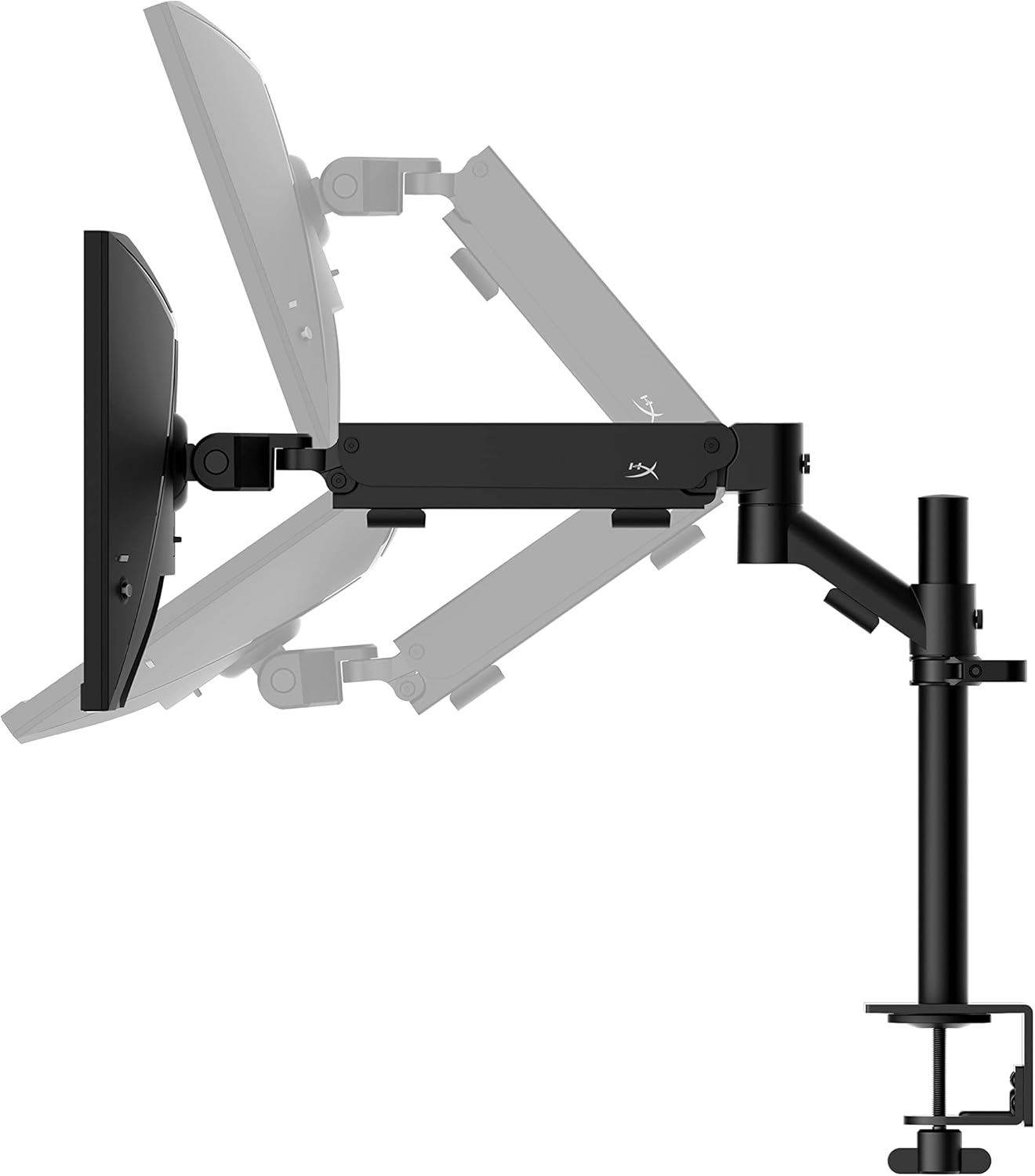
The HyperX Armada 25 comes with an integrated ergonomic desk mount. Follow the instructions provided in the separate quick start guide for detailed assembly steps. The monitor head easily snaps into the arm, allowing for quick and secure installation.

2.2. Nyambungkeun Monitor
Connect the monitor to your computer using the appropriate cables. The HyperX Armada 25 supports both HDMI and DisplayPort connections.
- Connect one end of the HDMI or DisplayPort cable to the corresponding port on your computer's graphics card.
- Connect the other end of the cable to an available HDMI 2.0 or DisplayPort 1.4 port on the back of your monitor.
- Connect the power cord to the monitor and then to a power outlet.
- Pencét tombol daya dina monitor pikeun ngahurungkeun.

3. Ngoperasikeun Monitor
This section covers basic operation and navigation of the monitor's On-Screen Display (OSD) menu.
3.1. Napigasi dina-layar (OSD).
The OSD menu is controlled using a joystick located on the back of the monitor. This joystick allows you to power on/off the monitor and navigate through various settings.
- Pencét joystick: Pikeun muka menu OSD atanapi mastikeun pilihan.
- Move the joystick Up/Down/Left/Right: To navigate through menu options and adjust settings.
- Hold the joystick: To power off the monitor.

3.2. Nyaluyukeun Posisi Monitor
The ergonomic desk mount allows for flexible positioning of your monitor. You can adjust the height, tilt, swivel, and pivot to find your optimal viewsudut ing.

4. Pangropéa
Proper maintenance ensures the longevity and optimal performance of your HyperX Armada 25 Gaming Monitor.
- Ngabersihan layar: Anggo kaén anu lemes sareng teu aya serat anu hampang dampened with water or a specialized screen cleaner. Avoid using harsh chemicals, abrasive materials, or direct spraying onto the screen.
- Ngabersihan Casing: Ngusap monitor casing ku lawon anu lemes sareng garing.
- Ventilasi: Pastikeun bukaan ventilasi monitor teu diblokir pikeun nyegah overheating.
- Pareuman Lamun Teu Dipake: Pareuman monitor upami teu dianggo kanggo waktos anu panjang pikeun ngahémat énergi sareng manjangkeun umurna.
5. Cara ngungkulan
If you encounter issues with your monitor, refer to the following common troubleshooting steps.
- Henteu aya kakuatan:
- Pariksa naha kabel daya disambungkeun sacara aman ka monitor sareng stopkontak.
- Pastikeun stop kontakna jalan kalawan bener.
- Pencét tombol daya dina monitor.
- Henteu aya sinyal:
- Verify that the HDMI or DisplayPort cable is securely connected to both the monitor and your computer.
- Pastikeun komputer anjeun hurung sareng henteu dina modeu sare.
- Pilih sumber input anu leres nganggo menu OSD.
- Flickering Screen or Image Issues:
- Check the display cable for damage or loose connections.
- Pastikeun supir kartu grafik anjeun parantos diropéa.
- Atur laju refresh dina setélan tampilan komputer anjeun.
- If G-SYNC is enabled, try disabling it temporarily to see if the issue persists.
- Buttons Not Responding (OSD Joystick):
- Pastikeun monitor diaktipkeun.
- Try restarting the monitor by unplugging and replugging the power cable.
- Clean around the joystick to ensure no debris is obstructing its movement.
6. Spésifikasi
Detailed technical specifications for the HyperX Armada 25 Gaming Monitor.
| Fitur | Rincian |
|---|---|
| Dimensi produk | 21.94 x 25.79 x 31.12 inci; 16.98 pon |
| Nomer Modél Item | HyperX Armada 25 |
| Tanggal Kahiji Sadia | 24 Agustus 2022 |
| Produsén | HP Nyarita. |
| ASIN | B0B2C1G356 |
| Ukuran tampilan | Diagonal 24.5 inci |
| Resolusi | Full HD (1920x1080) |
| Refresh Laju | 240Hz |
| Tipe Panel | Panel IPS |
| Waktu Tanggapan | 1 ms |
| Téhnologi sinkron | NVIDIA® G-SYNC® Cocog |
| Included Mount | Desk Mount Included |
| Konektipitas | HDMI and Display Port |
7. Garansi jeung Rojongan
For warranty information, technical support, or to access additional resources, please visit the official HyperX websitus atanapi ngahubungan layanan palanggan maranéhna.
- HyperX Resmi Websitus: www.hyperx.com
- Halaman Rojongan Produk: Refer to the support section on the HyperX websitus pikeun model husus Anjeun.