
SSK SC211
SSK SC211 11-in-1 USB-C Laptop Docking Station User Manual
Model: SC211 | Brand: SSK
1. Bubuka
The SSK SC211 11-in-1 USB-C Laptop Docking Station is a versatile multiport adapter designed to expand the connectivity of your USB-C enabled laptop, tablet, or smartphone. It integrates multiple essential ports into a single compact device, enhancing productivity and simplifying your workspace.
2. Fitur Produk
This docking station provides 11 ports for comprehensive connectivity:
- 2 x Port HDMI: Supports 4K video output. HDMI1 supports up to 4K@60Hz, and HDMI2 supports up to 4K@30Hz.
- 1 x VGA Port: Supports video output up to 1920x1080@60Hz, especially when used in dual or triple display configurations.
- 1 x Ethernet/RJ-45 Port: Provides stable wired network connectivity with 1000Mbps Gigabit speed.
- 2 x Port USB 3.0: Offers high-speed data transfer rates of up to 5Gbps.
- 1 x USB 2.0 Port: Ideal for connecting wireless mouse and keyboard receivers, minimizing interference.
- 1 x 3.5mm Audio Port: Supports both microphone input and audio output.
- 1 x USB-C PD3.0 Charging Port: Delivers up to 100W Power Delivery for fast charging of compatible Type-C devices.
- 1 x Pamaca Kartu SD: For standard SD cards, with data transfer speeds up to 80MB/s.
- 1 x Pamaca Kartu TF (Micro SD): For Micro SD cards, with data transfer speeds up to 80MB/s. Both SD and TF card slots can be used simultaneously.

Gambar 1: Leuwihview of the SSK SC211 11-in-1 USB-C Docking Station with all ports clearly labeled, including PD 3.0, USB 2.0, HDMI1 (4K@60Hz), HDMI2 (4K@30Hz), RJ45 Ethernet, SD/TF Card, 2x USB 3.0, 3.5mm Audio, and VGA (1080P@60Hz).
3. Setup Guide
- Nyambung ka Alat Host: Plug the integrated USB-C cable from the docking station into the USB-C port of your laptop, tablet, or smartphone. Ensure your device's USB-C port supports "Display Port Alternate Mode" for video output functionality.
- Sambungan Daya (Opsional tapi Disarankeun): For stable performance and charging, connect your device's original power adapter or a compatible USB-C PD charger (up to 100W) to the docking station's USB-C PD port.
- Sambungkeun tampilan éksternal:
- For HDMI displays, connect HDMI cables from your monitors to the HDMI1 and/or HDMI2 ports on the docking station.
- Pikeun tampilan VGA, sambungkeun kabel VGA tina monitor anjeun ka port VGA dina docking station.
- Sambungkeun Periferal:
- Plug USB devices (e.g., external hard drives, flash drives) into the USB 3.0 ports.
- Connect wireless mouse/keyboard receivers to the USB 2.0 port.
- Insert SD or TF cards into the respective card reader slots.
- Pikeun internét kabel, sambungkeun kabel Ethernet kana port RJ-45.
- Connect headphones or speakers to the 3.5mm audio port.
- Driver Installation (Mac OS Specific): For Mac OS, due to its MST (Multi-Stream Transport) display limitations, installing DisplayLink drivers may be required to achieve extended display functionality across multiple distinct displays. Refer to the DisplayLink website for the latest drivers and installation instructions. For Windows, it is generally plug-and-play.
Video 1: A demonstration of connecting a docking station to a laptop and external monitors, showcasing its multi-display capabilities and various port connections.
4. Parentah Operasi
4.1 Modeu Paparan
Stasion docking ngadukung sababaraha konfigurasi tampilan gumantung kana sistem operasi anjeun:
- For Windows 10/11 OS:
- Mirror Mode (A-AAA): All connected displays (laptop screen, HDMI1, HDMI2, VGA) show the same content.
- Extend Mode (A-BBB): The laptop screen and external monitors display different content, extending your desktop workspace. This supports up to three different screens (laptop + 2 external monitors via HDMI + VGA).
- Extend Mode (A-BCD): Similar to A-BBB, allowing for distinct content across multiple displays.
- Pikeun Mac OS:
Due to Mac OS limitations (lack of MST support), the docking station primarily supports extending one monitor, with other external monitors mirroring that extended display. All three screens will display the same picture when VGA is connected alongside HDMI displays.
- Extend Mode (A-AAA or A-BBB): The docking station supports extending one monitor. Any additional external monitors will mirror the content of the first extended monitor.
- Modeu eunteung: Sadaya tampilan anu nyambung nunjukkeun eusi anu sami.
Note on VGA: When the VGA port is connected, the maximum resolution for each monitor will be limited to 1920x1080@60Hz.
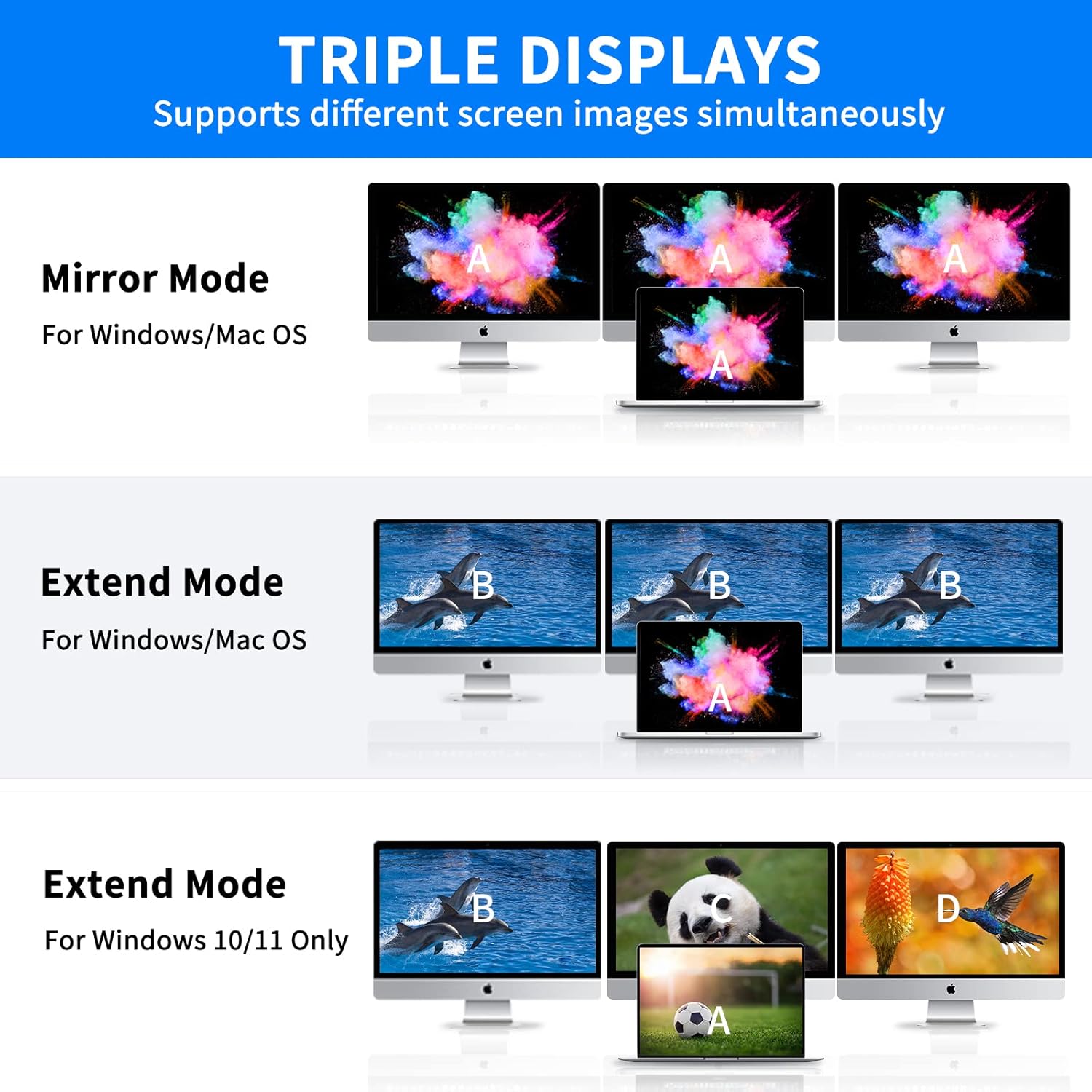
Figure 2: Visual representation of Mirror Mode and Extend Mode for both Windows and Mac OS, illustrating how screens are duplicated or extended.
4.2 Mindahkeun Data
Utilize the USB 3.0 ports for rapid data transfer with compatible devices. The SD and TF card readers also offer fast data access for memory cards.
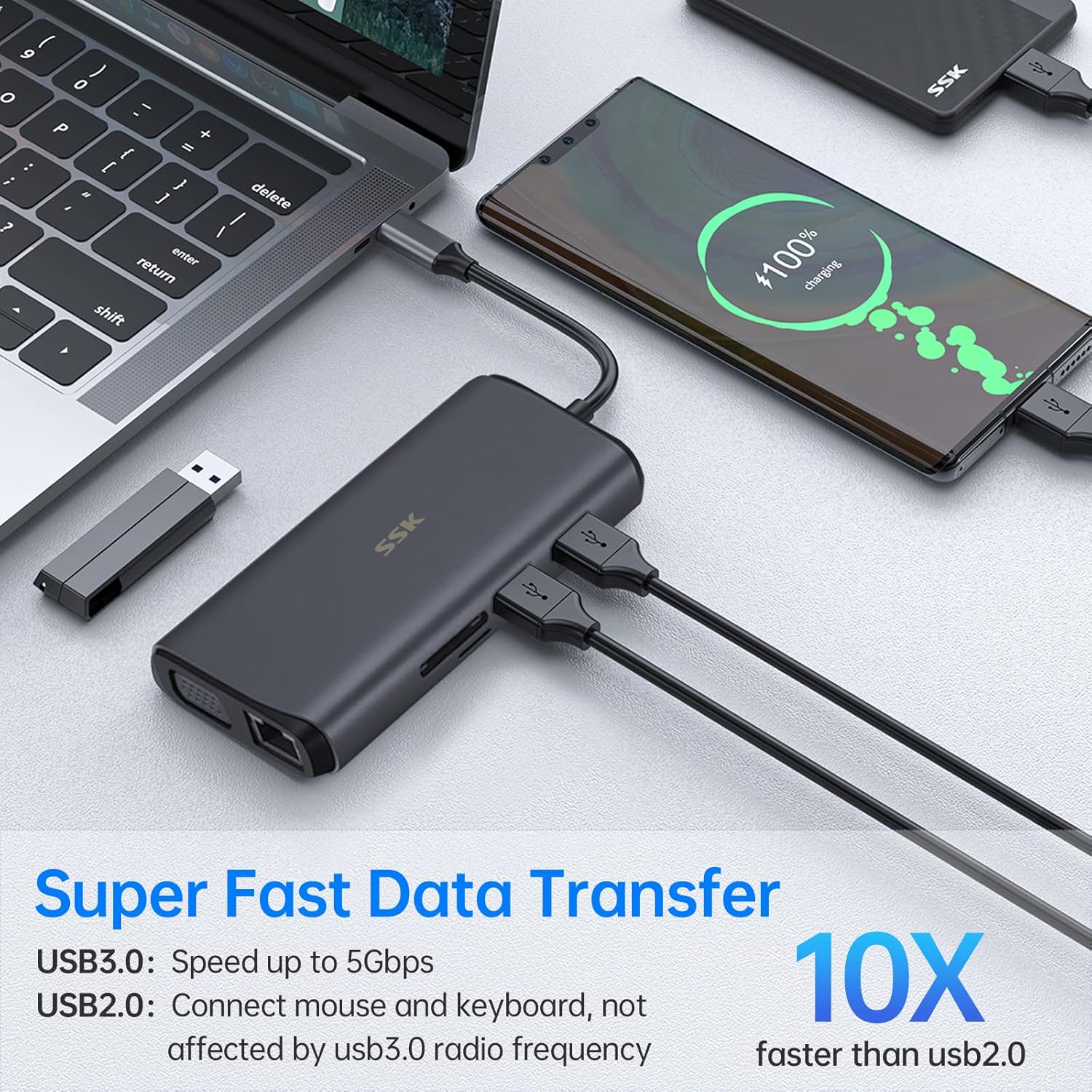
Figure 3: Illustration of the docking station facilitating super-fast data transfer via USB 3.0 ports and SD/TF card readers, connected to a laptop.
4.3 Pangiriman kakuatan
The 100W PD3.0 port allows you to charge your Type-C laptop or other compatible devices while using the docking station. This port is for power input only and does not support data transfer.

Figure 4: The docking station connected to a laptop and a power adapter, demonstrating its PD3.0 Power Delivery feature for fast charging.
5. Kasaluyuan
The SSK SC211 docking station is compatible with a wide range of devices and operating systems that feature a USB-C port supporting "Display Port Alternate Mode" for video output. This includes, but is not limited to:
- Laptop: MacBook Pro (2017-2020), MacBook Air (2018-2020), Dell XPS 13/15, Lenovo Yoga 720/910/920/930, Microsoft Surface Book 2/Surface Go/Surface Laptop 3, Dell Latitude 13 7000/E7370, and other USB-C enabled laptops.
- Tablets & Smartphones: Devices with a full-featured USB-C port.
- Sistem Operasi: Windows 10/11, Mac OS, Chrome OS, Linux, Android.
penting: To enable HDMI and VGA functions, your laptop or phone's USB-C port must support "Display Port Alternate Mode" video output.

Figure 5: The SSK SC211 docking station shown with logos of compatible operating systems, highlighting its broad compatibility.
6. Spésifikasi Téknis
| Fitur | Spésifikasi |
|---|---|
| Nomer modél | SC211 |
| Diménsi | 5 x 3 x 1 inci |
| Beurat | 5.1 ons |
| HDMI 1 Kaluaran | Nepi ka 4K@60Hz |
| HDMI 2 Kaluaran | Nepi ka 4K@30Hz |
| Kaluaran VGA | Nepi ka 1920x1080@60Hz |
| USB 3.0 palabuhan | 2 ports, 5Gbps data transfer |
| Port USB 2.0 | 1 port, for low-bandwidth peripherals |
| Palabuhan USB-C PD | Up to 100W Power Delivery (input only) |
| Port Ethernet | 1000Mbps Gigabit RJ-45 |
| Pamaca Kartu | SD and TF (Micro SD), up to 80MB/s, simultaneous use |
| Palabuhan Audio | 3.5mm (Mic and Audio) |
| Bahan | Paduan aluminium casing |
7. Cara ngungkulan
- Henteu aya kaluaran tampilan:
- Ensure your host device's USB-C port supports "Display Port Alternate Mode."
- Check all cable connections (USB-C to host, HDMI/VGA to monitors).
- Verify monitor input sources are correctly selected.
- For Mac OS, ensure DisplayLink drivers are installed if using extended mode for multiple distinct displays.
- Coba balikan deui alat host anjeun.
- Konektipitas Intermittent:
- Ensure the docking station is receiving adequate power, especially when multiple power-hungry devices are connected. Connect a PD charger to the docking station.
- Pariksa sambungan leupas.
- Ulah neundeun stasiun dok caket sumber gangguan éléktromagnétik anu kuat.
- Mindahkeun Data Lambat:
- Ensure you are using USB 3.0 compatible devices and cables for the USB 3.0 ports.
- Pariksa yén port USB-C alat host anjeun ngadukung USB 3.0 atanapi kecepatan anu langkung luhur.
- Masalah ngecas:
- Confirm your USB-C PD charger and cable are compatible and capable of delivering sufficient wattage (e.g., 100W).
- Ensure the charger is connected to the docking station's dedicated PD port.
- Ethernet Teu Gawé:
- Check the Ethernet cable connection to both the router/modem and the docking station.
- Pariksa setelan jaringan dina alat host anjeun.
- Ensure network drivers are up to date.
8. Perawatan sareng Pangropéa
- Keep the docking station away from water, fire, and corrosive liquids.
- Hindarkeun ragrag atanapi ngagentoskeun alat kana tabrakan anu kuat.
- Ulah nyobian ngabongkar atawa ngalereskeun alat sorangan. Kontak rojongan customer lamun masalah timbul.
- Bersihkeun alat ku kaen anu lemes sareng garing. Ulah make bahan kimia kasar atawa bahan abrasive.
- Nyimpen dina tiis, tempat garing lamun teu dipaké.
9. Garansi jeung Rojongan
SSK products come with a standard manufacturer's warranty. For detailed warranty information, technical support, or service inquiries, please refer to the official SSK websitus atanapi hubungi departemén layanan palangganna. Mangga simpen bukti pameseran anjeun kanggo klaim garansi.