
CUPEISI CP20
CUPEISI CP20 Android 15 Tablet User Manual
Modél: CP20
1. Bubuka
Thank you for choosing the CUPEISI CP20 Android 15 Tablet. This manual provides essential information for setting up, operating, and maintaining your device. Please read it thoroughly to ensure optimal performance and longevity of your tablet.
2. Naon dina Box
Pastikeun yén sadaya item aya dina pakét anjeun:
- CUPEISI CP20 Android 15 Tablet
- Kibor nirkabel
- Foldable Protective Cover
- Mouse Bluetooth
- Stylus
- Kabel Tipe-C
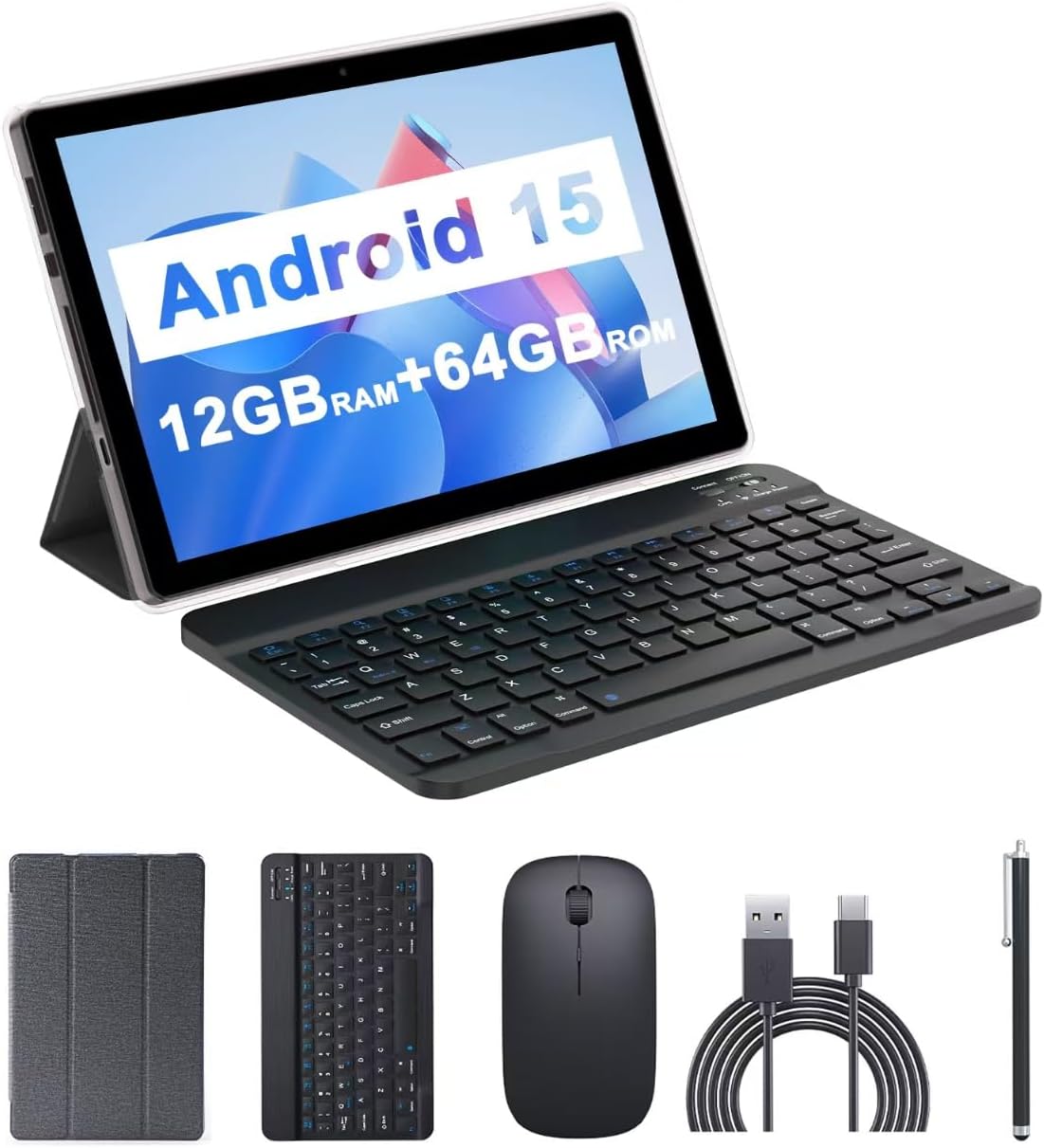
Image: The CUPEISI CP20 Tablet alongside its accessories, including the wireless keyboard, Bluetooth mouse, stylus, and foldable protective cover.
3. Fitur produk jeung komponén
The CUPEISI CP20 Tablet is designed for versatility and performance, offering a seamless user experience for both work and entertainment.
3.1 Fitur konci
- Sistem operasi: Stable Android 15.0 system.
- Prosesor: Built-in 1.8GHz Quad-core CPU for efficient multitasking.
- Mémori & Panyimpenan: 12GB RAM (4GB+8GB expansion) and 64GB ROM, expandable up to 1TB via microSD card.
- tampilan: Stunning 10.1-inch 1280x800 IPS HD touch screen for immersive visuals and eye protection.
- Batré: Powered by a 6000mAh battery, providing approximately 6 hours of regular operation and up to 12 hours of standby time. Charges via 5V2A Type-C port.
- Kaméra: 8MP rear camera with auto-focus and flash, and a 2MP front camera for clear video calls and photos.
- Konektipitas: Supports 5G WiFi 6 and Bluetooth 5.0.
- Fungsi 2-in-1: Transforms into a laptop or computer mode with the included Bluetooth keyboard, wireless mouse, and foldable protective case.

Gambar: Leuwihview of the tablet's core specifications and features.
3.2 Komponén fisik
Biasakeun diri anjeun sareng tata letak fisik tablet:
- Tombol Daya: Perenahna di sisi, dianggo pikeun ngahurungkeun/mareuman tablet atanapi ngahudangkeun/ngahurungkeun layar.
- Tombol Volume: Saluyukeun tingkat audio.
- Tipe-C Port: Pikeun ngecas sareng mindahkeun data.
- Slot Kartu TF/SIM: Lebetkeun kartu microSD pikeun panyimpenan anu langkung lega.
- Kaméra hareup: Pikeun nelepon video sareng selfies.
- Rear Camera & Flash: Pikeun poto sareng video kualitas luhur.
- Panyatur: Two speakers for audio output.

Image: Labeled diagram of the tablet's ports and buttons.
4. Setup Guide
4.1 Ngecas Awal
Before first use, fully charge your tablet. Connect the Type-C cable to the tablet's charging port and the other end to a compatible power adapter (5V2A recommended). The battery indicator will show charging status.
4.2 Powering on / Pareum
- Pikeun Ngahurungkeun: Pencét terus tahan Tombol Daya nepi ka layar hurung.
- Pikeun mareuman: Press and hold the Power Button, then select 'Power off' from the options that appear on the screen.
- Pikeun ngamimitian deui: Press and hold the Power Button, then select 'Restart'.
4.3 Nyambungkeun ka Wi-Fi
- Pindah ka Setélan > Jaringan & internét > Wifi.
- Hurungkeun Wi-Fi.
- Pilih jaringan Wi-Fi anu dipikahoyong tina daptar.
- Tulis kecap akses upami dipenta, teras ketok Nyambung.
4.4 Pairing Bluetooth Accessories
To use the wireless keyboard and Bluetooth mouse, they must be paired with your tablet.
- Pastikeun kibor sareng beurit dieusi sareng diaktipkeun.
- Dina tablet anjeun, buka Setélan > Alat disambungkeun > Bluetooth.
- Hurungkeun Bluetooth.
- The tablet will scan for available devices. Select the keyboard or mouse from the list.
- Turutan ajakan dina layar pikeun ngarengsekeun prosés papasangan.

Image: Instructions for connecting the wireless keyboard and mouse via Bluetooth.
4.5 Nyelapkeun Kartu MicroSD
To expand storage, insert a microSD card (up to 1TB) into the TF/SIM card slot. Ensure the tablet is powered off before inserting or removing the card.
5. Ngoperasikeun Tablet anjeun
5.1 Napigasi Dasar
Navigate the Android interface using touch gestures:
- Ketok: Pilih hiji item atawa buka aplikasi.
- Gesek: Gulung ka kaca atawa daptar.
- Ciwit-pikeun-zum: Enlarge or shrink content.
- Pencét panjang: Aksés ménu kontekstual atanapi pindahkeun ikon.
5.2 Using Keyboard and Mouse
Once paired, the keyboard and mouse function similarly to a laptop. The keyboard allows for efficient typing, while the mouse provides precise cursor control, enhancing productivity.

Image: The tablet in laptop mode, demonstrating its use for productivity tasks.
5.3 Pamakéan kaméra
Open the Camera app to capture photos and videos. Switch between the 2MP front camera and the 8MP rear camera as needed. The rear camera features auto-focus and flash for improved image quality.

Image: Demonstrating the tablet's front and rear camera functionality for video calls and photography.
5.4 App Installation and Management
Download and install applications from the Google Play Store. To manage installed apps, go to Setélan > Aplikasi.

Image: The tablet running Android 15 OS, showing popular applications like YouTube, Google Play, and Netflix.
6. Pangropéa
6.1 beberesih
Anggo lawon anu lemes sareng henteu ngaganggu pikeun ngabersihkeun layar sareng awak tablet. Hindarkeun nganggo bahan kimia anu keras atanapi bahan anu kasar. Pikeun noda anu bandel, usap sakedik.ampen lawon kalawan cai atawa cleaner layar dirancang pikeun éléktronika.
6.2 Apdet parangkat lunak
Pariksa sareng pasang apdet parangkat lunak sacara rutin pikeun mastikeun tablet anjeun ngagaduhan fitur pangénggalna, patch kaamanan, sareng paningkatan kinerja. Buka Setélan > Sistim > Pembaruan sistem.
6.3 Manajemén Panyimpenan
Pikeun ngajaga kinerja optimal, périodik ulangview sareng atur panyimpenan tablet anjeun. Pupus teu perlu files, hapus aplikasi anu teu dianggo, sareng pindahkeun média ageung files to external storage (microSD card) if applicable. Go to Setélan > Panyimpenan ka view panggunaan sareng ngosongkeun rohangan.
7. Cara ngungkulan
This section addresses common issues you might encounter with your CUPEISI CP20 Tablet.
7.1 Tablet Henteu Hurungkeun
- Pastikeun tablet tos dicas cekap. Sambungkeun kana carjer sahenteuna 30 menit.
- Perform a forced restart by pressing and holding the Power Button for 10-15 seconds.
7.2 Performance slow
- Tutup aplikasi anu henteu dianggo jalan di latar tukang.
- Clear cached data for apps (Settings > Apps > [App Name] > Storage & cache > Clear cache).
- Mastikeun spasi gudang bébas cukup.
- Balikan deui tablet périodik.
7.3 Masalah Konektipitas Wi-Fi
- Togél Wi-Fi pareum sareng hurungkeun dina Setélan.
- Balikan deui router Wi-Fi anjeun.
- Forget the network and reconnect (Settings > Network & internet > Wi-Fi > [Network Name] > Forget).
7.4 Rapid Battery Drain
- Ngurangan kacaangan layar.
- Pareuman Wi-Fi, Bluetooth, sareng GPS upami teu dianggo.
- Watesan refresh aplikasi latar.
- Pariksa panggunaan batré dina Setelan > Batré pikeun ngaidentipikasi aplikasi anu boros daya.
8. Spésifikasi
| Fitur | Spésifikasi |
|---|---|
| merek | CUPEISI |
| Ngaran modél | CP20 |
| Sistem operasi | Android 15 |
| Ukuran layar | 10 inci |
| Resolusi layar | 1280 x 800 pixels (IPS HD) |
| Prosesor | 1.8 GHz Quad-core |
| Ram | 12 GB (4GB+8GB expansion) |
| Ukuran Mémori Flash | 64 GB |
| Panyimpenan Expandable | Nepi ka 1TB (microSD) |
| Tukangeun WebResolusi cam | 8 MP |
| Resolusi kaméra hareup | 2 MP |
| Tipe Wireless | 802.11ax (5G WiFi 6) |
| Bluetooth | Bluetooth 5.0 |
| Kapasitas batré | 6000mAh Litium Polimér |
| Rata Kahirupan Batré | 8 Jam |
| Item Beurat | 1 pon |
| Dimensi produk | 9.7 x 6.5 x 0.3 inci |
9. Garansi jeung Rojongan
For warranty information and technical support, please refer to the documentation included with your purchase or visit the official CUPEISI websitus. Simpen bukti pameseran anjeun pikeun klaim garansi.
If you encounter issues not covered in this manual, please contact CUPEISI customer service for assistance.