
1. Bubuka
The PikDik Mini Portable Photo Printer PD-Q2 is a compact thermal printer designed for on-the-go printing. It connects via Bluetooth to compatible Android and iOS devices, allowing users to print photos, labels, lists, and more without the need for ink cartridges. This manual provides essential information for setting up, operating, maintaining, and troubleshooting your PD-Q2 printer.
2. Émbaran Kasalametan
- Ulah ngalaan printer ka cai atawa kalembaban anu kaleuleuwihan.
- Avoid extreme temperatures. Operate and store the printer within recommended environmental conditions.
- Anggo ngan ukur kabel ngecas sareng sumber daya anu disayogikeun.
- Jauhkeun tina jangkauan barudak.
- Ulah nyobian ngabongkar atanapi ngalereskeun printer nyalira. Hubungi dukungan palanggan kanggo bantosan.
3. Eusi Paket
Mangga parios pakét kanggo barang-barang ieu:
- PikDik Mini Portable Photo Printer PD-Q2
- Kabel Ngecas USB Tipe-C
- Roll of Thermal Photo Paper
- Manual pamaké
4. Produk Langkungview
The PD-Q2 printer features a compact design with a single power/function button and a paper output slot. It utilizes thermal printing technology, eliminating the need for ink. The device is powered by a built-in rechargeable lithium battery.
5. Setup Guide
5.1 Ngecas Printer
Before first use, fully charge the printer. Connect the provided USB Type-C cable to the printer's charging port and a compatible USB power adapter. The LED indicator will show charging status.
5.2 Ngamuat Thermal Paper
- Buka panutup kompartemen kertas printer.
- Insert a new roll of thermal paper, ensuring the printing side faces the print head.
- Pull a small length of paper out of the slot and close the cover securely.
5.3 Pamasangan Aplikasi sareng Sambungan Bluetooth
The PikDik PD-Q2 printer requires the "Meta Print" application for operation. Follow these steps to connect your device:
- Hurungkeun printer: Pencét jeung tahan tombol daya nepi ka lampu indikator hurung.
- Download and Install the "Meta Print" APP: Milarian pikeun "Meta Print" on your smartphone's app store (Google Play for Android or App Store for iOS) and install it.
- Aktipkeun Bluetooth: On your phone or tablet, go to your device's settings and ensure Bluetooth is turned on.
- Connect in the APP: Open the "Meta Print" app. The app will guide you to link the printer via Bluetooth. Select the PD-Q2 from the list of available devices.
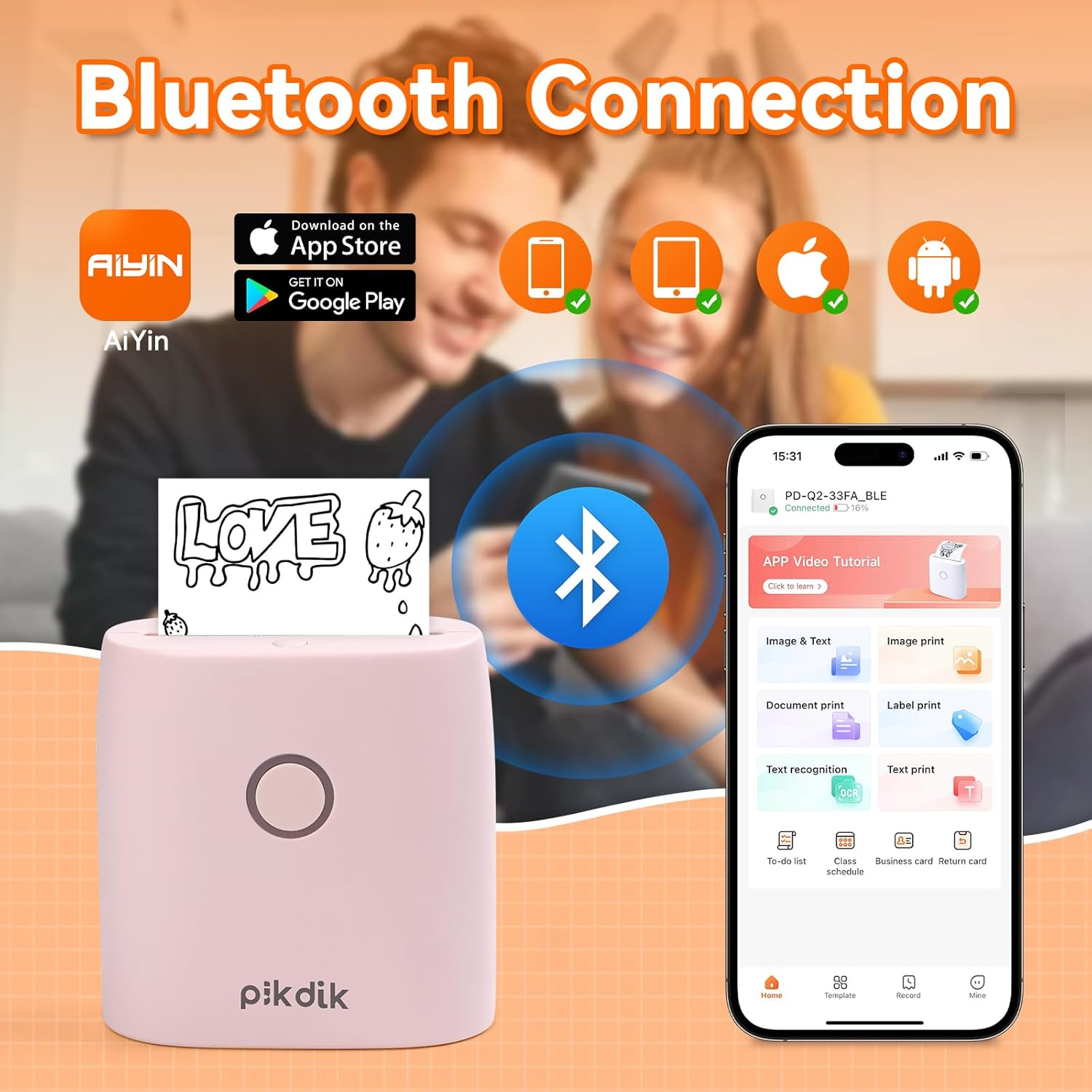
Image: The printer connects to your smartphone via Bluetooth using the Meta Print app, available on both Android and iOS.
6. Parentah Operasi
6.1 Printing Content
Once connected to the "Meta Print" app, you can select various content types for printing:
- Image & Text: Print photos, graphics, or combine them with text.
- Print Dokumén: Print documents or notes.
- Label Print: Create and print custom labels.
- Pangenal téks: Convert images of text into editable text for printing.
- Citakan: Utilize pre-designed templates for to-do lists, business cards, emojis, and more.
After selecting and editing your content within the app, tap the print button to initiate printing. The printer will output the thermal paper with your printed content.

Image: The printer is suitable for various applications such as journaling, scrapbooking, printing shopping lists, and notes.
6.2 Print Quality and Limitations
The PD-Q2 printer offers a 300 DPI resolution for clear and detailed black and white prints. As a thermal printer, it does not support color printing.
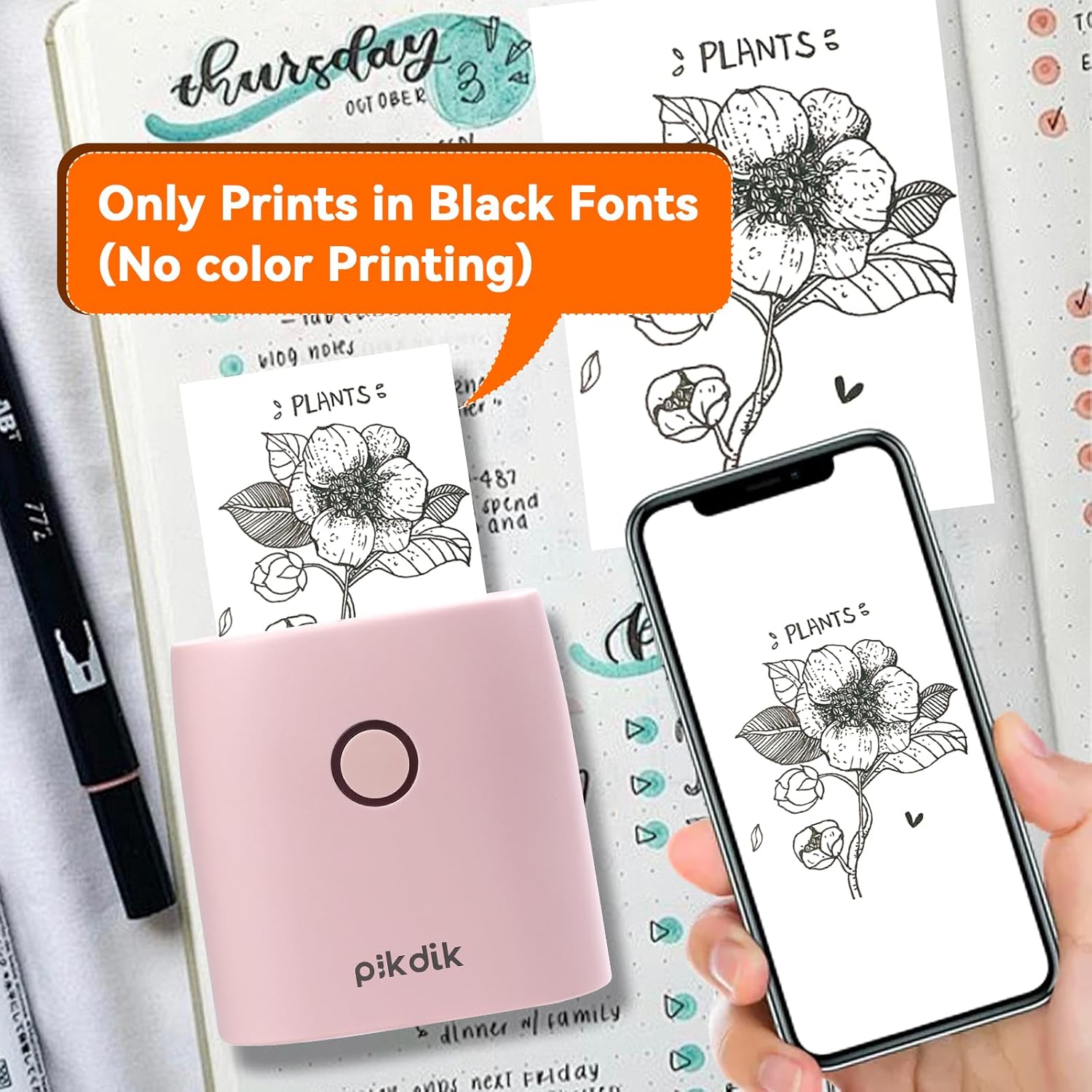
Image: The printer produces prints exclusively in black and white, as shown with a plant illustration.

Image: The 300 DPI resolution of the Q2 printer provides enhanced clarity and detail in prints compared to lower resolution alternatives.
7. Pangropéa
7.1 Ngabersihan Printer
Pikeun ngajaga kualitas cetak optimal, périodik bersihkeun sirah citak. Anggo kaén anu lemes sareng teu aya serat anu hampang dampened with isopropyl alcohol. Gently wipe the print head surface. Ensure the printer is turned off and completely dry before use.
7.2 Ngaganti Thermal Paper
When the paper roll is depleted, replace it by following the steps in Section 5.2. Use only thermal paper compatible with the PD-Q2 printer to ensure proper function and print quality.
8. Cara ngungkulan
| Masalah | Mungkin Cukang lantaranana | Solusi |
|---|---|---|
| Printer teu hurung | batré lemah; Tombol daya teu dipencet leres | Ngecas printer; Pencét jeung tahan tombol daya pikeun sababaraha detik. |
| Teu bisa nyambung via Bluetooth | Bluetooth off on phone; Printer not in pairing mode; App issue | Ensure phone Bluetooth is on; Restart printer and app; Re-pair device in app. |
| Poor print quality (faint, pixelated) | Low battery; Print head dirty; Incorrect paper type; Image resolution too low | Charge printer; Clean print head (Section 7.1); Use correct thermal paper; Use higher resolution images. |
| Kertas macét | Paper not loaded correctly; Foreign object in paper path | Open cover, remove jammed paper, reload correctly; Check for obstructions. |
| Printer teu ngabales | Kasalahan sistem | Perform a soft reset by turning the printer off and on again. If issue persists, contact support. |
9. Spésifikasi
| Fitur | Rincian |
|---|---|
| Modél | Q2 |
| Diménsi (D x W x H) | 4.1 x 8.4 x 8.4 cm (1.6 x 3.3 x 3.3 inci) |
| Beurat | 0.57 Pon (kira-kira 258.55 g) |
| Téhnologi percetakan | Termal |
| Resolusi citak | 300 DPI (Monochrome) |
| Konektipitas | Bluetooth |
| Alat nu cocog | Smartphone, Tablet (Android, ios) |
| Ukuran Média Maksimum | 2 inci |
| Sumber Daya | Built-in Lithium Polymer Battery (Rechargeable via USB Type-C) |
| Ngaran App | Meta Print |
10. Garansi jeung Rojongan
For warranty information and technical support, please refer to the warranty card included with your product or contact PikDik customer service directly. Keep your purchase receipt as proof of purchase.