
1. Bubuka
This manual provides essential instructions for the safe and efficient operation of your RONGTA SE4770 Rugged PDA Barcode Scanner. This device is a high-performance mobile handheld terminal designed for various applications including retail, warehouse management, logistics, and inventory control. It combines the functionality of an Android 11 smartphone with an integrated Zebra SE4770 barcode scanner, offering robust performance and durability.
Mangga baca manual ieu kalawan saksama sateuacan nganggo alat ieu sareng simpen kanggo rujukan ka hareup.
2. Produk Langkungview
2.1 Komponén Alat
The RONGTA SE4770 features a rugged design with a 6-inch HD touch screen and an integrated barcode scanner. Key components include:
- Tampilan Hareup: 6-inch FHD+ 1080P HD screen for clear visual interaction.
- Panel Pungkur: Integrated Zebra SE4770 barcode scanner, camera, and battery compartment.
- Kancing samping: Power button, volume controls, and dedicated scan buttons.
- Palabuhan: Port USB-C pikeun ngecas sareng mindahkeun data.

Gambar 2.1: Hareup jeung tukang view of the RONGTA SE4770 PDA Barcode Scanner, showing the display and rear scanner module.
2.2 Fitur konci
- Sistem operasi: Android 11 for a familiar and versatile user experience.
- Prosesor: Octa-core 2.0GHz CPU for high performance and stability.
- Mémori & Panyimpenan: 4GB RAM + 64GB ROM, expandable via microSD card (not included).
- tampilan: 6-inch FHD+ (1080P) HD touch screen, visible in strong outdoor light, supports multi-touch with gloves or wet hands.
- Panyeken barkod: Integrated Zebra SE4770 for fast and accurate scanning of 1D, 2D, and QR barcodes, even if blurred, dirty, or worn.
- Daya tahan: IP68 rated for water and dust resistance, and 1.5m drop resistance.
- Batré: 5000mAh large capacity battery with QC3.0 18W fast charging. Features a SuperCap power change solution for seamless battery swaps without shutdown.
- Konektipitas: 2.4G/5G Dual-band Wi-Fi, 4G Full Network support, and Bluetooth 5.1.
- Kaméra: 1600W+500W Pixel Camera (details on usage in Operating Instructions).
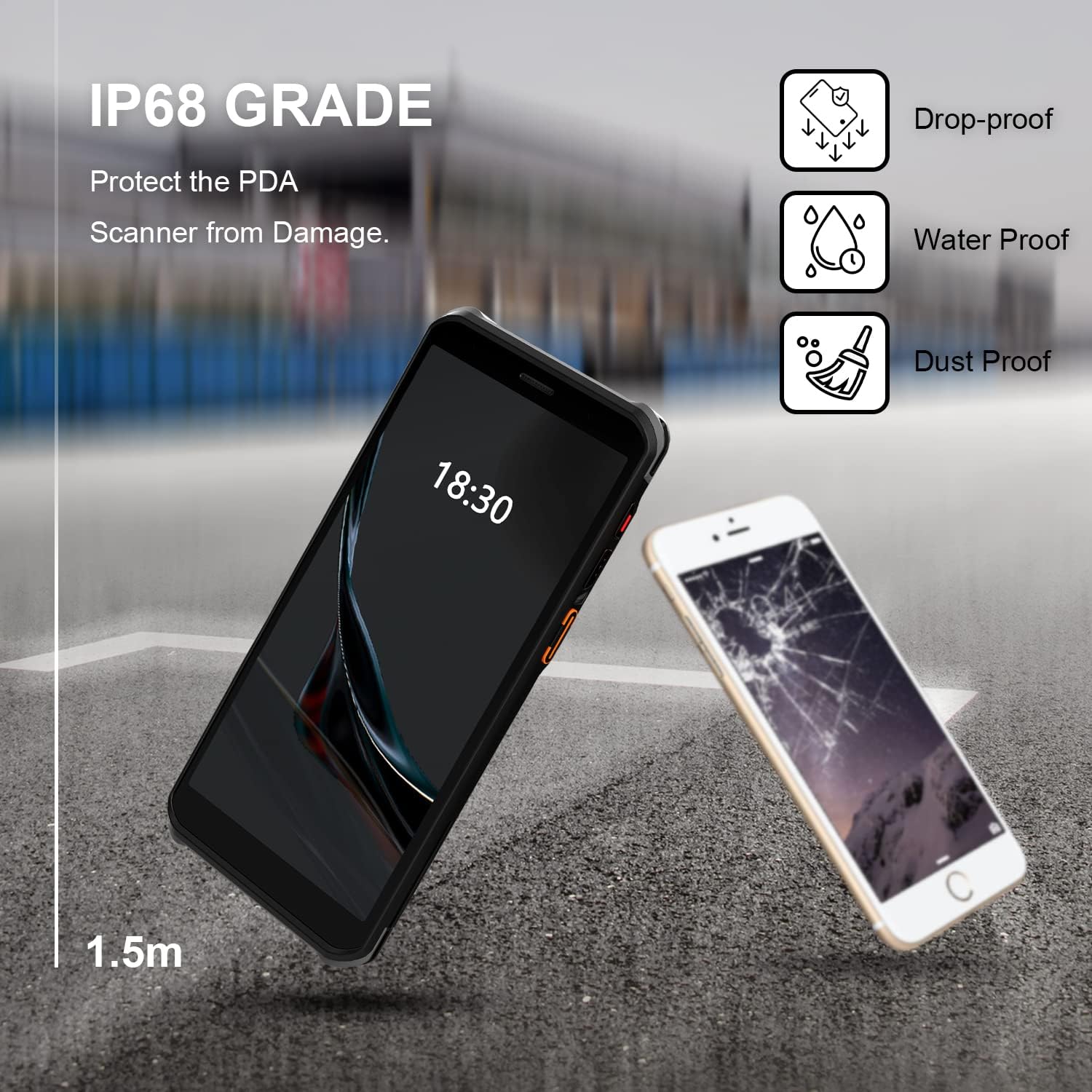
Figure 2.2: The RONGTA SE4770 PDA is designed with IP68 water and dust resistance and 1.5m drop protection, ensuring durability in demanding environments.

Figure 2.3: The device supports 2.4G/5G Dual-band WIFI and Bluetooth 5.1 for reliable wireless connectivity.
3. Setélan
3.1 Unboxing sareng Inspeksi Awal
Carefully remove all components from the packaging. Verify that all items are present and undamaged. The package should include the RONGTA SE4770 PDA, a USB-C cable, a power adapter, and a hand-strap belt.
3.2 Pamasangan Batré sareng Ngecas
- Tangtukeun lokasi kompartemen batré dina pungkur alat.
- If the battery is not pre-installed, insert the 5000mAh Lithium-Ion battery, ensuring correct orientation.
- Tutup kompartemen batré anu aman.
- Connect the USB-C cable to the device's charging port and the other end to the power adapter. Plug the adapter into a power outlet.
- Allow the device to charge fully before first use. The 18W fast charging feature will expedite this process.

Figure 3.1: The device charging, indicating battery status.
3.3 Powering on / Pareum
- Pikeun Ngahurungkeun: Press and hold the Power button on the side of the device until the RONGTA logo appears on the screen.
- Pikeun mareuman: Press and hold the Power button until the power options menu appears. Select 'Power Off'.
- Pikeun ngamimitian deui: Pencét terus tahan tombol Daya nepi ka menu pilihan daya nembongan. Pilih 'Restart'.
3.4 Setelan Android Awal
Upon first power-on, follow the on-screen prompts to complete the initial Android 11 setup. This typically includes selecting your language, connecting to a Wi-Fi network, setting up a Google account (optional), and configuring security settings.
4. Parentah Operasi
4.1 Ngagunakeun Barcode Scanner
The RONGTA SE4770 is equipped with a high-performance Zebra SE4770 scanner capable of reading various 1D, 2D, and QR barcodes.
- Open an application that requires barcode input (e.g., inventory management software, POS application).
- Point the scanner window, located on the top rear of the device, towards the barcode.
- Press one of the dedicated scan buttons on the side of the device. A red aiming beam will appear.
- Align the aiming beam with the center of the barcode. The device will emit a beep or vibrate upon successful scan, and the data will be entered into the active field of your application.

Figure 4.1: A user scanning a package barcode using the RONGTA SE4770 PDA.

Figure 4.2: The SE4770 Zebra scanner in use, demonstrating fast and accurate scanning in a warehouse environment.
4.2 Napigasi Android 11
The device operates on Android 11, providing a familiar interface. Use touch gestures to navigate:
- Ketok: Pikeun milih hiji item atanapi muka aplikasi.
- Gesek: To scroll through lists or switch between home screens.
- Ciwit-pikeun-Zoom: Pikeun ngagedekeun atanapi ngaleutikan gambar sareng web kaca.
- Bewara: Gesek ka handap ti luhur layar pikeun ngakses bewara sareng setelan gancang.
4.3 Konéktipitas
Alat ngadukung sababaraha pilihan konektipitas:
- Wifi: Go to Settings > Network & internet > Wi-Fi to connect to available wireless networks. Supports 2.4GHz and 5GHz bands.
- Bluetooth: Go to Settings > Connected devices > Connection preferences > Bluetooth to pair with Bluetooth-enabled devices like headsets or printers.
- Data Seluler (4G): If equipped with a SIM card slot (check device specifications), insert a compatible SIM card to access mobile data.
4.4 Pamakéan kaméra
The device includes a camera for capturing images or videos. Open the Camera application from the home screen or app drawer. Tap the screen to focus and press the shutter button to take a photo or start/stop video recording.
5. Pangropéa
5.1 Ngabersihan Alat
Pikeun ngajaga kinerja optimal sareng penampilan:
- Wipe the screen and device body with a soft, lint-free cloth.
- Pikeun smudges nekad, rada dampbilas lawon ku cai atanapi pembersih layar. Hindarkeun bahan kimia anu keras atanapi bahan anu abrasif.
- Ensure the scanner window is clean and free of dust or debris for accurate scanning.
5.2 Perawatan Batré
Proper battery care extends the lifespan of your device:
- Charge the battery regularly using the provided charger.
- Hindarkeun sering-sering ngeusi batre.
- Upami nyimpen alat kanggo waktos anu lami, eusian batréna dugi ka sakitar 50% teras simpen di tempat anu tiis sareng garing.
- The SuperCap power change solution allows for hot-swapping batteries without device shutdown, ensuring continuous operation.
5.3 Apdet parangkat lunak
Periodically check for software updates to ensure your device has the latest features and security patches. Go to Settings > System > System update.
6. Cara ngungkulan
This section addresses common issues you might encounter with your RONGTA SE4770 PDA.
| Masalah | Mungkin Cukang lantaranana | Solusi |
|---|---|---|
| Alat teu hurung | Batré lemah atanapi béak; alat teu jalan. | Cas alat sahenteuna 30 menit. Upami masih teu tiasa dihurungkeun, hubungi dukungan. |
| Scanner henteu maca barkod | Dirty scanner window; incorrect aiming; unsupported barcode type; application issue. | Clean the scanner window. Ensure the aiming beam covers the entire barcode. Verify the barcode type is supported. Restart the scanning application or the device. |
| Masalah konektipitas Wi-Fi/Bluetooth | Di luar jangkauan; kecap akses salah; gangguan. | Move closer to the Wi-Fi router or Bluetooth device. Re-enter the password. Restart Wi-Fi/Bluetooth on the device. |
| Alatna laun atanapi teu responsif | Loba teuing aplikasi ngajalankeun; gudang low; glitch software. | Close unnecessary applications. Clear cache. Restart the device. Consider a factory reset if issues persist (backup data first). |
7. Spésifikasi
Detailed technical specifications for the RONGTA SE4770 PDA Barcode Scanner:
- Ukuran produk: 3.03 x 0.51 x 6.41 inci
- Beurat barang: 10.6 ons
- Batré: 1 batré Litium Ion diperlukeun (kaasup)
- Sumber Daya: Batré Powered
- Pabrikan: RONGTA
- Alat anu cocog: Desktop, Laptop, Smartphone (for data transfer/management)
- Téknologi konektipitas: Bluetooth, Wi-Fi (2.4G/5G Dual-band), 4G
- Sistem operasi: Android 11
- Prosesor: Octa-core 2.0GHz
- Mémori: 4GB RAM
- Panyimpenan: 64GB ROM
- Ukuran layar: 6 inches FHD+ (1080P) HD Touch Screen
- Panyeken: Zebra SE4770 (1D, 2D, QR)
- Daya tahan: IP68 Water and Dust Resistant, 1.5m Drop Protection
- Kapasitas batré: 5000 mah
- Ngecas: QC3.0 18W Fast Charge
8. Garansi jeung Rojongan
For warranty information and technical support, please refer to the documentation included with your purchase or visit the official RONGTA website. If you encounter any issues not covered in this manual, please contact RONGTA customer service for assistance.