
1. Setup jeung Konéktipitas
The ATTACK SHARK K6 Wireless Mechanical Keyboard offers versatile connectivity options and is compatible with multiple operating systems.
1.1 Eusi pakét
- ATTACK SHARK K6 Wireless Mechanical Keyboard
- Cloud Keyboard Wrist Rest
- 2-in-1 USB Cable (Type-C to USB-A)
- 2-in-1 Keycap & Pindah Puller
- 2.4GHz panarima

Image: All components included with the ATTACK SHARK K6 Wireless Mechanical Keyboard.
1.2 Modeu Konéktipitas
The keyboard supports three connection modes: Bluetooth 5.0, 2.4GHz wireless, and USB-C wired.
- Mode Bluetooth: Pencét FN + 1, FN + 2, atawa FN + 3 to switch between three different Bluetooth devices.
- Mode Wireless 2.4GHz: Pencét FN + 4. Insert the 2.4GHz receiver into your device's USB port.
- Modeu Kabel USB-C: Pencét FN + 5. Connect the keyboard to your device using the provided USB-C to USB-A cable.
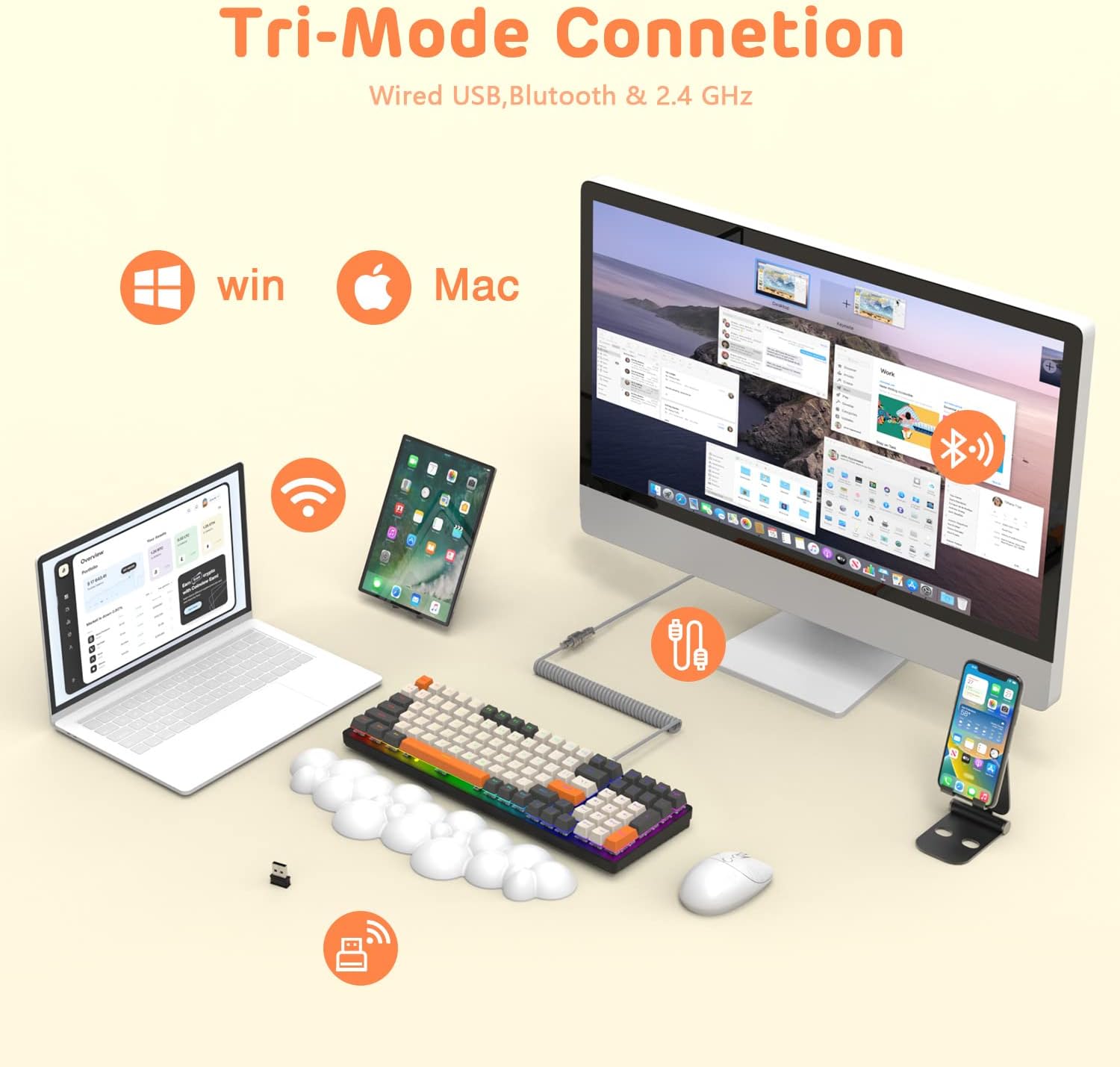
Image: The keyboard demonstrating its tri-mode connection capabilities with various devices.
1.3 Ngecas kibor
The keyboard features a 4000mAh battery. Connect the USB-C cable to the keyboard and a power source to charge. Indicator lights (blue, purple, cyan, green) will display the charging status and low voltage warnings.

Image: Visual representation of the keyboard's 4000mAh lithium battery capacity.

Image: The custom coiled USB-C to USB-A cable for charging and wired use.
2. Parentah Operasi
This section details the various functions and features of your ATTACK SHARK K6 keyboard.
2.1 Keyboard Layout and Ergonomics
The keyboard features a 96% compact layout with 100 keys, including a numpad, optimizing workspace while retaining full functionality. It also includes a cloud-shaped memory foam wrist rest for enhanced comfort.

Image: The 100-key compact layout of the K6 keyboard.

Image: Ergonomic design with adjustable two-stagsuku tripod e.

Image: The K6 keyboard with its ergonomic wrist rest and key features.

Image: Benefits of the ergonomic wrist rest for wrist pain relief.
2.2 Kustomisasi Lampu RGB
The keyboard features customizable RGB backlighting. You can adjust the color, brightness, and flow rate of each key to create personalized lighting effects.
- Pindahkeun Modeu Lampu Latar: Pencét FN + INS pikeun ngaliwat 9 modeu lampu latar RGB anu béda.
- Saluyukeun Caang/Laju: Paké FN + Tombol Panah (Up/Down for brightness, Left/Right for speed) to fine-tune the lighting effects.

Gambar: Leuwihview of the 9 RGB rainbow backlight modes and control keys.
2.3 Panas-Swappable switch
The K6 keyboard features a hot-swappable PCB, allowing you to easily replace 3-pin mechanical switches without soldering. This extends the lifespan of the switches and offers customization possibilities.

Image: Detail of the hot-swappable PCB and mechanical switches.
Video: A short demonstration of the K6 keyboard's retro design, PBT keycaps, and easy-to-type switches, including a close-up of a red switch.
Video: Demonstration of the K6 keyboard's RGB backlighting and typing sound, showcasing its triple-mode connectivity and mechanical switches.
3. Pangropéa
Pangropéa anu leres mastikeun umur panjang sareng kinerja optimal keyboard anjeun.
3.1 Ngabersihan kibor
- Keycaps: Use the provided keycap puller to remove keycaps. Clean them with a soft, damp lawon jeung sabun hampang lamun perlu. Pastikeun aranjeunna tos rengse garing saméméh reattaching.
- Awak Kibor: Wipe the keyboard surface with a soft, lint-free cloth. For stubborn dirt, slightly dampen the cloth with water or a gentle electronics cleaner.
- Di handapeun Keycaps: Anggo hawa anu dikomprés pikeun miceun lebu sareng runtah tina sela-sela saklar.
3.2 Panggantian Saklar
Thanks to the hot-swappable design, individual switches can be replaced if they become faulty or if you wish to customize your typing experience.
- Use the switch puller to carefully grip and pull out the desired switch.
- Align the pins of the new 3-pin switch with the holes on the PCB.
- Gently press the new switch into place until it clicks securely. Ensure the pins are not bent.
3.3 Wrist Rest Care
The wrist rest is made of durable and washable PU material. Clean it with a damp cloth and mild soap as needed to maintain hygiene and appearance.
4. Cara ngungkulan
If you encounter issues with your keyboard, refer to the following common solutions.
4.1 Masalah konektipitas
- No Connection (Wireless): Ensure the keyboard is in the correct wireless mode (Bluetooth or 2.4GHz). Check if the 2.4GHz receiver is properly inserted or if Bluetooth is enabled on your device and the keyboard is paired.
- Sambungan Intermittent: Move the keyboard closer to your device to reduce interference. Ensure the keyboard is sufficiently charged.
- Sambungan kabel teu jalan: Verify the USB-C cable is securely connected to both the keyboard and your device. Try a different USB port or cable.
4.2 RGB Lighting Problems
- Lights Not On: Ensure the keyboard is powered on and charged. Adjust brightness using FN + Panah luhur.
- Incorrect Mode/Color: Ngaliwatan modeu nganggo FN + INS.
4.3 Masalah Fungsionalitas Kunci
- Konci Teu Ngabales: Check for debris under the keycap or switch. If a specific switch is faulty, consider replacing it using the hot-swappable feature.
- Keys Double-Typing or Sticking: This can sometimes be resolved by cleaning the switch or replacing the affected switch. Ensure the switch is fully seated.
5. Spésifikasi
| Fitur | Rincian |
|---|---|
| Modél | K6 Wireless Mechanical Keyboard |
| Téhnologi konektipitas | Bluetooth 5.0, 2.4GHz RF, USB-C Wired |
| Katerangan kibor | Mékanis |
| Pindah Tipe | Clicky Blue Switches (Hot-Swappable 3-pin) |
| Tata perenah | 96% (100 Konci) |
| Kapasitas batré | 4000 mah |
| Lampu tukang | RGB (9 modeu) |
| Alat nu cocog | Laptop, PC, Tablet (Mac/Win dual systems) |
| Fitur husus | Ergonomic, Hot-Swap, Custom Coiled Aviator Keyboard Cable, Backlit, Wrist Rest, Rechargeable, Keycap and Switch Puller, N-Key Rollover |
| Bahan | Polyurethane (PU) for wrist rest |
| Item Beurat | 2.97 pon |
| Ukuran Paket | 17.09 x 6.46 x 2.68 inci |
6. Émbaran jaminan
Mangga tingal resmi produsén urang website or product packaging for detailed warranty information regarding your ATTACK SHARK K6 Wireless Mechanical Keyboard.
7. Rojongan Palanggan
For further assistance, technical support, or inquiries about your ATTACK SHARK K6 Wireless Mechanical Keyboard, please contact ATTACK SHARK customer support or visit their official websitus.