Welcome to the user manual for your Bmax B7 Power Mini PC. This document provides essential information for setting up, operating, maintaining, and troubleshooting your device. Please read this manual thoroughly before using your Mini PC to ensure optimal performance and longevity.
2. Naon dina Box
Upon opening your Bmax B7 Power Mini PC package, please verify that all components are present and in good condition. The standard package contents include:
Bmax B7 Power Mini PC Unit
Adaptor kakuatan
Kabel HDMI
VESA Gunung bracket na screws
Manual pangguna (dokumén ieu)
Kanggo pituduh visual ngeunaan unboxing, mangga tingali pidéo di handap ieu:
Official unboxing video for the Bmax B7 Power Mini PC, demonstrating the contents of the package.
Image showing the Bmax B7 Power Mini PC unit along with its included accessories, such as the power adapter and cables.
3. Produk Langkungview
The Bmax B7 Power Mini PC is a compact yet powerful desktop computer designed for various applications, from office work and streaming to light gaming and multi-display setups. It features advanced components and efficient design for reliable performance.
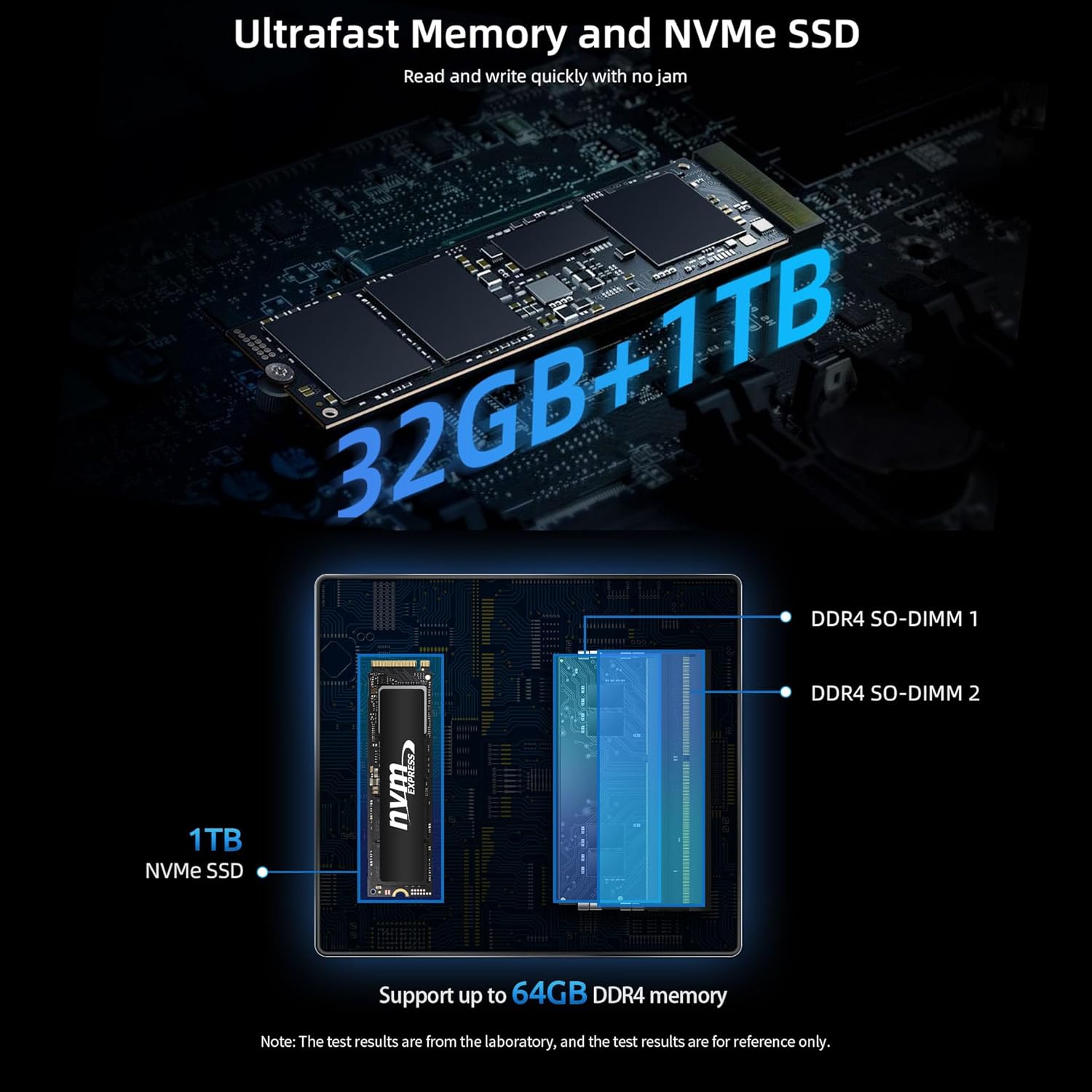
Mémori: 32GB DDR4 RAM (bisa dilegakeun nepi ka 64GB)
Panyimpenan: 1TB NVMe SSD (ultrafast for quick boot and app loads)
Konéktipitas nirkabel: Hyper-fast WiFi 6 (802.11a/b/g/n/ac/ax) and Bluetooth 5.2
Konektipitas kabel: Gigabit Ethernet
Kaluaran tampilan: Supports triple 4K displays via HDMI and Type-C
Cooling: Smart fan and dual copper heat pipes with innovative dual mode (Performance/Balance)
Sistem operasi: Pra-dipasang Windows 11
Pamulihan: Unique Smart Recovery Environment for easy system reset
Hiji leuwihview image highlighting the key features of the Bmax B7 Power Mini PC, including processor, graphics, memory, storage, and connectivity options.
3.2 Port sareng Konéktivitas
The Bmax B7 Power Mini PC offers a comprehensive set of ports for versatile connectivity:
2 x palabuhan HDMI
1 x Type-C Port (full features)
2 x USB 3.0 palabuhan
2 x USB 2.0 palabuhan
1 x Gigabit Ethernet Port
1 x 3.5mm Headset Jack
1 x Tombol CMOS Hapus
1 x Tombol Daya
Diwincik view of the front and rear ports of the Bmax B7 Power Mini PC, with labels indicating each connection type.
3.3 Kinerja Leuwihview
Equipped with the Intel Core i7-11390H processor, 32GB DDR4 RAM, and a 1TB NVMe SSD, this mini PC delivers robust performance for demanding tasks. The Intel Iris Xe Graphics ensures smooth 4K video output and supports up to three displays simultaneously.
An image detailing the specifications and benchmark results of the Intel Core i7-11390H processor.
Visual representation of the ultrafast 32GB DDR4 memory and 1TB NVMe SSD, highlighting their components and upgrade potential.
An infographic explaining the benefits of Wi-Fi 6, including faster connections, lower latency, and improved coverage compared to Wi-Fi 5.
3.4 Smart Cooling System
The Bmax B7 Power Mini PC incorporates a smart fan and dual copper heat pipes for efficient heat dissipation. It features a unique dual mode operation:
Modeu kinerja: High-speed fans for maximum performance during intensive tasks.
Mode kasaimbangan: Quieter operation with lower fan speeds, ideal for general use and quiet environments.
Diagram illustrating the smart fan and dual copper heat pipes, and explaining the Performance and Balance cooling modes.
3.5 Smart Recovery Environment
The Mini PC includes a Smart Recovery Environment, allowing you to quickly reset your Windows operating system to factory settings. This feature is invaluable for resolving OS issues, slow performance, or preparing the device for a new user.
Screenshot of the Bmax Smart Recovery Environment interface, showing options for Factory Reset and Exit.
4. Setup Guide
Follow these steps to set up your Bmax B7 Power Mini PC:
Sambungkeun ka Layar: Use the provided HDMI cable to connect your Mini PC to a monitor, TV, or projector. You can connect up to three displays using the HDMI and Type-C ports.
Sambungkeun Periferal: Colokkeun kibor, beurit, sareng alat USB anu sanés kana port USB anu sayogi.
Nyambung kana Jaringan: For wired internet, connect an Ethernet cable to the Gigabit Ethernet port. For wireless internet, the device will prompt you to connect to a Wi-Fi network during the initial Windows setup.
Sambungkeun Kakuatan: Plug the power adapter into the DC-in port on the Mini PC, then plug the adapter into a power outlet.
Daya Hurung: Pencét tombol daya di hareup Mini PC. Lampu indikator kakuatan bakal hurung.
Setup Windows Awal: Follow the on-screen instructions to complete the Windows 11 setup, including language, region, network connection, and user account creation.
Image demonstrating flexible placement options for the Mini PC, either on a desk or mounted behind a monitor using the VESA bracket.
5. Parentah Operasi
Your Bmax B7 Power Mini PC runs on Windows 11, providing a familiar user experience. Here are some basic operating tips:
Hurungkeun/Pareuman: Press the power button to turn the PC on. To turn off, click the Start button in Windows, then select Power > Shut down.
Uihan deui: From the Windows Start menu, select Power > Restart.
Modeu Bobo: From the Windows Start menu, select Power > Sleep.
Nyambungkeun ka Wi-Fi: After initial setup, you can manage Wi-Fi connections via the Network & Internet settings in Windows.
Nyambungkeun Alat Bluetooth: Pair Bluetooth devices through the Bluetooth & devices settings in Windows.
Using Multiple Displays: Connect additional monitors to the available HDMI and Type-C ports. Windows will automatically detect them, and you can configure display settings (extend, duplicate, etc.) via Display settings.
Accessing Smart Recovery: If your system encounters issues, you can access the Smart Recovery Environment to perform a factory reset. Refer to Section 3.5 for more details.
A user working with a triple monitor setup, showcasing the multi-display capabilities of the Bmax B7 Power Mini PC for enhanced productivity.
6. Pangropéa
Regular maintenance helps ensure the longevity and optimal performance of your Mini PC:
Tetep beresih: Regularly wipe the exterior with a soft, dry cloth. Use compressed air to clear dust from vents to maintain proper airflow and cooling.
Apdet parangkat lunak: Keep your Windows operating system and drivers updated to the latest versions for security and performance improvements.
Perlindungan Antipirus: Pasang sareng apdet parangkat lunak antivirus sacara rutin pikeun ngajagi tina malware sareng virus.
Cadangan Data: Jieun cadangan data penting sacara périodik ka drive éksternal atanapi panyimpenan awan pikeun nyegah leungitna data.
Ngahindarkeun halangan: Ensure the Mini PC's vents are not blocked to allow for proper heat dissipation.
Pareum aman: Always shut down the PC properly through the operating system rather than simply unplugging it.
7. Cara ngungkulan
If you encounter issues with your Bmax B7 Power Mini PC, try the following troubleshooting steps:
Masalah
Solusi anu mungkin
No power/Doesn't turn on
Check power cable connection to the PC and wall outlet. Ensure the power adapter is working. Try a different power outlet.
Taya kaluaran tampilan
Ensure the monitor is on and set to the correct input source. Check HDMI/Type-C cable connections. Try a different cable or display.
kinerja lalaunan
Close unnecessary applications. Check for background processes. Ensure sufficient free storage space. Run a disk cleanup. Consider using the Smart Recovery feature if issues persist.
Masalah Wi-Fi/Bluetooth
Restart the Mini PC and your router/modem. Check device manager for driver issues. Ensure Wi-Fi/Bluetooth is enabled in Windows settings.
System crashes/freezes
Ensure all drivers are updated. Check for Windows updates. Run a system file checker (sfc /scannow in Command Prompt). Consider using Smart Recovery.
If these steps do not resolve your issue, please contact Bmax customer support.
8. Spésifikasi
Fitur
Rincian
Dimensi produk
10.51 x 6.14 x 2.91 inci
Item Beurat
1.87 pon
Nomer modél
B7 kakuatan
ASIN
B0C85T8YVF
Tanggal Kahiji Sadia
15 Juni 2023
Produsén
BMAX
9. Garansi jeung Rojongan
Bmax products are designed for reliability and performance. For information regarding your product's warranty, please refer to the warranty card included in your package or visit the official Bmax website. For technical support, troubleshooting assistance, or service inquiries, please contact Bmax customer support through their official channels. Keep your purchase receipt as proof of purchase for warranty claims.
You can visit the official Bmax store for more information and support: Bmax Official Store