
Bubuka
This user manual provides comprehensive instructions for the setup, operation, maintenance, and troubleshooting of your Bmax Mini PC B1 Pro. Designed for efficiency and versatility, this mini PC offers a compact solution for various computing needs, from multimedia to business applications.

Image: The Bmax Mini PC B1 Pro, showcasing its compact design and various ports including HDMI, USB, and Ethernet.
Eusi pakét
Punten parios yén sadaya barang anu didaptarkeun di handap kalebet kana pakét anjeun:
- 1 x Bmax Mini PC B1 Pro (8GB+128GB configuration)
- 1 x Kabel HDMI
- 1 x Adaptor Daya AS
- 1 x Manual Pamaké (dokumén ieu)
- 1 x VESA Gunung kalawan screws

Image: All components included in the Bmax Mini PC B1 Pro retail package.
Produk Leuwihview jeung Fitur Key
Prosesor sareng Kinerja
The Bmax Mini PC B1 Pro is equipped with an Intel Celeron N4000 processor, offering a base frequency of 1.1 GHz and a burst frequency of up to 2.6 GHz. This processor is designed for smooth and stable operation, suitable for everyday computing tasks.

Image: Detailed specifications of the Intel Gemini Lake N4000 processor.
Mémori jeung Panyimpenan
The device comes with 8GB of LPDDR4 RAM and 128GB of eMMC storage. It supports additional storage expansion via an M.2_2280 SATA SSD (up to 1TB, SSD not included) or an external mobile hard disk box via USB 3.0. This allows for ample space for multiple applications and files.

Image: Visual representation of the M.2 SATA 2280 expansion slot.
Display Capabilities
The B1 Pro supports 4K (3840 x 2160) ultra-high-definition display output. It features both HDMI and VGA ports, enabling dual monitor setups for increased productivity.

Image: The Bmax Mini PC B1 Pro connected to two monitors for a dual-screen setup.
Konektipitas sareng palabuhan
This mini PC includes 802.11ac Dual-Band Wi-Fi and Bluetooth 4.2 for wireless connectivity. It also features a 1000Mbps LAN port for stable wired network access. A variety of ports are available for peripherals and displays.
- 2 x USB 3.0 palabuhan
- 2 x USB 2.0 palabuhan
- 1 x Port HDMI
- 1 x VGA Port
- 1 x Ethernet (LAN) Port
- 1 x 3.5mm Headset Jack
- 1 x Micro SD Card slot
- Daya Dina
- Hapus tombol CMOS

Gambar: A lengkep view of all available ports on the Bmax Mini PC B1 Pro.
Desain kompak
Weighing only 8.5 ounces and measuring 4.7 x 4.7 x 0.9 inches, the B1 Pro is highly portable. It includes a VESA bracket for mounting behind a monitor, creating a clean and uncluttered workspace.

Image: The Bmax Mini PC B1 Pro held in a hand, demonstrating its compact size.
Guide Setup
Sambungan Awal
- Nyambung ka tampilan: Use the provided HDMI cable to connect the Mini PC to your monitor or TV. If using a VGA display, connect via the VGA port.
- Sambungkeun Periferal: Colokkeun kibor, beurit, sareng alat USB anu sanés kana port USB anu sayogi.
- Nyambung ka Daya: Connect the US Power Adapter to the Mini PC's power input port, then plug it into a power outlet.
- Daya Hurung: Press the power button located on the front of the Mini PC. The system will boot up.
- Setup Windows Awal: Turutan pitunjuk dina layar pikeun ngalengkepan setelan sistem operasi Windows.
Instalasi VESA Gunung
The Bmax Mini PC B1 Pro comes with a VESA bracket, allowing you to mount it behind a compatible monitor or on a wall. This helps save desk space and creates a cleaner setup.
- Attach the VESA bracket to the back of your monitor using the provided screws. Ensure it is securely fastened.
- Geserkeun Mini PC kana braket VESA dugi ka ngaklik kana tempatna.
- Connect all necessary cables (power, display, peripherals) to the Mini PC.
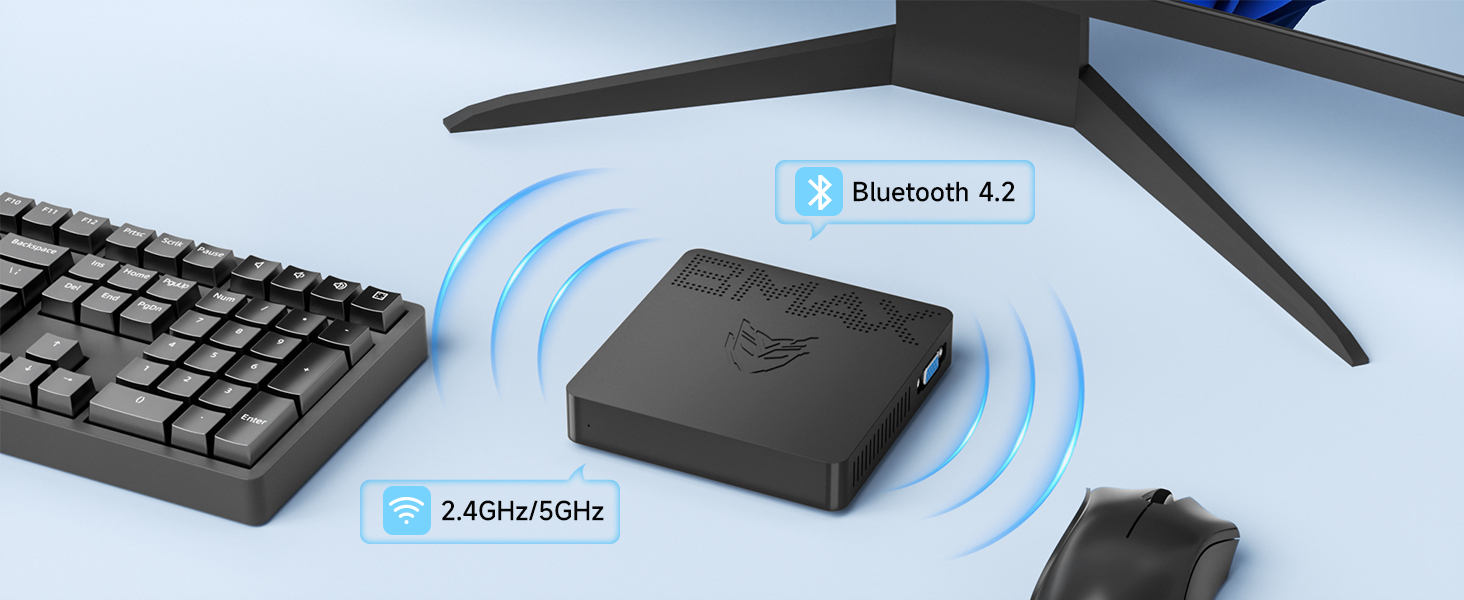
Image: Different placement options for the Bmax Mini PC B1 Pro, including VESA mounting.
Parentah Operasi
Operasi Dasar
- Hurungkeun/Pareuman: Press the power button to turn the PC on. To turn off, use the operating system's shutdown function or press and hold the power button for a few seconds for a forced shutdown (not recommended for regular use).
- Uihan deui: Anggo pungsi balikan deui sistem operasi.
- Modeu Bobo: The PC will enter sleep mode after a period of inactivity, or you can manually put it to sleep via the operating system. Press any key or move the mouse to wake it up.
Dual Tampilan Setup
To utilize the dual display feature, connect one monitor to the HDMI port and another to the VGA port. Once both monitors are connected and powered on, your operating system should automatically detect them. You can then configure display settings (extend, duplicate, or show only on one display) through your operating system's display settings.

Image: A dual monitor setup powered by the Bmax Mini PC.
Maintenance and Expansion
Adding an M.2 SSD
The Bmax Mini PC B1 Pro supports M.2_2280 SATA SSD expansion for additional storage. Follow these steps to install an SSD:
- Pareum listrik: Ensure the Mini PC is completely powered off and disconnected from the power adapter.
- Panel Aksés: Locate the access panel on the bottom of the Mini PC. Remove the screw securing the panel and carefully open it.
- Pasang SSD: Gently insert the M.2_2280 SATA SSD into the designated slot. Secure it with the provided screw (if available, otherwise use a compatible screw).
- Tutup Panel: Replace the access panel and secure it with the screw.
- Initialize SSD: After powering on the PC, you may need to initialize and format the new SSD through Disk Management in Windows before it can be used.
Video: A step-by-step guide on how to add an M.2 SSD to the Bmax Mini PC B1 Pro.
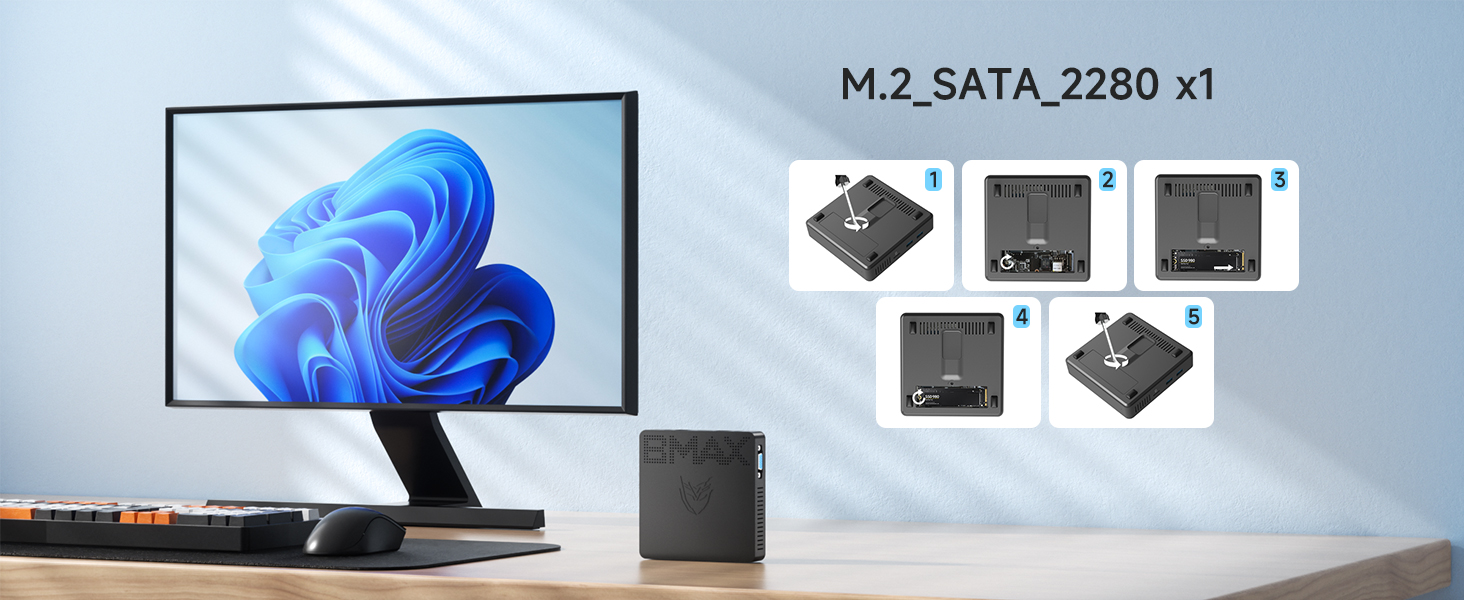
Image: Visual steps for M.2 SSD installation.
Perawatan Umum
- Keep the device in a clean, dry environment away from direct sunlight and extreme temperatures.
- Avoid blocking the ventilation holes to ensure proper airflow and prevent overheating.
- Ngabersihan bagian luar ku kaén anu lembut sareng garing. Ulah make cleaners cair.
Pamérésan masalah
| Masalah | Mungkin Cukang lantaranana | Solusi |
|---|---|---|
| Henteu aya kakuatan / Henteu hurung | Power adapter not connected or faulty; Power outlet issue. | Pastikeun adaptor daya disambungkeun sacara aman ka PC sareng stop kontak listrik anu tiasa dianggo. Coba outlet béda. |
| Henteu aya tampilan dina monitor | Display cable loose or incorrect port; Monitor input not selected. | Check HDMI/VGA cable connections. Ensure monitor is set to the correct input source (HDMI/VGA). Try a different cable or monitor. |
| Wi-Fi/Bluetooth teu tiasa dianggo | Drivers not installed; Wireless function disabled. | Check device manager for driver issues. Ensure Wi-Fi/Bluetooth is enabled in Windows settings. Restart the PC. |
| kinerja lalaunan | Too many applications running; Low storage space. | Close unnecessary applications. Free up disk space. Consider adding an M.2 SSD for expansion. |
Pikeun pitulung salajengna, mangga tingal bagian Garansi sarta Rojongan.
Spésifikasi teknis
| Modél | B1 Pro |
| Prosesor | Intel Celeron N4000 (Base 1.1 GHz, up to 2.6 GHz) |
| Ram | 8GB LPDDR4 |
| Panyimpenan | 128GB eMMC (Expandable via M.2_2280 SATA SSD up to 1TB) |
| Grafika | Intel UHD Grafika 600 |
| Kaluaran tampilan | HDMI (4K @ 30Hz), VGA (Dual Display Support) |
| Konéktipitas Wireless | 802.11ac Dual-Band Wi-Fi, Bluetooth 4.2 |
| Konektipitas kabel | 1000Mbps LAN (Ethernet) |
| Palabuhan | 2x USB 3.0, 2x USB 2.0, 1x HDMI, 1x VGA, 1x RJ45 Ethernet, 1x 3.5mm Headset Jack, 1x Micro SD Card Slot, Power In |
| Sistem operasi | Pre-installed OS (e.g., Windows 11 Pro as per reviews) |
| Diménsi | 4.7 x 4.7 x 0.9 inci (12 x 12 x 2.3 cm) |
| Beurat | 7.8 ons (220g) |
Garansi sareng Rojongan
The Bmax Mini PC B1 Pro comes with a 12-garansi sasih from the date of purchase. Bmax also provides rojongan teknis hirupna pikeun produk ieu.
For technical assistance, troubleshooting, or warranty claims, please contact Bmax customer service via email. Refer to the contact information provided on the official Bmax websitus atanapi dokuméntasi pameseran Anjeun.
The device supports features such as Wake On LAN, RTC Wake, and Auto Power On (configurable in BIOS settings).