
Pristar LPPR-P15-LM-GYF
Pristar P15 Mini Bluetooth Label Printer User Manual
Model: LPPR-P15-LM-GYF
Brand: Pristar
1. Bubuka
The Pristar P15 Mini Bluetooth Label Printer is a compact, portable, and rechargeable thermal label maker designed to simplify your organization tasks. With its wireless Bluetooth connectivity, you can easily create and print custom labels directly from your iOS or Android smartphone using the intuitive 'Marklife' application. This manual provides detailed instructions on setting up, operating, maintaining, and troubleshooting your P15 label printer to ensure optimal performance and a seamless labeling experience.
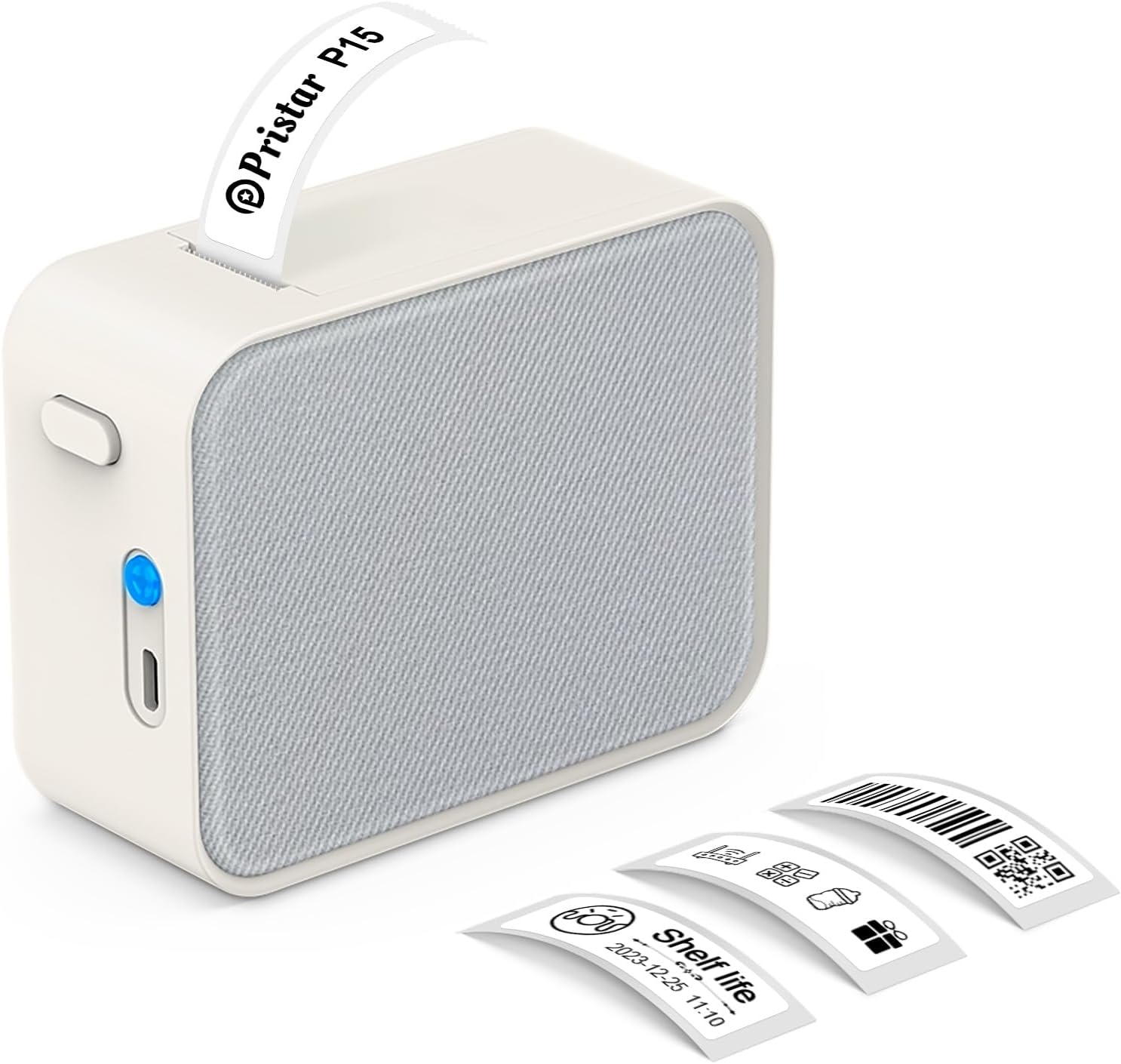
Figure 1.1: Pristar P15 Mini Bluetooth Label Printer
2. Émbaran Kasalametan
Please read all safety instructions carefully before using the Pristar P15 label printer. Failure to follow these instructions may result in injury or damage to the device.
- Ulah ngabongkar, ngalereskeun, atawa ngaropéa alat.
- Jauhkeun alat tina cai, beueus, sareng suhu anu luhur.
- Use only the specified USB-C cable for charging.
- Avoid exposing the print head to direct sunlight or strong light.
- Jauhkeun tina jangkauan barudak.
3. Eusi Paket
Pastikeun yén sadaya item aya dina bungkusan:
- 1 x Pristar P15 Label Printer (with built-in 1200mAh rechargeable lithium battery)
- 1 x Roll of Label Paper (12x40mm, White)
- 1 x USB-C Charging Cable (Power adapter not included)
- 1 x Manual Instruksi
4. Setup Guide
4.1 Ngecas Printer
Before first use, fully charge the printer. Connect the provided USB-C cable to the charging port on the printer and plug the other end into a USB power source (e.g., computer, wall adapter). The indicator light will show charging status.
4.2 Loading Label Paper
Proper loading of the label paper is crucial for clear printing.
- Open the printer cover by sliding the release button.
- Insert the label roll with the label face down, ensuring the leading edge of the labels extends slightly out of the slot.
- Tutup panutup printer pageuh nepi ka ngaklik kana tempatna.

Figure 4.1: Label Paper Installation and App Connection Steps
4.3 Pamasangan Aplikasi
The Pristar P15 operates via the 'Marklife' application.
- Scan the QR code provided in the quick start guide or search for "Marklife" in your device's app store (App Store for iOS, Google Play Store for Android).
- Unduh sareng pasang aplikasina.
4.4 Sambungan Bluetooth
Connect your printer to the 'Marklife' app.
- Pastikeun Bluetooth diaktipkeun dina smartphone Anjeun.
- Open the 'Marklife' app.
- Within the app, search for and connect to your P15 printer. Do not connect via your phone's general Bluetooth settings.
5. Parentah Operasi
The 'Marklife' app provides extensive features for creating and customizing labels.
5.1 Basic Label Creation
- Open the 'Marklife' app and ensure your printer is connected.
- Select the desired label size (e.g., 12x40mm).
- Tap on the text box to enter your desired label content.
- Use the editing tools to customize fonts, sizes, and styles.
- Tap the 'Print' button to send the label to the printer.
5.2 Fitur Aplikasi Canggih
The 'Marklife' app offers a wide range of customization options:
- Fonts & Languages: Access over 60 fonts and 8 languages for diverse labeling needs.
- Ikon & Pigura: Choose from 1000+ icons and various frames to enhance your labels.
- Barcode & QR Code: Ngahasilkeun sareng nyitak barkod sareng kode QR langsung tina aplikasi.
- Image & Text Import: Import pictures, or use features like Excel import, scanning, and voice input for text.
- Citakan: Utilize free templates for quick label creation. (Note: Some templates may require payment, and signing in allows saving customized templates.)

Gambar 5.1: Antarmuka Kontrol Aplikasi Pinter
5.3 Thermal Printing Technology
The P15 uses thermal printing, eliminating the need for ink or toner, making it cost-effective and environmentally friendly. It supports 12-15mm label printing with a 203 DPI resolution for clear results.
5.4 Label Tape Features
Pristar label tapes are designed for durability and ease of use:
- Water & Oil-proof: Labels maintain integrity even when exposed to water or oil.
- Anti-scratch: Resistant to fading or damage from rubbing.
- Résistansi cimata: Durable and not easily torn by hand.
- No Sticky Residue: Designed for easy removal without leaving adhesive residue.

Figure 5.2: Features of P15 Thermal Label Paper
5.5 Aplikasi anu Lega
The P15 is versatile for various organizational tasks:
- Home Storage: Label food containers, pantry items, and storage bins.
- Office Classification: ngatur files, documents, and office supplies.
- Harga Tags: Create clear and professional price labels.
- School Information Management: Label school supplies, books, and projects.
- Manajemén Kabel: Identify cables and wires for electronics.

Figure 5.3: Home Organization Examples

Figure 5.4: Work Organization Examples
6. Pangropéa
To ensure the longevity and optimal performance of your Pristar P15 label printer, follow these maintenance guidelines:
- Ngabersihan Print Head: If print quality degrades, gently wipe the thermal print head with a cotton swab lightly dampened with isopropyl alcohol. Ensure the printer is off and dry before use.
- Ngabersihan Luar: Anggo lawon anu lemes sareng garing pikeun ngabersihkeun bagian luar printer. Entong nganggo pembersih atanapi pangleyur anu abrasif.
- Panyimpenan: Store the printer in a cool, dry place away from direct sunlight and extreme temperatures. Remove the label roll if storing for an extended period.
7. Cara ngungkulan
If you encounter issues with your Pristar P15 label printer, refer to the following common problems and solutions:
| Masalah | Mungkin Cukang lantaranana | Solusi |
|---|---|---|
| Printer teu hurung | Batré lemah; Tombol daya teu dipencet pageuh | Ngecas printer; Pencét jeung tahan tombol daya pikeun sababaraha detik. |
| Teu bisa nyambung via Bluetooth | Bluetooth off; Incorrect connection method; App issue | Ensure phone Bluetooth is on; Connect via 'Marklife' app, not phone settings; Restart app/phone. |
| Kualitas cetak goréng | Dirty print head; Incorrect label loading; Low battery | Clean the print head; Re-load label paper correctly (face down); Charge the printer. |
| Labél teu nyeuseup | Label roll empty; Paper jammed; Cover not closed properly | Replace label roll; Clear any paper jams; Ensure printer cover is securely closed. |
| App ngadat atanapi freezes | Software glitch; Outdated app version | Restart the app; Check for app updates in your app store. |
8. Spésifikasi
Key technical specifications for the Pristar P15 Mini Bluetooth Label Printer:
| Fitur | Spésifikasi |
|---|---|
| Modél | LPPR-P15-LM-GYF |
| Dimensi produk | 4D x 9.5W x 7.9H Sentimeter |
| Item Beurat | 150 gram |
| Téhnologi konektipitas | Bluetooth 4.0 (Effective distance up to 10m) |
| Téhnologi percetakan | Termal |
| Resolusi citak | 203 DPI |
| Ukuran Média Maksimum | 15 mm |
| Dirojong Label Width | 12-15mm |
| Batré | 1200mAh Rechargeable Lithium Batre |
| Alat nu cocog | Smartphone (ios, Android) |
| Komponén Kaasup | USB-C Cable, Labels |
9. Garansi jeung Rojongan
Pristar products are manufactured to high-quality standards. For warranty information and technical support, please refer to the contact details provided on the product packaging or the official Pristar websitus. Simpen resi pameseran anjeun salaku bukti pameseran pikeun klaim garansi.
For further assistance, you may contact Pristar customer service at pristar_service@outlook.com.
Ask a question about this manual
Ask about setup, troubleshooting, compatibility, parts, safety, or missing instructions. Manuals+ will review the question and use this page’s manual context to help answer it.