
1. Bubuka
Thank you for choosing the EasySMX T37 Wireless Switch Pro Controller. This manual provides detailed instructions for setting up, operating, maintaining, and troubleshooting your controller. Please read this manual carefully before use to ensure optimal performance and longevity of your device. This controller is compatible with Nintendo Switch, Switch Lite, and Switch OLED consoles.
2. Produk Langkungview
The EasySMX T37 is a wireless gamepad designed for an enhanced gaming experience on Nintendo Switch systems. It features an ergonomic design, dual turbo vibration, and 6-axis gyro motion control.

Gambar 2.1: Hareupeun view of the EasySMX T37 Wireless Switch Pro Controller, showcasing its ergonomic shape and button layout.
3. Setélan
3.1 Ngapasangkeun sareng Nintendo Switch
- Hurungkeun konsol Nintendo Switch anjeun.
- Tina Menu RUMAH, pilih Controllers > Robah Pakem / Orde.
- On the EasySMX T37 controller, press and hold the Tombol SYNC (located on the top edge of the controller) for 3 seconds until the LED indicators start flashing rapidly.
- Once the controller is successfully paired, the player LED(s) on the bottom of the controller will light up solid.
3.2 Ngecas Controller
Connect the provided USB-C charging cable to the USB-C port on the controller and the other end to a USB power source (e.g., Switch dock, USB wall adapter, computer USB port). The LED indicators will show charging status and turn off when fully charged.
4. Parentah Operasi
4.1 Kadali Dasar
The controller features standard button layouts for Nintendo Switch compatibility:
- Tombol A/B/X/Y: Tombol aksi.
- D-Pad: Input arah.
- Tongkat Analog Kénca/Katuhu: Movement and camera control.
- L/R/ZL/ZR Buttons: Tombol taktak sareng pemicu.
- Tombol HOME: Returns to the Switch HOME Menu.
- Tombol CAPTURE: Takes screenshots.
- PLUS (+) / MINUS (-) Buttons: Mimitian/Pilih fungsi.

Image 4.1: A user holding the EasySMX T37 controller, demonstrating the comfortable grip and accessible button placement during gameplay.
4.2 Fungsi Turbo
The Turbo function allows for rapid, automatic pressing of a button, useful in action or arcade games.
- Aktipkeun Turbo: Press and hold the desired action button (A/B/X/Y/L/R/ZL/ZR), then press the Tombol Turbo (T button). The button will now auto-fire.
- Saluyukeun Turbo Speed: Bari nyekelan Tombol Turbo, pindahkeun Right Analog Stick Up or Down to cycle through three speeds: 5 shots/s, 12 shots/s, and 20 shots/s.
- Nonaktipkeun Turbo: Repeat the activation step (hold the action button, then press the Turbo button) or press and hold the Tombol Turbo for 5 seconds to clear all Turbo settings.
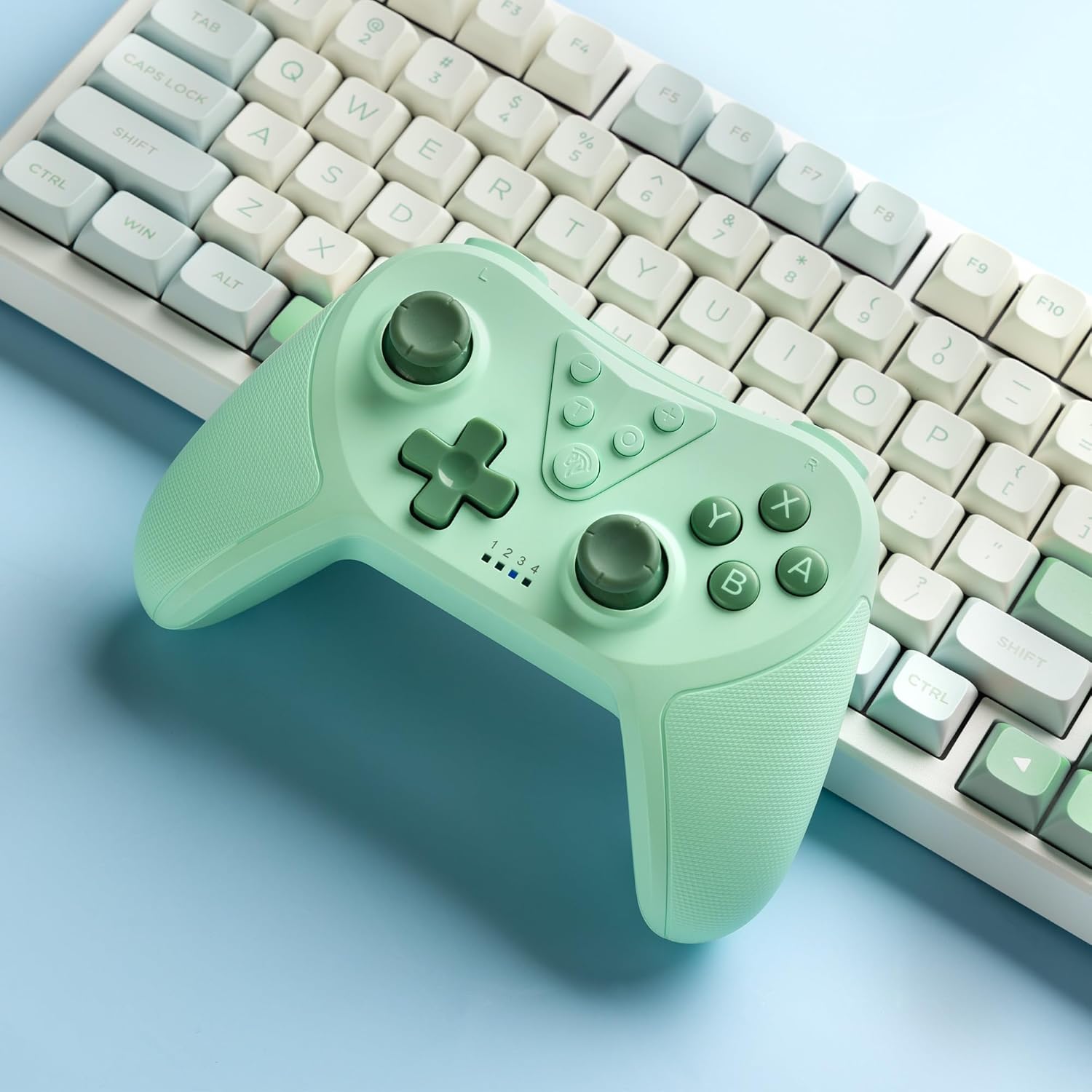
Image 4.2: Illustration of the Turbo function on the EasySMX T37 controller, showing the three adjustable speeds: 5, 12, and 20 shots per second.
4.3 Pangaturan Geter
The controller features dual motors for adjustable vibration feedback, enhancing immersion in games.
- Saluyukeun Inténsitas Geter: Pencét jeung tahan tombol Tombol Turbo, lajeng mindahkeun éta Left Analog Stick Up or Down to cycle through four vibration levels: 0% (off), 30%, 70%, and 100%.

Image 4.3: Visual representation of the Dual Vibration feature on the EasySMX T37 controller, indicating four intensity levels from 0% to 100%.
4.4 Kontrol Gerakan Gyro 6-Sumbu
The built-in 6-axis gyroscope provides precise motion sensing, allowing for intuitive control in games that support motion input.

Image 4.4: Illustration depicting the 6-Axis Gyro Motion Control feature of the EasySMX T37 controller, showing how it interacts with a game on the Nintendo Switch screen.
5. Pangropéa
- beberesih: Paké kaen lemes, garing pikeun ngabersihan controller. Ulah make bahan kimia kasar atawa bahan abrasive.
- Panyimpenan: Nyimpen controller dina tiis, tempat garing jauh ti sinar panonpoé langsung jeung hawa ekstrim.
- Perawatan batré: Pikeun manjangkeun umur batre, ulah pinuh discharging controller remen. Ngeusi batre rutin, sanajan teu dipaké pikeun période nambahan.
- Hindarkeun tetes: Nangtayungan controller tina tetes jeung dampak, nu bisa ngaruksak komponén internal.
6. Cara ngungkulan
6.1 Controller Henteu Nyambungkeun
- Pastikeun controller dieusi.
- Verify the Switch console is updated to the latest system version.
- Try re-pairing the controller by following the steps in Section 3.1.
- If issues persist, try resetting the controller by inserting a thin object into the small reset hole (if present, usually on the back) for a few seconds.
6.2 Buttons Unresponsive or Lagging
- Pastikeun controller geus dicas pinuh.
- Move closer to the Switch console to ensure a strong wireless connection.
- Check for any physical obstructions or debris around the buttons.
- Re-pair the controller.
6.3 Kontroler Teu Ngecas
- Pastikeun kabel USB-C disambungkeun pageuh kana controller sareng sumber daya.
- Coba nganggo kabel USB-C atanapi adaptor daya anu béda.
- Pastikeun sumber listrikna tiasa dianggo.
7. Spésifikasi
- model: T37
- Konektipitas: Nirkabel (Bluetooth)
- Kasaluyuan: Nintendo Pindah, Pindah Lite, Pindah OLED
- Fitur: Dual Turbo Function, Adjustable Vibration, 6-Axis Gyro Motion Control, Ergonomic Design
- Product Identifier (ASIN): B0CTTWN84L
8. Garansi jeung Rojongan
For warranty information, technical support, or further assistance, please refer to the official EasySMX websitus atanapi ngahubungi dukungan palangganna sacara langsung. Simpen resi pameseran anjeun kanggo klaim garansi.