
Memoking PM-344-WF-BKB
Memoking WiFi Thermal Label Printer User Manual
Model: PM-344-WF-BKB
Bubuka
This user manual provides comprehensive instructions for setting up, operating, maintaining, and troubleshooting your Memoking WiFi Thermal Label Printer. This 300DPI printer is designed for efficient and high-quality label printing for various applications, including shipping, retail, and home organization. It supports both wireless (WiFi) and wired (USB) connections, offering flexibility for different operating environments and compatibility with Android, iOS, Mac, and Windows devices.
Naon dina Box
Saatos unboxing, mangga pariksa yen sakabeh komponén di handap ieu kaasup:
- 1* Memoking 344WF Wi-Fi Thermal Label Printer
- 1* Power Adapter & Cable
- 1* USB Cord & Type c convertor
- 1* Pituduh pamaké
- 1 * 4"X6" Test Labels
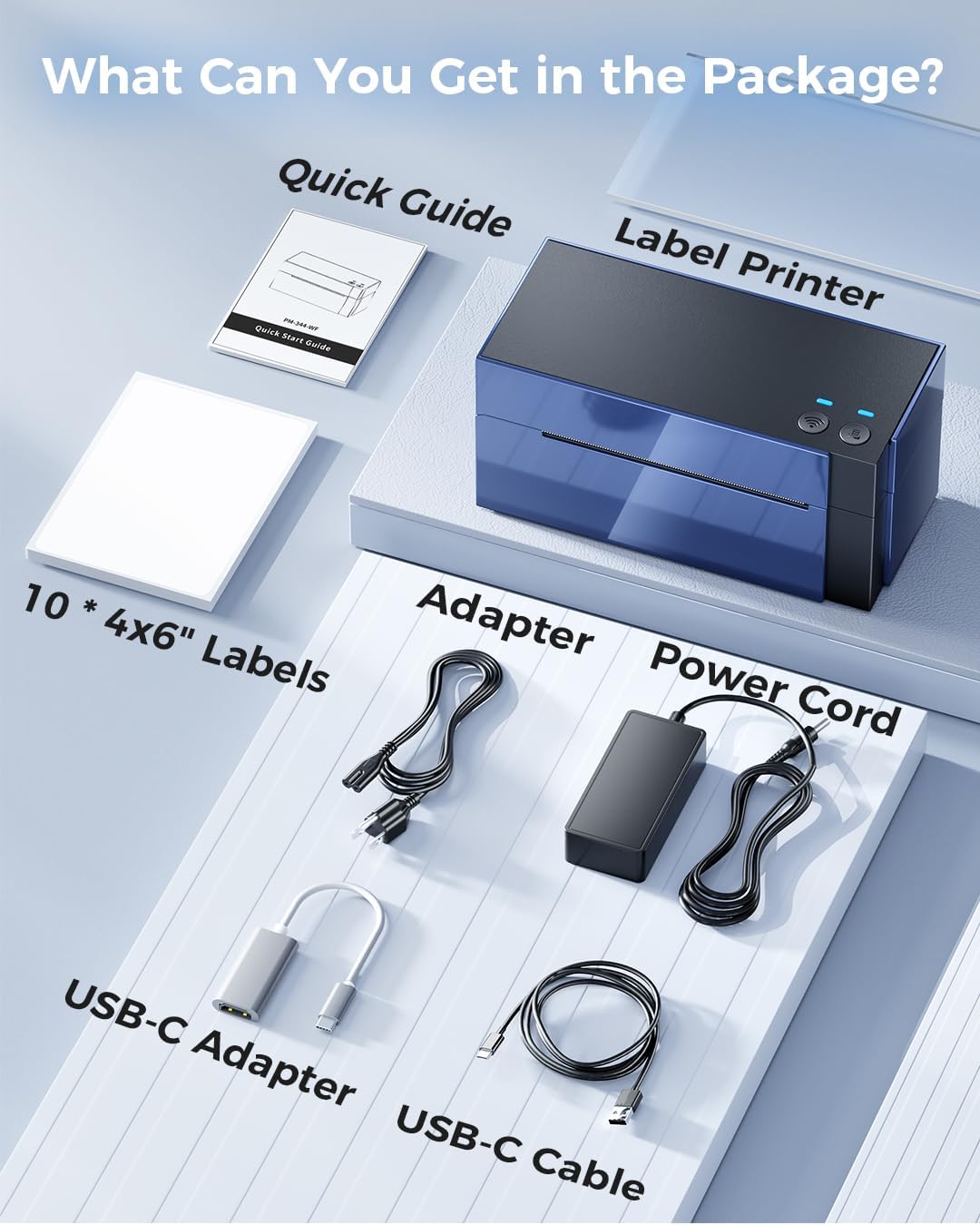
Image: All components included in the Memoking WiFi Thermal Label Printer package, including the printer, power adapter, USB cables, user guide, and test labels.
Disetél
1. Setelan Printer Awal
- Sambungan Daya: Sambungkeun adaptor kakuatan ka printer tur nyolok kana stop kontak kakuatan.
- Ngamuat Label: Ensure the labels are straight and smooth. Insert the labels into the printer's feed slot. The printer will automatically detect and feed the labels.
- Cetak Halaman Uji: When the printer is in standby mode (not printing), press the feed button once to print a test page. This confirms basic functionality.
Video: Demonstrates how to use the feed button for various functions, including printing a test page, automatic label identification, and restoring factory settings.
2. Label Calibration (Automatic Identification)
It is crucial to perform automatic label identification every time you change your label roll or type to ensure accurate printing and prevent blank labels or misprints.
- For Labels with Gaps:
Insert the label, ensuring it is straight and smooth. When the printer is standby and ready, press and hold the feed button until the blue light flashes 2 times, then release the feed button. The printer will learn the label size.
- For Labels with Black Marks:
Insert the label, ensuring it is straight and smooth. When the printer is standby and ready, press and hold the feed button until the blue light flashes 3 times, then release the feed button. The printer will learn the label size based on black marks.
Note: Refer to the "Introduction Of Feed Button Mode" video in the previous section for visual guidance on these steps.
3. Connectivity Setup (WiFi & USB)
The Memoking 344WF printer supports both WiFi and USB connections for versatile printing.
WiFi Setup (Recommended for Mobile & Remote Printing)
- Download the "Labelife" APP: Scan the QR code provided in the Quick Guide or search for "Labelife" on the App Store (iOS) or Google Play Store (Android).
- Sambungkeun via App: Turn on your phone's Bluetooth and WiFi. Open the "Labelife" App, click on the printer logo in the upper right corner to connect to the label printer.
- Pilih Printer: Select the printer named "PM-344-WF" from the available devices.
- Konfigurasi jaringan: Go for network configuration, enter your WiFi password, import your file, choose the size or crop your label, and start printing.

Image: Visual guide for connecting the printer to a mobile device via the Labelife app, including QR code for app download and connection steps.

Image: Demonstrates wireless printing via WiFi from a laptop and smartphone to the Memoking printer.
USB Setup (for PC/Mac)
- Download Printer Setting Tool: Nganjang pm344.labelife.cc and download the Printer Setting Tool for your computer (macOS or Windows).
- Sambungkeun printer: Connect your computer and label printer via a USB cable.
- Configure WiFi (Optional but Recommended): Use the Printer Setting Tool to select your WiFi network and enter the password. This allows for more stable and flexible operation, even if primarily using USB.
- Mimitian Nyetak: Once configured, you can send print jobs from your computer.

Image: Visual guide for connecting the printer to a computer via USB and configuring WiFi settings using the Printer Setting Tool.

Image: Demonstrates printing via USB cable from a desktop computer to the Memoking printer.
Parentah Operasi
Labél percetakan
Once your printer is set up and connected, you can print labels from your preferred platform or software. The printer supports label widths from 1" to 4.6" (25.4-117 mm).
- Platform anu Dirojong: Compatible with major sales platforms including USPS, UPS, eBay, Etsy, Shopify, Amazon, PayPal, Poshmark, Shippo, EasyPost, ShipWorks, XPS Ship, DHL, Stamps.com, and Shipwire.
- Jenis Label: Ideal for shipping labels, thank you labels, logos, QR codes, address labels, name tags, storage labels, and more.

Image: Icons of various platforms like Amazon, eBay, Shopify, USPS, UPS, PayPal, Poshmark, Shippo, EasyPost, ShipWorks, XPS Ship, DHL, Stamps.com, indicating compatibility.
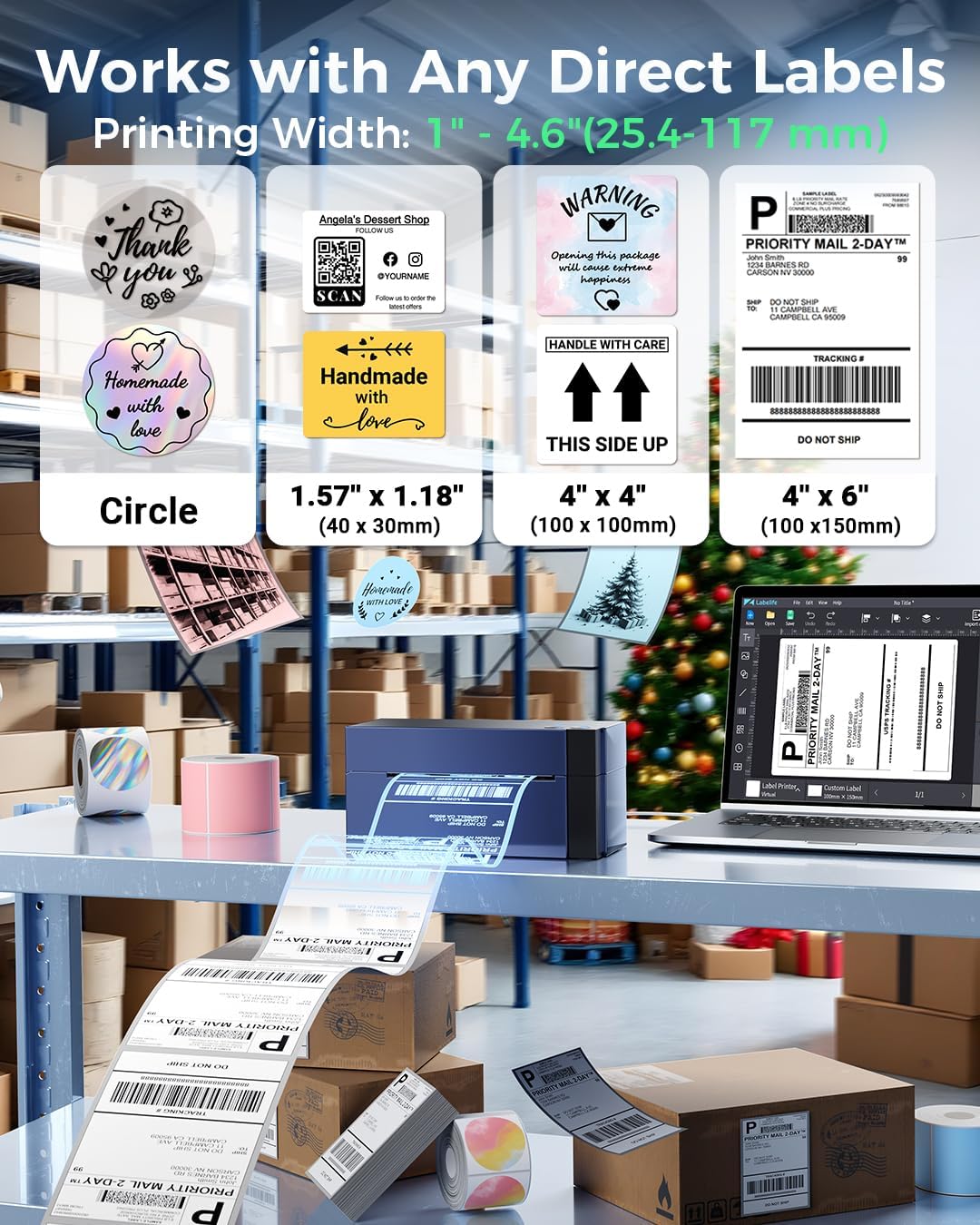
Gambar: Examples of different label types and sizes that can be printed, such as circular labels, 1.57" x 1.18" labels, 4" x 4" labels, and 4" x 6" shipping labels.

Image: Illustrates diverse uses for the printer, showing examples like shipping labels, QR codes, barcodes, name tags, storage labels, and thank you stickers.
Pause and Resume Printing
If you need to temporarily stop a print job, you can pause it and resume later without losing your progress.
- Pause Printing: When the printer is printing, press the Feed Button once to pause the print job. The blue light will change to purple.
- Nyitak deui: When the printer is paused, press the Feed Button once again to resume printing. The blue light will return to blue.
Note: Refer to the "Introduction Of Feed Button Mode" video in the Setup section for visual guidance on these steps.
Pangropéa
Regular maintenance ensures the longevity and optimal performance of your Memoking Thermal Label Printer.
- Ngabersihan Print Head: Use an alcohol swab or a specialized print head cleaning pen to gently wipe the print head. Ensure the printer is turned off and cooled down before cleaning.
- Ngabersihkeun Rol Platen: Paké iklanamp, lint-free cloth to wipe the platen roller. Remove any adhesive residue or dust.
- Ngaleungitkeun lebu: Lap bagian luar printer sacara rutin nganggo lawon anu lemes sareng garing pikeun nyegah ngumpulna lebu.
- Panyimpenan anu leres: Store the printer in a cool, dry place away from direct sunlight and extreme temperatures when not in use for extended periods.
Pamérésan masalah
This section addresses common issues you might encounter with your Memoking WiFi Thermal Label Printer.
Isu umum jeung Solusi
| Masalah | Mungkin Cukang lantaranana | Solusi |
|---|---|---|
| Printer not responding / Red blinking light | Label misfeed, paper jam, or calibration error. |
|
| Poor print quality (faint, incomplete) | Dirty print head, incorrect print density, or low-quality labels. |
|
| Cannot connect via WiFi | Incorrect WiFi password, printer not on the same network, or network interference. |
|
| Labels skipping or misaligning | Improper label loading, incorrect label type setting, or calibration needed. |
|
Factory Reset Options
If you encounter persistent issues, performing a factory reset can often resolve them by restoring the printer to its default settings.
- Restore Factory Setting (General Reset):
Press and hold the Feed Button until the blue light flashes 4 times, then release the feed button. This will restore general factory settings.
- Wi-Fi Factory Reset:
Press and hold the Wi-Fi Button until the blue light flashes 2 times, then release the Wi-Fi button. This will reset only the Wi-Fi settings, requiring you to reconfigure the network connection.
Note: Refer to the "Introduction Of Feed Button Mode" video in the Setup section for visual guidance on these steps.
spésifikasi
| Fitur | Rincian |
|---|---|
| merek | Memok |
| Ngaran modél | PM-344-WF-BKB |
| Téhnologi percetakan | Termal |
| Téhnologi konektipitas | USB, Wi-Fi |
| Tipe Controller | Android, iOS, iPadOS, PC |
| Ukuran Média Maksimum | 4 x 6 inci |
| Média citak | Labels |
| Max Input Lambaran Kamampuh | 500 |
| Max Copy Speed (Hideung & Bodas) | 72 ppm |
| Resolusi Print Warna maksimum | 300 dpi |
| Maksimum Hideung Bodas Resolusi Print | 300 dpi |
| Percetakan dua sisi | No |
| Item Beurat | 1.59 pon |
| Dimensi produk | 3.5 x 7.17 x 3.54 inci |
Garansi sareng Rojongan
The Memoking WiFi Thermal Label Printer comes with a jaminan kawates. For specific details regarding the warranty period and coverage, please refer to the warranty card included in your product packaging or contact Memoking customer service.
Memoking offers a lifelong customer service team dedicated to assisting you with any post-sale issues or technical support needs. If you require assistance, please reach out to our support team through the contact information provided in your user guide or on the official Memoking websitus.
Ask a question about this manual
Ask about setup, troubleshooting, compatibility, parts, safety, or missing instructions. Manuals+ will review the question and use this page’s manual context to help answer it.