
1. Bubuka
This manual provides essential information for the proper setup, operation, and maintenance of your Arducam B0495C USB 3.0 Global Shutter Camera. This camera module features a 2.3MP AR0234 sensor, offering high-speed imaging at up to 960x600@80fps with a global shutter, ensuring crisp images of fast-moving objects without rolling artifacts. It is designed for seamless integration with Windows and Linux systems, providing a reliable solution for various applications requiring precise and high-quality image capture.

Image 1.1: Arducam B0495C Camera Module with USB 3.0 Type-C Cable.
2. Eusi Paket
Please verify that all items listed below are included in your package. If any components are missing or damaged, please contact Arducam support.
- 1 x AR0234 USB3 Camera with Back Cover and Tripod Adapter
- 1 x 1m USB A to Type-C Cable
Image 2.1: The Arducam B0495C camera and its included 1-meter USB A to Type-C cable.
3. Setup Guide
Follow these steps to set up your Arducam B0495C camera:
- Sambungkeun kabel USB: Insert the USB Type-C end of the provided 1m cable into the camera's USB port.
- Nyambung ka Komputer: Plug the USB Type-A end of the cable into an available USB 3.0 port on your computer (Windows or Linux). For optimal performance, use a USB 3.0 port.
- Pamasangan supir: The camera is UVC (USB Video Class) compliant, meaning it is plug-and-play and typically does not require additional driver installation on most Windows and Linux operating systems. The system should automatically detect and install the necessary drivers.
- Pamasangan (Opsional): The camera includes a tripod adapter. You can attach it to a standard tripod or other mounting solutions for stable positioning.
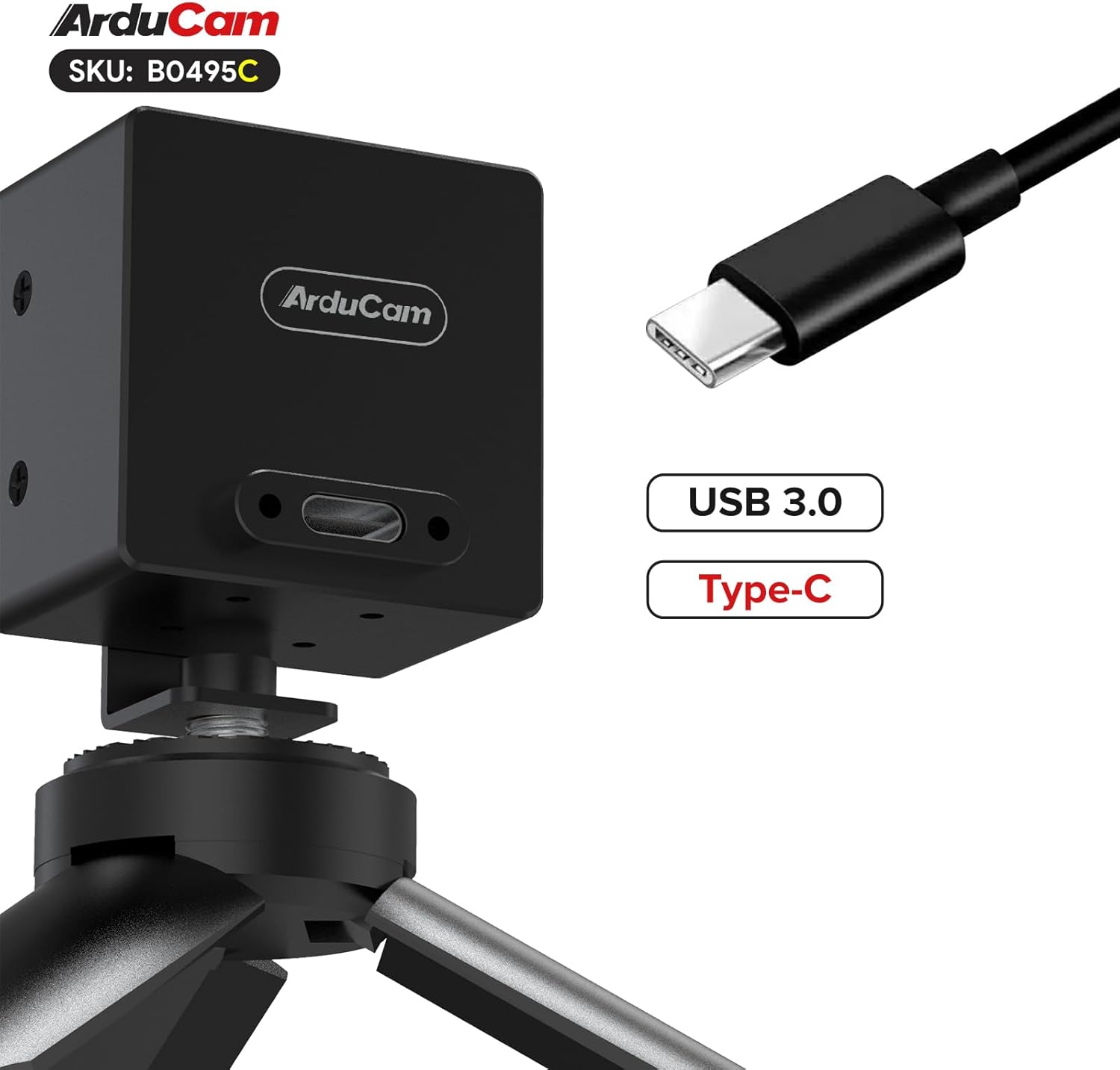
Image 3.1: The Arducam B0495C camera connected via its USB Type-C port, shown mounted on a tripod.
4. Parentah Operasi
Once connected, your Arducam B0495C camera can be used with various applications that support UVC cameras.
4.1. Kompatibilitas Parangkat Lunak
The camera is compatible with standard webcam software on Windows (e.g., Camera app, OBS Studio) and Linux (e.g., Cheese, VLC, OBS Studio, or custom applications using V4L2). Ensure your chosen software recognizes the camera as a video input device.
4.2. Manual Pokus adjustment
The B0495C features a manual focus M12 lens. To adjust focus:
- Open your camera application and view eupan hirup.
- Gently rotate the lens barrel clockwise or counter-clockwise until the image appears sharp and clear at your desired distance.
4.3. Global Shutter Advantage
The global shutter technology captures all pixels simultaneously, eliminating the 'rolling shutter' effect often seen with CMOS sensors when recording fast-moving objects. This results in distortion-free images, crucial for applications like machine vision, industrial inspection, and capturing high-speed events.

Image 4.1: A spinning fan captured by a global shutter camera, showing no motion distortion on the blades.
5. Pangropéa
Proper care will extend the life and performance of your camera.
- Ngabersihan lensa: Use a soft, lint-free microfiber cloth specifically designed for optics. For stubborn smudges, a small amount of lens cleaning solution can be applied to the cloth (not directly to the lens). Avoid abrasive materials or harsh chemicals.
- Ngabersihan awak: Wipe the camera body with a dry, soft cloth. Do not use liquid cleaners directly on the camera.
- Panyimpenan: When not in use, store the camera in a clean, dry environment, away from extreme temperatures, humidity, and direct sunlight. Protect the lens from dust and scratches.
- Ngahindarkeun Dampak: Handle the camera with care to prevent drops or impacts that could damage internal components or the lens.
6. Cara ngungkulan
If you encounter issues with your Arducam B0495C camera, refer to the following common problems and solutions:
- Kaméra Teu Dideteksi:
- Ensure the USB cable is securely connected to both the camera and a USB 3.0 port on your computer.
- Try a different USB port or a different USB 3.0 cable.
- Balikan deui komputer anjeun.
- Check your operating system's device manager (Windows) or `lsusb` command (Linux) to see if the device is recognized.
- Henteu aya gambar atanapi layar hideung:
- Verify that the correct camera is selected as the input device in your software application.
- Ensure there is adequate lighting in the environment.
- Check if the lens cap (if any) has been removed.
- Gambar kabur:
- Adjust the manual focus of the M12 lens as described in Section 4.2.
- Ensure the lens is clean (refer to Section 5).
- Low Frame Rate or Performance Issues:
- Confirm you are connected to a USB 3.0 port, not a USB 2.0 port. USB 2.0 ports will limit bandwidth and frame rate.
- Close other applications that might be consuming significant system resources.
- Ensure your computer meets the minimum system requirements for high-speed video processing.
- Pembaruan firmware: In rare cases, a firmware update might be necessary to resolve specific issues or improve performance. Please visit the official Arducam websitus pikeun firmware panganyarna na parentah.
7. Spésifikasi
Detailed technical specifications for the Arducam B0495C USB 3.0 Global Shutter Camera:
| Fitur | Spésifikasi |
|---|---|
| merek | Arducam |
| Ngaran modél | B0495C |
| Sénsor | AR0234 (2.3MP) |
| Téknologi Sénsor | CMOS, Global Shutter |
| Maximum Still Resolution | 1920x1200 |
| Resolusi Capture Video | Up to 1080p (interpolated), 960x600@80fps |
| Laju pigura | Programmable up to 960x600@80fps |
| Tipe Lénsa | M12 Lens, Manual Focus |
| widang View (D) | 95° |
| Téhnologi konektipitas | USB 3.0 (Tipe-C) |
| Format Capture Video | YUYV |
| Kasaluyuan System Operasi | Windows, Linux (UVC compliant) |
| Item Beurat | 4.8 ons |
| Ukuran Paket | 3.23 x 2.95 x 2.89 inci |
8. Émbaran jaminan
Arducam products are covered by a manufacturer's warranty against defects in materials and workmanship. The specific terms and duration of the warranty may vary by region and product. Please retain your proof of purchase for warranty claims. For detailed warranty information, please refer to the official Arducam websitus atanapi ngahubungan rojongan customer.
9. Rojongan
For further assistance, technical support, or to access additional resources such as drivers, software, and FAQs, please visit the official Arducam websitus:
You may also contact Arducam customer service directly through the contact information provided on their websitus.