
1. Bubuka
This manual provides detailed instructions for the installation, operation, and maintenance of your YESKAMO CX5 Dual-Lens Security Camera. Please read this manual thoroughly before using the product to ensure proper functionality and safety. Keep this manual for future reference.
2. Produk Langkungview
2.1 Fitur konci
- Dual-Lens Monitoring: Equipped with a fixed wide-angle lens and a PTZ (Pan-Tilt-Zoom) dome lens, providing two simultaneous monitoring views without blind spots. The fixed lens covers a broad area, while the PTZ lens tracks detected movement.
- Resolusi luhur: Each lens features 4 million pixels, combining for a total of 8 million pixels, delivering clear 2K video capture resolution (1920p).
- Advanced Wi-Fi Connectivity: Supports both 2.4GHz and high-speed 5GHz Wi-Fi 6 connections for stable and clear real-time video streaming.
- Audio Dua Arah: Built-in high-quality speaker and microphone enable real-time two-way communication.
- IP66 Tahan Cuaca: Excellent waterproof and dustproof performance, suitable for outdoor use in various weather conditions (operating temperature range: -10℃ to +55℃).
- Automatic Tracking & Alerts: Features human detection and automatic tracking. Triggers real-time alerts via the iCSee app to your smartphone, capturing images or videos of suspicious activity.
- Rekaman Kontinyu 24/7: Supports continuous recording and saves video footage to an SD card.
- Kasaluyuan: Supports Onvif/NVR protocols and is compatible with Alexa.
- Babagi kulawarga: Allows creation of multiple family accounts to share camera access.
2.2 Eusi pakét
- YESKAMO CX5 Camera Body (1)
- Adaptor Daya (1)
- Mounting Screws and Anchors (1 set)
- Manual pamaké (1)
2.3 Diagram kaméra
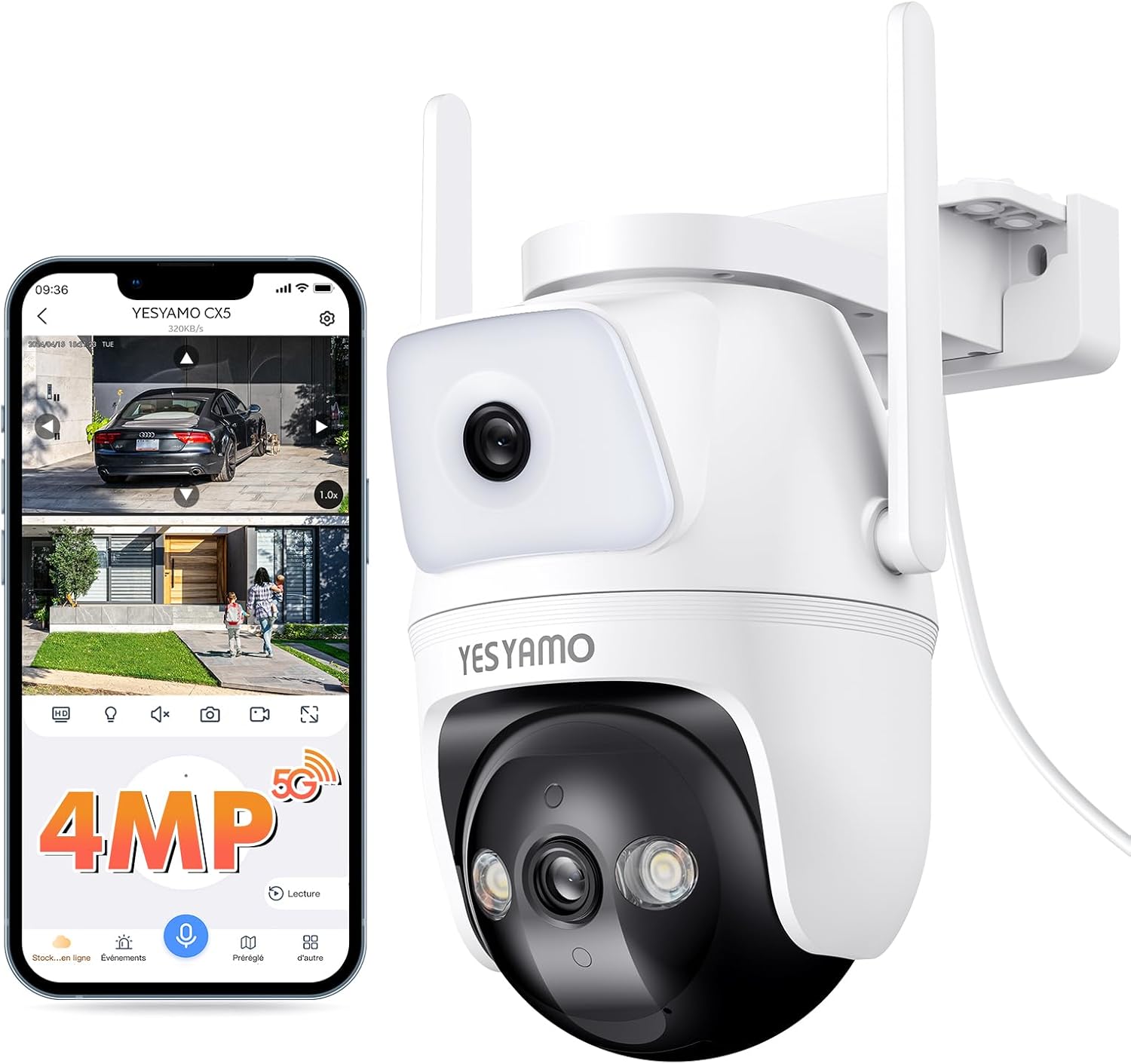
This image displays the YESKAMO CX5 dual-lens security camera alongside a smartphone screen showing its live monitoring interface. The camera features a fixed lens at the top and a PTZ (Pan-Tilt-Zoom) dome lens at the bottom, equipped with infrared LEDs for night vision. Two external antennas are visible for enhanced wireless connectivity. The smartphone screen illustrates the dual-view capability, showing a wide-angle fixed view and a zoomed-in or tracked view from the PTZ lens, along with controls for 4MP resolution, 5G/2.4G Wi-Fi, two-way audio, and recording options.
3. Setélan
3.1 Instalasi fisik
- Pilih Lokasi: Pilih lokasi luar anu nyayogikeun anu dipikahoyong viewing angle and is within range of your Wi-Fi network. Ensure the camera is protected from direct impact and has access to a power outlet.
- Pamasangan: The camera is designed for wall mounting. Use the provided screws and anchors to securely attach the camera to a stable surface. Ensure the mounting is firm to prevent accidental dislodgement.
- Sambungan Daya: Connect the camera to a power source using the provided power adapter. The camera operates on 5 Volts.
3.2 Network Connection (iCSee App)
- Unduh Aplikasi: Download and install the 'iCSee' app from your smartphone's app store (iOS or Android).
- Ngadamel akun: Open the iCSee app and register for a new account or log in if you already have one.
- Tambahkeun Alat: Follow the in-app instructions to add your new camera. This typically involves scanning a QR code on the camera or selecting the camera model from a list.
- Nyambung ka Wi-Fi: During the setup process, you will be prompted to connect the camera to your Wi-Fi network. The camera supports both 2.4GHz and 5GHz Wi-Fi bands. Ensure your smartphone is connected to the same Wi-Fi network during initial setup.
- Konfigurasi: Once connected, you can configure camera settings such as recording preferences, motion detection zones, and alert notifications within the app.
4. Parentah Operasi
4.1 Hirup View sareng Kontrol Kaméra
- Aksés Live View: Open the iCSee app and select your camera to view the live feed. The app will display both the fixed wide-angle view and the PTZ view sakaligus.
- Adjust PTZ Camera: Swipe your finger across the screen in the live view to pan (horizontal) and tilt (vertical) the PTZ dome camera.
- Ngazum Digital: Pinch to zoom in or out on the live feed for a closer look.
4.2 Audio Dua Arah
To use the two-way audio feature, tap the microphone icon in the iCSee app's live view. You can then speak through your phone, and your voice will be broadcast through the camera's speaker. Similarly, you can hear audio from the camera's location through your phone.
4.3 Automatic Tracking and Alerts
- Enable Auto-Tracking: In the camera settings within the iCSee app, enable the human detection and auto-tracking features.
- Narima Tanda: When human movement is detected, the PTZ camera will automatically track the subject. The iCSee app will send real-time alert notifications to your smartphone, including captured images or video clips of the event.
4.4 Ngarekam jeung Panyimpenan
- Rékam Kontinyu: The camera supports 24/7 continuous recording. Ensure an SD card (not included) is inserted into the camera for local storage.
- Rekaman Acara: Motion-triggered events are also recorded and saved to the SD card.
- Playback: Aksés dirékam footage through the iCSee app's playback function.
4.5 Babagi kulawarga
The iCSee app allows you to create multiple family accounts and share access to your camera with trusted family members or friends. This enables multiple users to monitor the live feed and receive alerts.
5. Pangropéa
- beberesih: Regularly clean the camera lenses with a soft, dry cloth to ensure clear image quality. Avoid using harsh chemicals or abrasive materials.
- Pariksa sambungan: Periodically inspect all cable connections for security and integrity, especially the power cable.
- Pembaruan firmware: Check the iCSee app for available firmware updates to ensure your camera has the latest features and security enhancements.
- Perlindungan Lingkungan: While the camera is IP66 weatherproof, ensure it is not submerged in water or exposed to extreme conditions beyond its operating temperature range.
6. Cara ngungkulan
6.1 Isu umum jeung Solusi
- Kaméra offline:
- Pariksa lamun kaméra dihurungkeun tur adaptor kakuatan disambungkeun aman.
- Pastikeun jaringan Wi-Fi anjeun aktip sareng kaméra aya dina jangkauan.
- Ensure the camera is connected to the correct 2.4GHz or 5GHz Wi-Fi band.
- Pareuman terus hurungkeun deui kaméra sareng router Wi-Fi anjeun.
- Kualitas pidéo goréng:
- Ngabersihan lénsa kaméra.
- Ensure a strong Wi-Fi signal. Move the camera closer to the router or use a Wi-Fi extender.
- Pariksa laju sambungan internét anjeun.
- Teu Aya Peringatan Deteksi Gerakan:
- Ensure motion detection and alert notifications are enabled in the iCSee app settings.
- Check the sensitivity settings for motion detection.
- Verify that the app has permission to send notifications on your smartphone.
- Audio Dua Arah Teu Gawé:
- Ensure the microphone and speaker functions are enabled in the app.
- Pariksa setélan volume dina telepon pinter anjeun sareng dina aplikasi.
- Pastikeun teu aya halangan anu ngahalangan mikropon atanapi spiker kaméra.
7. Spésifikasi
| Fitur | Rincian |
|---|---|
| Modél produk | CX5 |
| merek | YESKAMO |
| Resolusi Capture Video | 1920p (2K, 4MP per lens) |
| Téhnologi konektipitas | Wireless (Wi-Fi 6, 2.4GHz/5GHz) |
| Fitur husus | PTZ Technology, Dual-Lens, Human Detection, Auto-Tracking, Two-Way Audio, Night Color Recording |
| Jero rohangan / pamakéan outdoor | Luar |
| Tipe Pamasangan | Wall Mount (Screw-in) |
| Peunteun waterproof | IP66 |
| Suhu Operasi | -10 ℃ nepi ka + 55 ℃ |
| Voltage | 5 volt |
| Ukuran produk (L x W x H) | 16 x 17 x 10 cm |
| Beurat produk | 620 g |
| Warna | Bodas |
| Komponén Kaasup | Awak kaméra |
8. Garansi jeung Rojongan
For warranty information, technical support, or any inquiries regarding your YESKAMO CX5 camera, please refer to the official YESKAMO website or contact their customer service directly. Contact details are typically provided on the product packaging or the official brand websitus.