
Bubuka
This manual provides detailed instructions for the YWYLL EP10 - Pro Electronic Eyepiece Camera. Please read this manual thoroughly before using the device to ensure proper operation and to maximize its capabilities.
Produk Leuwihview
The YWYLL EP10 - Pro is a versatile electronic eyepiece camera designed to enhance your viewing experience with monoculars, binoculars, and telescopes. It features high-definition imaging, day and night vision capabilities, and real-time sharing via WiFi.
Fitur konci:
- Kasaluyuan Universal: Attaches to optical devices with 34-46mm eyepieces.
- Gambaran High Definition: Captures 2K videos and images.
- Day & Night Use: Integrated 850nm infrared light for low-light conditions.
- Real-Time Sharing: WiFi connectivity for live streaming to smartphones.
- Manjangkeun Umur Batré: Up to 6 hours of continuous use with a rechargeable lithium battery.
Komponén jeung kontrol
The EP10 - Pro camera features a user-friendly design with essential controls and ports.

Gambar 1: YWYLL EP10-Pro Electronic Eyepiece Camera connected to an optical device, displaying a moon image on its screen and a connected smartphone. This image illustrates the device's primary function and connectivity.

Gambar 2: Diwincik view of the camera's control panel, highlighting the four function buttons and the integrated display. The buttons are labeled with symbols for Photo, Record, WiFi, and Power.
The device features four primary control buttons on the top panel, a 1.6-inch display screen, an 850nm IR LED, an SD card slot, and a Type-C USB port.
- Button 1 (Leftmost): Photo/Up (in menu)
- Tombol 2: Record/Down (in menu)
- Tombol 3: WiFi/Left (in menu)
- Button 4 (Rightmost): Power/Right (in menu)

Gambar 3: Samping view of the EP10-Pro camera, indicating the location of the 850nm IR illuminator, the SD card slot for storage, and the Type-C USB port for charging and data transfer.
Disetél
1. Ngecas Alat
Before first use, fully charge the EP10 - Pro camera. Connect the provided USB Type-C cable to the camera's Type-C port and the other end to a standard USB power adapter (not included) or a computer USB port. The charging indicator will show the charging status.
2. Nyelapkeun Kartu Mémori
The device supports 4-64GB SD cards. Open the protective cover on the side of the camera and gently insert a compatible SD card into the slot until it clicks into place. Ensure the card is inserted in the correct orientation.
3. Attaching to Optical Devices
The EP10 - Pro is designed to fit eyepieces with diameters between 34mm and 46mm. Ensure your monocular, binocular, or telescope eyepiece falls within this range.
- Carefully align the camera's eyepiece fixation mechanism with your optical device's eyepiece.
- Gently push the camera onto the eyepiece. The internal clamps will adjust to secure the camera.
- Ensure the camera is firmly attached and stable before use.

Gambar 4: Illustration demonstrating the universal compatibility of the EP10-Pro camera with various optical devices, highlighting the 34-46mm eyepiece diameter range for secure attachment.

Gambar 5: A lengkep view of the camera's connection interface, showing the flexible clamps that adapt to eyepieces between 34mm and 46mm for secure and stable installation on various optical instruments.
Parentah Operasi
1. Daya Hurung / Pareum
Pencét jeung tahan tombol Kakuatan button (rightmost) for a few seconds to turn the device on or off.
2. Basic Functions (Photo/Video)
- Nyandak Poto: Di hirup view mode, short-press the Poto button (leftmost) to capture an image.
- Ngarekam Pidéo: Di hirup view mode, short-press the Rékam button (second from left) to start video recording. Press again to stop recording.
3. Night Vision (Infrared)
The EP10 - Pro features an 850nm infrared light for enhanced viewing in low-light or nighttime conditions.
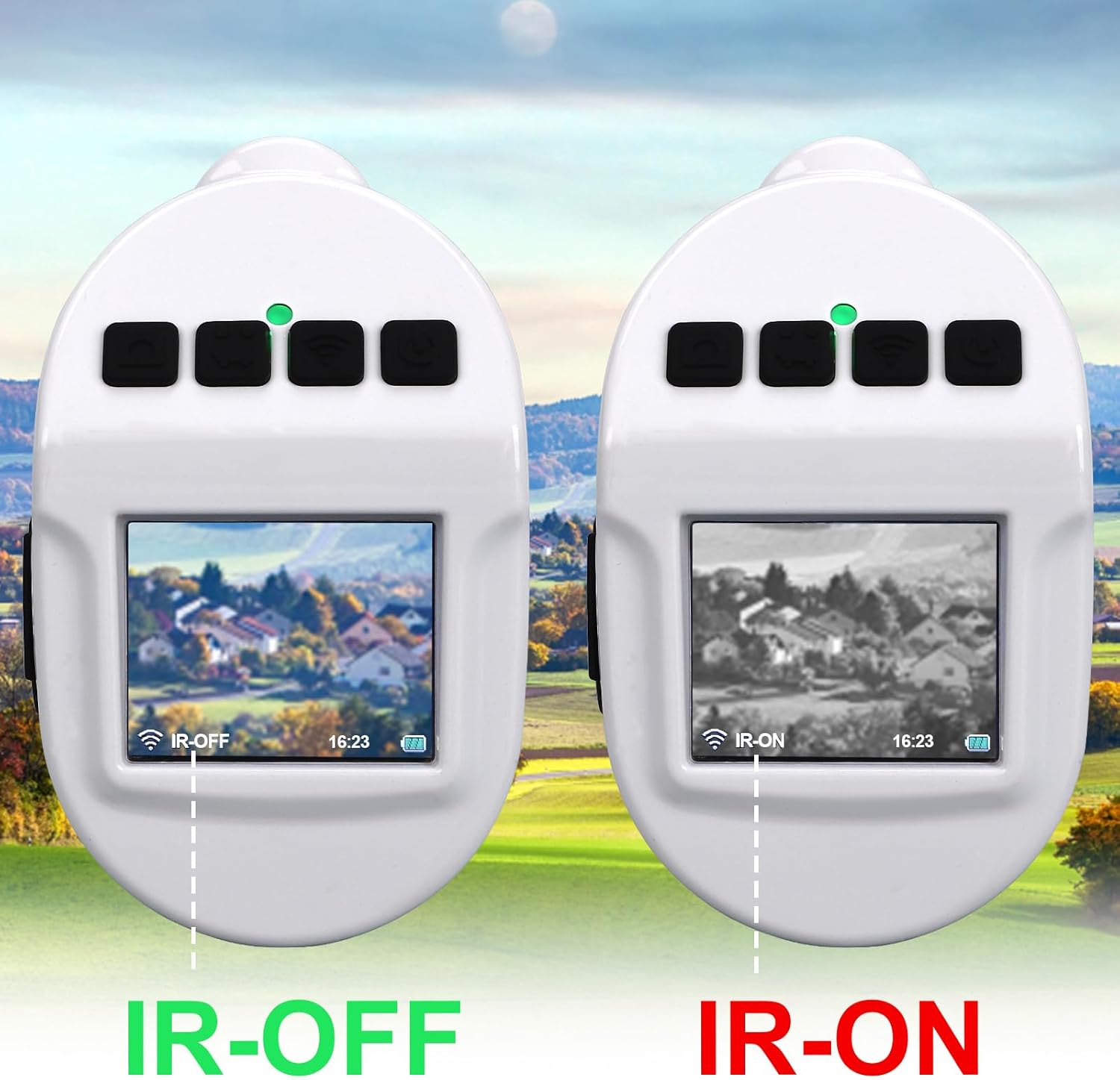
Gambar 6: A visual comparison of the camera's display in normal (IR-OFF) mode, showing a color landscape, versus night vision (IR-ON) mode, displaying the same scene in black and white with enhanced visibility in darkness.
To activate or adjust night vision:
- From the main interface, short-press the Wifi button (third from left) to cycle through IR intensity levels (IR-1, IR-2, IR-3) or to turn IR off.
- The display will indicate the current IR status (IR-ON/IR-OFF) and intensity.
4. Menu Napigasi
To access the main menu, press and hold the Kakuatan button. Once in the menu, the buttons function as follows:
- Tombol poto: Napigasi ka luhur
- Tombol rékaman: Napigasi ka handap
- Tombol WiFi: Navigate Left / Select (depending on context)
- Tombol daya: Navigate Right / Exit (depending on context)
Common menu options include Playback, Date/Time, Format, Language, and LCD Brightness.

Gambar 7: A representation of the camera's on-screen menu, displaying various settings and functions such as file playback, date/time adjustment, memory card formatting, language selection, LCD brightness control, and firmware version information.
5. Sambungan WiFi jeung Aplikasi Dianggo
The EP10 - Pro allows real-time viewing, photo taking, and video recording via a smartphone app.
- Unduh Aplikasi: Milarian pikeun "TRVCam" or "RoadCam" in your mobile device's app store (available for Android and Apple iOS). Alternatively, you can visit http://www.sunningsoft.com/trvcam.html pikeun ngundeur Tumbu.
- Activate WiFi on Camera: Pencét pondok Wifi button on the camera to activate its WiFi hotspot. The WiFi indicator light will illuminate.
- Sambungkeun Telepon anjeun: On your smartphone, go to WiFi settings and connect to the network named "EP10_XXXXXX" (where XXXXXX is a unique identifier). The default password is 12345678.
- Buka Aplikasi: Launch the TRVCam or RoadCam app.
- Connect in App: Within the app, click "Operate" or a similar option to establish a connection and begin real-time image transmission.

Gambar 8: Step-by-step guide for establishing a WiFi connection between the EP10-Pro camera and a smartphone, detailing app installation, WiFi network identification, password entry, and in-app connection for live viewing.
Pangropéa
- beberesih: Use the provided cleaning cloth or a soft, lint-free cloth to gently wipe the lens and display screen. Do not use abrasive cleaners or solvents.
- Panyimpenan: When not in use, store the camera in a cool, dry place, away from direct sunlight and extreme temperatures. Use the soft pouch provided to protect it from dust and scratches.
- Perawatan batré: Pikeun umur batré anu optimal, ulah sering ngosongkeun batréna. Cas alat sacara rutin, sanaos henteu dianggo kanggo waktos anu lami.
Pamérésan masalah
If you encounter issues with your YWYLL EP10 - Pro camera, please refer to the following common solutions:
| Masalah | Mungkin Cukang lantaranana | Solusi |
|---|---|---|
| Alat teu hurung. | Batré lemah atawa béak. | Cas alat nganggo kabel Tipe-C. |
| Teu tiasa nyambung ka WiFi. | WiFi not activated on camera; incorrect password; app not open. | Ensure camera WiFi is on. Verify password "12345678". Open TRVCam/RoadCam app and click "Operate". |
| Kualitas gambar goréng atanapi burem view. | Lens or eyepiece dirty; improper focus of optical device. | Clean the camera lens and your optical device's eyepiece. Adjust the focus of your monocular/telescope. |
| Buttons are unresponsive or confusing. | Misunderstanding button functions in different modes. | Refer to the "Components and Controls" and "Menu Navigation" sections for detailed button functions. Note that button functions change when in menu mode. |
| Teu tiasa ngarekam poto/video. | No SD card inserted; SD card full or corrupted. | Insert a compatible SD card. Check available space. Format the SD card via the camera's menu if necessary (this will erase all data). |
spésifikasi
| Fitur | Rincian |
|---|---|
| Resolusi Produk | 2560x1920 (2K) |
| Install Interface Diameter | 34-46mm (for monoculars, binoculars, spotting scopes, astronomical telescopes, and other traditional optical instruments) |
| Ukuran tampilan | HD 1.6" IPS TFT |
| Laju pigura | 30fps |
| Format pidéo | MP4 |
| Format Poto | JPG |
| Dukungan Kartu Panyimpenan | 4-64GB |
| Fungsi Visi Peuting | Support (850nm IR) |
| Wifi | Support (2.4GHz) |
| Panganteur USB | Tipe-C |
| Zum Digital | Ngarojong |
| Jenis Batré | Built-in high-capacity rechargeable lithium battery (up to 6 hours use) |
| Warna | Piano Bodas |
| Ukuran (L x W x H) | 3.58 x 2.16 x 3.07 inci (91 x 55 x 78 mm) |
| Item Beurat | 7.8 ons |
Naon dina Box
Saatos ngabongkar bungkusan, pastikeun sadaya barang di handap ieu aya:
- YWYLL EP10 - Pro Eyepiece Camera
- Kabel Ngecas USB Tipe-C
- Kantong lemes
- Lawon beberesih lénsa
- Manual pangguna (dokumén ieu)

Gambar 9: Contents of the YWYLL EP10-Pro package, including the eyepiece camera, a protective soft pouch, a USB data cable for charging and data transfer, and a lens cleaning cloth for maintenance.
Garansi sareng Rojongan
For warranty information and customer support, please refer to the documentation provided with your purchase or contact the manufacturer, YWYLL, directly through their official channels. Specific warranty terms may vary by region and retailer.


