

1. Bubuka
This manual provides comprehensive instructions for setting up, operating, and maintaining your EPOMAKER X Aula F65 PRO Wireless Mechanical Gaming Keyboard. Designed for peak performance and personalized perfection, the F65 PRO features hot-swappable pre-lubed switches, a sound-dampened Gasket structure, programmable keys, RGB lighting, and versatile tri-mode connectivity.
2. Naon dina Box
Upon unboxing your EPOMAKER X Aula F65 PRO keyboard, please ensure all the following items are present:
- EPOMAKER X Aula F65 PRO Wireless Mechanical Gaming Keyboard
- 2-in-1 Keycap-and-Switch Puller
- Kabel USB (Tipe-A ka Tipe-C)
- 2.4GHz Wireless Panarima
- 3 Extra Switches
- Manual pangguna (dokumén ieu)
Video: EPOMAKER X Aula F65 PRO Unboxing & Showing & Typing Video. This video demonstrates the unboxing process and shows the contents of the package, including the keyboard and accessories.
Video: F65 PRO Wireless Mechanical Gaming Keyboard Unboxing Video. This video provides a quick overview of the unboxing experience for the F65 PRO keyboard.
3. Setélan
3.1 Modeu Konéktipitas
The F65 PRO keyboard supports three connectivity modes: Bluetooth (BT), 2.4GHz Wireless, and USB-C Wired.
- Modeu Bluetooth (BT): Ideal for connecting to multiple devices (up to 3) such as smartphones, tablets, and laptops. Switch the mode selector on the keyboard to 'BT'. Follow your device's Bluetooth pairing instructions.
- Mode Wireless 2.4GHz: Provides a stable and low-latency connection for gaming. Insert the 2.4GHz USB receiver into your computer's USB port. Switch the mode selector on the keyboard to '2.4G'.
- Modeu Kabel USB-C: For a direct, zero-latency connection and charging. Connect the provided USB-C cable to the keyboard and your computer. Switch the mode selector on the keyboard to 'Wired'.

Image: Tri-Mode Connectivity. This image illustrates the various connectivity options available for the F65 PRO keyboard, highlighting its compatibility with multiple device types.
3.2 Setélan fisik
Place the keyboard on a stable, flat surface. The keyboard features silicone stage-feet for stability and an ergonomic typing angle.

Image: Ergonomic Typing Angle. This image highlights the comfortable typing angle and stable feet of the F65 PRO keyboard.
4. Parentah Operasi
4.1 RGB Backlight Control
The F65 PRO features dynamic RGB backlighting with various effects and customization options.
- Hurungkeun/Pareuman Lampu Latar: Pencét FN + Backspace.
- Toggle Backlight Effect: Pencét FN + \ |.
- Toggle Backlight Color: Pencét FN + Lebetkeun.
- Saluyukeun Caang Lampu Latar: Pencét FN + ↓ (nurunan) atawa FN + ↑ (naékkeun).
- Adjust Backlight Effect Speed: Pencét FN + ← (nurunan) atawa FN + → (naékkeun).
- Toggle Light Strip Effect: Pencét FN + R_SHIFT.
- Adjust Light Strip Brightness: Pencét FN + . > (nurunan) atawa FN +/? (naékkeun).
- Toggle Light Strip Color: Pencét FN +/? (while holding FN).
Video: EPOMAKER X Aula F65 PRO RGB Setting. This video demonstrates how to adjust the RGB lighting settings on the keyboard.
Video: EPOMAKER X Aula F65 PRO Lighting Effect Check. This video showcases various lighting effects and how to cycle through them.
4.2 Multi-functional Knob
The rotary knob on the F65 PRO provides intuitive control over volume and backlight settings.
- Pencét: Ngajempékeun/Ngahurungkeun audio.
- Rotasikeun: Adjust system volume (clockwise to increase, counter-clockwise to decrease).
- Toggle Knob Function: Pencét FN + Knob to switch the knob's default function to the Home key. Press again to revert to volume control.

Image: Multi-Functional Knob. This image highlights the rotary knob and its functions for volume and lighting.
4.3 Game Mode and Office Mode
The keyboard can switch between Game Mode and Office Mode for optimized performance.
- Lebetkeun Modeu Game: Press the knob for 3 seconds. The L_Win and Caps keys will flash blue.
- Enter Office Mode: Press the knob for 3 seconds again while in Game Mode. The L_Win and Caps keys will flash green.
4.4 Kustomisasi Parangkat Lunak
Customize your keyboard's settings, key assignments, macros, and lighting effects using the dedicated software.
- Setélan Sistim: Adjust general keyboard parameters.
- Key Remap: Reassign functions to individual keys.
- Macro Record: Create and assign complex macro sequences.
- Setelan Lampu: Fine-tune RGB lighting effects and colors.
- Wirahma Musik: Synchronize lighting with audio output.
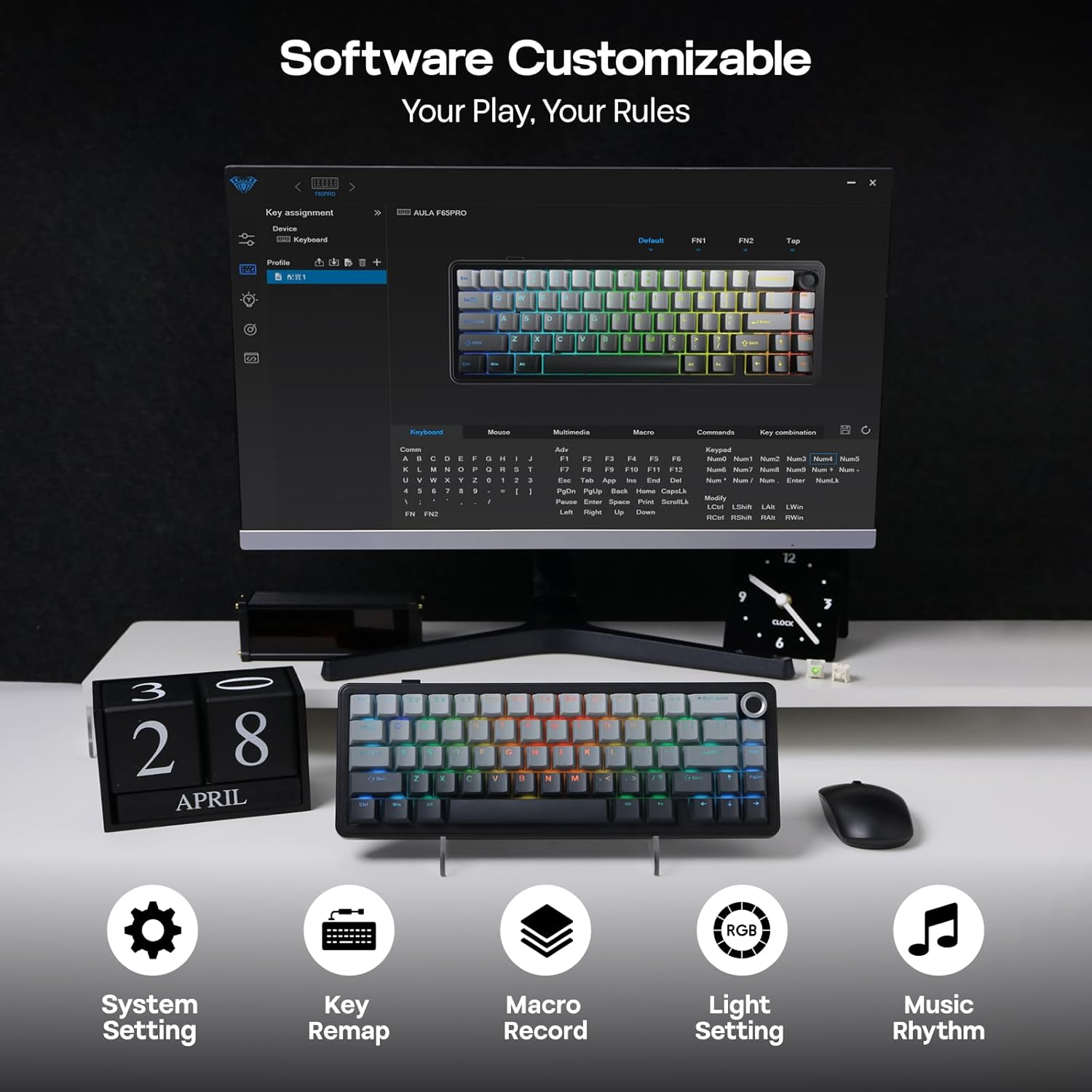
Image: Software Customizable. This image shows the keyboard's software interface for advanced customization.
5. Fitur Leuwihview
The EPOMAKER X Aula F65 PRO is engineered with several advanced features for an enhanced user experience:
- Saklar Hot-Swappable: Easily change 3-pin or 5-pin mechanical switches without soldering, allowing for personalized typing feel.
- Creamy Gasket-Mount Structure: Features a 5-layer sound-dampening system for a satisfyingly muted thud and responsive feel with each keystroke.
- Shine-Through PBT Keycaps: Premium PBT keycaps with topographic lines and shine-through legends for durability and vibrant RGB illumination.
- Batré 4000 mAh: Offers extended wireless usage, with approximately 20 hours with RGB backlight on and 200 hours with RGB backlight off.
- Kinerja Low-Latency: Achieves 1-3ms response time in USB-C wired and 2.4GHz wireless modes, and 8ms in BT 125Hz mode.
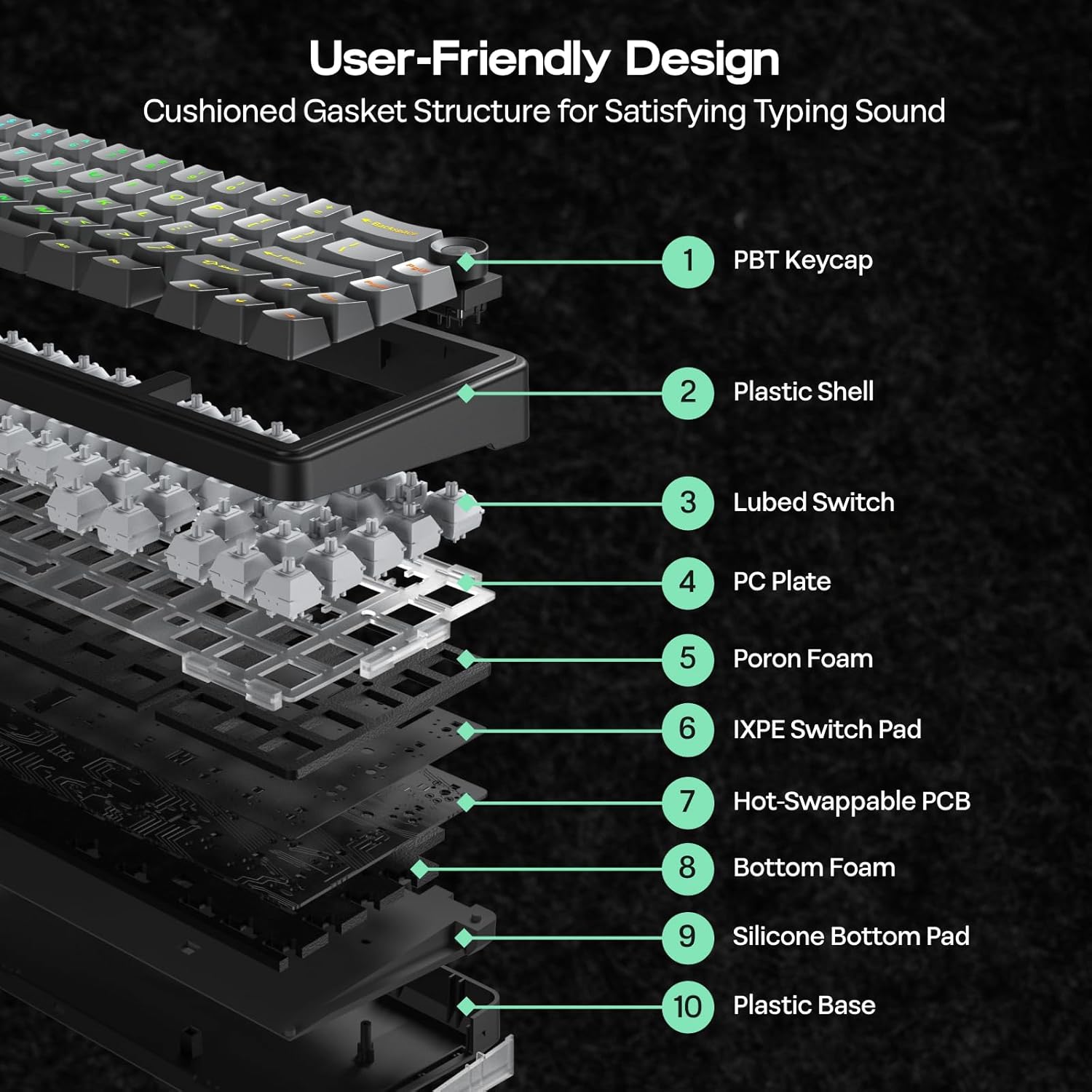
Image: User-Friendly Design (Cushioned Gasket Structure). This diagram illustrates the 5-layer sound-dampening gasket structure of the keyboard.
Image: Hot Swappable Socket. This image demonstrates the hot-swappable nature of the keyboard's switches.
Video: F65 PRO Wireless Mechanical Gaming Keyboard - Typing Sound. This video demonstrates the typing sound profile of the F65 PRO keyboard.
Video: EPOMAKER X Aula F65 PRO Typing ASMR. This video provides an ASMR-style demonstration of the keyboard's typing sound.
Video: EPOMAKER X Aula F65 PRO Typing Video. This video demonstrates the typing experience on the F65 PRO keyboard.
6. Spésifikasi
| Fitur | Rincian |
|---|---|
| merek | EPOMAKER |
| Nomer modél | F65 PRO |
| Téhnologi konektipitas | 2.4Ghz Wireless, BT, USB A to C Cable |
| Katerangan kibor | Mékanis |
| Fitur husus | 5-Layer Padding, Backlit, Gasket Structure, Hot-Swappable, Knob |
| Warna | Gradién Gray |
| Lampu tukang kibor | RGB |
| Ukuran produk (L x W x H) | 4.4 "L x 12.8" W x 1.2" H |
| Bahan | palastik |
| Sumber Daya | Batré Powered |
| Pindah Tipe | Linear (Graywood V3 Switch) |
| Tata perenah kibor | QWERTY |
| Jumlah konci | 66 |
| Alat nu cocog | Konsol Kaulinan, Laptop, PC, Smartphone, Tablet |
| Minimum Required OS | Android 14.0, Windows 11 |
7. Pangropéa
To ensure the longevity and optimal performance of your EPOMAKER X Aula F65 PRO keyboard, follow these maintenance guidelines:
- Ngabersihan rutin: Use a soft, dry cloth to wipe down the keycaps and chassis. For deeper cleaning, use a can of compressed air to remove dust and debris from between the keys.
- Keycap and Switch Removal: Use the provided 2-in-1 keycap-and-switch puller for safe removal of keycaps and switches. Avoid using excessive force to prevent damage.
- Hindarkeun Paparan Cairan: Keep liquids away from the keyboard to prevent internal damage. In case of spills, immediately disconnect the keyboard and allow it to dry completely before reconnecting.
- Perawatan batré: For optimal battery life, avoid fully discharging the keyboard frequently. Charge it regularly using the provided USB-C cable.
8. Cara ngungkulan
If you encounter any issues with your EPOMAKER X Aula F65 PRO keyboard, please refer to the following common troubleshooting steps:
- Keyboard Teu Ngabales:
- Pastikeun keyboard dieusi.
- Check the connectivity mode switch (BT, 2.4G, Wired) matches your connection method.
- For 2.4GHz, ensure the USB receiver is properly inserted and recognized by your device.
- For Bluetooth, ensure the keyboard is paired correctly and within range. Try re-pairing if necessary.
- For wired mode, ensure the USB-C cable is securely connected to both the keyboard and your device.
- Lampu Latar RGB Teu Jalan:
- Pencét FN + Backspace pikeun ngahurungkeun / mareuman lampu tukang.
- Atur kacaangan nganggo FN + ↑/↓.
- Pastikeun kibor henteu dina kaayaan daya rendah.
- Konci Teu Kadaptar:
- Pariksa sagala halangan fisik handapeun keycap.
- If a specific switch is faulty, use the provided switch puller to replace it with one of the extra switches.
- Connectivity Issues (Lag/Disconnections):
- Ensure the keyboard is close to the receiver/device for wireless connections.
- Hindarkeun gangguan ti alat nirkabel anu sanés.
- Update keyboard firmware if available through the customization software.
9. Garansi jeung Rojongan
The EPOMAKER X Aula F65 PRO Wireless Mechanical Gaming Keyboard comes with a Garansi 1 Taun ti tanggal beuli.
For technical support, warranty claims, or further assistance, please visit the official EPOMAKER store or contact their customer service directly. You can find more information and support resources at the EPOMAKER Store on Amazon.