
Epico Epico Keyboard Case
Buku Panduan Pangguna Casing Kibor iPad Epico
Model: Epico Keyboard Case
Bubuka
Transform your iPad into a versatile workstation with the Epico iPad Keyboard Case. This innovative accessory features a detachable keyboard with seven-colour backlighting, a multi-finger gesture touchpad, and comprehensive iPadOS shortcuts. Designed for both functionality and protection, it enhances your iPad experience for typing, watching, and browsing.

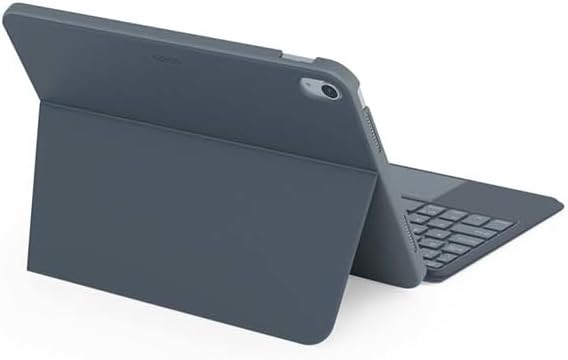
Image: The Epico iPad Keyboard Case with an iPad inserted, shown in a tilted typing position.
Fitur
- Kibor Lampu tukang: Seven distinct backlight colours with adjustable brightness levels for comfortable typing in any lighting condition.
- Fungsi Touchpad: Multi-finger gesture touchpad provides precise control and enhanced navigation capabilities.
- Shortcut Integration: Comprehensive range of iPadOS shortcuts built into the keyboard for efficient device control and workflow optimisation.
- Desain serbaguna: Includes detachable keyboard and tilted backside stand for multiple viewing angles and usage modes.
- Solusi Daya: Equipped with Li-ion battery and USB-C charging capability, operating independently from iPad's power source.
Eusi pakét
- Epico iPad Keyboard Case
- USB-C kana Kabel Ngecas USB-C
- Manual pangguna (dokumén ieu)
Disetél
1. Ngecas kibor
Before first use, fully charge the keyboard. Connect the provided USB-C to USB-C charging cable to the keyboard's USB-C port and the other end to a compatible USB-C power adapter (not included).
Gambar: Sisi view of the keyboard case, highlighting the USB-C charging port.
2. Inserting Your iPad
- Gently align your iPad with the case's frame.
- Press firmly but carefully to secure the iPad into the protective shell. Ensure all edges are properly seated.

Gambar: Tukangeun view of the Epico iPad Keyboard Case, demonstrating the secure fit of the iPad.
3. Pairing with iPad
- Turn on the keyboard by sliding the power switch (usually located on the side or back of the keyboard).
- Dina iPad anjeun, buka Setélan > Bluetooth.
- Enable Bluetooth. The keyboard should appear in the "Other Devices" list as "Epico Keyboard" or similar.
- Tap on the keyboard name to pair. Follow any on-screen prompts.
- Once paired, the keyboard's indicator light will change, and it will be ready for use.
Parentah Operasi
Pamakéan kibor
The keyboard functions like a standard QWERTY keyboard. Ensure the keyboard is paired with your iPad before typing.

Gambar: Hareupeun view of the Epico iPad Keyboard Case, displaying the full keyboard layout and touchpad.
Kadali lampu tukang
- Pencét éta Bohlam key (often near the function keys) to cycle through backlight colours.
- Pencét Fn + Light Bulb key to adjust backlight brightness levels.
Sapuan touchpad
The integrated touchpad supports multi-finger gestures for enhanced navigation:
- Ketok Jari Tunggal: Kénca-klik.
- Ketok Dua Jari: Klik katuhu (menu konteks).
- Gulung Dua Jari: Gulung ka luhur/handap atawa ka kénca/katuhu.
- Ciwit pikeun ngazum: Ngadeukeutkeun/ngaleutikan eusi.
- Refer to iPadOS settings for additional gesture customization.
iPadOS Shortcuts
The keyboard includes dedicated function keys for common iPadOS shortcuts. These may vary slightly by iPadOS version, but typically include:
- imah: Balik deui ka layar utama.
- Pilarian: Activate Spotlight search.
- Kontrol kacaangan: Saluyukeun kacaangan layar.
- Kontrol Média: Play/Pause, Previous/Next track.
- Kontrol volume: Saluyukeun volume sistem.
- Konci layar: Koncikeun iPad anjeun.
Pangropéa
beberesih
- Use a soft, lint-free cloth to wipe the exterior of the case and keyboard.
- Pikeun tanda nekad, rada dampen lawon ku cai atawa hampang, cleaner non-abrasive.
- Avoid getting moisture into the keyboard keys or ports.
- Ulah make bahan kimia kasar, pangleyur, atawa bahan abrasive.
Panyimpenan
Upami teu dianggo salami lami, simpen wadah kibor di tempat anu tiis sareng garing. Pastikeun kibor dipareuman pikeun ngahémat umur batré.
Pamérésan masalah
- Keyboard teu nyambung:
Ensure the keyboard is charged and turned on. Check iPad's Bluetooth settings to confirm it's enabled and the keyboard is paired. Try unpairing and re-pairing the keyboard.
- Konci henteu ngabales:
Check battery level. Restart both the keyboard and your iPad. Ensure no debris is lodged under the keys.
- Lampu tukang teu jalan:
Ensure the keyboard is on and charged. Cycle through backlight settings using the dedicated key.
- Touchpad teu ngaréspon:
Ensure the touchpad is enabled (some keyboards have a function key to toggle it). Check iPadOS settings for touchpad functionality.
spésifikasi
| merek | Épik |
| Ngaran modél | Epico Keyboard Case |
| Alat nu cocog | Apple iPad |
| Konektipitas | Bluetooth |
| Lampu tukang | 7-Colour, Adjustable Brightness |
| Touchpad | Multi-finger Gesture Support |
| Port ngecas | USB-C |
| Sumber Daya | Diwangun-di Batré Li-ion |
| Item Beurat | 15.9 ons (kira-kira 450g) |
| Ukuran produk (L x W x H) | 9.94 x 7.24 x 0.48 inci (kira-kira 25.25 x 18.39 x 1.22 cm) |
| Bahan | Plastik, Logam |
Garansi sareng Rojongan
This Epico product is covered by a manufacturer's warranty. Please refer to the warranty card included with your purchase or visit the official Epico websitus pikeun istilah jeung kaayaan jaminan lengkep.
For technical support, troubleshooting assistance, or inquiries about your product, please contact Epico customer service through their official websitus atanapi inpormasi kontak anu disayogikeun dina resi pameseran anjeun.