
1. Bubuka
This manual provides detailed instructions for the installation, configuration, and operation of the Intelbras iNVD 5232 32-Channel IP Digital Video Recorder. Please read this manual thoroughly before using the device to ensure proper functionality and to prevent damage.
The Intelbras iNVD 5232 is designed for professional surveillance applications, offering advanced features for recording, monitoring, and managing IP camera feeds.
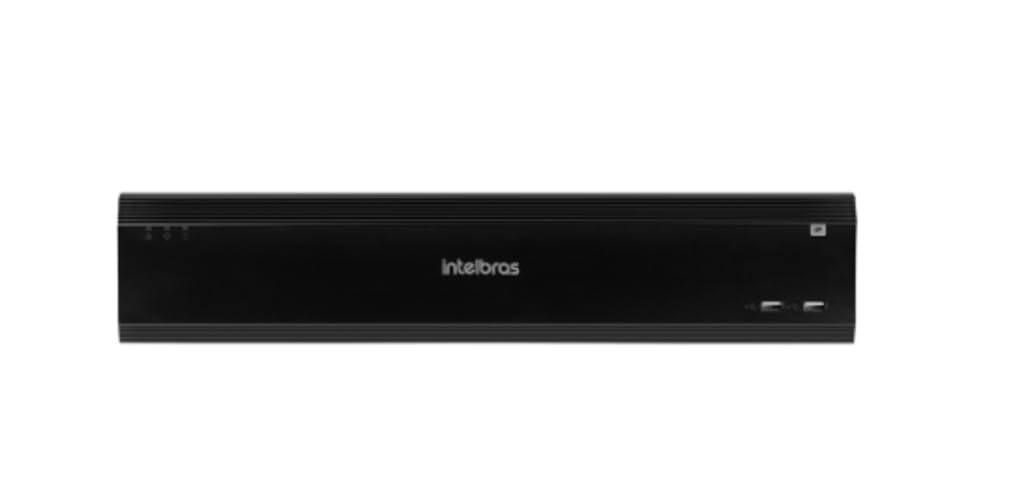
Figure 1: Intelbras iNVD 5232 Digital Video Recorder. This image shows the front panel of the iNVD 5232 unit, featuring a sleek black design with the Intelbras logo and USB ports.
2. Émbaran Kasalametan
Perhatikeun pancegahan kaamanan di handap ieu pikeun nyegah tatu sareng karusakan kana alat:
- Pastikeun catu daya voltage cocog sarat alat.
- Ulah ngantep alat ieu kakeunaan kalembaban, hujan, atanapi suhu anu ekstrim.
- Hindarkeun nempatkeun alat dina sinar panonpoé langsung atanapi caket sumber panas.
- Ulah muka alat casing. Rujuk sadayana jasa ka tanaga anu mumpuni.
- Paké ngan asesoris dieusian ku produsén.
- Properly ground the device to prevent electrical shock.
3. Eusi Paket
Pastikeun yén sadaya item aya dina bungkusan:
- Intelbras iNVD 5232 Digital Video Recorder Unit
- Adaptor kakuatan
- Mouse USB
- Screws for HDD Installation
- Gancang Mimitian Guide
- CD-ROM (containing software and full manual)
4. Produk Langkungview
4.1 Panel payun
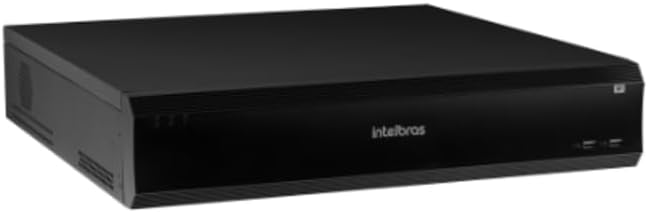
Figure 2: Front Panel of the iNVD 5232. This image displays the front of the DVR, showing LED indicators for power and status, along with two USB ports for peripheral connections.
- LED kakuatan: Nunjukkeun status kakuatan.
- Status LED: Indicates system operational status.
- Port USB: For connecting a mouse, USB drive, or other peripherals.
4.2 Panel tukang

Figure 3: Rear Panel of the iNVD 5232. This image details the rear connections, including power input, network ports, video outputs (HDMI, VGA), audio inputs/outputs, and alarm terminals.
- Input kakuatan: Sambungkeun adaptor daya anu disayogikeun.
- Kaluaran HDMI: Connect to an HDMI-compatible monitor.
- Kaluaran VGA: Connect to a VGA-compatible monitor.
- LAN palabuhan: Connect to your network for IP camera communication and remote access.
- Audio Asup/Kaluar: Pikeun nyambungkeun alat audio éksternal.
- Alarm In/Out: For connecting external alarm sensors and actuators.
- Port USB: Port USB tambahan pikeun periferal.
5. Setélan
5.1 Pamasangan parangkat keras
- Pasang Hard Drive (upami teu acan dipasang sateuacanna): Open the DVR casing, mount the hard drive using the provided screws, and connect the SATA power and data cables.
- Sambungkeun Monitor: Sambungkeun monitor ka port kaluaran HDMI atawa VGA.
- Sambungkeun Mouse: Plug the USB mouse into one of the USB ports.
- Sambungkeun Jaringan: Connect an Ethernet cable from the LAN port to your network router or switch.
- Sambungkeun Kakuatan: Plug the power adapter into the DVR's power input and then into a power outlet. The device will power on automatically.
5.2 Konfigurasi Awal
Upon first boot, the system will guide you through an initial setup wizard:
- Pilihan Basa: Pilih basa anu anjeun pikaresep.
- Setup kecap akses: Create a strong administrator password.
- Setélan jaringan: Konpigurasikeun alamat IP, subnet mask, gateway, sareng DNS. DHCP biasana diaktipkeun sacara standar.
- Tanggal sareng Waktos: Setel tanggal, waktos, sareng zona waktos anu leres.
- Inisialisasi HDD: Format the installed hard drive for recording.
- IP Camera Search and Add: The system will scan for available IP cameras on the network. Select and add your cameras.
6. Nyuping
6.1 Hirup View
After initial setup, the system will display the live view tina kaméra disambungkeun. Anjeun tiasa pindah antara kaméra tunggal view, grid multi-kaméra, sareng runtuyan views using the on-screen controls or mouse.
6.2 Manajemén rékaman
- Jadwal Ngarekam: Configure continuous, motion-detection, or alarm-triggered recording schedules for each camera.
- Ngarekam Manual: Initiate recording manually from the live view panganteur.
- Playback: Aksés dirékam footage by date, time, and event type. Use the playback controls to navigate through recordings.
- Nyadangkeun: Export recorded video clips to a USB drive or network storage.
6.3 Aksés Jauh
The iNVD 5232 supports remote access via a web browser or dedicated mobile application. Ensure your network is configured for remote access (e.g., port forwarding or P2P cloud service activation).
- Web Browser: Enter the DVR's IP address into a web browser dina komputer disambungkeun ka jaringan nu sami.
- Aplikasi Mobile: Download the official Intelbras surveillance app from your device's app store. Scan the QR code on the DVR (if available) or manually enter the device ID for connection.
7. Pangropéa
7.1 beberesih
Bersihkeun bagian luar DVR sacara rutin nganggo lawon anu lemes sareng garing. Entong nganggo pembersih cair atanapi aerosol. Pastikeun liang ventilasi bébas tina lebu sareng halangan.
7.2 Apdet firmware
Periodically check the Intelbras websitus pikeun apdet firmware. Pembaruan firmware tiasa nyayogikeun fitur anyar, perbaikan kinerja, sareng paningkatan kaamanan. Turutan parentah nu disadiakeun kalawan pakét update firmware taliti.
7.3 Manajemén hard drive
Monitor the health of your hard drives through the system's HDD management menu. Replace failing drives promptly to avoid data loss. Configure automatic overwriting of old footage pikeun mastikeun rékaman kontinyu.
8. Cara ngungkulan
| Masalah | Mungkin Cukang lantaranana | Solusi |
|---|---|---|
| Taya kakuatan | Kabel listrik pegat; adaptor listrik rusak; masalah stop kontak. | Check power connections; test power adapter; try a different outlet. |
| Taya kaluaran video | Monitor off/disconnected; incorrect video output settings; faulty cable. | Ensure monitor is on and connected; check video cable; try a different output port or cable. |
| Cannot connect IP cameras | Network issue; incorrect camera IP address/credentials; camera not powered. | Verify network connectivity; ensure cameras are powered and configured correctly; check camera credentials. |
| Teu aya rékaman | HDD not initialized/full; recording schedule not set; camera disconnected. | Initialize HDD; check recording schedule; verify camera connection and status. |
9. Spésifikasi
| Fitur | Katerangan |
|---|---|
| Modél | iNVD 5232 |
| Input Video | 32 Saluran IP |
| Kaluaran Video | 1 HDMI, 1 VGA |
| Input / Kaluaran Audio | Specific ports (e.g., RCA) |
| Résolusi ngarékam | Up to 8MP (depending on camera) |
| Kamampuh Putereun | Multi-channel synchronous playback |
| Panyimpenan | Multiple SATA HDD bays (HDDs not included) |
| Panganteur Jaringan | Palabuhan Gigabit Ethernet |
| Panganteur USB | USB 2.0 / 3.0 palabuhan |
| Sasayogian tanaga | DC 12V (kaasup adaptor) |
| Suhu Operasi | 0°C nepi ka 50°C (32°F nepi ka 122°F) |
10. Garansi jeung Rojongan
For warranty information, please refer to the warranty card included with your product or visit the official Intelbras website. Technical support is available through Intelbras authorized service centers and online resources.
Intelbras Official Websitus: www.intelbras.com.br
Punten siapkeun modél produk sareng nomer séri anjeun nalika ngahubungi dukungan.