
Bubuka
The MAMBASNAKE M5 Ultra is a high-performance, ultra-lightweight gaming mouse designed for competitive gamers. Featuring a carbon fiber build, advanced sensor technology, and versatile connectivity options, it delivers precision and speed for an optimal gaming experience. This manual provides detailed instructions for setting up, operating, and maintaining your M5 Ultra gaming mouse.
Fitur konci:
- Ultra-Lightweight Carbon Fiber Build: Weighing only 39 grams, crafted from real carbon fiber for extreme strength and agility.
- Flagship Sensor & Processor: Equipped with PixArt PAW3950MAX sensor and Nordic 52840 chip, supporting up to 42,000 DPI, 750 IPS, and 50G acceleration.
- True 8000Hz Polling Rate: Ensures ultra-fast response times and stable wireless performance.
- Pro-Grade Switches & Encoder: Long-lasting micro switches rated for over 100 million clicks and a premium scroll encoder for crisp feedback.
- Konéktivitas Tripel-Mode: Offers Bluetooth, 2.4GHz wireless, and wired USB-C connection options.
- Flexible Driver Options: Supports both web-based driver access and downloadable software for customization.
Eusi pakét
Punten parios yén sadaya barang aya dina pakét anjeun:
- MAMBASNAKE M5 Ultra Gaming Mouse
- 2.4GHz Wireless Panarima
- USB-C ka USB-A Cable
- USB-A to USB-C Adapter (for receiver extension)
- Grip Tape (pre-cut adhesive pads)
- Extra PTFE Mouse Feet
- Manual pamaké
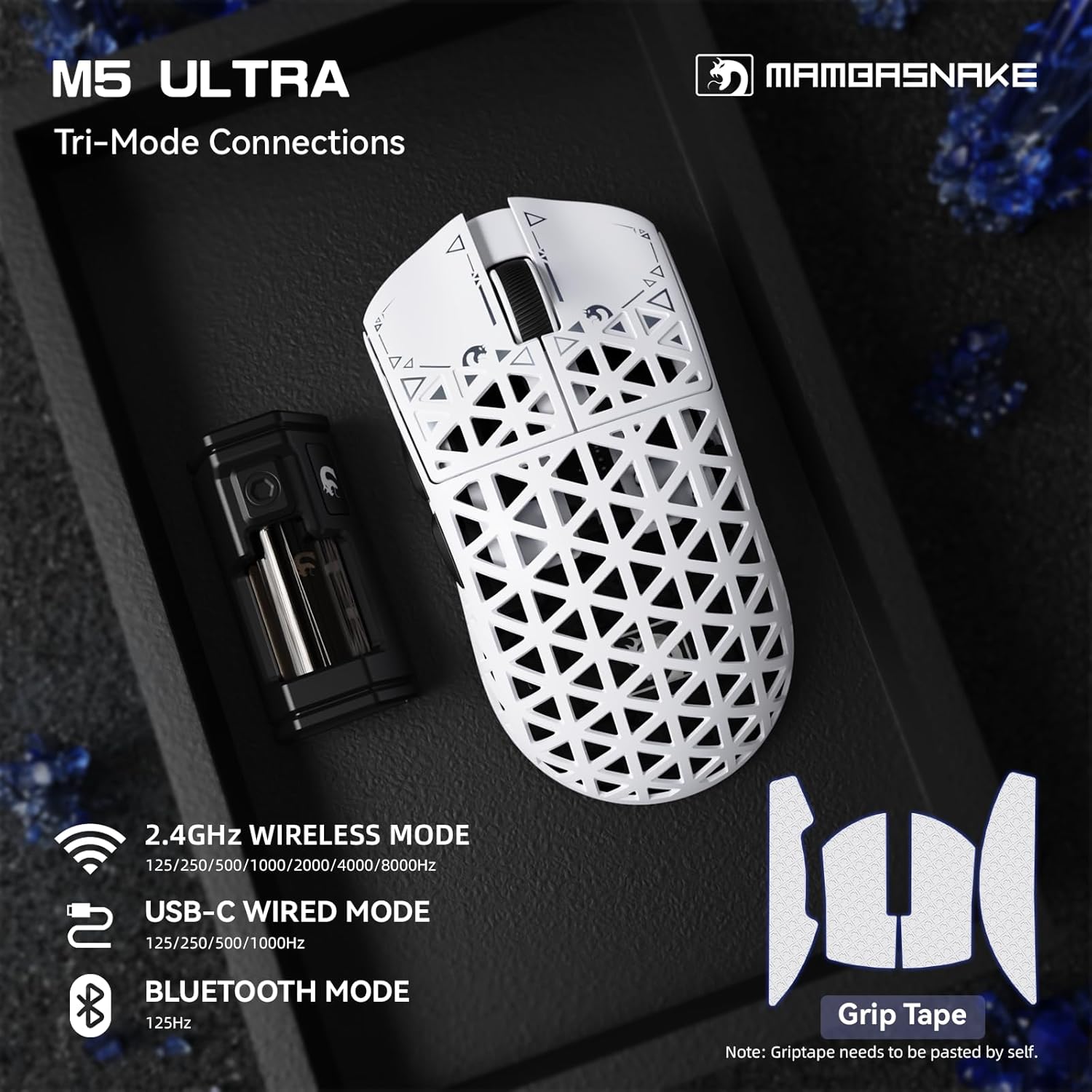
Image: Contents of the MAMBASNAKE M5 Ultra package, including the mouse, wireless receiver, cable, grip tape, and spare mouse feet.
Produk Leuwihview
Familiarize yourself with the components of your MAMBASNAKE M5 Ultra gaming mouse:

Image: The M5 Ultra mouse showcasing its carbon fiber shell and lightweight design.

Image: Labeled components of the M5 Ultra gaming mouse, including primary buttons, scroll wheel, DPI button, and connectivity switch.

Image: Underside of the M5 Ultra mouse, detailing the sensor, DPI button, and the switch for selecting 2.4G, Wired, or Bluetooth modes.
Disetél
The M5 Ultra offers three connectivity modes: wired, 2.4GHz wireless, and Bluetooth. Choose the mode that best suits your needs.
1. Sambungan kabel
- Connect the provided USB-C to USB-A cable to the USB-C port on the front of the mouse.
- Colokkeun tungtung USB-A tina kabel ka port USB nu sadia dina komputer Anjeun.
- Ensure the switch on the bottom of the mouse is set to the 'Wired' position.
- The mouse will be recognized by your computer and is ready for use.
2. 2.4GHz Wireless Connection
- Panggihan panarima nirkabel 2.4GHz.
- Plug the receiver directly into an available USB-A port on your computer, or use the provided USB-A to USB-C adapter and cable to position the receiver closer to the mouse for optimal signal.
- Ensure the switch on the bottom of the mouse is set to the '2.4G' position.
- The mouse should automatically connect to the receiver. If not, press the pairing button (if available, refer to the specific diagram on the mouse's underside) or cycle the power switch.
3. Sambungan Bluetooth
- Ensure the switch on the bottom of the mouse is set to the 'BT' (Bluetooth) position.
- On your computer, navigate to Bluetooth settings.
- Aktipkeun Bluetooth sareng milarian alat anyar.
- Select 'MAMBASNAKE M5 Ultra' from the list of available devices to pair.
- Turutan ajakan dina layar pikeun ngarengsekeun prosés papasangan.
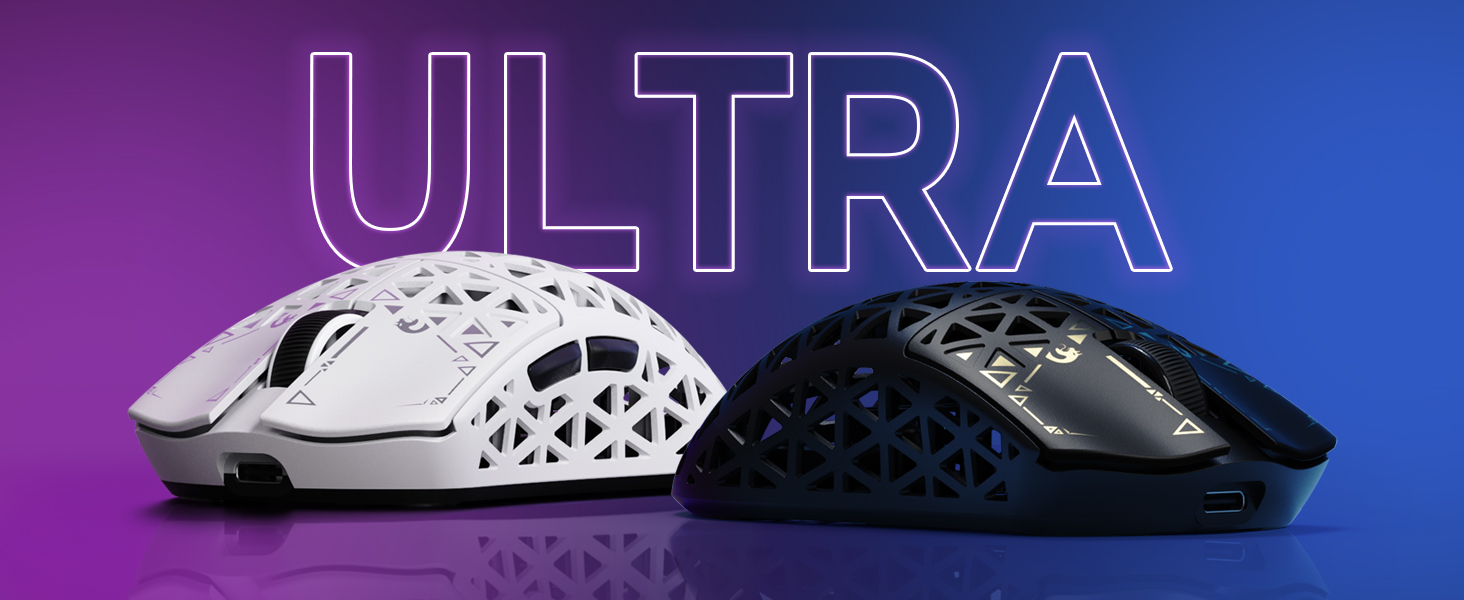
Image: Visual representation of the M5 Ultra's tri-mode connectivity options.
Video: Hiji leuwihview of the MAMBASNAKE M5 Ultra Carbon Fiber 8KHz Wireless Gaming Mouse, demonstrating its features and initial setup.
Parentah Operasi
Adjustment DPI
The M5 Ultra features a dedicated DPI adjustment button, typically located on the bottom of the mouse or near the scroll wheel. Press this button to cycle through preset DPI levels. The current DPI level may be indicated by an LED color change or can be viewed and customized via the web supir.
Laju Polling
The mouse supports an 8000Hz polling rate for ultra-low latency. While the default polling rate is often sufficient, you can adjust it using the customization software to match your preferences and system capabilities.

Image: Explanation of the 8000Hz polling rate and its benefit for gaming.
Customization Software (Web Supir)
The M5 Ultra offers flexible customization through its web-based driver, eliminating the need for software installation. You can also download a dedicated driver from the official MAMBASNAKE websitus.
- Aksés ka web driver by visiting the official MAMBASNAKE support website (refer to the product packaging or official websitus pikeun anu pasti URL).
- Through the driver interface, you can:
- Adjust DPI settings and create custom profiles.
- Change polling rate (125Hz to 8000Hz).
- Program macros for various buttons.
- Adjust lift-off distance (LOD).
- Configure lighting effects (if applicable).
- Save your settings to the mouse's onboard memory for use on any computer without the software.

Gambar: The web driver interface for the M5 Ultra, illustrating customization options.
Pangropéa
beberesih
To maintain optimal performance and appearance, clean your mouse regularly:
- Make kaen nu lemes, teu aya lint rada dampku cai atawa solusi beberesih hampang pikeun ngusap beungeut beurit.
- Hindarkeun ngagunakeun bahan kimia anu kasar atanapi bahan abrasive.
- For the sensor, use a cotton swab lightly dampDieusian ku isopropil alkohol pikeun ngabersihan lénsa.
- Ensure the mouse is completely dry before use.
Ngeusi batre
The M5 Ultra features a built-in rechargeable battery. When the battery level is low, connect the mouse via the USB-C cable to your computer or a USB power adapter for charging. The mouse can be used normally while charging in wired mode.
Pamérésan masalah
If you encounter issues with your MAMBASNAKE M5 Ultra mouse, refer to the following common problems and solutions:
| Masalah | Solusi |
|---|---|
| Mouse teu ngaréspon dina modeu nirkabel. | Ensure the mouse is charged and the power switch is ON. Verify the connectivity switch on the bottom is set to '2.4G' or 'BT'. Re-pair the device if using Bluetooth, or re-insert the 2.4GHz receiver. Try a different USB port. |
| Lag or intermittent connection in wireless mode. | Move the 2.4GHz receiver closer to the mouse, ideally using the extension adapter. Ensure there are no strong interference sources (e.g., other wireless devices, large metal objects) nearby. For Bluetooth, ensure your computer's Bluetooth drivers are up to date. |
| Mouse cursor erratic or not tracking smoothly. | Clean the optical sensor lens on the bottom of the mouse. Ensure you are using the mouse on a suitable surface (a good quality mouse pad is recommended). Check DPI settings in the web supir. |
| Buttons not registering clicks. | Ensure the mouse is properly connected and powered on. Check for any physical obstructions. If the issue persists, try resetting the mouse (refer to the web driver or official support for reset instructions). |
| Beurit teu ngecas. | Verify the USB-C cable is securely connected to both the mouse and the power source. Try a different USB port or charging cable. Ensure the power source is functional. |
spésifikasi
| Fitur | Rincian |
|---|---|
| Modél | M5 Ultra |
| Sénsor | PixArt PAW3950MAX Optical Sensor |
| MCU | Chip Nordik 52840 |
| DPI | Nepi ka 42,000 DPI |
| IPS | 750 IPS |
| Akselerasi | 50G |
| Laju Polling | 8000Hz (2.4GHz Wireless/Wired), 125Hz (Bluetooth) |
| Konektipitas | 2.4GHz Nirkabel, Bluetooth, USB-C Kabel |
| Saklar | Omron Microswitches (100M+ Clicks) |
| Beurat | Kira-kira 39 gram |
| Diménsi | 61 x 119.5 x 36.3 mm (2.40 x 4.70 x 1.43 inci) |
| Ukuran Paket | 6.85 x 4.17 x 2.83 inci |
| Beurat Barang (dibungkus) | 8.8 ons |
| Tanggal Kahiji Sadia | 10 April 2025 |

Image: The PixArt PAW3950MAX sensor, a key component for high-precision tracking.

Image: The Nordic 52840 MCU chip, responsible for the mouse's processing power and 8000Hz polling rate compatibility.
Garansi sareng Rojongan
MAMBASNAKE products are designed for quality and performance. For warranty information, please refer to the warranty card included in your product packaging or visit the official MAMBASNAKE website. For technical support, driver downloads, or further assistance, please visit the official MAMBASNAKE support page or contact customer service through the details provided on the websitus.
Video: A lengkep lengkepview of the MAMBASNAKE M5 Ultra Carbon Fiber Wireless Gaming Mouse, showcasing desain sareng fitur-fitur konci na.