
Bubuka
This manual provides essential information for the safe and efficient use of your SUPVAN T50M Pro Label Maker. Please read these instructions carefully before operating the device and retain them for future reference.
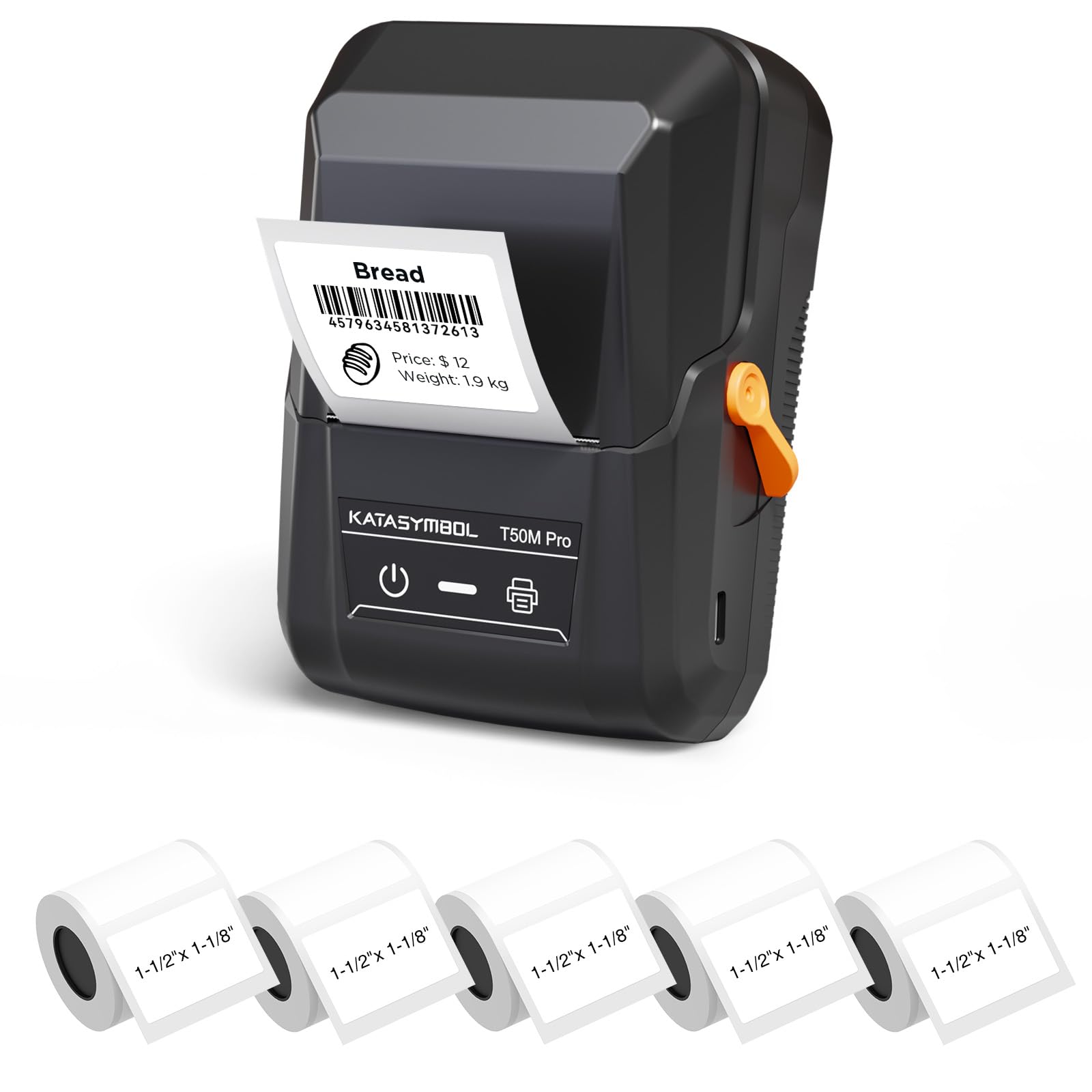
Image: The SUPVAN T50M Pro Label Maker, a compact thermal printer.
Eusi pakét
Pastikeun yén sadaya item aya dina pakét anjeun:
- SUPVAN T50M Pro Label Maker
- 5 rolls of 1.57'' × 1.18'' (40mm × 30mm) white labels (250 labels/roll)
- USB Cable (for charging and connectivity)
- Manual pangguna (dokumén ieu)
Guide Setup
1. Ngecas Alat
Before first use, fully charge the label maker using the provided USB cable. The device features a 1200 mAh built-in rechargeable battery, offering extended use on a single charge.
2. Installing the Label Roll
The T50M Pro uses thermal paper, eliminating the need for ink or toner. Follow these steps to install a label roll:
- Buka panutup kompartemen labél.
- Insert the label roll with the printing surface facing upwards.
- Ensure the label edge is aligned with the printer's feed mechanism.
- Close the cover. The device's Smart RFID Auto-Detection will recognize the label size automatically.

Image: Illustration of loading thermal paper into the label maker. The device uses thermal printing technology, requiring no ink or toner.
3. Instalasi App sarta Sambungan
Download the official SUPVAN app from your device's app store. The app provides all editing functions and is free to use.
- Hurungkeun panyusun labél.
- Open the SUPVAN app on your smartphone or tablet.
- Follow the in-app instructions to connect to your T50M Pro via Bluetooth or USB.
Parentah Operasi
1. Creating Labels with the App
The SUPVAN app offers a comprehensive suite of editing tools:
- Edit téks: Choose from over 40 fonts.
- Image & Picture Integration: Add custom images and logos.
- Citakan: Access over 140 free, constantly updated templates for various uses.
- Auto Label Size Recognition: The app automatically detects the loaded label size, reducing errors.

Image: The SUPVAN app's editing interface, demonstrating font choices, image integration, and automatic label size detection.

Image: A selection of over 140 free templates available within the SUPVAN app, suitable for diverse labeling needs.
2. Nyitak Label
After designing your label in the app, select the "Print" option. Ensure the label maker is connected and has sufficient battery. The T50M Pro supports various label styles and sizes, printing 3/4 to 2-inch wide labels.

Gambar: Examples of labels created with the T50M Pro, including address labels, price tags, and decorative labels, demonstrating support for various styles.

Image: A visual comparison highlighting the high-quality image output from the SUPVAN T50M Pro's app compared to other label makers.
3. Aplikasi umum
The SUPVAN T50M Pro is suitable for a wide range of labeling tasks:
- Usaha leutik: Shipping addresses, product information, QR codes, brand logos.
- Kantor & Sakola: Ngaran tags, folder labels, documentation, asset tagging.
- Organisasi Imah: Pantry labels, storage bins, personal items.

Image: Demonstrates diverse uses for the label maker, such as labeling containers in a pantry, creating product labels, printing shipping labels, and organizing school supplies.
Pangropéa
1. Ngabersihan Print Head
To ensure optimal print quality, periodically clean the thermal print head. Use a soft, lint-free cloth lightly dampened with isopropyl alcohol. Do not use abrasive cleaners or sharp objects.
2. Kaperawatan batré
Recharge the device when the battery indicator is low. Avoid fully discharging the battery frequently to prolong its lifespan. Store the device in a cool, dry place when not in use for extended periods.
3. Label Storage
Store label rolls in a cool, dry place away from direct sunlight and heat to prevent degradation of the thermal material.
Pamérésan masalah
1. Alat Teu Hurungkeun
- Pastikeun alat parantos dicas pinuh. Sambungkeun kana sumber daya nganggo kabel USB.
- Pencét jeung tahan tombol daya pikeun sababaraha detik.
2. Printing Issues (Blank or Faint Prints)
- Check if the label roll is installed correctly with the printing surface facing up.
- Ensure the label roll is not empty.
- Ngabersihan sirah print sakumaha ditétélakeun dina bagian Pangropéa.
- Verify that the label type is compatible with the T50M Pro.
3. App Connectivity Problems
- Pastikeun Bluetooth diaktipkeun dina alat sélulér Anjeun.
- Make sure the label maker is turned on and within range.
- Restart both the label maker and the app.
- If issues persist, try reinstalling the app.
4. Label Misalignment
- Ensure the label roll is properly seated and aligned in the compartment.
- The Smart RFID Auto-Detection should prevent most misalignment issues; if not, try re-seating the roll.
spésifikasi
| Fitur | Rincian |
|---|---|
| Ngaran modél | T50M Pro |
| merek | SUPVAN |
| Téhnologi percetakan | Termal |
| Téhnologi konektipitas | USB, Bluetooth |
| Panganteur Hardware | USB |
| Kaluaran printer | Monochrome (Black Ink Color) |
| Ukuran Média Maksimum | 1.57'' × 1.18'' (40mm × 30mm) - 3/4 to 2-inch wide labels supported |
| Fitur husus | Portable, Smart RFID Auto-Detection, BPA-free labels |
| Batré | 1200 mAh diwangun-di batré rechargeable |
| Diménsi | Kira-kira 5" x 3.7" x 2.3" |
| Beurat | Kira-kira. 0.6 pon |
| Komponén Kaasup | Label Maker, Labels, USB Cable |

Image: The compact design of the T50M Pro, highlighting its portability, lightweight nature, and 1200 mAh rechargeable battery.
Garansi sareng Rojongan
Émbaran jaminan
For detailed warranty information, please refer to the warranty card included with your product or visit the official SUPVAN websitus. Sarat jeung kaayaan jaminan bisa rupa-rupa dumasar wewengkon sarta pangecér.
Rojongan Palanggan
If you encounter any issues or have questions regarding your SUPVAN T50M Pro Label Maker, please contact SUPVAN customer support through their official websitus atanapi pangecér dimana produkna dibeuli.
Anjeun oge bisa nganjang ka SUPVAN Store on Amazon pikeun émbaran produk tambahan jeung sumber rojongan.