
Bubuka
This manual provides essential instructions for the setup, operation, maintenance, and troubleshooting of your Insignia 32-inch 1080p HD HDR LCD Fire TV Smart TV, model NS-32F401CA26. Please read this manual thoroughly before using your television to ensure proper and safe operation.
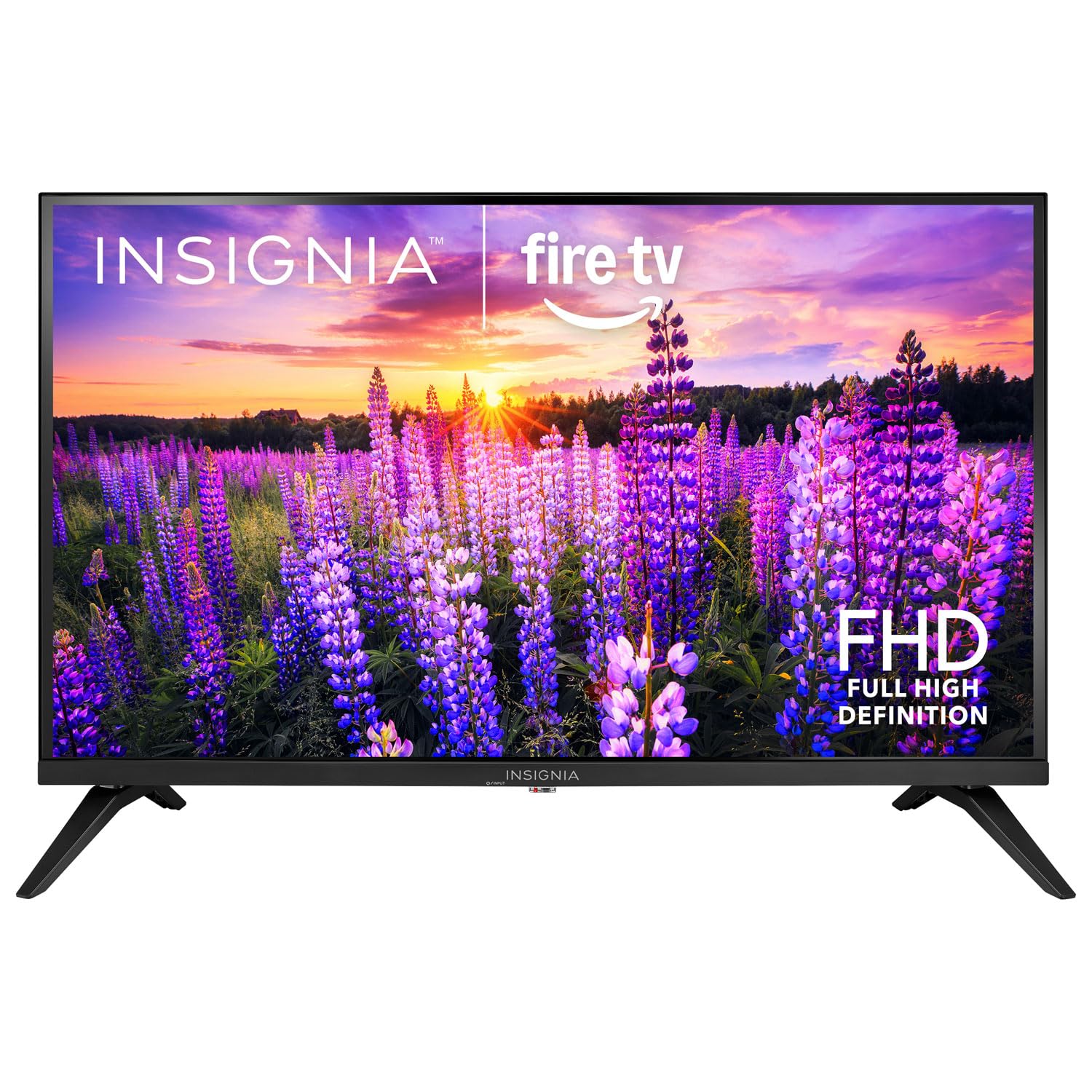
Gambar: Hareupeun view of the Insignia 32-inch Fire TV Smart TV, showing the screen and a remote control.
1. Setélan
1.1 Ngabongkar bungkusan
Cabut TV sareng sadaya asesoris tina bungkusna kalayan ati-ati. Simpen bahan bungkusna kanggo transportasi atanapi panyimpenan engké.
1.2 Ngalampirkeun Stand atawa Pamasangan Tembok
Pikeun Pamasangan Stand:
- Teundeun TV nyanghareup ka handap dina permukaan anu lemes sareng bersih pikeun nyegah karuksakan layar.
- Sejajarkeun dasar penyangga sareng liang sekrup di handapeun TV.
- Ngamankeun nangtung ngagunakeun screws disadiakeun.
Pikeun Wall Mounting:
- This TV supports a VESA Mount Standard of 200 x 200 mm.
- Use a compatible wall mount kit (sold separately) and follow its installation instructions.
- Pastikeun témbok tiasa ngadukung beurat TV sareng gunung.
1.3 Nyambungkeun Daya
Colokkeun kabel daya kana input daya TV, teras colokkeun tungtung anu sanésna kana stop kontak anu tiasa dianggo.
1.4 Nyambungkeun Alat éksternal
Your TV includes multiple ports for external devices:
- HDMI Ports (Total 2): Sambungkeun pamaén Blu-ray, konsol kaulinan, kabel / kotak satelit.
- USB 3.0 Port (Total 1): Sambungkeun alat panyimpenan USB pikeun playback media.
- Antenna/Kabel Input: Sambungkeun anteneu pikeun siaran over-the-air atanapi sambungan kabel.
1.5 Initial Setup (Fire TV OS)
Upon first power-on, the TV will guide you through the Fire TV setup process:
- Pamasangan Remote Control: Insert the included 2 AAA batteries into the remote. Follow on-screen instructions to pair the remote.
- Sambungan jaringan: Pilih jaringan Wi-Fi anjeun sareng lebetkeun kecap akses.
- Akun Amazon: Log in with your Amazon account or create a new one.
- Scan Channel: If using an antenna, the TV will scan for available channels.
- Apdet parangkat lunak: The TV may download and install the latest software updates.
2. Ngoperasikeun TV Anjeun
2.1 Daya Hurung/Pareuman
Pencét éta Kakuatan tombol dina kadali jauh pikeun ngahurungkeun TV atawa mareuman.
2.2 Napigasi Interface TV Seuneu
Paké Pad arah na Pilih button on your remote to browse the Fire TV home screen, access apps, and navigate menus.
2.3 Ngagunakeun Alexa Sora Jauh
Pencét jeung tahan tombol Alexa button on your remote and speak into the microphone to:
- Milarian pikeun pilem sarta acara TV.
- Launch applications (e.g., "Open Netflix").
- Kadalikeun putereun (contona, "Pause", "Fast forward").
- Ask questions or get information.
2.4 Ngaksés Aplikasi
Popular streaming services like Amazon Prime Video, Netflix, and YouTube are pre-installed. You can download additional apps from the Amazon Appstore.
2.5 Adjusting Picture and Sound Settings
Aksés ka Setélan menu on the Fire TV home screen to adjust:
- Gambar: Brightness, contrast, color, aspect ratio (16:9).
- Sora: Volume, sound mode, DTS Virtual-X settings.
- tampilan: Resolution (1080p), refresh rate (120 Hz).
2.6 Kadali Kolot
The TV includes parental control features. Navigate to the Setélan menu, teras pilih Karesep, teras salajengna Kadali kolot to set restrictions on content, purchases, and app usage. A PIN is required to enable or disable these controls.
3. Pangropéa
3.1 Ngabersihan TV
- layar: Lembut usap layar nganggo lawon anu lemes sareng teu aya serat. Pikeun tanda nekad, rada dampen lawon kalayan cai atawa cleaner layar husus dirancang pikeun TV. Ulah nyemprot cairan langsung kana layar.
- awak: Ngusap pigura TV jeung nangtung ku lawon lemes, garing.
- Sok cabut TV samemeh beberesih.
3.2 Apdet parangkat lunak
Your Fire TV Smart TV automatically checks for and installs software updates when connected to the internet. You can manually check for updates in the Setélan ménu handapeun Fire TV abdi > Ngeunaan > Pariksa Apdet.
3.3 Panggantian Batré Remote Control
When the remote control's performance degrades, replace the two AAA batteries. Ensure correct polarity when inserting new batteries.
4. Cara ngungkulan
| Masalah | Mungkin Cukang lantaranana | Solusi |
|---|---|---|
| Taya kakuatan | ari kakuatan teu disambungkeun; outlet teu jalan. | Ensure power cord is securely plugged into TV and a live outlet. Test outlet with another device. |
| Taya gambar atawa sora | Sumber input salah; alat éksternal pareum atanapi pegat sambungan. | Pencét éta Input button on the remote to select the correct source. Check connections of external devices. Ensure devices are powered on. |
| Kadali jauh teu jalan | batré maot; jauh teu dipasangkeun. | Replace batteries (2 AAA). Re-pair remote by holding the Imah button for 10 seconds near the TV. |
| Masalah sambungan Wi-Fi | sandi salah; masalah router; TV jauh teuing ti router. | Verifikasi kecap akses Wi-Fi. Pareuman heula router sareng modem anjeun. Deukeutkeun TV ka router atanapi anggo extender Wi-Fi. |
| Apps not loading or crashing | Temporary software glitch; insufficient memory. | Restart the TV. Clear app cache (Settings > Applications > Manage Installed Applications). Ensure sufficient storage. |
5. Spésifikasi
| Nomer modél | NS-32F401CA26 |
| Ukuran layar | 32 inci |
| Téknologi tampilan | LCD |
| Resolusi | 1080p (HD lengkep) |
| Refresh Laju | 120 Hz |
| Format HDR Dirojong | HDR10 |
| Rasio Aspék | 16:9 |
| Téhnologi konektipitas | Wifi |
| Palabuhan HDMI | 2 |
| USB 3.0 palabuhan | 1 |
| Dirojong jasa Internét | Amazon Prime Video, Netflix, YouTube, Alexa |
| Pedaran Speaker | DTS Virtual-X virtual surround sound |
| Integrated Surround Sound Format | DTS Virtual-X |
| Métode kontrol | Remote (with Alexa Voice) |
| Batré Diperlukeun | 2 AAA (kaasup) |
| Ukuran produk (D x W x H) | 47.3D x 17.1W x 71.9H Sentimeter |
| VESA Gunung Standar | 200 x 200 mm |
| Fitur tambahan | Kadali kolot |
6. Garansi jeung Rojongan
For warranty information, please refer to the warranty card included with your product or visit the official Insignia support website. For technical assistance, product registration, or service inquiries, please contact Insignia customer support through their official channels.
Note: Specific warranty terms and support contact details may vary by region and are subject to change.