
1. Bubuka
The VSTARCAM CB76-2 Tiny Camera is a compact and portable indoor security camera designed for various monitoring needs. Featuring 2.4GHz WiFi connectivity, a built-in rechargeable battery, IR night vision, and human detection capabilities, it serves as an effective solution for home security, baby monitoring, or pet surveillance. Its 136° wide-angle lens ensures broad coverage, and its small size allows for flexible placement.
2. Produk Langkungview
2.1 Eusi pakét
Pastikeun yén sadaya item aya dina bungkusan:
- VSTARCAM CB76-2 Camera x 1
- Buku Panduan x 1
- Kabel Ngecas x 1
- Pamasangan Bracket x 1
2.2 Komponén kaméra
Familiarize yourself with the camera's physical features.

Image: The VSTARCAM CB76-2 Tiny Camera, showing its compact design and integrated stand.

Image: The VSTARCAM CB76-2 camera connected to a charging cable, illustrating its rechargeable battery feature.
The camera features a lens, microphone, power button, reset button, and a charging port. The included bracket allows for flexible positioning.
3. Setup Guide
3.1 Ngecas Awal
Before first use, fully charge the camera using the provided charging cable and a standard USB power adapter (not included). A full charge ensures optimal performance and battery life.

Image: Visual guide for the initial setup process, including app download, charging, and connection steps.
3.2 Unduh Aplikasi sareng Pendaptaran Akun
- Download the "O-KAM Pro" app from your device's app store (App Store for iOS or Google Play for Android).
- Buka aplikasi teras turutan pitunjuk dina layar pikeun ngadaptarkeun akun énggal atanapi lebet upami anjeun parantos gaduh.
3.3 Nyambungkeun Kaméra ka Wi-Fi
The camera supports 2.4GHz Wi-Fi connections only. Ensure your router is configured for 2.4GHz or has a mixed mode enabled.
- Power on the camera by long-pressing the power button.
- Open the "O-KAM Pro" app and tap the "+" icon to add a new device.
- Select the option to add a camera and follow the prompts. You may be asked to scan a QR code located on the camera body or connect via Bluetooth.
- Enter your 2.4GHz Wi-Fi network name (SSID) and password when prompted.
- Wait for the camera to connect to your Wi-Fi network. The app will indicate a successful connection.

Image: Illustration of the two connection methods: Bluetooth for initial discovery and 2.4GHz WiFi for continuous operation.
If connection fails, ensure your Wi-Fi is 2.4GHz, the password is correct, and the camera is within range of your router. You may need to reset the camera by long-pressing the reset button until the indicator light changes.
3.4 Pamasangan Fleksibel
The compact design and included bracket allow for versatile placement. The camera can be placed on a tabletop, shelf, or mounted to a wall or ceiling using the bracket.

Gambar: Examples of flexible camera placement in various indoor environments like home, office, car, and shop.
4. Parentah Operasi
4.1 Hirup View jeung Rékam
Once connected, open the O-KAM Pro app to access the live video feed from your camera. You can initiate manual recordings or capture screenshots directly from the app interface.

Image: A smartphone screen displaying a 4-screen live view from multiple VSTARCAM cameras within the O-KAM Pro app.
4.2 Deteksi sareng Peringatan Manusa
The camera features AI human detection. When human movement is detected, the camera will automatically record and send real-time alerts to your smartphone via the O-KAM Pro app.

Image: Depiction of the camera detecting a person and sending a real-time alert notification to a smartphone.
You can customize detection sensitivity and set specific activity zones within the app to reduce false alarms.

Image: An illustration showing how to define a customizable activity zone within the camera's field of view ngagunakeun aplikasi.
4.3 IR Visi Peuting
The camera is equipped with infrared (IR) night vision, allowing it to capture clear images and videos in low-light conditions or complete darkness.
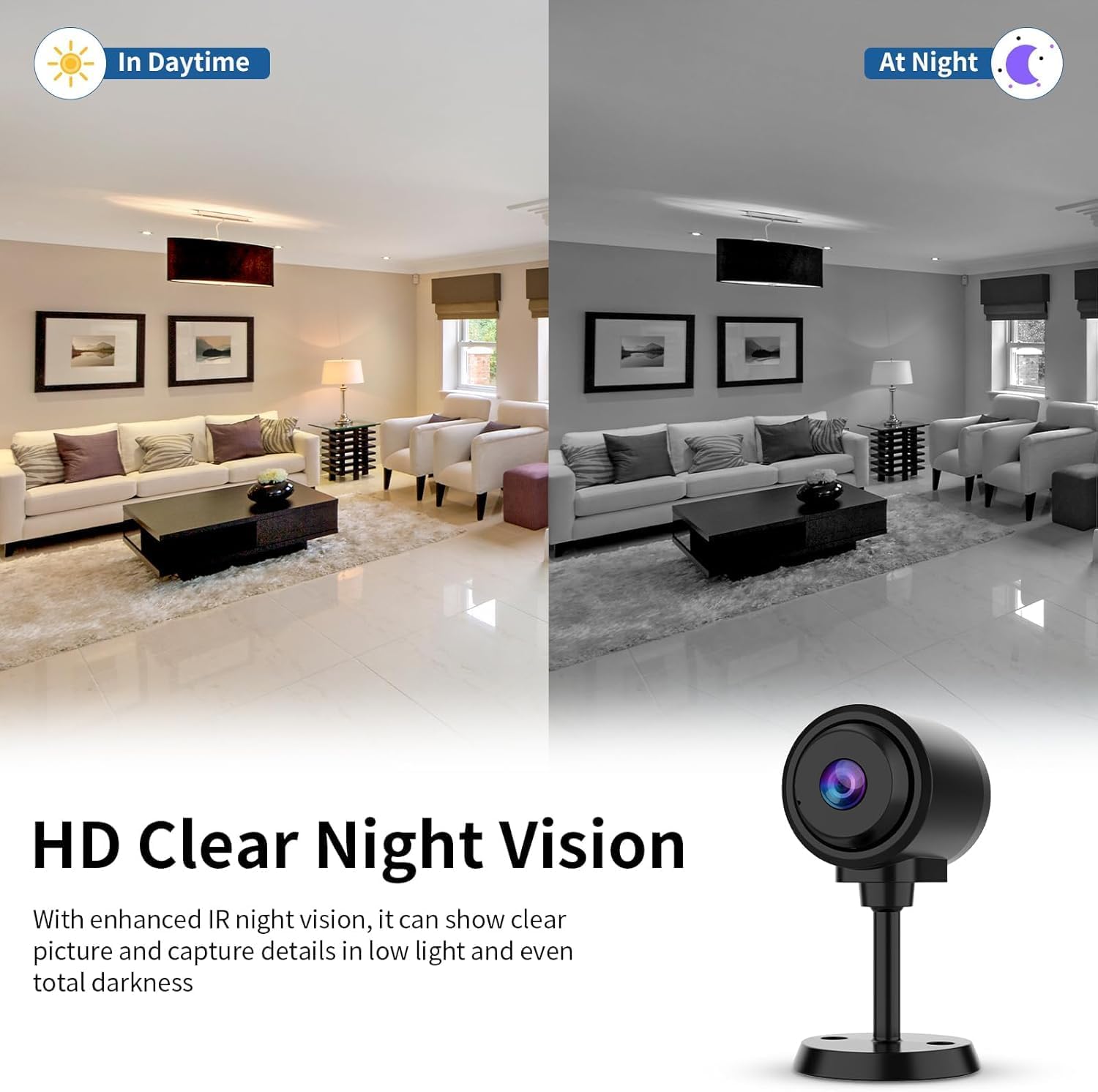
Image: Comparison of daytime and nighttime views, demonstrating the camera's clear night vision capabilities.
4.4 Wide-Angle View
The 136° wide-angle lens provides extensive coverage, minimizing blind spots and allowing you to monitor a larger area with a single camera.

Image: A visual representation of the camera's 136-degree wide-angle field of view in a living room setting.
4.5 Pemantauan Audio
With a built-in high-fidelity microphone and advanced noise reduction, the camera allows for clear audio pickup. You can hear sounds from the camera's environment through the app.

Image: An illustration showing the camera's sound pickup capability with noise reduction, indicating clear audio capture.
4.6 Pilihan Panyimpenan
Kaméra ngadukung dua metode panyimpenan pikeun rékamantage:
- Panyimpenan Lokal: Insert a TF card (up to 256GB, not included) into the camera's slot for continuous or event-based recording.
- Panyimpenan awan: Subscribe to the cloud storage service via the O-KAM Pro app for secure, remote access to your recordings. A free trial may be available.

Image: Visual representation of the camera's flexible storage options, including TF card and cloud storage.
4.7 Multi-User Viewing jeung Sharing
The O-KAM Pro app allows multiple users to view the camera feed simultaneously on various devices (Android, iOS, Windows). You can share access with family and friends through the app's sharing features.

Image: Depicts multiple users viewing the camera feed on different devices, highlighting the multi-user and sharing capabilities.

Image: Shows various devices (laptop, smartphone) displaying the camera feed, emphasizing remote monitoring and sharing with multiple users.
5. Pangropéa
5.1 beberesih
To maintain optimal image quality, regularly clean the camera lens with a soft, dry, lint-free cloth. Avoid using harsh chemicals or abrasive materials that could scratch the lens or camera body.
5.2 Perawatan Batré
- For stable and long-lasting monitoring, it is recommended to use the camera connected to a power source via the charging cable, especially for continuous operation.
- If operating on battery, recharge the camera promptly when the battery low indicator appears in the app.
- Avoid exposing the camera to extreme temperatures, which can affect battery life and performance.
5.3 Panempatan optimal
Place the camera in an area with good Wi-Fi signal strength to ensure stable connectivity. Avoid placing it near large metal objects or other devices that may cause interference.
6. Cara ngungkulan
6.1 Kaméra Teu Nyambung ka Wi-Fi
- Check Wi-Fi Band: Pastikeun jaringan Wi-Fi anjeun 2.4GHz. Kaméra henteu ngadukung Wi-Fi 5GHz.
- Sandi Wi-Fi: Double-check that the Wi-Fi password entered in the app is correct.
- Kakuatan sinyal: Pindahkeun kaméra langkung caket kana router Wi-Fi anjeun pikeun ningkatkeun kakuatan sinyal.
- Reset kaméra: Long-press the reset button on the camera until the indicator light changes, then attempt the connection process again.
- Setélan Router: Balikan deui router Wi-Fi anjeun.
6.2 Poor Image Quality / Night Vision Issues
- Lensa bersih: Gently clean the camera lens with a soft cloth.
- Pencahayaan: Pastikeun teu aya halangan anu ngahalangan kaméra view or the IR lights during night vision mode.
- Setélan Resolusi: Check the video resolution settings in the O-KAM Pro app to ensure it's set to HD.
6.3 Batré Drains Gancang
- Daya kontinyu: For extended use, connect the camera to a continuous power source.
- Frequent Activity: High frequency of motion detection events and recordings will consume more battery. Adjust detection sensitivity or schedule recording times.
- Sinyal Wi-Fi: A weak Wi-Fi signal can cause the camera to work harder, leading to faster battery drain.
- Suhu: Extreme cold or heat can reduce battery efficiency.
6.4 No Motion Detection Alerts
- Bewara Aplikasi: Ensure notifications are enabled for the O-KAM Pro app in your phone's settings.
- Setélan deteksi: Verify that human detection is enabled and sensitivity is appropriately set within the app.
- Zona Kagiatan: Check if activity zones are correctly configured and not excluding the areas you wish to monitor.
- Jadwal Ngarekam: Confirm that the recording schedule in the app is active during the desired monitoring times.
7. Spésifikasi
| Ngaran modél | CB76-2 |
| Pamakéan jero rohangan / outdoor | jero rohangan |
| Téhnologi konektipitas | Nirkabel (Wi-Fi 2.4GHz) |
| Sumber Daya | Listrik Kabel (Batré anu Tiasa Dicas Ulang) |
| Resolusi Capture Video | 1296 p |
| Viewdina Angle | 136 darajat |
| Tipe Controller | IOS, Android, MAC, PC (via O-KAM Pro App) |
| Tipe Pamasangan | Tabletop Mount, Freestanding |
| Tipe Siaga | Motion Only (Human Detection) |
| Pilihan Panyimpenan | Kartu TF (dugi ka 256GB), Panyimpenan Awan |
| Ukuran barang (L x W x H) | 1.68 x 1.38 x 1.4 inci |
| Item Beurat | 4.6 ons |
| Bahan | palastik |
8. Garansi jeung Rojongan
8.1 Émbaran jaminan
VSTARCAM products are covered by a limited warranty. Please refer to the warranty card included in your package or visit the official VSTARCAM websitus pikeun istilah jeung kaayaan jaminan lengkep. Simpen resi pameseran anjeun salaku bukti pameseran pikeun klaim garansi.
8.2 Rojongan Palanggan
For technical assistance, troubleshooting, or any questions regarding your VSTARCAM CB76-2 camera, please contact VSTARCAM customer support. Contact information can typically be found on the official VSTARCAM website or within the O-KAM Pro app's help section.
Sumberdaya Online:
- Official VSTARCAM Websitus: www.vstarcam.com (Catetan: Ieu placeholder a URL, mangga tingal dokuméntasi produk anu saleresna kanggo anu leres URL)
- O-KAM Pro App: Check the 'Help' or 'FAQ' section within the app.