
1. Bubuka
This manual provides detailed instructions for the setup, operation, maintenance, and troubleshooting of your ATTACK SHARK G3PRO Wireless Gaming Mouse. Please read this manual thoroughly to ensure proper use and to maximize your gaming experience.

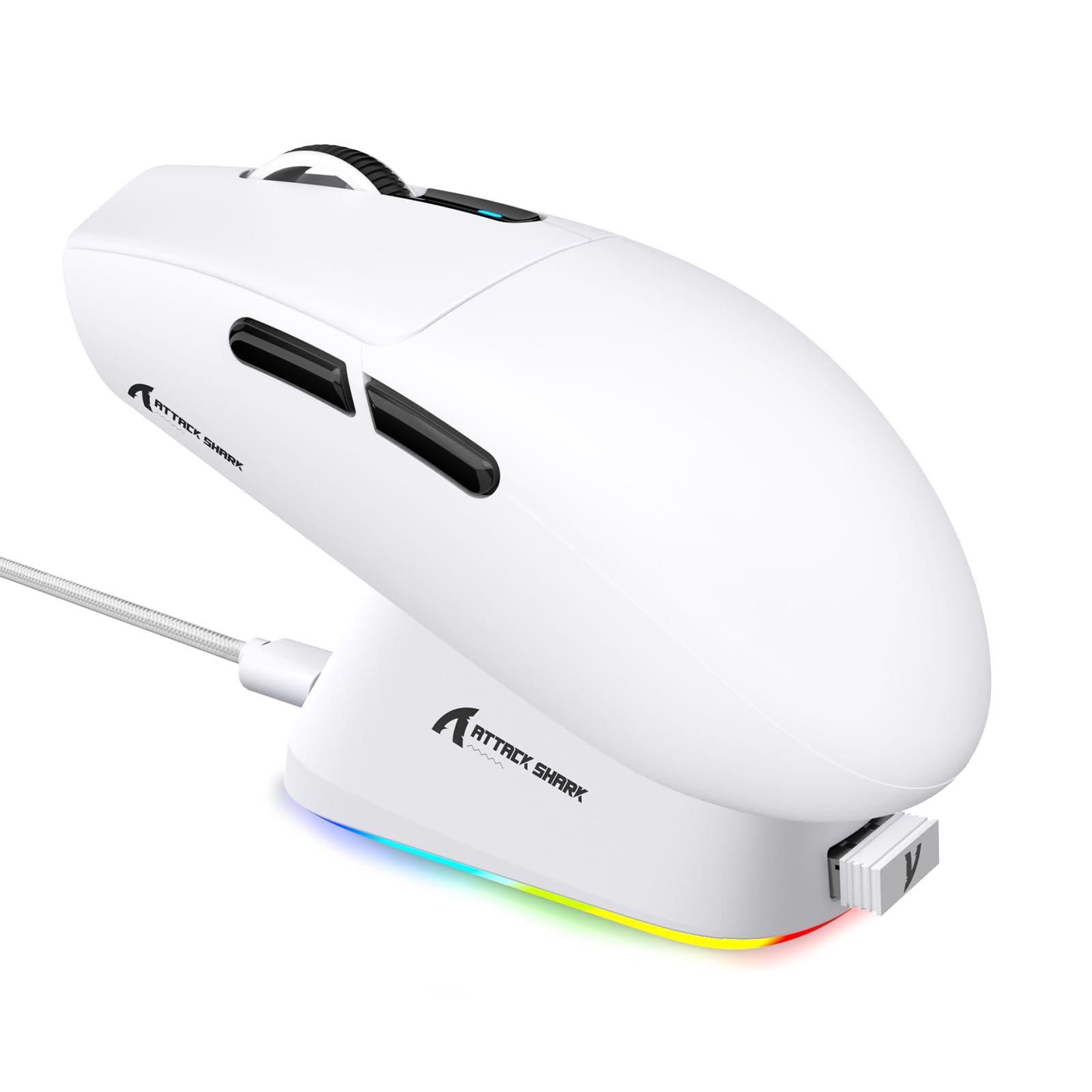
Gambar: Hiji leuwihview of the ATTACK SHARK G3PRO mouse and its features, including magnetic fast charging, PAW3311 sensor, web cloud drive, RGB rapid charging dock, and lightweight design.
2. Eusi Paket
Pastikeun yén sadaya item aya dina pakét anjeun:
- ATTACK SHARK G3PRO Wireless Gaming Mouse
- RGB Magnetic Charging Dock
- 2.4G USB panarima
- USB-C ka USB-A Ngecas / Kabel Data
- Manual pamaké
3. Setélan
3.1 Ngecas Awal
Before first use, it is recommended to fully charge the mouse. Connect the USB-C cable to the charging dock and a power source. Place the mouse onto the magnetic charging dock. The RGB lighting on the dock will indicate charging status.
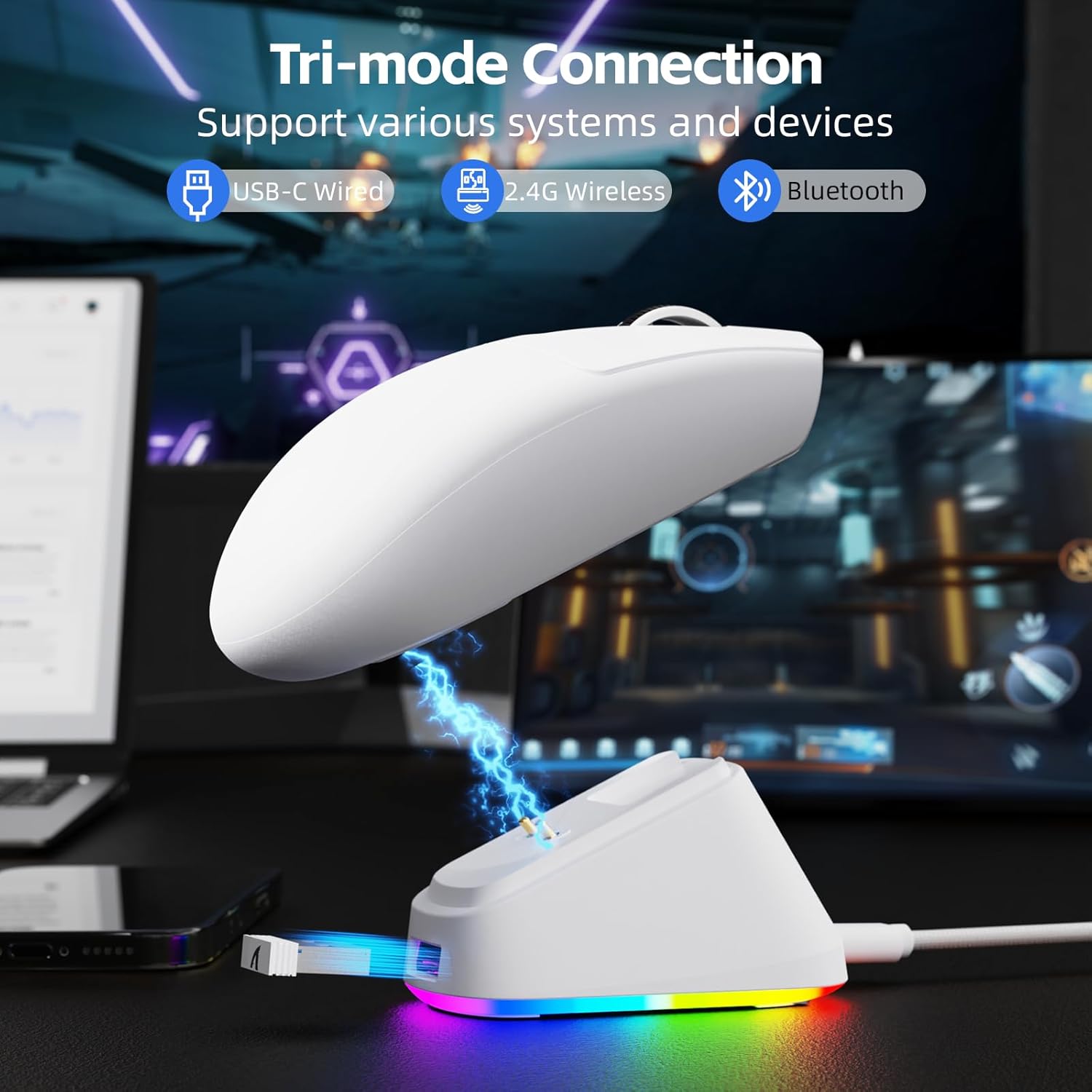
Image: The ATTACK SHARK G3PRO mouse magnetically attached to its RGB charging dock, showing the charging thimbles and USB-C port.
For a visual guide on charging, please watch the following video:
Video: This video demonstrates the magnetic charging dock and its features for the ATTACK SHARK G3PRO Wireless Gaming Mouse.
3.2 Nyambungkeun Mouse
The G3PRO supports three connection modes: 2.4GHz Wireless, Bluetooth, and USB-C Wired. A switch on the bottom of the mouse allows you to select the desired mode.

Image: The ATTACK SHARK G3PRO mouse with visual indicators for Wired, 2.4G, and Bluetooth connectivity modes.
Mode Wireless 2.4GHz:
- Locate the 2.4G USB receiver, typically stored within the charging dock or the mouse itself.
- Colokkeun panarima USB ka port USB nu sadia dina komputer Anjeun.
- Set the switch on the bottom of the mouse to "2.4G".
- Mouse kedahna nyambung sacara otomatis.
Mode Bluetooth:
- Set the switch on the bottom of the mouse to "BT".
- Dina komputer atanapi alat anjeun, buka setélan Bluetooth teras aktipkeun Bluetooth.
- Milarian pikeun new devices and select "ATTACK SHARK G3PRO" to pair.
Modeu Kabel USB-C:
- Sambungkeun kabel USB-C langsung tina beurit ka komputer anjeun.
- Beurit bakal fungsina salaku beurit kabel sareng ngecas sakaligus.
For a visual guide on product features and connectivity, please watch the following video:
Video: This video demonstrates the various color options and the magnetic charging feature of the ATTACK SHARK G3PRO Wireless Gaming Mouse, showcasing desain sareng fungsionalitasna.
4. Ngoperasikeun Mouse
4.1 Fungsi Tombol
The ATTACK SHARK G3PRO features 5 programmable buttons:
- Klik Kénca: Peta primér.
- Klik katuhu: Menu tindakan/kontéks sekundér.
- Pencét Tengah/Gulung Roda: Scroll up/down, middle click for universal scroll or other functions.
- Tombol Maju: Default for navigating forward in web browsers/folders.
- Tombol Mundur: Default for navigating backward in web browsers/folders.
- Saklar DPI: Ngaliwatan tingkat DPI anu tos disetel.

Image: A detailed diagram illustrating the location and default functions of the multi-functional buttons on the ATTACK SHARK G3PRO mouse.

Gambar: Hiji ngabeledug view and labeled diagram of the G3PRO mouse components, including buttons, switches, charging points, and the 2.4G/OFF/BT mode switch.
4.2 DPI adjustment
The mouse features a dedicated DPI switch to cycle through various sensitivity levels, ranging from 800 to 25,000 DPI. The current DPI setting is indicated by an LED light.

Image: A visual representation of the 25,000 DPI optical sensor's precision and how mouse movement trajectory sensitivity scales with DPI settings.
4.3 Laju Polling
The G3PRO supports a 1000Hz polling rate in both wired and 2.4GHz wireless modes, ensuring rapid response times for competitive gaming.

Image: A diagram illustrating the 1000Hz polling rate capability in both wired and wireless modes, highlighting millisecond response times.
5. Parangkat Lunak sareng Kustomisasi
Customize your G3PRO mouse settings using the intuitive web driver or downloadable software from ATTACK SHARK. This allows for personalization of DPI, polling rate, macros, and more.
- Web Supir: Aksés ka web-based configuration tool for quick adjustments without installation.
- Downloadable Software: For advanced customization and profile management, download the dedicated software.

Image: A screenshot of the ATTACK SHARK Hub software interface, showing options for mouse settings, DPI settings, parameter settings, macro editing, and personal center.

Image: The cloud-driven programming interface for the G3PRO mouse, displaying options for button settings, DPI adjustments, polling rate settings, and power management.
6. Pangropéa
6.1 beberesih
Pikeun ngajaga kinerja optimal, rutin ngabersihan beurit anjeun. Paké kaen lemes, garing pikeun ngusap beungeut cai. Pikeun kokotor nekad, a rada damp lawon bisa dipaké, pikeun mastikeun teu aya Uap anu asup kana komponén internal. Hindarkeun bahan kimia anu kasar atanapi bahan anu abrasif.
6.2 Panyimpenan
When not in use for extended periods, store the mouse and charging dock in a cool, dry place. Ensure the USB receiver is securely stored, ideally within the charging dock's designated slot, to prevent loss.
7. Cara ngungkulan
| Masalah | Mungkin Cukang lantaranana | Solusi |
|---|---|---|
| Mouse not responding (2.4G) | Low battery; Receiver not plugged in; Incorrect mode selected; Driver issue. | Charge the mouse; Ensure receiver is firmly plugged in; Set mouse to "2.4G" mode; Reinstall mouse drivers. |
| Beurit teu ngaréspon (Bluetooth) | Low battery; Bluetooth not enabled on device; Not paired; Incorrect mode selected. | Charge the mouse; Enable Bluetooth on your device; Re-pair the mouse in Bluetooth settings; Set mouse to "BT" mode. |
| Charging dock RGB not lighting up | Cable not connected; Power source issue. | Ensure USB-C cable is securely connected to dock and power source; Try a different USB port or power adapter. |
| Pelacakan anu teu konsisten | Dirty sensor; Uneven surface; Interference (wireless). | Clean the optical sensor; Use a clean, even mouse pad; Reduce wireless interference by moving other devices or using wired mode. |
| Tombol teu ngabales | Konflik parangkat lunak; Karusakan fisik. | Check software settings for button remapping; Test on another computer; Contact support if physical damage is suspected. |
8. Spésifikasi
| Fitur | Rincian |
|---|---|
| merek | SERANG HIU |
| Modél | G3PRO |
| Warna | Bodas |
| Téhnologi konektipitas | 2.4Ghz Wireless, Bluetooth, Kabel USB-C |
| Téhnologi Deteksi Gerakan | Optik (Sénsor PAW3311) |
| Max DPI | 25,000 DPI |
| Laju Polling | 1000Hz |
| Akselerasi | 40G |
| Laju nyukcruk | 400 IPS |
| Saklar | Mechanical (100 Million Clicks) |
| Kapasitas batré | 500 mah |
| Kahirupan batré | Nepi ka 200 jam |
| Beurat | 59g ± 3g |
| Kancing | 5 |
| Orientasi leungeun | Ambidextrous |
| Alat nu cocog | Laptop, Komputer Pribadi, Smartphone, Tablet |
| Sistem operasi | Windows, macOS |
For a comparison of G3 and G3PRO models, refer to the image below:

Image: A table comparing the specifications of the ATTACK SHARK G3 and G3PRO models, highlighting differences in components and features.
9. Émbaran Kasalametan
- Ulah ngalaan alat ka suhu ekstrim atawa kalembaban.
- Hindarkeun ragrag atanapi ngagentoskeun alat kana tabrakan anu kuat.
- Jauhkeun tina jangkauan barudak.
- Entong nyobian ngabongkar atanapi ngarobih alat, sabab ieu bakal ngabatalkeun garansi sareng tiasa nyababkeun karusakan.
- Use only the provided charging cable and dock.
10. Garansi jeung Rojongan
The ATTACK SHARK G3PRO Wireless Gaming Mouse comes with a standard manufacturer's warranty. For detailed warranty information, please refer to the warranty card included in your package or visit the official ATTACK SHARK websitus.
For technical support, troubleshooting assistance, or to inquire about replacement parts, please contact ATTACK SHARK customer service through their official websitus atanapi inpormasi kontak anu disayogikeun dina bungkusan produk anjeun.
Resmi Websitus: Toko ATTACK SHARK di Amazon