
1. Bubuka
The ATTACK SHARK X820 Ultra is a high-performance 75% wireless mechanical gaming keyboard designed for versatility and customization. It features tri-mode connectivity (Bluetooth, 2.4GHz wireless, and wired USB-C), hot-swappable switches, dynamic RGB backlighting, and a smart TFT display with a multi-function knob. This manual provides detailed instructions for setting up, operating, maintaining, and troubleshooting your keyboard.
2. Eusi Paket
Punten parios yén sadaya barang aya dina pakét anjeun:
- ATTACK SHARK X820 Ultra Keyboard
- Kabel USB-C
- Penarik Keycap/Saklar 2-in-1
- Saklar Cadangan (2)
- Manual pamaké
- 2.4GHz Wireless Panarima
- ATTACK SHARK Mascot Stickers (2)

Image: Contents of the ATTACK SHARK X820 Ultra keyboard package.
3. Setélan
3.1 Ngecas Awal
Before first use, connect the keyboard to a USB power source using the provided USB-C cable to ensure it is fully charged. The 4000mAh battery provides extended usage time.
3.2 Modeu Konéktipitas
The X820 Ultra supports three connection modes: 2.4GHz wireless, Bluetooth 5.1, and wired USB-C. A switch on the back of the keyboard allows you to select the desired mode.
- 2.4GHz Wireless: Insert the 2.4GHz wireless receiver into an available USB port on your computer. Switch the keyboard to 2.4G mode. The keyboard should connect automatically.
- Bluetooth: Switch the keyboard to BT mode. On your device (computer, tablet, or smartphone), search for Bluetooth devices and select 'X820Ultra' to pair. The keyboard supports connecting to multiple Bluetooth devices.
- USB-C kabel: Connect the keyboard directly to your computer using the USB-C cable. This mode also charges the keyboard.
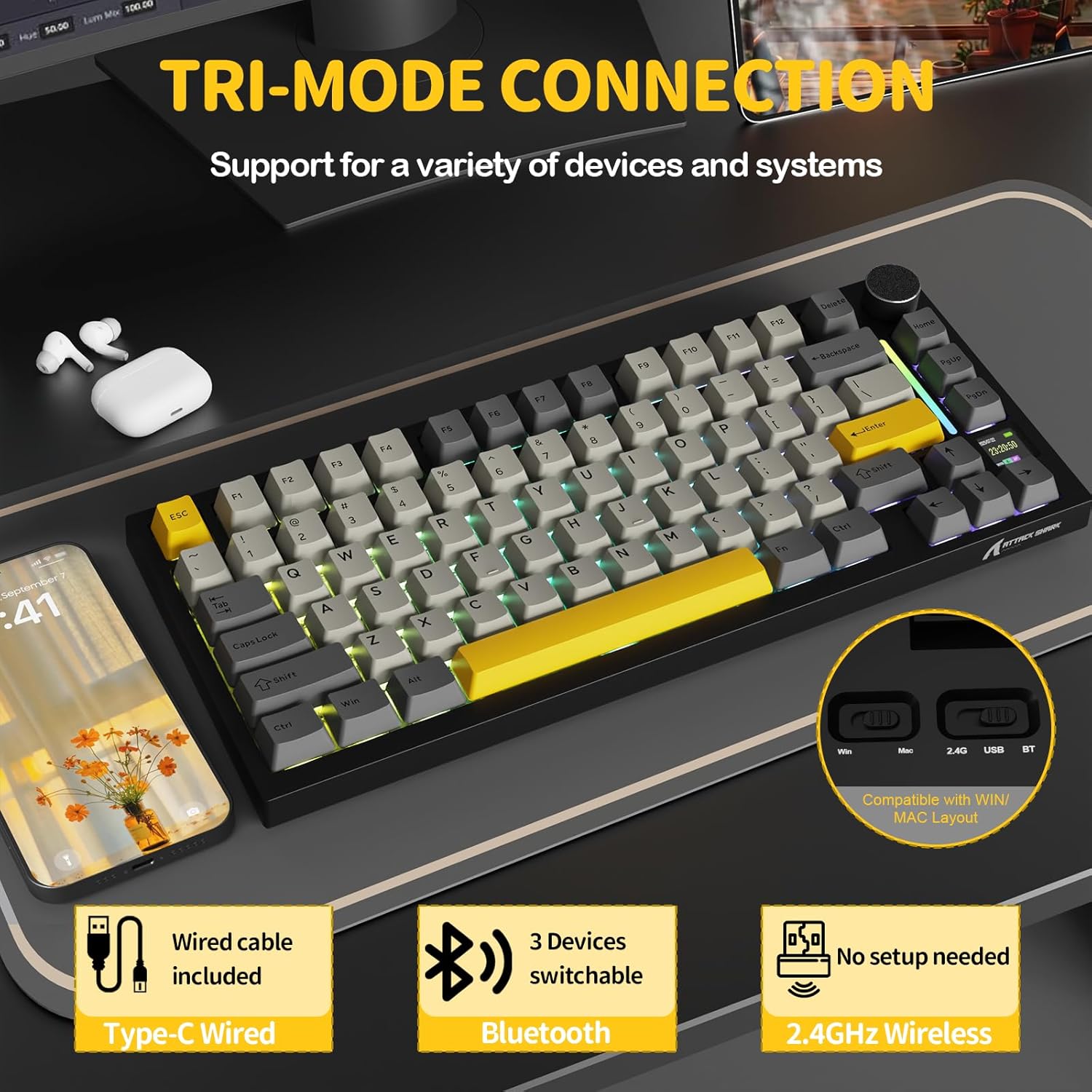
Image: Tri-mode connectivity options for the X820 Ultra keyboard.
3.3 Kasaluyuan System Operasi
The keyboard supports both Windows and macOS. Use the dedicated switch on the back of the keyboard to toggle between Win and Mac layouts for optimal functionality.
4. Operasi
4.1 Smart TFT Display & Multi-Function Knob
The X820 Ultra features a smart TFT display and a metal control knob for intuitive control and real-time information. The display can show RGB settings, OS modes, battery status, date, and connection status.
- Kontrol volume: Press the Fn key + rotate the knob to adjust volume up or down.
- Napigasi Menu: Rotate the knob to select menu items on the TFT screen. Short press the knob to confirm selections.
- Pariksa batré: Long press the Fn key + Backspace to check the battery level on the TFT display.
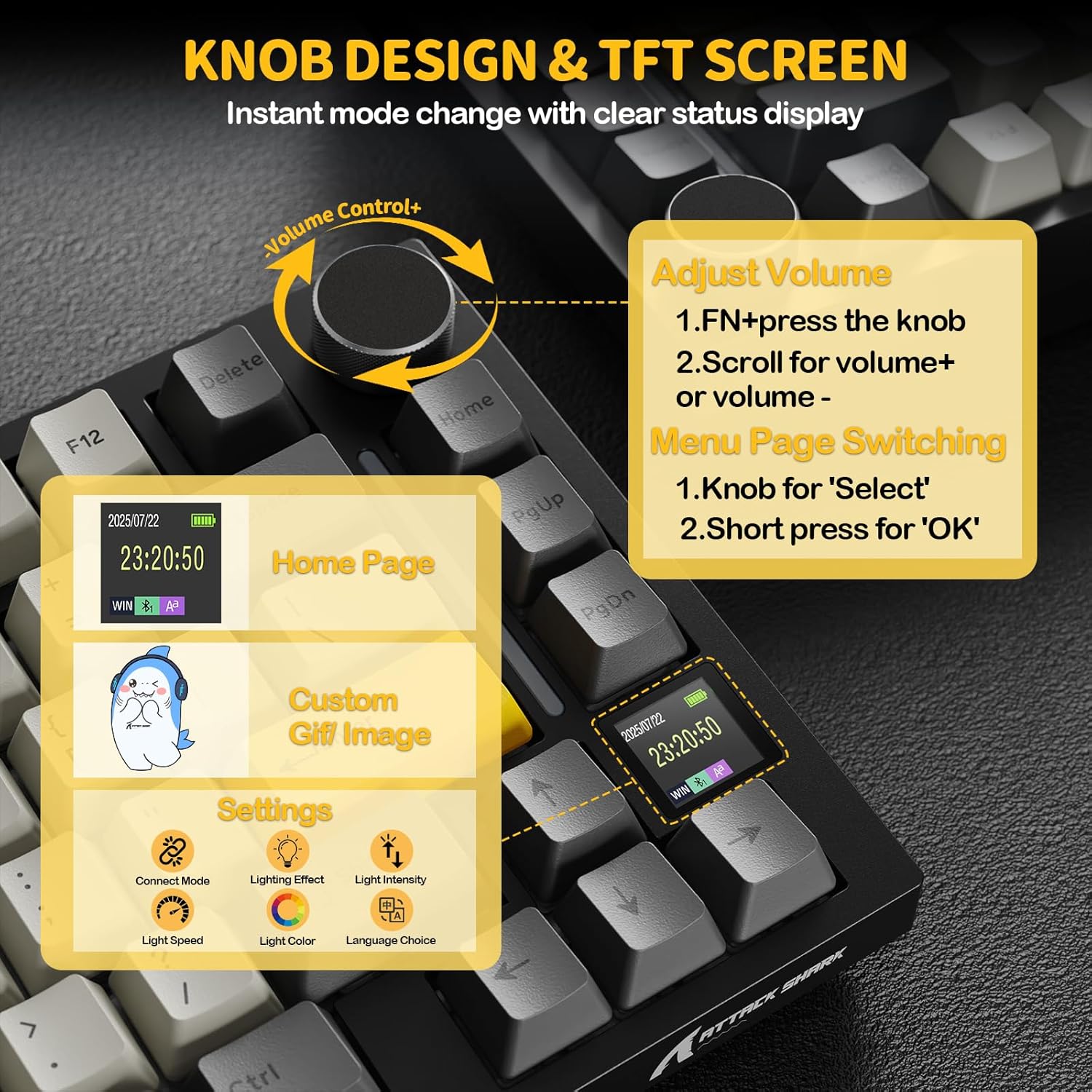
Image: Smart TFT display and multi-function knob controls.
4.2 Lampu RGB Dinamis
Personalize your typing experience with 16.8 million colors and over 19 lighting presets. The south-facing LEDs ensure vibrant and even backlighting.
- Turn On/Off RGB: Press Fn + \| key.
- Robah Warna: Press Fn + Enter key.
- Custom Light Effect: Press Fn + ]} key.
- Adjust effects and brightness via the knob or the web supir.
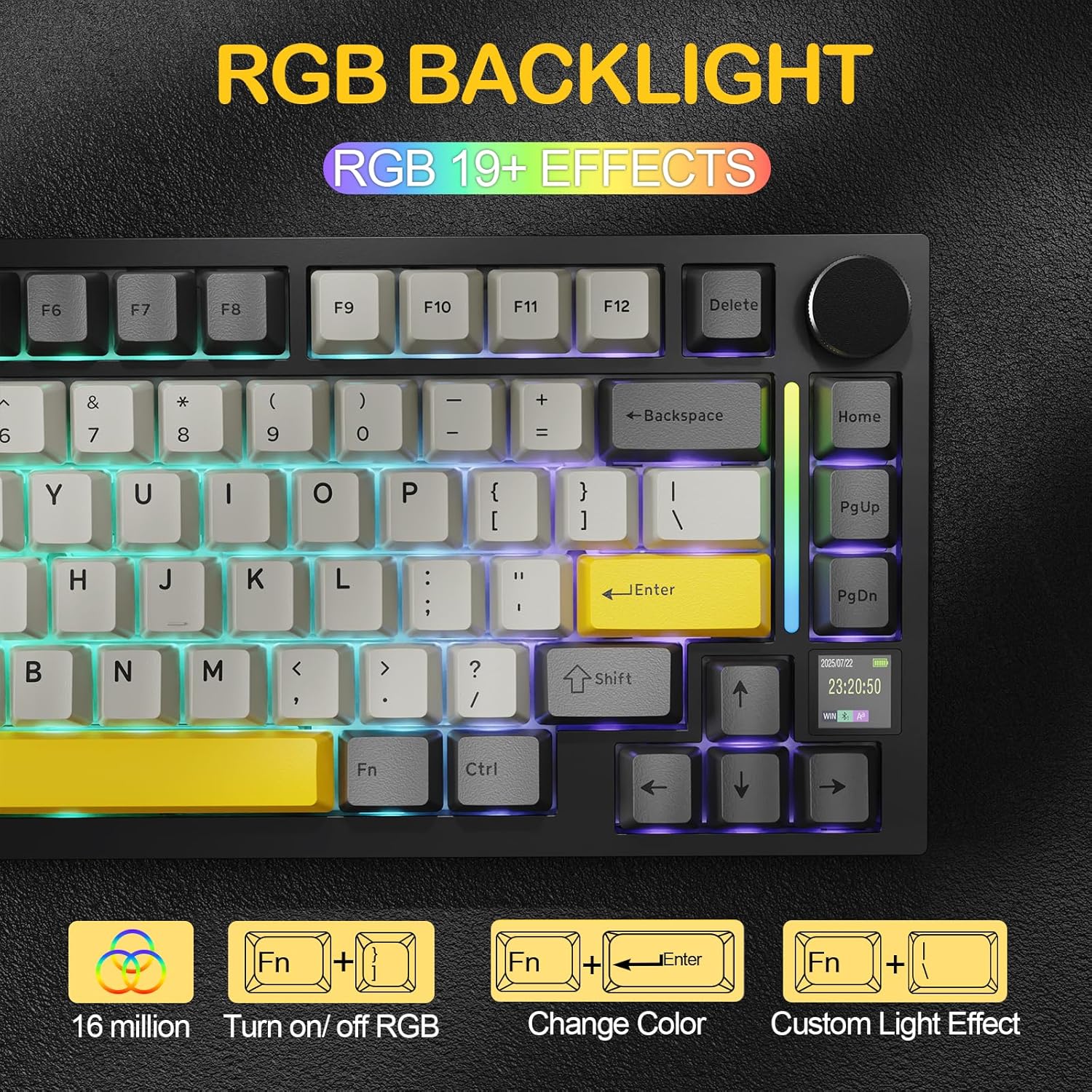
Image: RGB backlight features and controls.
4.3 Panas-Swappable switch
The keyboard is equipped with hot-swappable sockets, allowing you to easily change switches without soldering. It supports both 3-pin and 5-pin mechanical switches.
- Shark Switch: Linear, 42g actuation, 48g bottom-out, 2.0mm pre-travel. Offers a lighter, more responsive typing experience.
- Gift Switch: Linear, 45g actuation, 60g bottom-out, 2.0mm pre-travel. Provides balanced tactile feedback with a deeper sound.

Image: Hot-swappable PCB and switch types.
4.4 Web Driver (QMK Support)
Customize your keyboard settings, macros, lighting, and key remapping directly through your browser using the cloud driver. Full QMK web driver support is available at qmk.top for advanced customization.
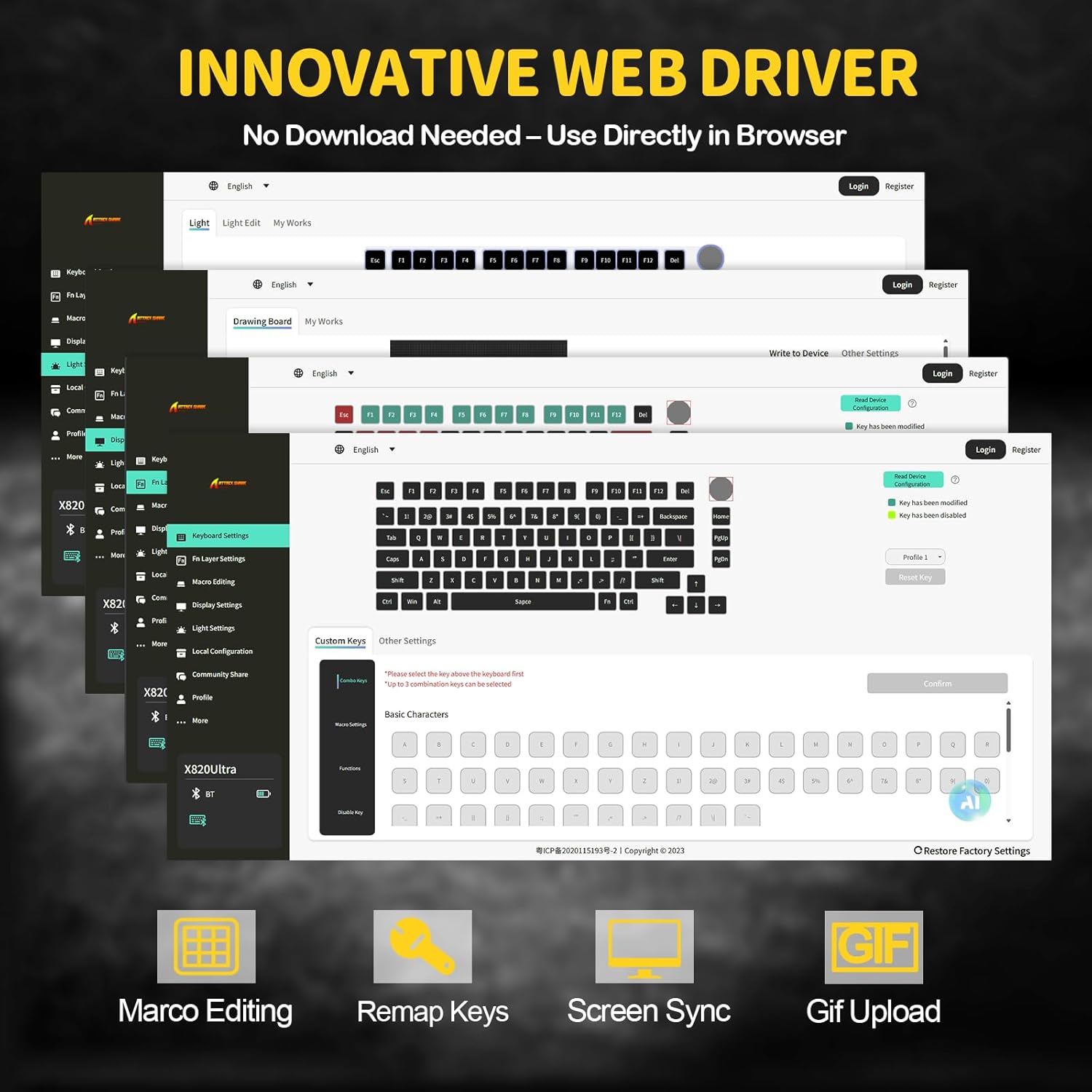
Image: Innovative web driver interface for customization.
5. Pangropéa
5.1 Ngabersihan kibor
To maintain optimal performance and appearance, regularly clean your keyboard. Use a soft, dry cloth to wipe down the keycaps and chassis. For deeper cleaning, use the provided keycap puller to remove keycaps and clean underneath with compressed air or a small brush. Avoid using harsh chemicals or abrasive materials.
5.2 Ngaganti Saklar
Thanks to the hot-swappable design, you can easily replace individual switches. Use the provided switch puller to gently remove a switch. Align the pins of the new switch with the holes on the PCB and press down firmly until it clicks into place. Ensure the pins are not bent during insertion.
5.3 Perawatan Batré
To prolong the life of the 4000mAh battery, avoid fully discharging it frequently. Charge the keyboard when the battery indicator on the TFT display shows low power. If storing the keyboard for an extended period, charge it to approximately 50% and store it in a cool, dry place.
6. Cara ngungkulan
6.1 Masalah konektipitas
- 2.4GHz/Bluetooth Not Connecting: Ensure the mode switch on the back of the keyboard is set correctly (2.4G or BT). For Bluetooth, ensure your device's Bluetooth is enabled and the keyboard is in pairing mode. Try restarting both the keyboard and your device.
- Sambungan Intermittent: Ensure the keyboard is within range of the receiver/device. Avoid obstructions that may interfere with the wireless signal. Check for other wireless devices causing interference.
- Wired Connection Not Recognized: Try a different USB-C cable or USB port on your computer. Ensure the cable is securely connected at both ends.
6.2 RGB Lighting Problems
- Lampu teu jalan: Ensure RGB is turned on (Fn + \|). Check brightness settings via the knob or web supir.
- Warna/Efek Anu Salah: Reset lighting effects through the web driver or cycle through presets using keyboard shortcuts.
6.3 Key Not Responding
- Single Key Failure: Due to the hot-swappable design, a switch might be improperly seated or faulty. Use the switch puller to remove and re-insert the switch. If the issue persists, try replacing it with one of the spare switches.
- Multiple Keys Not Responding: Ensure the keyboard is charged and properly connected. Try resetting the keyboard (refer to the web driver or manufacturer's support for specific reset instructions).
6.4 TFT Display Issues
- Display Blank/Frozen: Try restarting the keyboard. If the issue persists, check for firmware updates via the web supir.
- Incorrect Information: Ensure the keyboard's internal clock is synchronized if applicable, or check connection status.
7. Spésifikasi
| Fitur | Rincian |
|---|---|
| merek | SERANG HIU |
| Ngaran modél | ATTACK SHARK X820Ultra |
| Katerangan kibor | Mékanis |
| Tata perenah | 75% (81 konci) |
| Konektipitas | Bluetooth 5.1, Nirkabel 2.4GHz, Kabel USB-C |
| Saklar | Hot-Swappable (3/5-pin compatible), Linear (Shark Switch, Gift Switch options) |
| Lampu tukang | RGB (16.8M colors, 19+ presets), South-Facing LEDs |
| tampilan | Smart TFT Display |
| Kontrol Knob | Multi-function CNC Metal Knob |
| Kapasitas batré | 4000 mah |
| Kancing konci | Ganda-shot PBT |
| Struktur | Gasket Mount with Advanced Acoustic Tuning |
| Kasaluyuan | Windows, macOS (QMK web driver support) |
8. Video Produk Resmi
Pidéo: Pajabat parantos réngséview of the ATTACK SHARK X820 Ultra Wireless Gaming Mechanical Keyboard, demonstrating its features and functionality.
9. Garansi jeung Rojongan
For warranty information, technical support, and additional resources, please visit the official ATTACK SHARK website or contact their customer service. Details can typically be found on the product packaging or the brand's online presence.