
MUBVIEW Bel J7
MUBVIEW Kaméra Bel Panto Vidéo Nirkabel Bell J7 2K nganggo Chime, Buku Panduan Pangguna
Model: Bell J7
1. Bubuka
This manual provides detailed instructions for the installation, operation, and maintenance of your MUBVIEW Bell J7 2K Wireless Video Doorbell Camera with Chime. Please read this manual thoroughly before using the product to ensure proper function and safety. This device is designed to enhance your home security with advanced features like 2K video, motion detection, and two-way audio.
2. Naon dina Box
Pariksa yén sadaya komponén aya sateuacan neraskeun pamasangan:
- Camera Doorbell x1
- Chime x1
- Buku Panduan x1
- Ngecas Kabel x1
- Batré x3
- Other Accessories (screws, anchors, screwdriver)

Image: Contents of the MUBVIEW Bell J7 package, including the doorbell, chime, and installation tools.
3. Produk Langkungview
Familiarize yourself with the main parts of your video doorbell and chime:
Kaméra bel panto
- 2K Camera Lens: Ngarekam pidéo résolusi luhur.
- Sensor Gerak Pir: Ngadeteksi gerakan manusa.
- Mikropon: Pikeun komunikasi audio dua arah.
- Speaker: Pikeun komunikasi audio dua arah sareng sirene.
- Tombol Bél: Activates the chime and sends notifications.
- Micro USB-C Port: Pikeun ngecas batré internal.
- Tombol Reset: Pikeun ngareset alat.
- Slot Kartu SD Mikro: For local video storage (up to 128GB, card not included).
- Anti-Theft Button: Triggers an alarm if the doorbell is removed from its mount.
Lonceng nirkabel
- Speaker: Emits doorbell sound.
- Kontrol volume: Adjusts chime volume.
- Pamilih nada: Changes chime melody.
- Sumber Daya: Batré-Powered pikeun panempatan fléksibel.

Gambar: Hareupeun view of the MUBVIEW Bell J7 doorbell and chime.
4. Setélan
Follow these steps to set up your MUBVIEW Bell J7 doorbell camera:
4.1 Ngecas Bel Panto
- Before first use, fully charge the doorbell camera using the provided USB charging cable.
- The charging port is located on the side of the doorbell, protected by a rubber flap.
- Ngecas pinuh tiasa tahan dugi ka 180 dinten, gumantung kana panggunaan.
4.2 Pamasangan Aplikasi sareng Sambungan Wi-Fi
- Unduh CloudEdge or MUBVIEW app from your smartphone's app store (Apple App Store or Google Play Store).
- Ngadaptarkeun akun atanapi log in upami anjeun parantos gaduh.
- Pastikeun smartphone Anjeun disambungkeun ka a Jaringan Wi-Fi 2.4GHz. The doorbell is not compatible with 5GHz Wi-Fi.
- In the app, select "Add Device" and choose "Smart Video Doorbell".
- Follow the on-screen prompts to connect the doorbell to your Wi-Fi network. This typically involves scanning a QR code displayed on your phone with the doorbell camera.
- Once connected, you can name your device and complete the setup.
4.3 Masang Bel Panto
The doorbell can be mounted using screws or strong adhesive tape (not included for all mounting types).
- Attach the mounting bracket to your desired location on the wall or door frame. Ensure it is at an appropriate height for optimal viewing.
- Secure the bracket using the provided screws and anchors.
- Slide the doorbell camera into the mounting bracket until it clicks securely into place.
- For added security, a small screw can be inserted from the bottom of the bracket into the doorbell to prevent easy removal.

Image: Installation of the MUBVIEW Bell J7 doorbell camera onto its mounting bracket.
5. Parentah Operasi
5.1 Hirup View sareng Audio Dua Arah
- Buka MUBVIEW app to access the live video feed from your doorbell camera.
- Use the microphone icon in the app to enable two-way audio and speak with visitors at your door.
- The voice changer feature can be activated for added privacy and security.

Image: Demonstrating two-way audio and voice message functionality via the app.
5.2 Deteksi Gerak sareng Siaga
- The doorbell features advanced PIR motion and human detection to minimize false alarms.
- When motion is detected, you will receive instant push notifications on your smartphone.
- Adjust motion detection sensitivity and set custom motion zones within the app to suit your environment.

Image: Smartphone notification for human detection from the doorbell camera.
5.3 Visi Peuting
- The doorbell camera automatically switches to IR night vision in low-light conditions.
- Enhanced night vision provides clear images up to 33 feet.
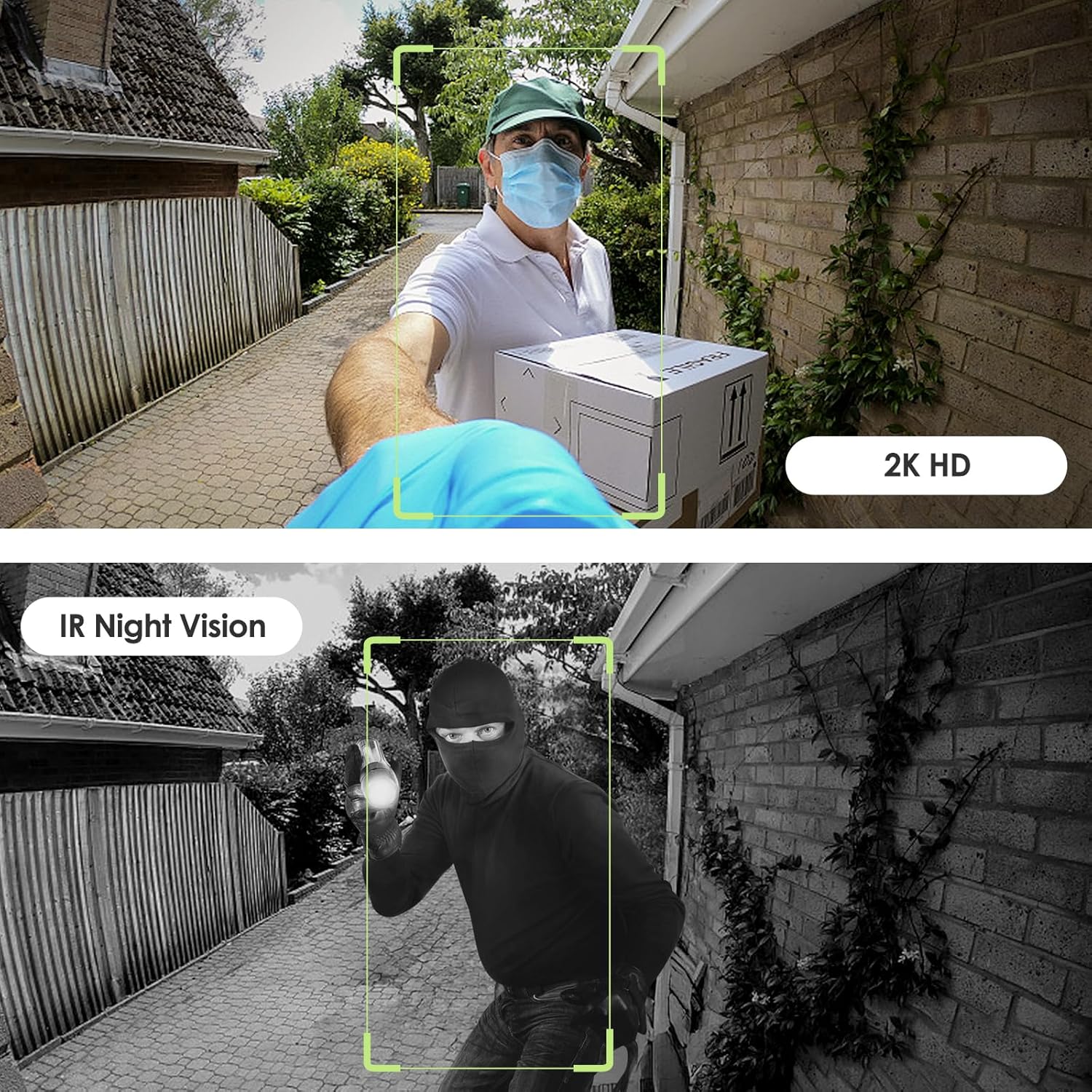
Image: Day and night vision capabilities of the MUBVIEW Bell J7 doorbell.
5.4 Panyimpenan Pidéo
- Kartu SD Mikro: Insert a micro SD card (up to 128GB, not included) into the designated slot for local storage of recorded footage.
- Panyimpenan awan: Enjoy 7-day free cloud loop storage. Optional premium cloud storage plans are available for extended storage and features.

Image: Multiple storage options: local Micro SD card and cloud service.
6. Fitur
- 2K Full HD Resolution: Provides clear and detailed video.
- Lensa Sudut Lebar 145°: Offers a broad view tina doorstep Anjeun.
- Batré-Powered: Ensures easy, wire-free installation.
- Konektipitas Wi-Fi 2.4GHz: Stable and reliable wireless connection.
- IP65 Tahan Cuaca: Built to withstand various outdoor conditions (rain, heat, hail, sun, dust).
- Alarm anti maling: Siren sounds if the doorbell is tampdibarengan ku.
- Parobah sora: Enhances privacy during two-way audio.
- Pre-Recorded Voice Messages: Respond quickly with custom messages.
- Babagi kulawarga: Supports up to 15 online users and 20 user accounts.
- Kasaluyuan: Gawéna sareng Alexa sareng Asisten Google.

Gambar: Leuwihview of MUBVIEW Bell J7 features.
7. Pangropéa
7.1 Ngeusi batre
The doorbell is powered by rechargeable batteries. Monitor the battery level through the app and recharge as needed. The battery life can extend up to 180 days on a single charge, depending on activity and settings.
7.2 beberesih
Wipe the camera lens and the doorbell's exterior with a soft, damp cloth to remove dust and debris. Avoid using harsh chemicals or abrasive materials that could damage the device.
7.3 Résistansi Cuaca
MUB tehVIEW Bell J7 is IP65 weather-resistant, designed to endure various outdoor conditions. However, extreme weather conditions may still impact performance or battery life.

Image: IP65 Weather Resistance of the MUBVIEW Bell J7 doorbell.
8. Cara ngungkulan
| Masalah | Solusi anu mungkin |
|---|---|
| Bel panto teu nyambung ka Wi-Fi | Ensure your Wi-Fi is 2.4GHz. Move the doorbell closer to your router during setup. Reset the doorbell and try again. |
| Frequent false motion alarms | Adjust the motion detection sensitivity in the app. Set custom motion zones to exclude busy areas or moving foliage. |
| Kualitas pidéo goréng | Pariksa kakuatan sinyal Wi-Fi anjeun dina aplikasi. Pastikeun lensa kaméra beresih jeung bebas tina halangan. |
| hirup batré pondok | Reduce motion detection sensitivity or frequency of live view access. Ensure the doorbell is fully charged. |
| Anti-theft alarm not working | Ensure the anti-theft feature is enabled in the app settings. Check if the doorbell is properly seated in its mounting bracket, activating the tamptombol er. |
9. Spésifikasi
- Ngaran modél: Bel J7
- Resolusi Capture Video: 2K
- Téknologi konektipitas: Nirkabel (Wi-Fi 2.4GHz)
- Sumber Daya: Battery Powered (3 A batteries included)
- Pamakéan Indoor/Outdoor: Luar
- Tingkat tahan cai: IP65 Waterproof
- Fitur husus: 2-Way Audio, Built-In Light, HD Resolution, Image Sensor, Motion Sensor, Voice Changer, Anti-Theft Alarm
- Alat anu cocog: Smartphone (via CloudEdge/MUBVIEW aplikasi)
- Ukuran produk: 1.37 x 5.27 x 2.2 inci
- Beurat barang: 15.4 ons
10. Garansi jeung Rojongan
MUBVIEW is committed to providing quality products and customer satisfaction. For any inquiries or support needs, please refer to the following:
- Palayanan palanggan: Available via Call Service (9AM-5PM EST) and Online Email.
- Wangsul: 30-day Amazon return policy applies.
- Rencana panyalindungan: Rencana panyalindungan 2 Taun sareng 3 Taun opsional sayogi kanggo dipésér.
For detailed contact information, please visit the official MUBVIEW website or refer to the contact details provided in the product packaging.

Image: MUBVIEW Customer Service details.
Ask a question about this manual
Ask about setup, troubleshooting, compatibility, parts, safety, or missing instructions. Manuals+ will review the question and use this page’s manual context to help answer it.