
Produk Leuwihview
The Trueque 2.4GHz Ergonomic Wireless Mouse is designed for comfort and efficiency, offering a stable wireless connection and adjustable sensitivity. Its contoured shape and silent click buttons enhance user experience for extended periods of work or leisure.
Guide Setup
1. Pamasangan batré
Locate the battery compartment on the underside of the mouse. Gently slide open the cover. Insert one AA battery, ensuring correct polarity (+/-). Close the battery cover securely.

Image: Underside of the mouse showing battery compartment and USB receiver storage.
2. Nyambungkeun Panarima USB
The USB receiver is stored within the battery compartment of the mouse. Remove the receiver and plug it into an available USB-A port on your computer. For devices with only USB-C ports, use the included USB-A to USB-C adapter. The mouse will automatically connect, requiring no additional drivers.

Image: USB receiver and Type-C adapter for seamless connection.
Ngoperasikeun Mouse Anjeun
Fungsi Dasar
The mouse features standard left and right-click buttons, along with a scroll wheel for navigation. The silent click design ensures a quiet working environment.

Image: Silent click feature of the Trueque Wireless Mouse.
Nyaluyukeun Sensitivitas DPI
The mouse offers three adjustable DPI levels (800, 1200, 1600) to customize tracking speed and precision. Press the DPI button, located below the scroll wheel, to cycle through the settings. Each press changes the sensitivity, allowing you to find your preferred speed for different tasks.

Image: Three adjustable DPI levels for customized tracking speed.
Using Side Buttons
The mouse is equipped with two side buttons for enhanced productivity: a 'Forward' button and a 'Back' button. These buttons allow for quick navigation in web panyungsi sareng aplikasi anu sanésna. Catetan: Side buttons may not be functional on Mac OS.
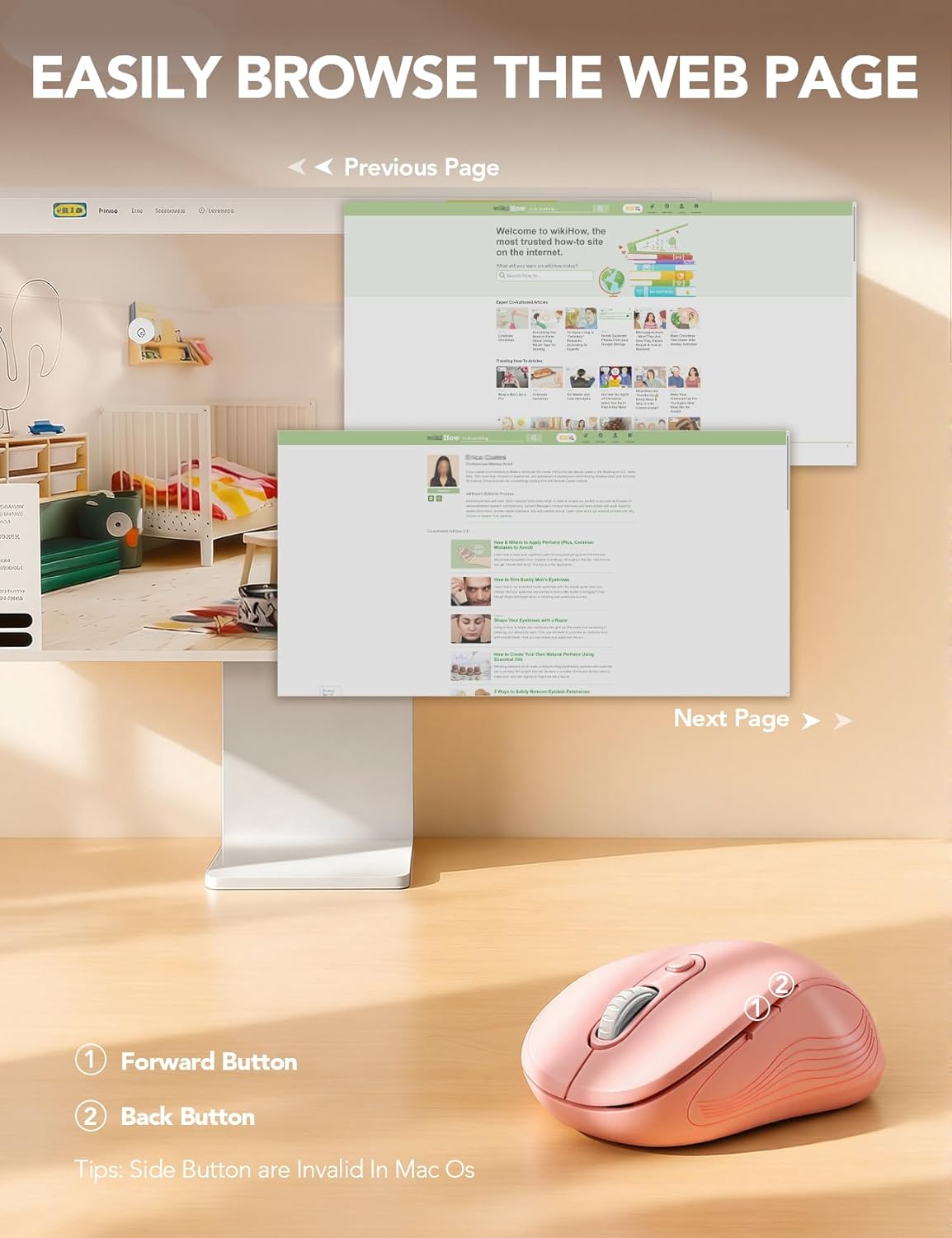
Image: Forward and Back buttons for easy web navigasi kaca.
Smart Power-Saving Features
To conserve battery life, the Trueque Wireless Mouse features an automatic sleep mode. After 1 minute of inactivity, the mouse enters a power-saving mode. After 8 minutes of inactivity, it enters a deeper sleep mode. To wake the mouse, simply double-click any button.
Image: Smart power-saving details and components.
Kasaluyuan Sistim
The Trueque Wireless Mouse is universally compatible with a wide range of operating systems, including Windows, Mac OS, Linux, and Chrome OS. It works seamlessly with laptops, desktops, and other compatible devices.
Image: Operating system compatibility icons.
Spésifikasi teknis
| Fitur | Rincian |
|---|---|
| Dimensi produk | 4.1 x 2.4 x 0.1 inci |
| Item Beurat | 0.63 ons |
| Téhnologi konektipitas | Nirkabel 2.4GHz (Panyambut USB) |
| Téhnologi Deteksi Gerakan | Optik |
| Tingkat DPI | 800 / 1200 / 1600 |
| Kancing | 6 (Left, Right, Scroll Wheel, DPI, Forward, Back) |
| Jenis Batré | 1 Batré AA (teu kalebet) |
| Fitur husus | Portable, Ergonomic Design, Silent Click |
Perawatan sareng Pangropéa
To ensure the longevity and optimal performance of your Trueque Wireless Mouse, follow these care guidelines:
- beberesih: Use a soft, dry cloth to wipe the exterior of the mouse. Avoid using harsh chemicals or abrasive cleaners.
- Panyimpenan: When not in use for extended periods, store the mouse in a cool, dry place. Consider removing the AA battery if storing for several months to prevent potential leakage.
- Penanganan: Avoid dropping the mouse or exposing it to extreme temperatures or moisture.
Pamérésan masalah
If you encounter any issues with your Trueque Wireless Mouse, please refer to the following common solutions:
- Mouse teu ngabales:
- Ensure the mouse is switched ON using the power switch on the underside.
- Check if the AA battery is correctly installed and has sufficient charge. Replace if necessary.
- Verify that the USB receiver is securely plugged into a working USB port on your computer. Try a different USB port if available.
- If using a USB-C adapter, ensure it is functioning correctly.
- Mouse cursor erratic or not moving smoothly:
- Bersihkeun sénsor optik di handapeun beurit nganggo lawon anu lemes sareng garing.
- Pastikeun anjeun ngagunakeun beurit dina permukaan anu cocog. Permukaan anu réfléktif atanapi transparan tiasa mangaruhan nyukcruk.
- Adjust the DPI setting using the DPI button to see if a different sensitivity improves performance.
- Scroll wheel issues (e.g., scrolling in wrong direction):
- This can sometimes be a software-related issue. Ensure your operating system and any mouse-related drivers are up to date.
- Coba balikan deui komputer anjeun.
- Connectivity issues after sleep mode:
- Double-click any mouse button to wake it from sleep mode.
- If the mouse does not wake, try turning the mouse OFF and then ON again using the power switch.
- If issues persist, unplug and re-plug the USB receiver.
Garansi sarta Rojongan Palanggan
Trueque provides a 12-garansi sasih for this product, covering manufacturing defects from the date of purchase. We are committed to providing excellent customer service.
- Balasan 24 Jam: Our support team aims to respond to all inquiries within 24 hours.
- Panggantian 90 Dinten: Eligible for replacement within 90 days of purchase for covered issues.
- 360-Day Manufacturer Warranty: Comprehensive coverage for manufacturing defects for one year.
- Dedicated Brand Care: We value your experience and are here to assist with any questions or concerns.
Pikeun bantosan, mangga ngahubungan kami:
- Telepon (AS): 1-866-608-6766
- Jam: Monday-Friday, 9 AM-1 PM PST and 2 PM-6 PM PST

Image: Trueque Customer Support Information.