
1. Bubuka
This manual provides detailed instructions for the setup, operation, and maintenance of your POLONO PM220S Label Maker Machine. Please read this manual thoroughly before using the device to ensure proper function and longevity.
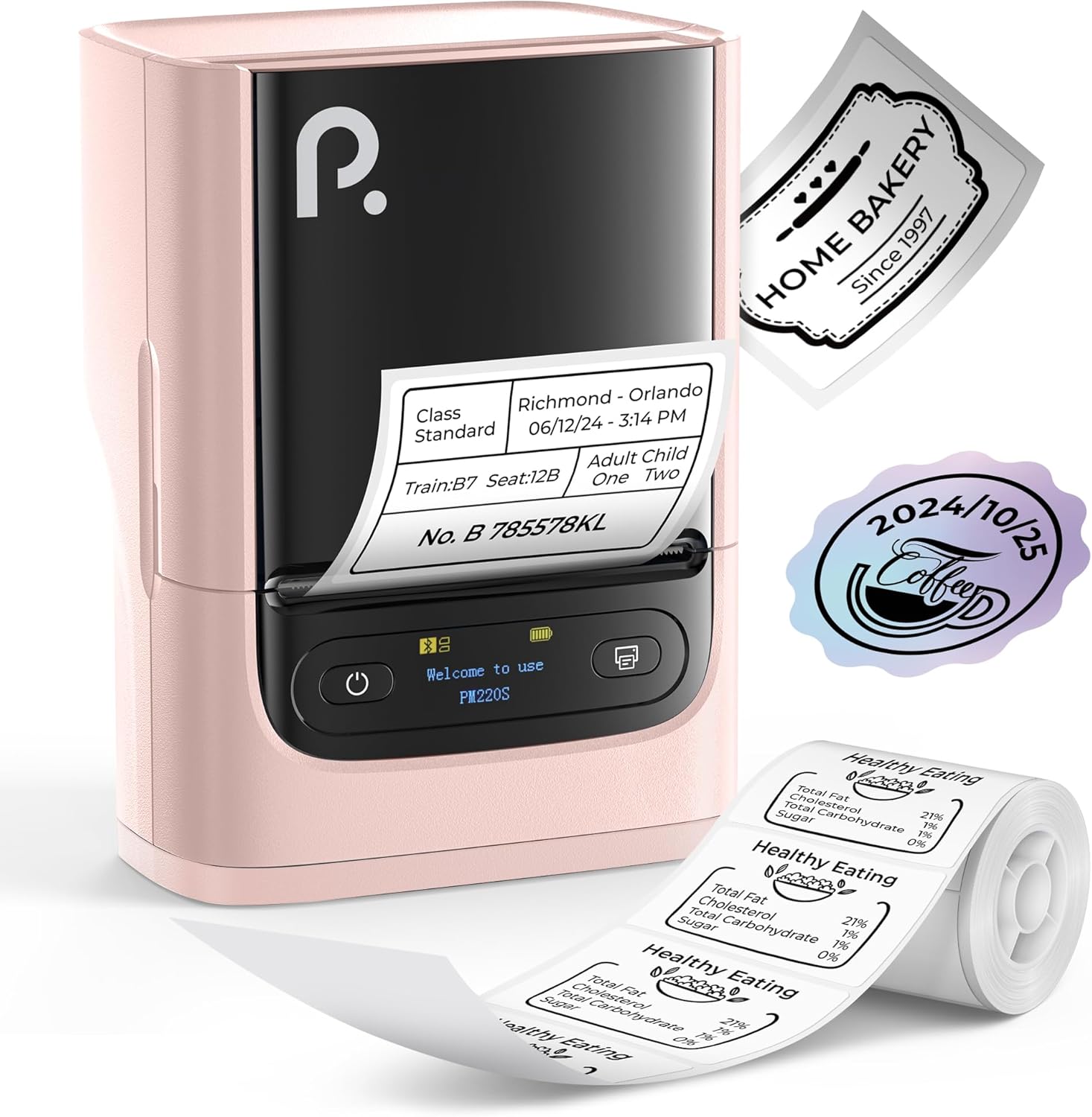
Figure 1: POLONO PM220S Label Maker Machine with sample labél.
2. Produk Langkungview
2.1 Komponén Kaasup
- POLONO PM220S Label Maker Machine
- Label Tape (50x30mm, pre-installed or included)
- Kabel Ngecas USB
- Manual pangguna (dokumén ieu)
2.2 Fitur konci
- Konektipitas Bluetooth: Seamless connection with iOS, Android, and PC devices.
- Intuitive LED Screen: Displays battery level, Bluetooth connection status, and alerts for paper shortages or timed shutdowns.
- Feature-Rich "Labelnize" App: Offers label templates, supports QR codes, barcodes, tables, text, icons, 90+ fonts, 14+ languages, and 450+ material presets.
- Premium Thermal Printing: BPA-Free Direct Thermal Technology with 203 DPI for high-definition, inkless printing.
- Kasaluyuan Wide Label: Supports label widths from 23-54mm (0.91"-2.12").
- Desain portabel: Compact and lightweight for easy transport and use in various environments.
3. Parentah Setup
3.1 Ngecas Alat
Before first use, fully charge the label maker using the provided USB cable. The LED screen will indicate charging status.
3.2 App Installation and Driver Download
For mobile devices (iOS/Android), download the "Labelnize" app from your respective app store. For PC users, visit polono.com to download the necessary driver and application.

Figure 2: Universal compatibility with smartphones and laptops for app and driver installation.
3.3 Nyambungkeun via Bluetooth
- Ensure the PM220S is powered on.
- On your mobile device, open the "Labelnize" app.
- Within the app, search for and connect to the PM220S via Bluetooth. Do not connect directly via your device's Bluetooth settings for mobile devices.
- For PC, ensure the driver is installed, then connect through the downloaded application.
3.4 Loading Label Tape
- Buka panutup kompartemen labél.
- Insert the label roll with the printing surface facing upwards.
- Adjust the paper slot guides to secure the tape according to its width (23-54mm) for precise alignment.
- Tutup panutup.

Figure 3: Proper loading of label tape into the PM220S.
4. Parentah Operasi
4.1 Using the "Labelnize" App
- Open the "Labelnize" app on your connected device.
- Select from various pre-designed templates or create your own custom labels.
- The app allows you to add text, barcodes, QR codes, tables, icons, and more.
- Customize labels using a selection of over 90 fonts and 14 languages.
- Utilize the 450+ material presets for different label applications.
- penting: For optimal results, use specialized POLONO labels. Avoid tearing the green back sticker to prevent printing issues.
4.2 Understanding the LED Screen Display
The integrated LED screen provides real-time feedback on the printer's status:
- Tingkat batré: Indicates the current charge of the device.
- Sambungan Bluetooth: Shows if the device is successfully connected via Bluetooth.
- Paper Shortage Waspada: Notifies when the label roll is low or empty.
- Pareum waktos: Displays countdown for automatic power-off to conserve battery.

Figure 4: LED screen display functions for real-time status monitoring.
4.3 Printing a Label
- Design your label within the "Labelnize" app.
- Review the label preview to ensure accuracy.
- Tap the "Print" button in the app.
- The label maker will print the label using thermal technology.
- Carefully tear off the printed label.
5. Pangropéa
5.1 Perawatan Umum
- Jaga alat tetep beresih sareng bebas tina lebu sareng lebu.
- Hindarkeun ngalaan alat ka suhu anu ekstrim atanapi sinar panonpoé langsung.
- Simpen alat dina tempat anu garing nalika henteu dianggo.
5.2 Ngabersihan Print Head
If print quality degrades, the thermal print head may need cleaning:
- Turn off the label maker and disconnect it from any power source.
- Buka kompartemen labél.
- Gently wipe the thermal print head with a cotton swab lightly dampDipasang dengan isopropil alkohol.
- Ngidinan sirah citak nepi ka garing sagemblengna samemeh nutup panutup sarta neruskeun pamakéan.
6. Cara ngungkulan
| Masalah | Mungkin Cukang lantaranana | Solusi |
|---|---|---|
| Alat teu hurung | Masalah batré atanapi kakuatan lemah. | Charge the device fully. Ensure the power button is pressed correctly. |
| Teu bisa nyambung via Bluetooth | Incorrect connection method or app issue. | Ensure you are connecting through the "Labelnize" app, not directly via phone settings. Restart both the device and the app. For PC, verify driver installation. |
| Poor print quality / Faint printing | Dirty print head, incorrect label type, or low battery. | Clean the print head (see Section 5.2). Ensure you are using thermal labels. Charge the device. |
| Labels are misaligned or jammed | Improper label loading or paper slot adjustment. | Open the cover, remove any jammed labels, and reload the tape ensuring the paper slot guides are adjusted correctly for the label width. Avoid tearing the green back sticker. |
| "Paper Shortage" alert | Label roll is empty or incorrectly loaded. | Replace the label roll or re-seat it correctly. |
7. Spésifikasi
| merek | POLONO |
| Ngaran modél | PM220S |
| Téhnologi konektipitas | Bluetooth |
| Téhnologi percetakan | Termal |
| Resolusi Print Max | 203 DPI |
| Laju Cetak Maks (Monokrom) | 45.0 mm/s |
| Ukuran Media Dirojong | 23-54mm (0.91"-2.12") width, 50x30mm included |
| Dimensi produk | 3.3 "D x 4.4" W x 2.5" H (8.4 x 11.2 x 6.4 cm) |
| Item Beurat | 13.4 ons (380g) |
| Fitur husus | Portable, Inkless Printing, LED Display |
8. Garansi jeung Rojongan
For warranty information, technical support, or to purchase accessories and replacement labels, please visit the official POLONO websitus di polono.com or contact POLONO customer service directly.
Punten tahan bukti pameseran anjeun pikeun klaim garansi.