1. Bubuka
The FileNest 4-in-1 USB Flash Drive is a versatile external memory solution designed for seamless data transfer and storage across multiple devices. This device provides expanded storage and simplifies file management for iPhone, iPad, Android devices, and personal computers. It supports high-speed data transfer, allowing for quick movement of photos, videos, music, and documents without requiring internet access or cloud services.
2. Produk Langkungview
This 4-in-1 flash drive features multiple connectors for broad compatibility and ease of use. Its compact design makes it highly portable for daily use, travel, and work.
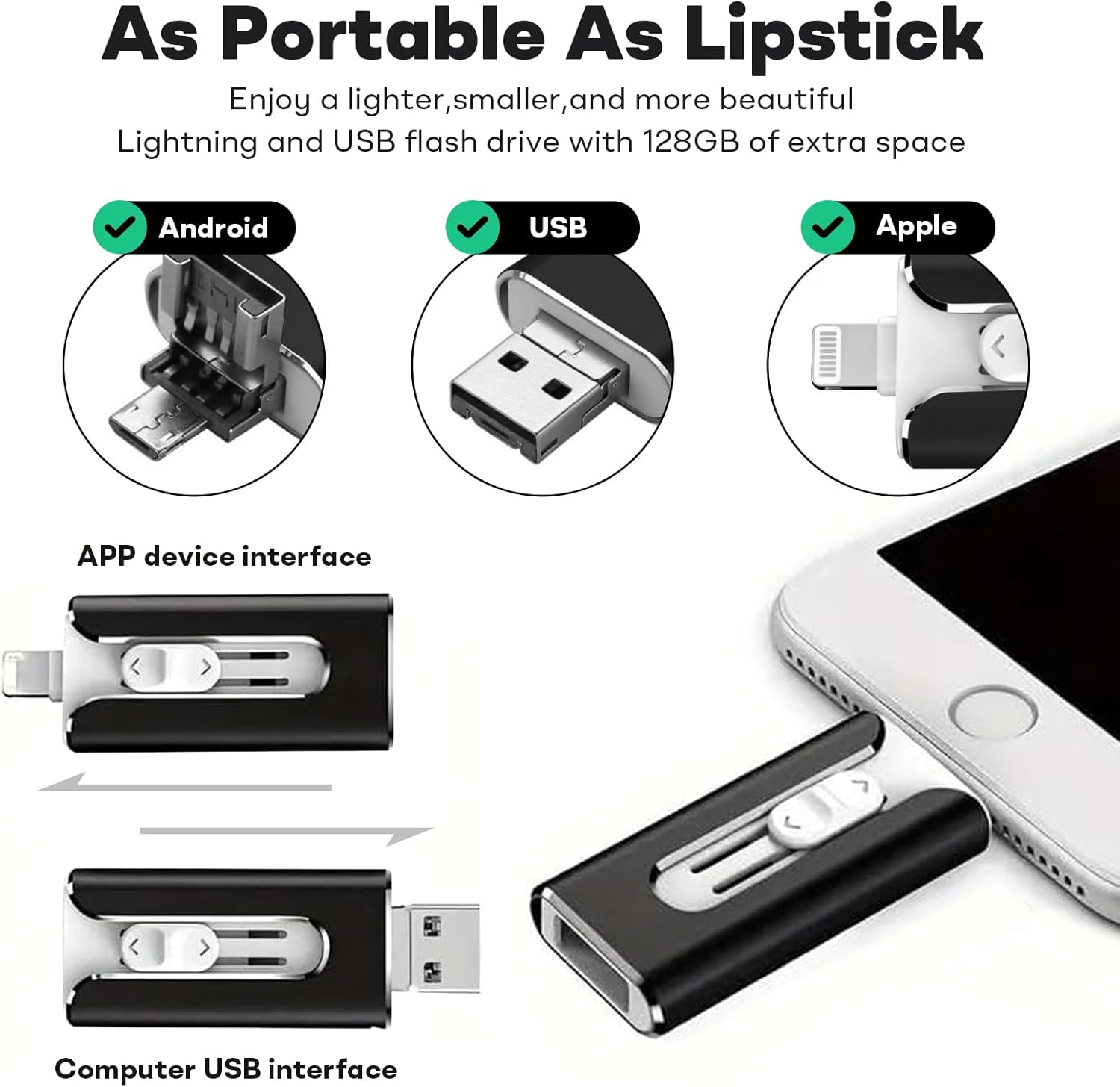
Gambar: The FileNest 4-in-1 USB Flash Drive showcasing its Android (Micro USB), standard USB-A, and Apple Lightning connectors. The image also illustrates the sliding mechanism to switch between the APP device interface and the Computer USB interface.
The device is engineered for efficient data handling, offering reliable read and write speeds to minimize transfer times.

Image: A visual representation of the flash drive's high-speed data transfer capabilities, indicating a read speed of 30 MB/s and a write speed of 20 MB/s.
3. Setélan
3.1 Connecting to Mobile Devices (iPhone, iPad, Android)
- Pikeun Alat iOS (iPhone/iPad): Insert the Lightning connector into your device's port. Upon first connection, your device may prompt you to download a compatible app, such as 'i-FlashDev HD', from the App Store. Follow the on-screen instructions to install the app. This app is necessary for managing files dina flash drive.
- Pikeun Alat Android: Insert the Micro USB or USB-C connector (depending on your device's port) into your Android device. Ensure your Android device supports USB On-The-Go (OTG) functionality. You may need to enable OTG in your device settings or use a file manager app to access the drive.
3.2 Nyambungkeun ka PC/Mac
Insert the standard USB-A connector into an available USB port on your computer. The flash drive will be recognized as a removable storage device. You can access its contents through your computer's file explorer (Windows) atanapi Finder (Mac).

Image: The physical dimensions of the FileNest USB Flash Drive (2.17in length, 1.06in width, 0.39in thickness) and icons representing its features, including an app icon likely for 'i-FlashDev HD'.
4. Parentah Operasi
4.1 File Transfer and Backup
- From Mobile Device to Flash Drive: Open the dedicated app (e.g., 'i-FlashDev HD' for iOS) or your file manager (Android). Select the files (photos, videos, documents) you wish to transfer. Use the 'Copy' or 'Move' function within the app/file manager and select the flash drive as the destination.
- From Flash Drive to Mobile Device: Navigate to the flash drive within the app/file manager. Select the desired files and use the 'Copy' or 'Move' function to transfer them to your device's internal storage or a specific folder.
- Between Flash Drive and PC/Mac: Séred jeung leupaskeun files between your computer's folders and the flash drive's folder. For large files, ensure the transfer is complete before disconnecting.
4.2 One-Click Backup
Many compatible apps for iOS devices offer a 'One-Click Backup' feature. This allows you to quickly back up your device's camera roll (photos and videos) directly to the flash drive with a single tap within the app interface.
4.3 Ngabagi Files
The flash drive facilitates easy sharing of media. Once files are on the drive, you can access them from your connected device and use the sharing options within the app or file manager to share directly to social media platforms or other applications.
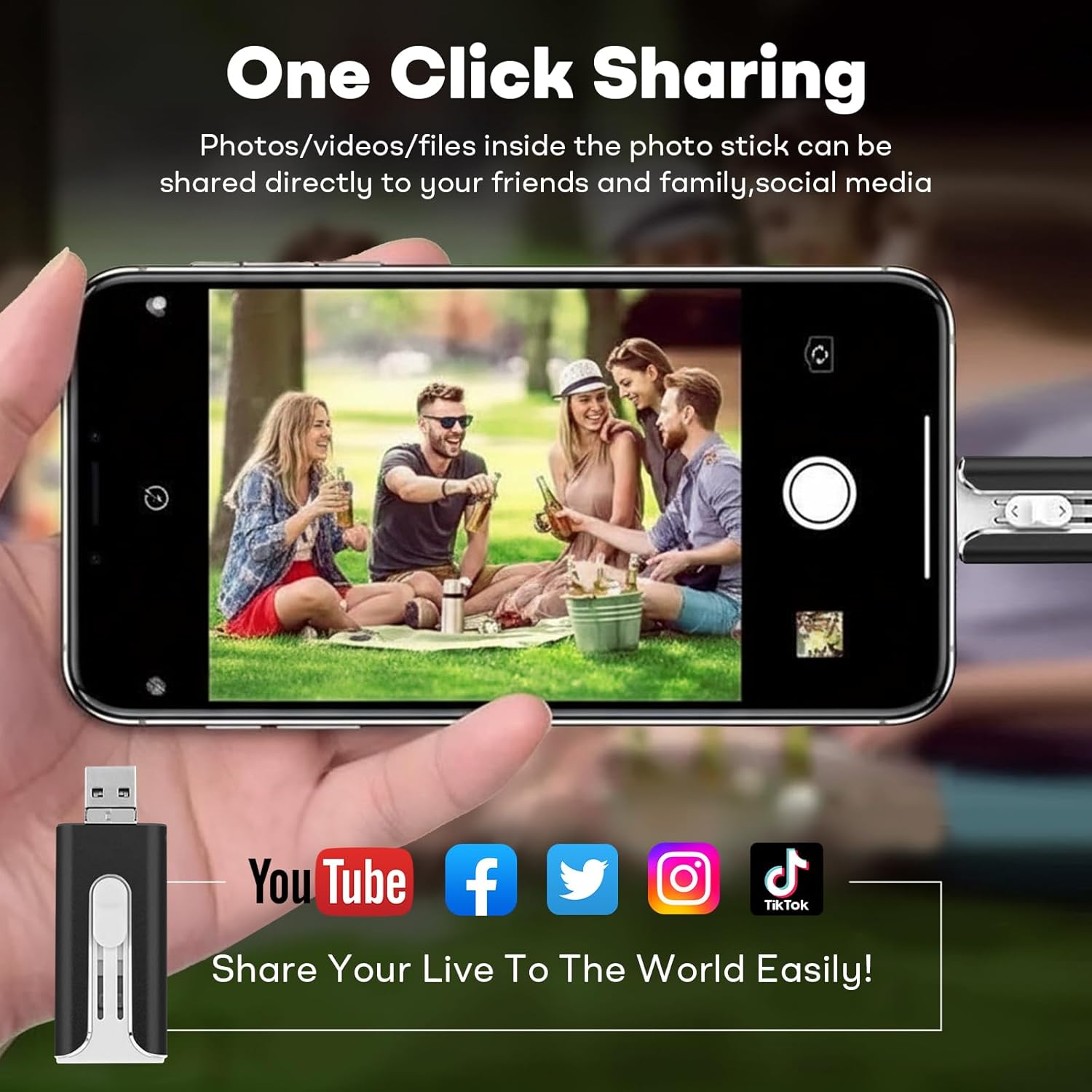
Image: A smartphone screen displaying a photo, with the FileNest flash drive connected. Below, icons for YouTube, Facebook, Twitter, Instagram, and TikTok illustrate the 'One Click Sharing' capability for media files.
4.4 Kapasitas gudang
The 64GB capacity of this FileNest USB Flash Drive provides ample space for a significant amount of data. For example, it can store thousands of photos, videos, or songs.
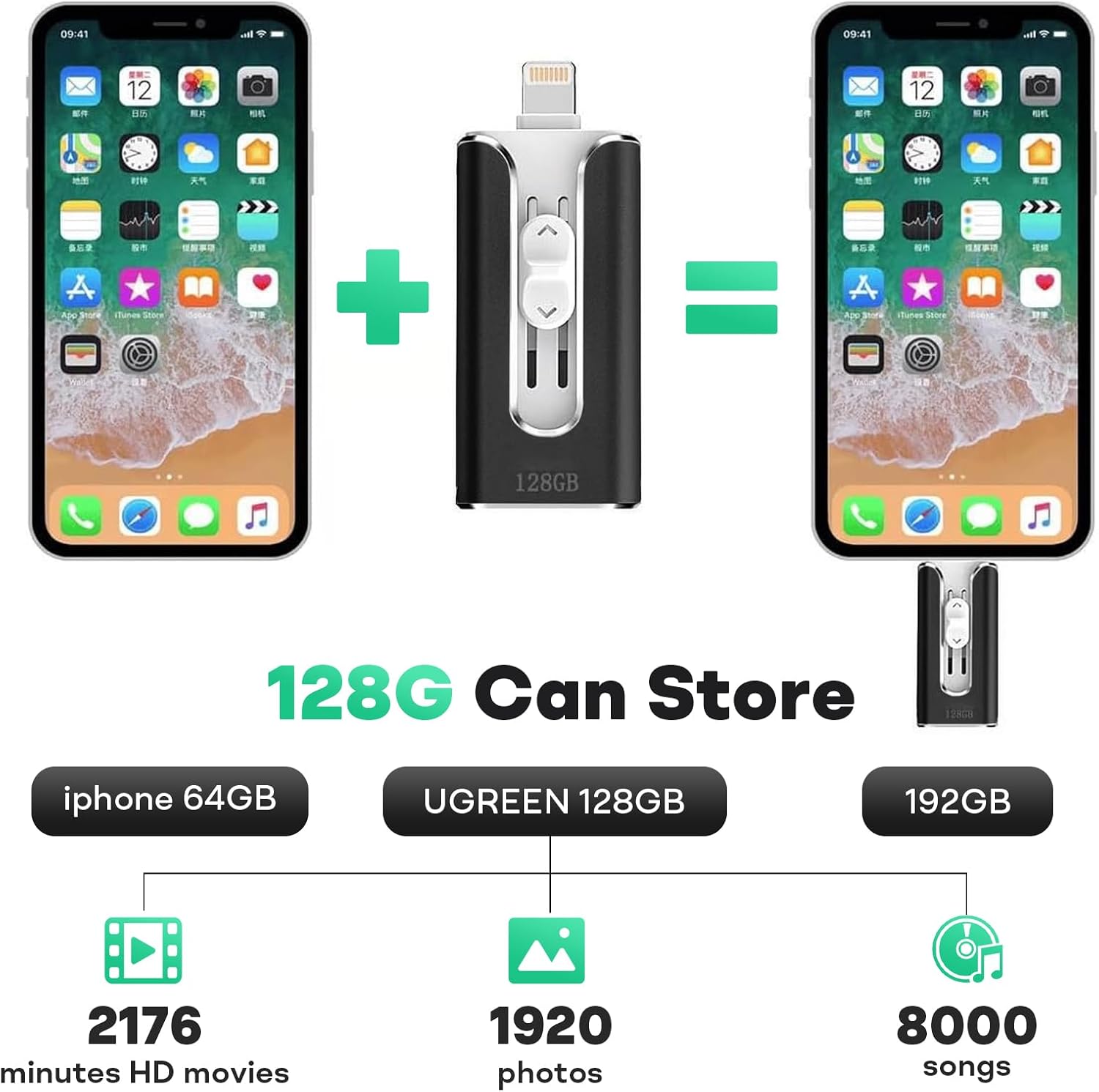
Image: A visual comparison of storage capacity. While the product is 64GB, this image illustrates the potential storage of a 128GB drive, showing it can hold approximately 2176 minutes of HD movies, 1920 photos, or 8000 songs. The 64GB model will store roughly half of these quantities.
5. Pangropéa
- Ngahapus Aman: Always safely eject the flash drive from your computer or mobile device before physically removing it to prevent data corruption.
- Perawatan fisik: Keep the flash drive dry and away from extreme temperatures, direct sunlight, and strong magnetic fields. Avoid dropping the device or subjecting it to strong impacts.
- beberesih: If necessary, gently wipe the exterior with a soft, dry cloth. Do not use liquid cleaners or solvents.
- Perlindungan Panyambung: Use the sliding mechanism to protect the connectors when not in use.
6. Cara ngungkulan
- Alat Teu Dipikawanoh:
- Ensure the flash drive is fully inserted into the port.
- Try a different USB port on your computer or a different mobile device.
- For Android, verify that USB OTG is enabled in your device settings.
- For iOS, ensure the required app (e.g., 'i-FlashDev HD') is installed and updated.
- Laju Transfer Lambat:
- Ensure you are using a USB 3.0 compatible port on your computer for optimal speeds.
- Close other applications running in the background that might be consuming system resources.
- Ulah mindahkeun loba leutik files sakaligus; ngomprésna kana arsip sakapeung tiasa ningkatkeun kecepatan.
- App Issues (iOS/Android):
- Apdet aplikasi ka versi panganyarna.
- Balikan deui alat sélulér anjeun.
- Pasang deui aplikasi upami aya masalah.
- Korupsi Data:
- Sok aman kaluarkeun drive sateuacan dicabut.
- Avoid disconnecting the drive during a transfer.
- If data appears corrupted, try formatting the drive (this will erase all data).
7. Spésifikasi
| Fitur | Rincian |
|---|---|
| Nomer modél | B0FQTHN7S5 |
| merek | Generik |
| Kapasitas Panyimpenan Mémori | 64 GB |
| Panganteur Hardware | USB 3.0 |
| Hardware Konektipitas Téhnologi | USB Type A, USB Type B (Micro USB), USB Type C, Lightning |
| Warna | Hideung |
| Item Beurat | 1.76 ons |
| Fitur husus | Enteng |
8. Émbaran jaminan
Specific warranty details for this product are typically provided at the time of purchase or can be found on the manufacturer's official website. Please retain your proof of purchase for any warranty claims. The manufacturer generally offers a limited warranty against defects in materials and workmanship under normal use.
9. Rojongan Palanggan
For technical assistance, troubleshooting beyond this manual, or warranty inquiries, please refer to the contact information provided with your product packaging or visit the official website of the brand 'Generic'.